
This page explains how to configure a connection to an Azure Data Explorer (ADX) Cluster using the IOTA ADX Driver in IOTA Vue.
A single ADX Driver instance can connect to multiple clusters in parallel.
Pre-Configuration Checklist
Driver Availability
- IOTASoft-hosted (SaaS/cloud):
The ADX Driver container is deployed by IOTA Software.
It appears under the configured Region/Site in Data Sources, ready to be configured. - Customer-hosted (on-prem/private cloud):
The ADX Driver container image is provided for manual deployment in customer environment.
- IOTASoft-hosted (SaaS/cloud):
Region and Site Configuration
Each connection is linked to a specific Region and Site.- SaaS: Region and Site are set up during deployment by IOTA.
- Customer-hosted: Region and Site must be created manually in IOTA Vue.
Setting up Region and Site
Region and Site are user-defined labels to help organize driver deployments. They also appear in logs and error messages.
| Name | Example | Description |
|---|---|---|
| Region | us-east-1 | Geographical territory, similar to availability regions |
| Site | Plant1 | Specific plant, building, or cloud environment |
Topology Concept
IOTA Vue uses a distributed mesh-like topology:
Accessing Data Sources
- Open the ☰ menu (top right corner of IOTA Vue)
- Select Data Sources
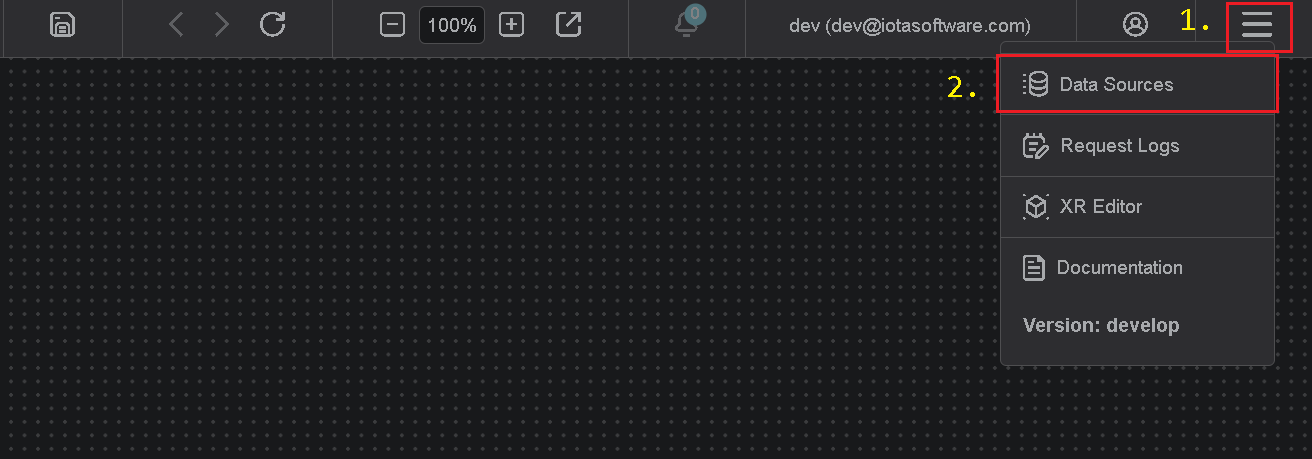
Adding a Region
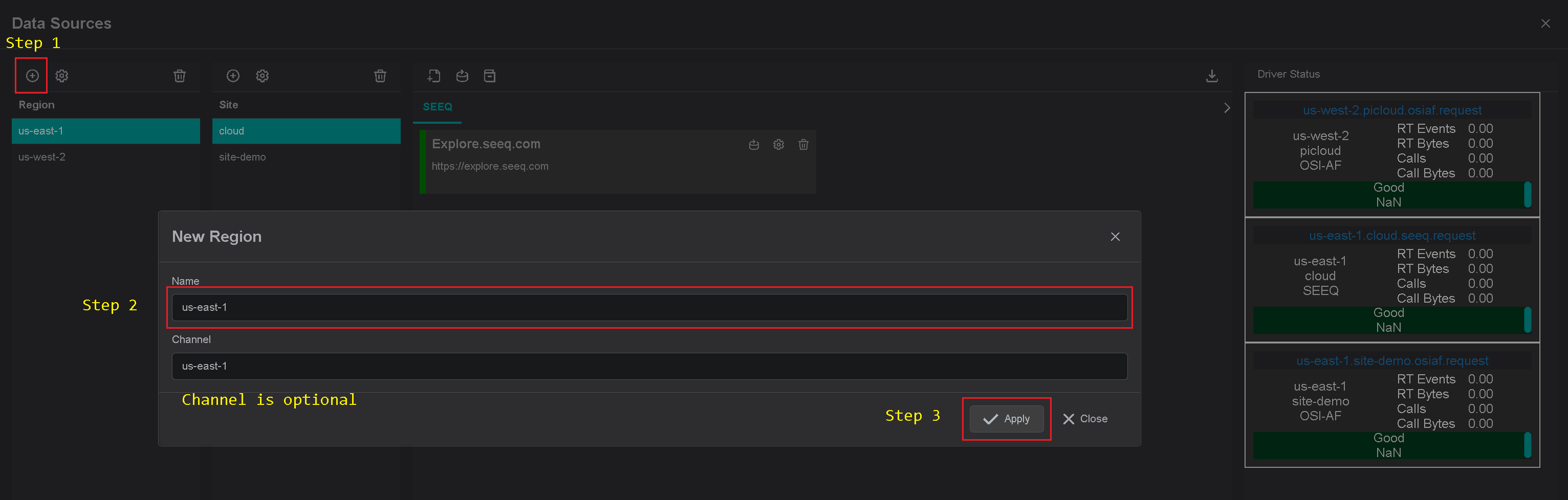
- Click the
+icon to add a new Region - Configure Region settings:
- Region Name: Enter a descriptive name (e.g.,
us-east,eu-central) - Channel Name (optional): Defaults to the Region name if left blank
- Region Name: Enter a descriptive name (e.g.,
Adding a Site
- Select the Region you created
- Click the
+icon to add a Site - Configure Site settings:
- Site Name: Enter a descriptive name (e.g.,
Plant1,Cloud) - Available Drivers: Check MS ADX
- Channel Name (optional): Defaults to the Site name if left blank
- Click Apply
- Site Name: Enter a descriptive name (e.g.,
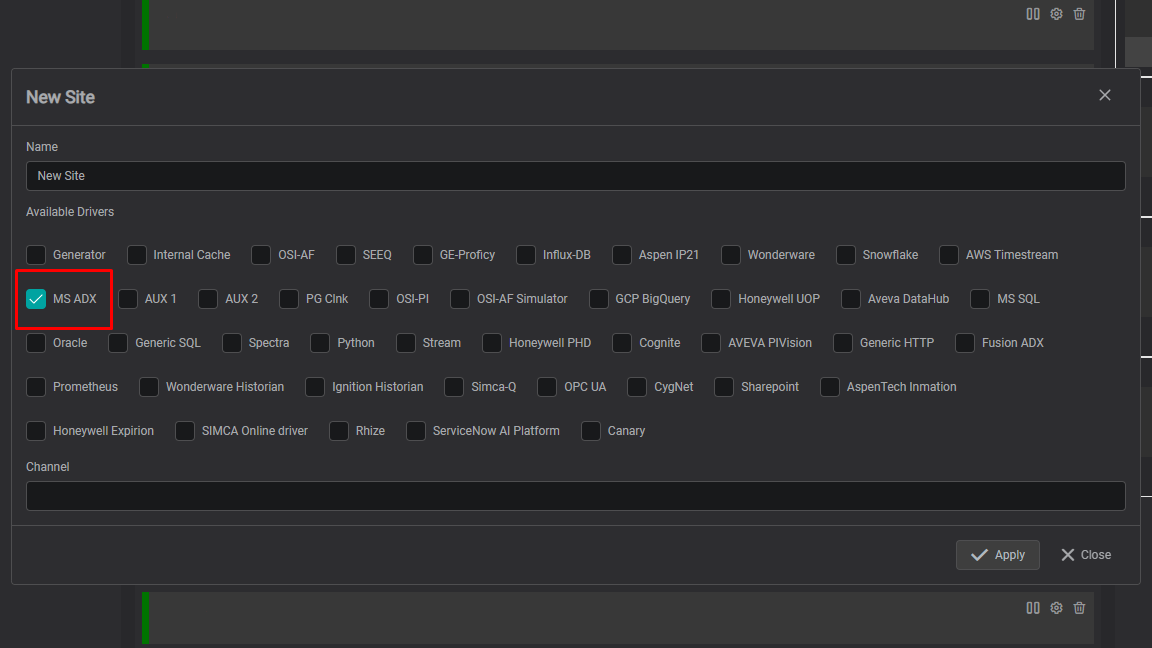
Result: Each Site creates a driver-specific tab (e.g., MS ADX) in the connection panel for configuration.
Warning
The Region Name and Site Name must match the values in the driver’s configuration file.
- ADX Cluster Access
- Collect ADX Cluster URL and Database name
- Service Principal credentials: Client ID, Tenant ID, Client Secret
- Ensure the Service Principal has sufficient permissions on the target ADX database
Creating a Connection
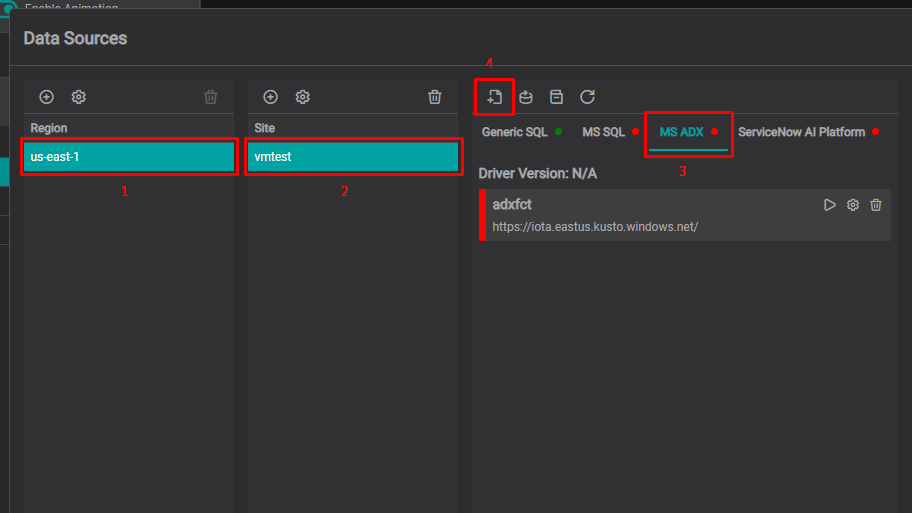
1. Access Driver Configuration
- Open Data Sources from the ☰ menu
- Select your Region and Site
- Click the MS ADX tab
- Click the Add icon
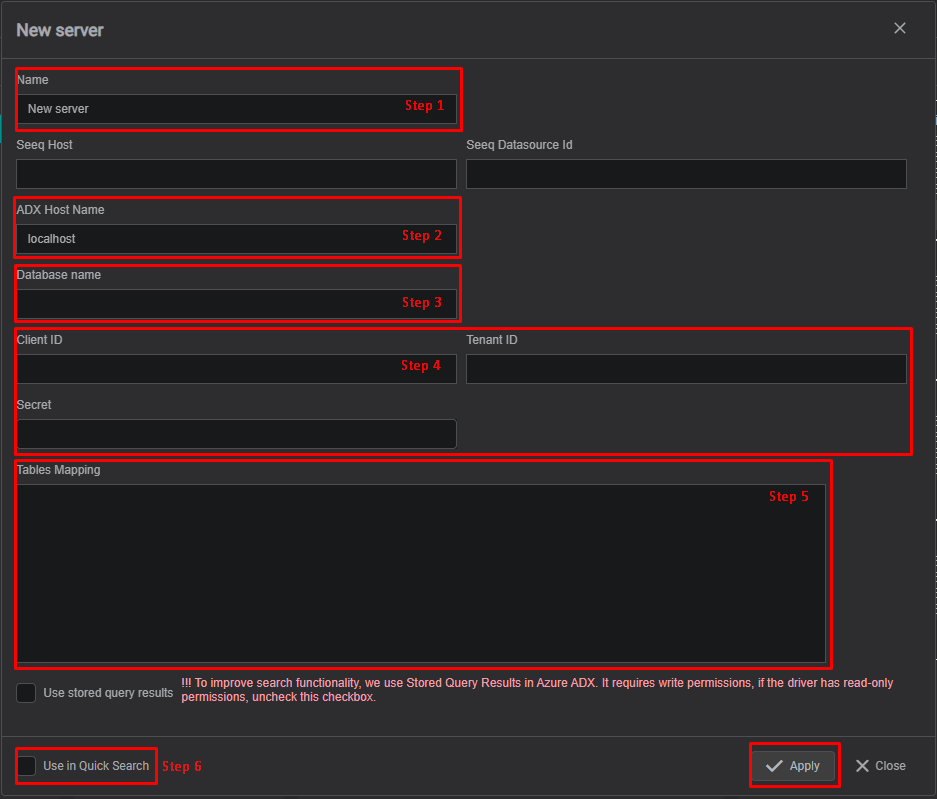
2. Configure Connection Settings
In the dialog:
- Name – Enter a descriptive connection name. It will appear in the datasources filter when searching for data.
- ADX Host Name – Specify the cluster URL
- Database Name – Enter the target database
- Credentials – Provide Client ID, Tenant ID, and Client Secret
- Tables Mapping – Configure tables mapping
- Use in Quick Search – Enable if this connection should appear in Quick Search (otherwise available only in Advanced Search)
- Click Apply to save the connection configuration.
Driver Configuration (Environment)
On startup, the ADX Driver reads configuration from environment variables.
Tips
The ADX Driver comes with a pre-configured environment. Therefore, manual configuration is not required.
| Environment Variable | Required | Default | Type | Description |
|---|---|---|---|---|
| DRIVERID | Yes | "" | string | Driver identifier (used in logs only) |
| LOG_LEVEL | Yes | ERROR | string | Verbosity: ERROR · DEBUG · INFO |
| NATS_HOST | No | null | string | NATS server URL with port |
| SEED_KEY_PATH | No | null | string | NATS NKey public key path. Private key must be in privatekey.nk. |
| RQS_TOPIC | No | null | string | NATS topic where the driver listens for requests |
| HEALTH_TOPIC | Yes | "" | string | NATS topic for sending driver health |
| HEALTH_SCHEDULING | Yes | 10000 | int | Frequency (ms) to send health data. Default: 10000 = 10s |
| LOGS_TOPIC | Yes | "" | string | NATS topic for sending driver logs |
| METRICS_TOPIC | Yes | "" | string | NATS topic for sending driver metrics |
| METRICS_SCHEDULING | Yes | 30000 | int | Frequency (ms) to send metrics. Default: 30000 = 30s |
| ENABLE_METRICS | Yes | true | bool | Enables/disables metrics reporting |
Tables mapping configuration
The ADX Driver supports multiple table structures for ingesting time-series and asset-hierarchical data.
Configuration is provided as an array of JSON objects:
[
  {
    "Id": string,
    "Name": string,
    "TimeColumn": string,
    "TimeUnit": string,
    "DataColumns": []string,
    "GroupBy": []string,
    "LastGroupAsTagName": bool,
    "ColumnId": string,
    "MetadataQuery": {
      "TableName": string,
      "Filters": string,
      "Columns": []string,
      "UniqueKeyColumnName": string,
      "TagPropertiesMap": JSON
    }
  }
]
Table Mapping Configuration: Core Fields
| Field | Type | Required | When / Why |
|---|---|---|---|
Id | string | Yes | Unique identifier for this table mapping (internal reference). |
Name | string | Yes | Database table name. |
TimeColumn | string | Yes | Column that stores the timestamp or datetime string. |
TimeUnit | string | No | Unit for TimeColumn. |
DataColumns | string[] | Yes | List of column names that contain tag values. |
GroupBy | string[] | No | Columns that define the asset hierarchy. Used for Asset-Like, Multi tagged Asset-like and Metadata-Value tables. |
LastGroupAsTagName | boolean | Yes (if GroupBy) | Set true if the last GroupBy element is the tag name column; otherwise false. |
ColumnId | string | Yes (with metadata) | Foreign key in the data table that links to the metadata unique key. |
MetadataQuery | object | Yes (with metadata) | Describes the metadata table. See table below. |
MetadataQuery: Fields
| Field | Type | Required | Description |
|---|---|---|---|
TableName | string | Yes | Name of the metadata table. |
Filters | string | No | Additional filter expression injected into the Kusto query for metadata. |
Columns | string[] | No | List of metadata column names to include in the query. |
UniqueKeyColumnName | string | Yes | Column that stores the unique key of metadata rows. |
TagPropertiesMap | object | No | Defines how metadata columns are mapped to tag properties. See table below. |
TagPropertiesMap: Fields
| Field | Required | Description |
|---|---|---|
Uom | No | Column in the metadata table containing the unit of measurement for the tag. |
Description | No | Column in the metadata table containing a human-readable description of the tag. |
Reading Data from Tabular Tables
In statistics, tabular data refers to data organized in a table format with rows and columns. Consider the following example of tabular data:
| ID | compressor_power | optimizer | relative_humidity | temperature | wet_bulb | ts |
|---|---|---|---|---|---|---|
| 0 | 0.0029228 | 0 | 62.35181596 | 79.64134287 | 70.29920291 | 2022-11-03 12:19 |
| 1 | 0.0029228 | 0 | 62.38810345 | 79.63862069 | 70.30710957 | 2022-11-03 12:20 |
| 2 | 0.0029228 | 0 | 62.4371127 | 79.63413962 | 70.31706517 | 2022-11-03 12:21 |
| 3 | 0.0029228 | 0 | 62.48612195 | 79.62965854 | 70.32702076 | 2022-11-03 12:22 |
Each column in this table represents a TAG. To configure the driver to read this data, use the following configuration:
{
  "Id": "tabular_data",
  "Name": "tabular_data",
  "TimeColumn": "ts",
  "DataColumns": [
    "compressor_power",
    "optimizer",
    "relative_humidity",
    "temperature",
    "wet_bulb"
  ],
  "GroupBy": null,
  "LastGroupAsTagName": false
}
Configuration Details:
| Config Item | Description |
|---|---|
| Id | Unique ID used internally by the driver |
| Name | Name of the database's table |
| TimeColumn | Specifies the column containing the time series |
| DataColumns | Array of columns to convert into tags |
| GroupBy | Leave empty ([]) for simple tabular data |
| LastGroupAsTagName | Set to false. The tags are taken from the data columns. |
This configuration allows the driver to effectively handle and read tabular data.
Reading Data from Asset-like tables
In some databases, data is stored in a “long” table format where each row contains the value of one tag, together with the asset hierarchy information.
Example:
| ID | ts | siteid | machineid | lineid | tag | value |
|---|---|---|---|---|---|---|
| 1 | '2022-11-03 21:27:47' | Site 1 | MachineA | Line 1 | Temperature | -47.43 |
| 2 | '2022-11-03 21:27:47' | Site 1 | MachineA | Line 1 | Pressure | 25.50 |
| 3 | '2022-11-03 21:27:47' | Site 1 | MachineA | Line 1 | Power | -14.03 |
| 4 | '2022-11-03 21:27:47' | Site 1 | MachineB | Line 1 | Temperature | 79.61 |
| 5 | '2022-11-03 21:27:47' | Site 1 | MachineB | Line 1 | Pressure | -27.63 |
| 6 | '2022-11-03 21:27:47' | Site 1 | MachineB | Line 1 | Power | 99.65 |
| 7 | '2022-11-03 21:27:47' | Site 1 | MachineC | Line 1 | Temperature | 32.08 |
| 8 | '2022-11-03 21:27:47' | Site 1 | MachineC | Line 1 | Pressure | 79.92 |
| 9 | '2022-11-03 21:27:47' | Site 1 | MachineC | Line 1 | Power | 162.36 |
| 10 | '2022-11-03 21:27:47' | Site 2 | MachineA | Line 1 | Temperature | 91.21 |
| 11 | '2022-11-03 21:28:47' | Site 2 | MachineB | Power | 38.12 | |
| 12 | '2022-11-03 21:41:47' | Site 1 | MachineB | Pressure | -27.70 |
This table structure can be represented as an asset tree:
- Site1
- Line 1
- MachineA
- Temperature
- Pressure
- Power
- MachineB
- Temperature
- Pressure
- Power
- MachineC
- Temperature
- Pressure
- Power
- MachineA
- Line 1
- Site2
- Line 1
- MachineA
- Temperature
- MachineB
- Power
- MachineA
- Line 1
Use the following configuration for this type of table:
{
  "ID": "asset_tree_data",
  "Name": "asset_tree_data",
  "TimeColumn": "ts",
  "DataColumns": ["value"],
  "GroupBy": ["siteid", "lineid", "machineid", "tag"],
  "LastGroupAsTagName": true
}
Configuration Details:
| Config Item | Description |
|---|---|
| Id | Unique ID used internally by the driver |
| Name | Name of the database's table |
| TimeColumn | Specifies the column containing the time series |
| DataColumns | Array of columns to convert into tags |
| GroupBy | An array that defines the hierarchy for creating the asset tree structure |
| LastGroupAsTagName | Set to true, so the value column is used as the value of the last tag in the hierarchy. |
Reading Data from Multi tagged Asset-like tables
In some databases, each record contains both the asset hierarchy and multiple tag values in separate columns. In this case, the column names themselves act as tag names.
Example:
| ts | siteid | machineid | lineid | Temperature | Pressure |
|---|---|---|---|---|---|
| '2022-11-03 21:27:47' | Site 1 | MachineA | Line 1 | 25.50 | -47.43 |
| '2022-11-03 21:27:47' | Site 1 | MachineB | Line 1 | 34.0 | 79.61 |
| '2022-11-03 21:27:47' | Site 2 | MachineA | Line 1 | 45.76 | 91.21 |
This table structure can be represented as an asset tree:
- Site1
- Line 1
- MachineA
- Temperature
- Pressure
- MachineB
- Temperature
- Pressure
- MachineC
- Temperature
- Pressure
- MachineA
- Line 1
- Site2
- Line 1
- MachineA
- Temperature
- Pressure
- MachineA
- Line 1
Use the following configuration for this type of table:
{
  "ID": "hybrid_asset_tree",
  "Name": "hybrid_asset_tree",
  "TimeColumn": "ts",
  "DataColumns": ["Temperature", "Pressure"],
  "GroupBy": ["siteid", "lineid", "machineid"],
  "LastGroupAsTagName": false
}
Configuration Details:
| Config Item | Description |
|---|---|
| Id | Unique ID used internally by the driver |
| Name | Name of the database's table |
| TimeColumn | Specifies the column containing the time series |
| DataColumns | Array of columns to convert into tags |
| GroupBy | An array that defines the hierarchy for creating the asset tree structure |
| LastGroupAsTagName | Set to false, because the tag names come directly from the DataColumns. |
Reading data from Metadata and Value Data
Sometimes data is stored in a dimension table and a fact table. This is a popular model choice because it allows flexibility in the metadata (the dimension table) while allowing the value table (the fact table) to grow.
Metadata (Dimension Table)
| siteId | lineId | machineId | tag | tagId | unit | interpolation | valuetype |
|---|---|---|---|---|---|---|---|
| Site 1 | MachineA | Line 1 | Temperature | Site 1.Line 1.MachineA.Temperature123 | s | linear | numeric |
| Site 1 | MachineA | Line 1 | Pressure | Site 1.Line 1.MachineA.Pressure123 | megadonut/coffee | linear | numeric |
| Site 1 | MachineA | Line 1 | Power | Site 1.Line 1.MachineA.Power123 | ft/s | linear | numeric |
| Site 1 | MachineA | Line 1 | State_s | Site 1.Line 1.MachineA.State_s123 | step | linear | string |
| Site 1 | MachineA | Line 2 | Temperature | Site 1.Line 2.MachineA.Temperature123 | degC | linear | numeric |
Data (Fact Table)
| TS | tagId | valuetype | Value_S | Value_D |
|---|---|---|---|---|
| 2022-11-04T20:17:49 | Site 1.Line 1.MachineA.Temperature123 | numeric | 36.76654 | |
| 2022-11-04T20:17:49 | Site 1.Line 1.MachineA.Pressure123 | numeric | -214.179 | |
| 2022-11-04T20:17:49 | Site 1.Line 1.MachineA.Power123 | numeric | -33.6876 | |
| 2022-11-04T20:17:49 | Site 1.Line 1.MachineA.State_s123 | string | strval | |
| 2022-11-04T20:17:49 | Site 1.Line 2.MachineA.Temperature123 | numeric | 41.31567 | |
| 2022-11-04T20:17:49 | Site 1.Line 2.MachineA.Pressure123 | numeric | -87.6572 | |
| 2022-11-04T20:17:49 | Site 1.Line 2.MachineA.Power123 | numeric | 14.04372 | |
| 2022-11-04T20:17:49 | Site 1.Line 2.MachineA.State_s123 | string | strval |
Use the following configuration for this type of table:
{
  "Id": "DataAndMetadata",
  "Name": "Data",
  "TimeColumn": "TS",
  "DataColumns": [
    "Value_D",
    "Value_S"
  ],
  "GroupBy": [
      "siteId",
      "lineId",
      "machineId",
      "tag"
  ],
  "LastGroupAsTagName": true,
  "ColumnId": "tagId",
  "MetadataQuery": {
    "TableName": "Metadata",
    "UniqueKeyColumnName": "tagId"
  }
}
Configuration Details: Fact Table
| Config Item | Description |
|---|---|
| Id | Unique ID used internally by the driver |
| Name | Name of the fact (data) table |
| TimeColumn | Column containing the timestamp |
| DataColumns | Columns holding the values (e.g., Value_D, Value_S) |
| GroupBy | Columns that define the hierarchy (e.g., siteId → lineId → machineId) |
| LastGroupAsTagName | Set to true, so the value columns are associated with the tag defined in the metadata table. |
| ColumnId | Column in the fact table that links to the metadata table (tagId) |
Configuration Details: Metadata Table
| Config Item | Description |
|---|---|
| TableName | Name of the metadata (dimension) table |
| UniqueKeyColumnName | Primary key column in the metadata table that links back to the fact table (tagId) |
Tips
Additional table data schemas can be supported on request.
Configuration example
The following example configures the driver to read from both a tabular table (tabular_data) and an asset-tree table (asset_tree_data):
[
  {
    "Id": "tabular_data",
    "Name": "tabular_data",
    "TimeColumn": "ts",
    "TimeUnit": "",
    "DataColumns": [
      "compressor_power",
      "optimizer",
      "relative_humidity",
      "temperature",
      "wet_bulb"
    ],
    "GroupBy": null,
    "LastGroupAsTagName": false
  },
  {
    "Id": "asset_tree_data",
    "Name": "asset_tree_data",
    "TimeColumn": "ts",
    "DataColumns": [
      "value"
    ],
    "GroupBy": [
      "siteid",
      "machineid",
      "lineid",
      "tag"
    ],
    "LastGroupAsTagName": true
  }
]