
In order for IOTA Vue to access data on Cognite Data Fusion - the IOTA Cognite Driver must be configured and deployed on a network which has access to the Cognite API. The IOTA Vue uses distributed "mesh-like" data source topology:
Users are free to define what Region and Site mean for their unique deployment.
| Name | Example | Description |
|---|---|---|
| Region | us-east-1 | geographical territory, similar to availability regions |
| Site | siteB | specific plant or a building |
To simplify the installation process, the IOTA Software provides a container image with the latest driver version. The user is only required to select/create a region and site. Then for the selected driver type, click add a new server. The container contains all necessary Cognite Driver configurations with public and private keys for secure communication with the company's IOTA Vue NATs message bus.
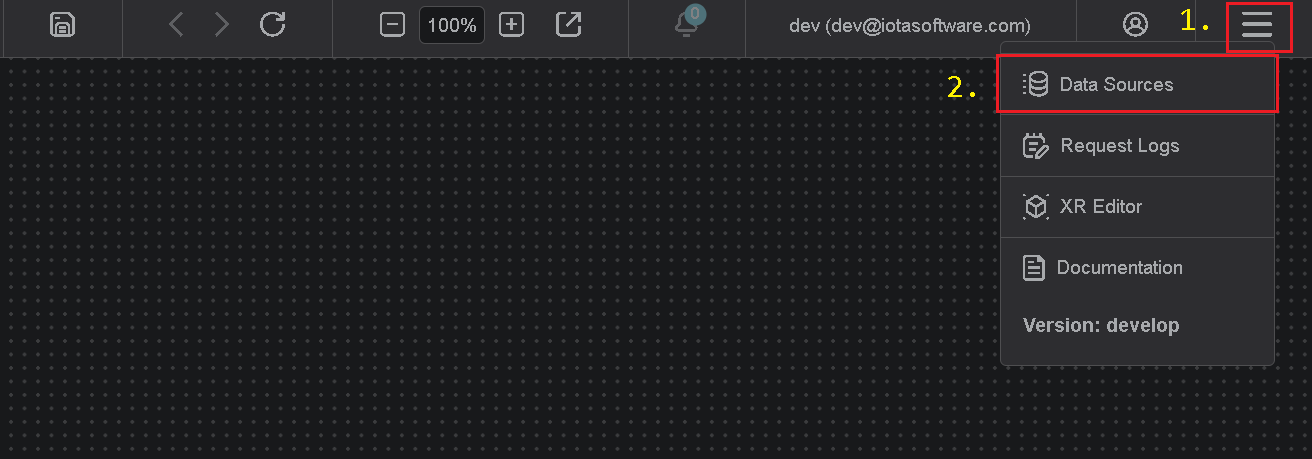
To access the Data Sources menu, click at the top right corner on the "hamburger" icon, then select "Data Sources".
Add Region
Click on the "Add" icon to add a new region, then in the popup dialog - enter the region name. Make sure the Cognite checkbox is selected. Each region can contain multiple sites.
There are two input fields:
- Region name
- Channel name (optional)
The region name is a user-friendly name, and the channel name can contain abbreviations. If the channel name is not provided, it is automatically assigned to the region name on the "Apply" button click.
Add Site
Click on the "Add" icon to add a new site, then in the popup dialog - enter the site name. Make sure the Cognite checkbox is selected. Each site can contain multiple driver types. For each checked driver type - the instance pane will contain selected driver tabs to which connection instances can be added.
There are three input fields:
- Site name
- Driver type
- Channel name (optional)
The site name is a user-friendly name, and the channel name can contain abbreviations. If the channel name is not provided, it is automatically assigned to the site name on the "Apply" button click.
Add Connection
The Cognite Driver container is automatically available in the IOTA Vue data sources section configured for specific Region/Site.
Tips
The installer already contains all required configurations for specific Region/Site connectivity.
To add a new Cognite Data Fusion connection navigate to data sources menu, then:
- Select region of interest
- Select the site of interest
- Select the Cognite Driver tab named "Cognite" within the selected site.
- At the top right corner - click on the "Add" icon.
Connection Dialog
The Cognite Driver's connection dialog requires the following information:
- Name - Provide a name for the Cognite Connection. All search results will be prefixed with this name.
- Cluster - Cognite cluster name (e.g.,
az-eastus-1,westeurope-1) OR provide full URL. - Project - Your Cognite project name.
- Tenant - Azure AD tenant ID (GUID format, e.g.,
0d152dda-95eb-43cd-9d87-fca178450142). - Client ID - Azure AD application (client) ID.
- Client Secret - Azure AD application secret.
- Timeout (optional) - HTTP request timeout in seconds.
- Check the "Use in Quick Search" checkbox if the connection should be used in the quick search sidebar.
- Click on "Apply" to save changes.
If the Cognite Connection has the "Use in Quick Search" checkbox selected, it becomes available in the quick search sidebar.
How to Set Up Azure AD Application for Cognite
To authenticate with Cognite Data Fusion, you need to register an Azure AD application:
1. Register an Application
- Go to Azure Portal > Azure Active Directory > App registrations
- Click "New registration"
- Provide a name for your application
- Select the appropriate account type
- Click "Register"
2. Create a Client Secret
- In your app registration, go to "Certificates & secrets"
- Click "New client secret"
- Provide a description and select expiration
- Copy the secret value immediately (it won't be shown again)
3. Configure API Permissions
- In your app registration, go to "API permissions"
- Add the required Cognite Data Fusion permissions
- Grant admin consent if required
4. Grant Access in Cognite
- In Cognite Data Fusion, navigate to Access Management
- Add the Azure AD application as a service account
- Assign appropriate capabilities (e.g., read assets, read time series)
Important: The OAuth2 token audience must match the Cognite cluster. The driver handles this automatically by constructing scopes from your URL or Cluster setting.
Driver Configuration
On every startup the Cognite Driver reads its configuration from the environment variables.
Tips
The Cognite Driver comes with a pre-configured environment. Therefore, manual configuration is not required.
Configuration Parameters
| Environment Name | Required | Default Value | Data Type | Description |
|---|---|---|---|---|
| DRIVER_ID | ⚫ | cognite | string | Driver ID - used for logging purposes only |
| SERVICE_NAME | ⚫ | cognite | string | Service name identifier |
| LOG_LEVEL | ⚫ | ERROR | string | Debug verbose level: ERROR, DEBUG, INFO |
| NATS_HOST | 🟢 | null | string | NATs server URL with port |
| SEED_KEY_PATH | 🟢 | null | string | NATs NKey public key string. Private key must be defined in file: "privatekey.nk" |
| RQS_TOPIC | 🟢 | null | string | NATs topic on which driver listens for requests |
| HEALTH_TOPIC | ⚫ | iota.health | string | NATs topic for sending driver's health |
| HEALTH_SCHEDULING | ⚫ | 10000 | int | How often in milliseconds to send health data. Default: 10000 = 10 sec |
| LOGS_TOPIC | ⚫ | "" | string | NATs topic for sending driver's logs |
| METRICS_TOPIC | ⚫ | metrics | string | NATs topic for sending driver's metrics |
| METRICS_SCHEDULING | ⚫ | 30000 | int | How often in milliseconds to send metrics data. Default: 30000 = 30 sec |
| ENABLE_METRICS | ⚫ | true | bool | Enables custom metrics reporting |
| PROM_ENABLE_METRICS | ⚫ | false | bool | Enables Prometheus metrics reporting |
| PROM_METRICS_TOPIC | ⚫ | otlp_metrics | string | NATs topic for Prometheus metrics |
| PROM_METRICS_SCHEDULING | ⚫ | 10000 | int | How often in milliseconds to send Prometheus metrics |
| DEBUG | ⚫ | false | bool | Enable debug logging with request/response dumps |
| SKIP_CERTIFICATE_VERIFY | ⚫ | false | bool | Disable TLS certificate validation (development only) |
| HTTP_PROXY | ⚫ | "" | string | HTTP proxy server URL |
| HTTPS_PROXY | ⚫ | "" | string | HTTPS proxy server URL |
| NO_PROXY | ⚫ | "" | string | Comma-separated list of hosts to exclude from proxying |