
Due to distributed IOTA Vue architecture - each on-premise data driver installation requires 3 steps:
- Install the on-premise driver service
- Register the data driver in IOTA Vue user interface.
- Configure server connections per each registered data driver
This section covers the data driver registration and server connection configurations in IOTA Vue user interface.
Overview
In order for IOTA Vue to access AspenTech Inmation system (ASPIN) data - the IOTA to Inmation Driver must be configured and deployed within a network which has access to required Inmation system. The IOTA Vue uses distributed "mesh-like" data source topology:
Users are free to define what Region and Site mean for their unique deployment.
| Name | Example | Description |
|---|---|---|
| Region | us-east-1 | Geographical territory, similar to availability regions |
| Site | siteB | Specific plant or a building |
To simplify the installation process, the IOTA Software provides an automated driver installer generation. The user is only required to select/create a region and site. Then for selected driver type, download the installer. The installer will contain all necessary Inmation Driver configuration with public and private keys for secure communication with the IOTA Vue message bus.
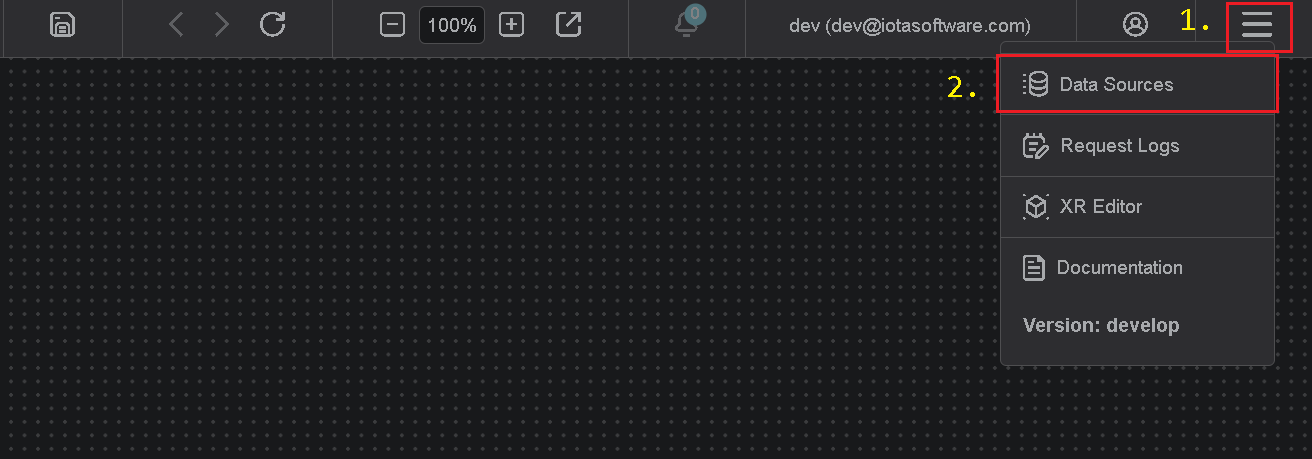
To access the Data Sources menu, click at the top right corner on the "hamburger" icon, then select Data Sources.
Add Region
Click on the Add icon to add a new region, then in the popup dialog - enter the region name.
There are two input fields:
- Region name
- Channel name (optional)
The region name is a user-friendly name, and the channel name can contain abbreviations. If the channel name is not provided, it is automatically assigned to the region name on the Apply button click.
Add Site
Click on the Add icon to add a new site, then in the popup dialog - enter the site name. Make sure the AspenTech Inmation checkbox is selected. Each site can contain multiple driver types. For each checked driver type - the instance pane will contain selected driver tabs to which connection instances can be added.
There are three input fields:
- Site name
- Driver type
- Channel name (optional)
The site name is a user-friendly name, and the channel name can contain abbreviations. If the channel name is not provided, it is automatically assigned to the site name on the Apply button click.
Add connection
In order for ASPIN Driver to be used in Tag and Asset searches - specific Inmation connection(s) must be configured from within IOTA Vue UI.
Warning
IOTA to Inmation Driver for specific region and site combination must be installed prior to creating a new connection instance.
To add a new connection instance, navigate to data sources menu, then:
- Select region of interest
- Select the site of interest
- Select the
AspenTech Inmationdriver tab within the selected site. - At the top of
AspenTech Inmationtab left corner - click on theAddicon.
The AspenTech Inmation connection dialog will appear.
Note
The ASPIN Driver can use either .NET API (SCI) or Web API to connect to AspenTech Inmation system
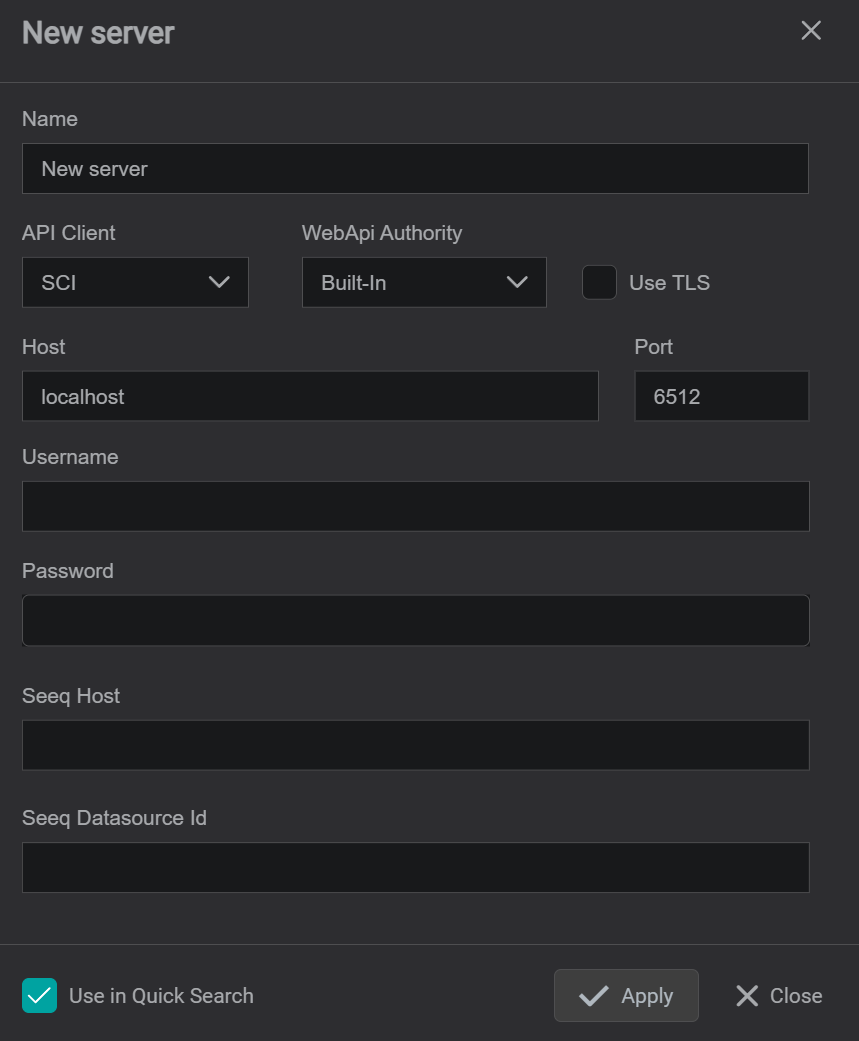
RequiredProvide the IOTA VueNamefor the specific Inmation Connection. All search results will be prefixed with this name- Select the API client to be used for communication. Supported clients:
SCI(default) andWeb API. - For Web API only - select the authority. Supported authority options:
Built-In(default),Active DirectoryandLocal Machine. - Specify the Inmation
HostURL. Default:localhost. - Specify the Inmation
Port. For SCI host - default port:6512. For Web API host - default port:8002. RequiredSpecify the Inmation username.RequiredSpecify the Inmation password.- Specify the
Seeq Datasource Idwhich maps to same InmationHost nameorIP address. - Please check the
Use in Quick Searchif the Inmation Connection should be used forTagandAssetsearches. - Click on the
Applybutton to save changes.
Tips
If Inmation Connection has the Use in Quick Search check-box selected, it becomes available in the search sidebar.