
AI Chat
AI Chat
AI Chat is a panel inside IOTA Vue where you ask for views, data and changes in plain language. It opens next to the view you are working on, remembers your conversations, and asks you to confirm before it creates or changes anything.
Opening the panel
Select AI Chat in the top panel; it opens on the right. Collapse or close it as you work - the conversation is kept either way.


Cannot see it?
On a narrow window the toolbar folds and AI Chat moves into the ☰ menu at the top right. If it is not there either, the feature is not enabled for your instance. IOTA switches it on with the AIChat feature flag.
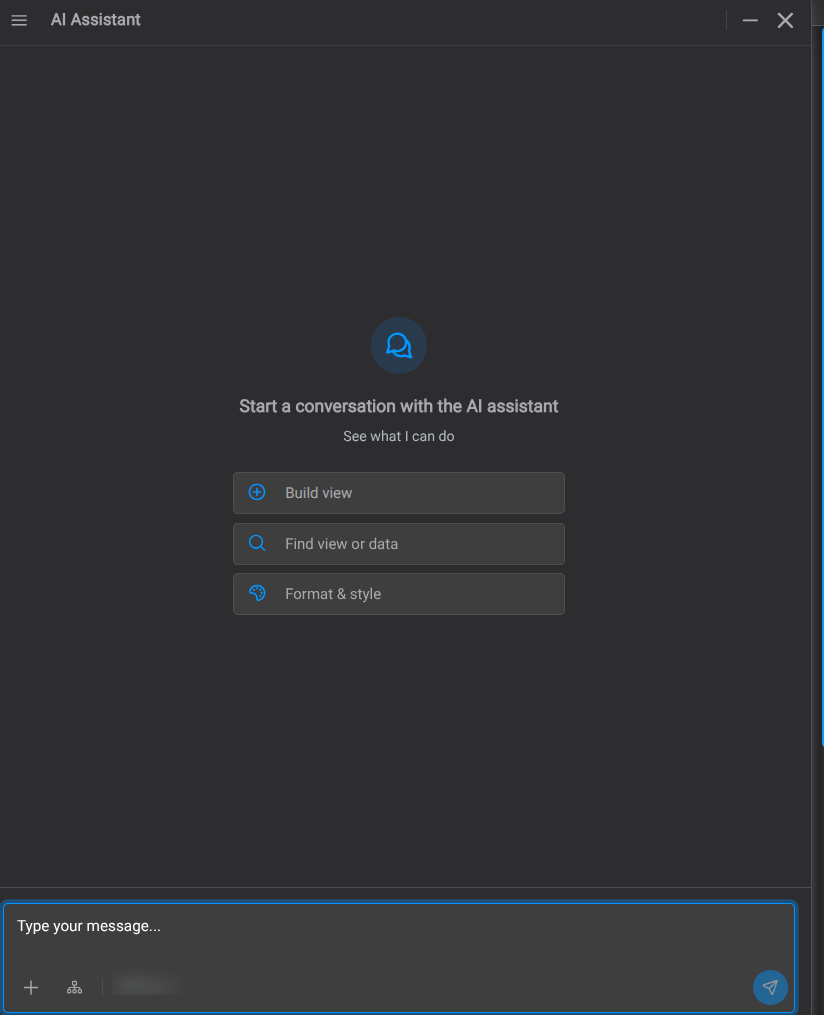
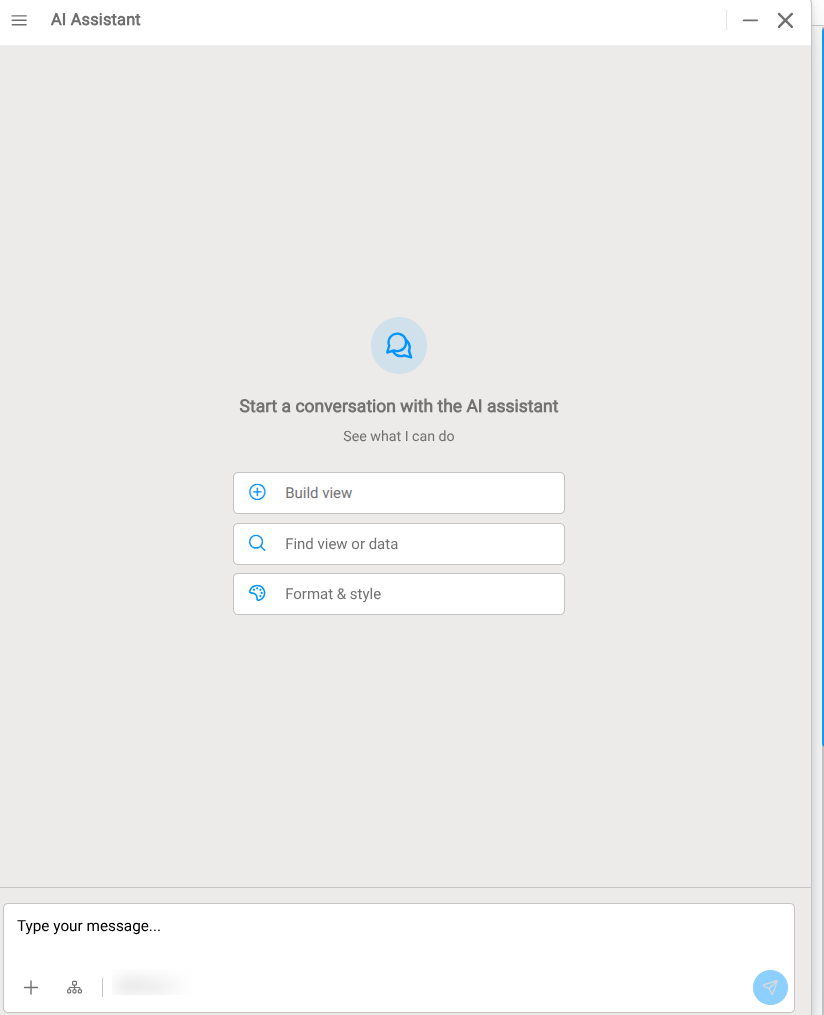
The three starting points
An empty chat shows See what I can do with three templates. Pick one and fill in the blanks, or ignore them and type freely.
| Template | Use it when | Example |
|---|---|---|
| Build view | You want a first version of a display | "Build a view for compressor K-101 with suction and discharge pressure, motor current and a 24-hour trend" |
| Find view or data | You are looking for something that already exists | "Which view shows the boiler feedwater pumps?" |
| Format & style | You want to change how the open view looks | "Make all gauges on this view use the red-amber-green thresholds" |
Attaching context
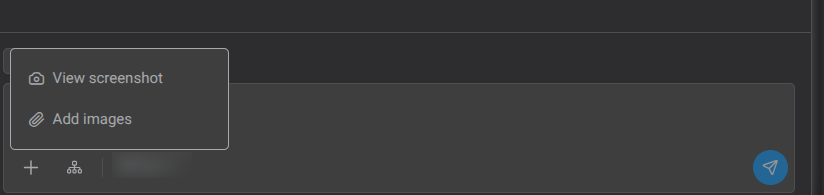
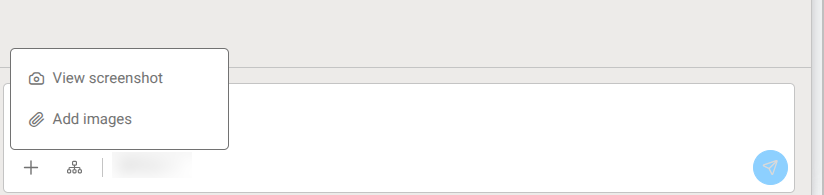
The assistant already has some context: the structure of the view you are on, and your recent navigation, when they are relevant to what you asked. Attach the rest yourself. Two controls sit below the message box, to the left of the model selector:
- + | View screenshot attaches a picture of the current view, and Add images attaches your own files (a sketch, a screenshot of a legacy display). Limits apply per message and per conversation. Some models do not support images, and the chat will say so.
- View context | attaches the view you have open: its structure, component types, bindings, thresholds, text and styling.
What a screenshot sends
View screenshot sends the view as it looks right now, so whatever values, trends and alarm states are on screen go to the model provider along with it. The View context control sends the view's structure, not its values. Attach a screenshot only when you are content for what is displayed to be read that way.
Whatever you attach appears as a chip above the message box. Remove it with the × if you change your mind.
Your standing instruction
Administration has a page called My AI Prompt: one instruction of your own that is added to every request you send. Put in it what you would otherwise retype, such as the unit you work on, the naming conventions you use, the chart type you prefer, or the units you want values in.The state line reads Applied to every request when it is on. Switch it off and the text is kept but never applied, so you can park an instruction without losing it. It is yours alone: it shapes only your answers, it never affects anyone else's, and no one can set one on your behalf.
Unlike a skill, which the assistant loads only when a conversation matches it, your prompt goes with every request, so keep it short and concrete. "Answer in at most 5 sentences" is worth more than "answer briefly". Do not put passwords, keys or personal data in it; the text reaches the model provider exactly as written.
Reading the answer
- The assistant streams its answer; Stop generation halts it.
- Search results appear as a list of views with Navigate buttons and a Best match marker.
- Proposed actions appear as a card with a description and two buttons, for example Create View and Cancel. The chat records "[Action confirmed] Created view '…'" or "[Action cancelled]". What gets confirmed, and why, is in Human oversight.
- "Used skill: …" tells you the assistant applied an administrator-defined skill to that answer.
- "Context reduced" tells you part of the view or older messages could not fit in the model's context window and the answer may be incomplete. Ask a narrower question or attach fewer components.
What the assistant should and should not be used for is set out in Appropriate use and Limitations in the AI Guide.
Sessions
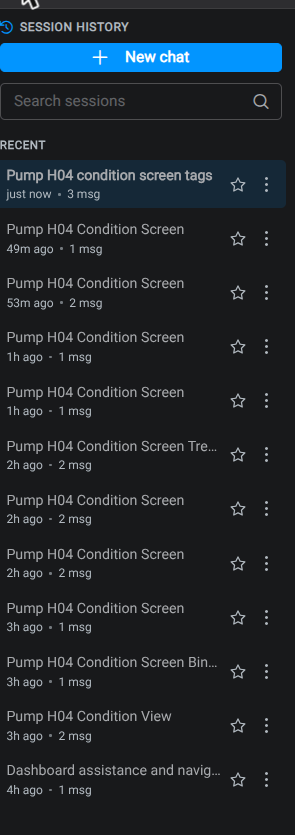
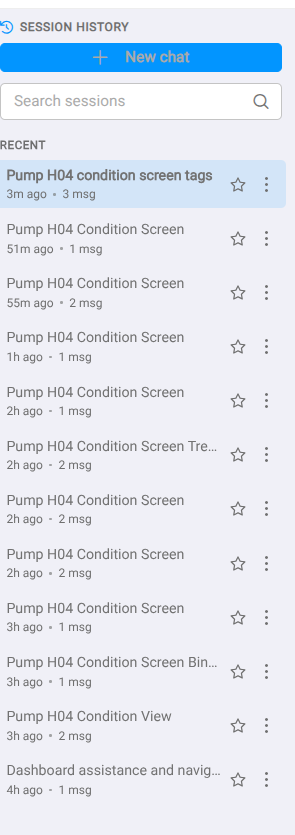
Session history lists your conversations, Pinned and Recent, with search. A session menu offers Rename, Pin and Delete. Deleting removes a session from your history; the conversation is retained on the instance and administrators can still see it. Use New chat for a fresh topic so unrelated history does not confuse the assistant. Administrators can read every session on the instance in Administration → AI Sessions; see the AI Guide for what is stored.
When something looks wrong
- Do not confirm the action.
- Ask the assistant to correct itself, or attach the specific components and ask again.
- If the answer is still wrong, or something was created that should not have been, delete the created view as you normally would and report the session name through the support form.
What's Next
- AI Skills: how administrators shape the assistant's answers
- Getting Started: build a skill and a view, end to end