
AI Guide
AI Guide
The AI features in IOTA Vue help you find, build, adjust and explain displays by describing what you want in plain language. You ask; the assistant searches your views and assets, proposes a display or a change, and waits for you to confirm before anything is created or modified.
Beta
The AI features are in beta and are enabled per instance by IOTA. If you do not see the AI Chat button, the feature is not enabled for your instance. Ask your IOTA Customer Success Manager. What "beta" means.
Where to find it
AI Chat sits at the right-hand end of the top panel. On a narrow window it moves into the ☰ menu. The panel opens on the right, collapses out of the way, and keeps your session history.


AI Skills, AI Sessions, AI Statistics and Knowledge Core are in the Administration area. Each opens for a role that holds the matching permission; see Who can do what. To reach the area, select the IOTA logo in the top-left corner, then open Administration from the welcome page. See Administration Page.
My AI Prompt is in the same area and needs no permission: anyone who can open AI Chat can set one. See Your standing instruction.
New to it?
Getting Started opens with a five-minute question you can ask straight away, then builds a skill and a view end to end.
What the AI features are
| Feature | What it does | Who uses it | Status |
|---|---|---|---|
| AI Chat | A chat panel inside IOTA Vue. You can ask for a view or data, describe a display to build, or ask to change the view you have open. | Viewers and builders | Beta |
| AI Skills | Admin-authored instructions that shape how the assistant answers in a given situation. | Administrators write them; everyone benefits | Beta |
| Knowledge Core | An index of what your views are about. Each view you index is summarised (purpose, area, type) with the entities it shows, so the assistant can find the right one later. | Started on a view; everyone benefits | Beta, enabled per instance |
| My AI Prompt | One standing instruction of your own, added to every request you send. | Anyone who can use AI Chat | Beta |
| AI Statistics and AI Sessions (admin) | Read-only pages in the Administration area showing what the AI cost, how fast it was and what the session was about. | Administrators | Beta |
Intended use
The assistant does four jobs: find, build, adjust and explain. Getting Started walks through explaining a view you already have, then building a new one.
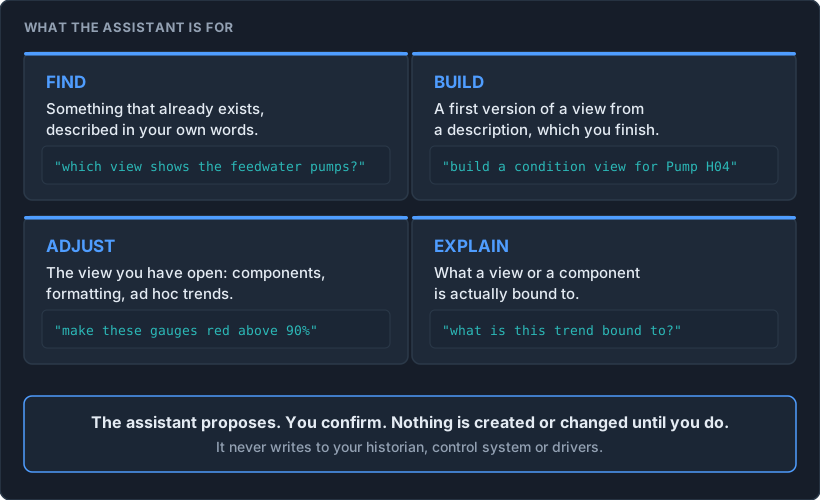
The assistant works with tags, assets and timeframes, the same data types you meet in Finding Data to Trend, which is worth reading first if those terms are new.
Who it is for
Operators, engineers and analysts who already use IOTA Vue as viewers or builders. The assistant works inside your existing permissions: it can only see and change what your role can see and change. Administrators additionally manage skills and review usage.
Appropriate use
| Use it for | Do not use it for |
|---|---|
| Views and displays: drafting a view, finding an existing one, changing the view you have open. Treat what comes back as a proposal from a capable colleague who has never seen your plant. | Publishing a generated view as a validated display. It is a starting point; check every binding, unit and name first. |
| Explaining: what a display shows, and how it is put together. | Deciding anything operational or safety-critical. It can read from a connected data source when you ask it to, under your own account and permissions, so treat a value it quotes as a reading it took, not as a validated measurement; see Data and input considerations. |
| Plant vocabulary: tag names, asset names, areas, timeframes. | Confidential material: personal data, credentials, commercial documents. The chat is a design tool, not a document store. |
Limitations
| Limitation | What you will see | What to do |
|---|---|---|
| Answers are probabilistic. The same request can produce a different display each time. | Names, units and bindings can be wrong; a similarly named tag may be picked. | Check the bindings on every generated component before you rely on it. |
| Context is limited. Large views are sent to the model in reduced detail, so the answer may be incomplete. | A notice in the chat: "The attached view was sent with reduced detail", or "Only 12 of 40 top-level components were included". | Ask about one section at a time, or attach a smaller view. |
| Long conversations are trimmed. Older messages are dropped once the model's context window is full. | A "Context reduced" notice. | Start a new session when you change topic. |
| Availability depends on the model provider. | Slow responses, or a response that stops part-way. | Use Stop generation and resend. |
| It is not a live display. The assistant works with view definitions, asset and tag metadata, your text and any image you attach, and it can query a connected data source when you ask it to. What it cannot do is watch data or refresh it. | A value it quotes is a reading taken at that moment, not something that keeps updating. | Use trends, ad-hoc and alarms to follow data over time. |
What "beta" means here
Complete enough to use for real work, and still changing. In practice:
- Off unless asked for. Nothing is enabled by default; an administrator turns it on for your instance, on IOTA's guidance.
- Behaviour changes between releases. Prompts, models and defaults are tuned, so the same request can give a different answer after an upgrade. Changes that affect you are listed in What's New.
- The interface changes. Controls move and get renamed more often than in the settled parts of IOTA Vue, so screenshots in this guide can lag the product.
- Support is the same as the rest of IOTA Vue. Report problems through the usual route, below.
- Leaving beta is announced in What's New for the release that does it.
Human oversight
Every change goes through a person:
- Confirmation before action. Creating a view, modifying a view, adding components and opening or changing an ad-hoc trend each show a confirmation ("Create new view '…' with 6 component(s)? This will navigate away from the current view."). Nothing is created until you select Create View or the equivalent. Cancelling records "[Action cancelled]" in the chat.
- Permissions apply. Actions run under your account. If your role cannot edit a view, neither can the assistant on your behalf.
- The feature is controlled centrally: the AIChat and KnowledgeCore feature flags, enabled and configured only with IOTA guidance, and the permissions below.
- Data source access is not widened. When the assistant queries a data source for you it acts as you, with your permissions.
- Write-back is off by default. The assistant cannot write to a source system unless write-back has been turned on in two places: on the data source itself, and by the driver administrator, to permit write-back through that driver. Neither is on by default, so on an instance where nothing has been changed no write reaches your source systems. Drivers Overview lists which data sources support write-back at all.
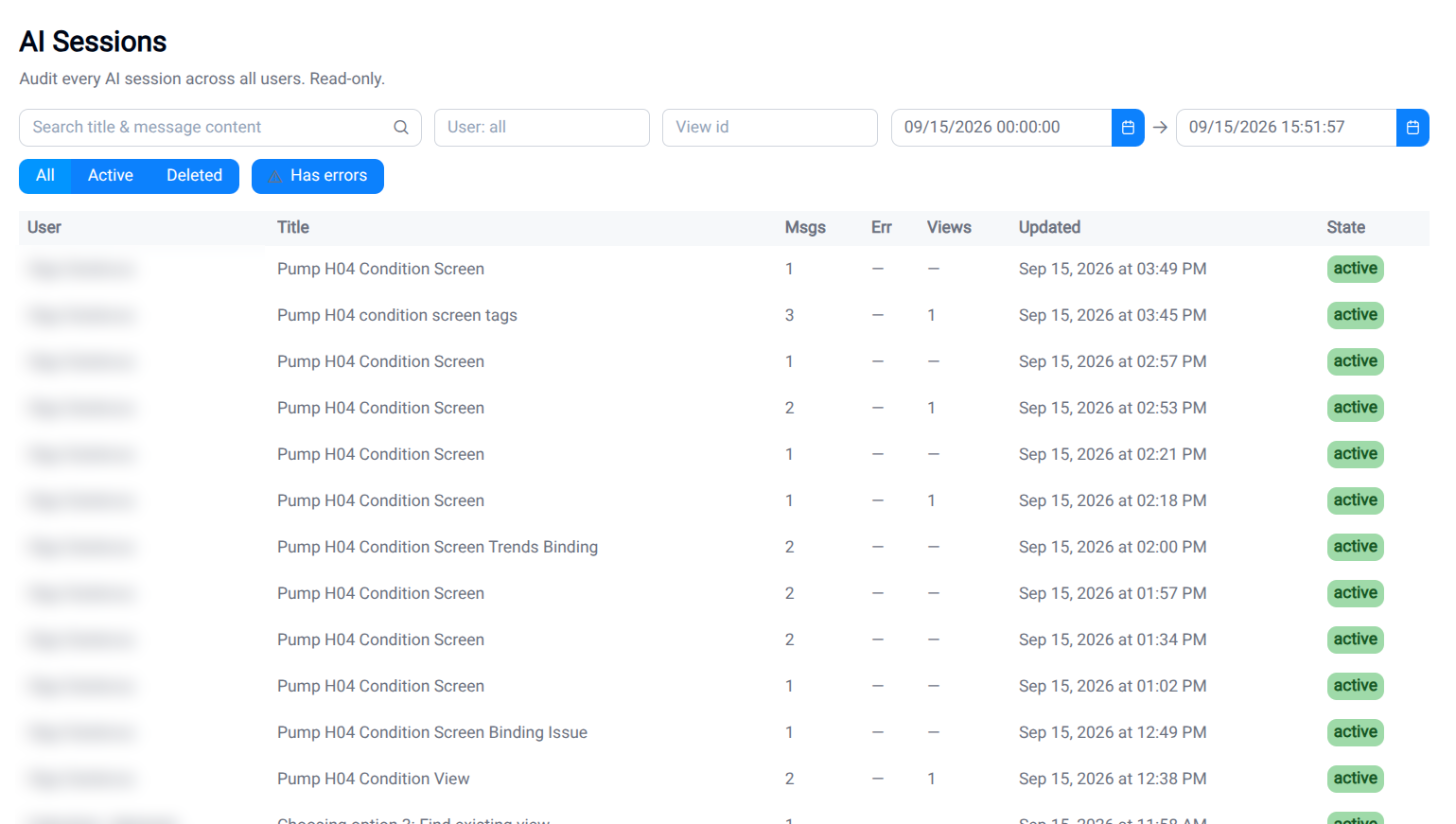
- Sessions can be audited: the AI Sessions page shows every session across all users, read-only, including tool calls and the context sent; AI Statistics shows cost and response times per user, model and capability.
Who can do what
The AI pages in Administration are permission-based, not role-based. Each permission below is on the built-in Administrative role and can be granted to any other role instead; see Roles, Users, and Groups.
| Permission | What it opens |
|---|---|
| Manage AI Skills | AI Skills, and the Knowledge Core administration pages |
| View AI Sessions | AI Sessions: every session on the instance, read-only |
| View AI Statistics | AI Statistics: cost and response times per user, model and capability |
| Manage Knowledge Core | Knowledge Core Assets: the entities found across every indexed view |
My AI Prompt needs no permission at all: everyone who can open AI Chat can set their own standing instruction.
Knowledge Core
Knowledge Core is how the assistant knows what your views are about. Each view you index is read and filed by subject, so "show me the fractionator overview" searches across everything indexed instead of matching on view names. A single indexed view buys you little; the index starts to earn its keep once the views people actually go looking for are in it. It is a separate beta capability, enabled per instance by IOTA.
Indexing is started one view at a time by someone who can already open that view; it is not a continuous crawl. The indexing run sends a captured image of the view to a vision model, so displayed values, not only view structure, reach the model provider. Index a view only when you are content for its contents to be read that way. What is kept, and who can read it, is described in Knowledge Core in the Administration guide.
Data and input considerations
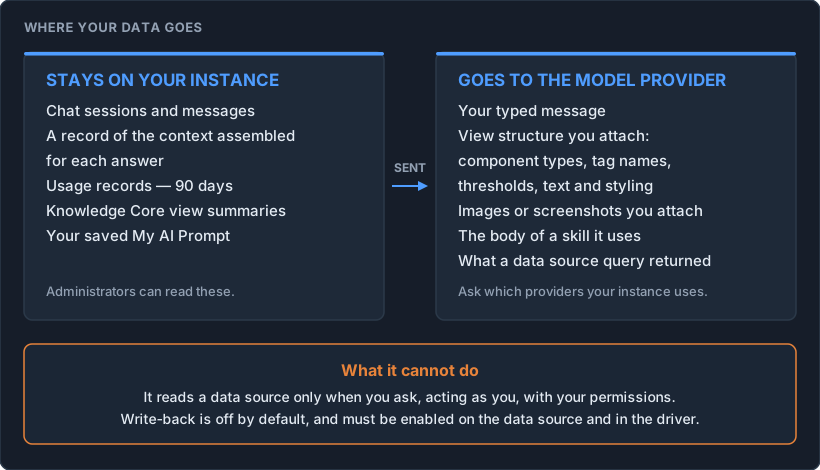
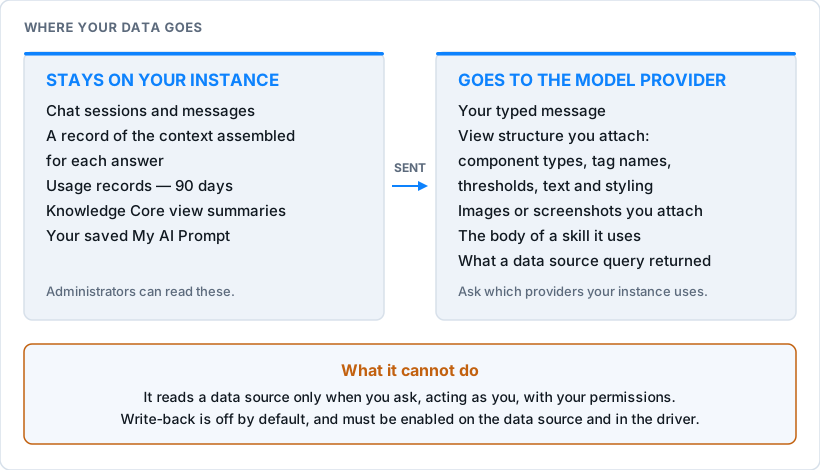
What is sent to the model when you use the chat:
- Your typed message and any images or screenshots you attach.
- The view context you attach explicitly with the View context control: the view's structure, component types, data bindings (tag names), thresholds, text and styling. The View context control sends no values.
- Context the assistant fetches for itself, without you attaching it: the structure of the view you are on, and your recent navigation, when they are relevant to what you asked.
- Results of the assistant's own look-ups: view search, asset search, view knowledge summaries, the body of a skill it decides to use, and, when you ask it for data, what a data source returned to the query it ran on your behalf.
What is stored on your IOTA Vue instance:
- Your chat sessions and messages, and a record of the context assembled for each answer. Deleting a session removes it from your own history; the conversation is retained on the instance and administrators can still see it in AI Sessions.
- Usage records per model call (tokens, cost, duration) for 90 days; daily totals are kept for reporting.
- Where Knowledge Core is enabled, its summaries of the views you have indexed, the entities found in them, and the image captured by each run. See Knowledge Core, which sends more than the chat does.
- Any standing instruction you save under My AI Prompt. It is added to your own conversations only; it does not change what other people's assistants do.
Model and provider disclosure
- Which models you can use depends on how your instance is configured. The model selector beside the message box is the authoritative list, grouped by provider. Ask your administrator which providers your instance uses, and under whose account.
- You choose the model, and the selected one is always shown, so you know which model answered. The list changes between releases, and the default is not always the newest on it.
- Where more than one provider is offered, the one you choose receives your message and its context.
- You are told when this changes. Models added, models withdrawn and changes to the default are listed in What's New for the release that introduces them, and the selector always shows the current list.
- Customers may ask IOTA to connect their own provider account. Data then flows to that account under the customer's own agreement.
- IOTA does not use your data to train models. Once a message reaches a model provider, how that provider handles it is governed by the agreement in place with them.
Ask your administrator which providers your instance uses, and under which terms.
Reporting a problem or a concern
- Wrong answer: cancel the action, Stop generation if it is still streaming, then report the session name through the support form or your Customer Success Manager.
Administrators can copy the transcript from AI Sessions. - Data concern: if the assistant surfaced something it should not have, report it the same way and mark the ticket Urgent. IOTA treats these as security incidents.
- Feature feedback: same form, type Product Feedback.
Related
- AI Chat
- AI Skills
- Getting Started
- Feature Flags · Roles, Users, and Groups
- Knowledge Core: what indexing captures and keeps
- Architecture & Deployment: where the platform runs and how it reaches your data
Last reviewed 17 September 2026. Reviewed when the AI features change.