
Finding Data to Trend
Finding Data to Trend
Before you can trend a signal, you need to find it. IOTA Vue gives you two starting points: the data already on your screen, and the Search panel.
Trending from the screen
If the signal you want is already on a display, the quickest path is to trend it directly:
- Double-click a component to open it in an ad hoc trend.
- Right-click a component → Show Trend.
- Cmd/Ctrl + click several components to select them, then right-click → Show Trend.
See Exploring Data on a View for more on launching trends from a display.
Trending from Search
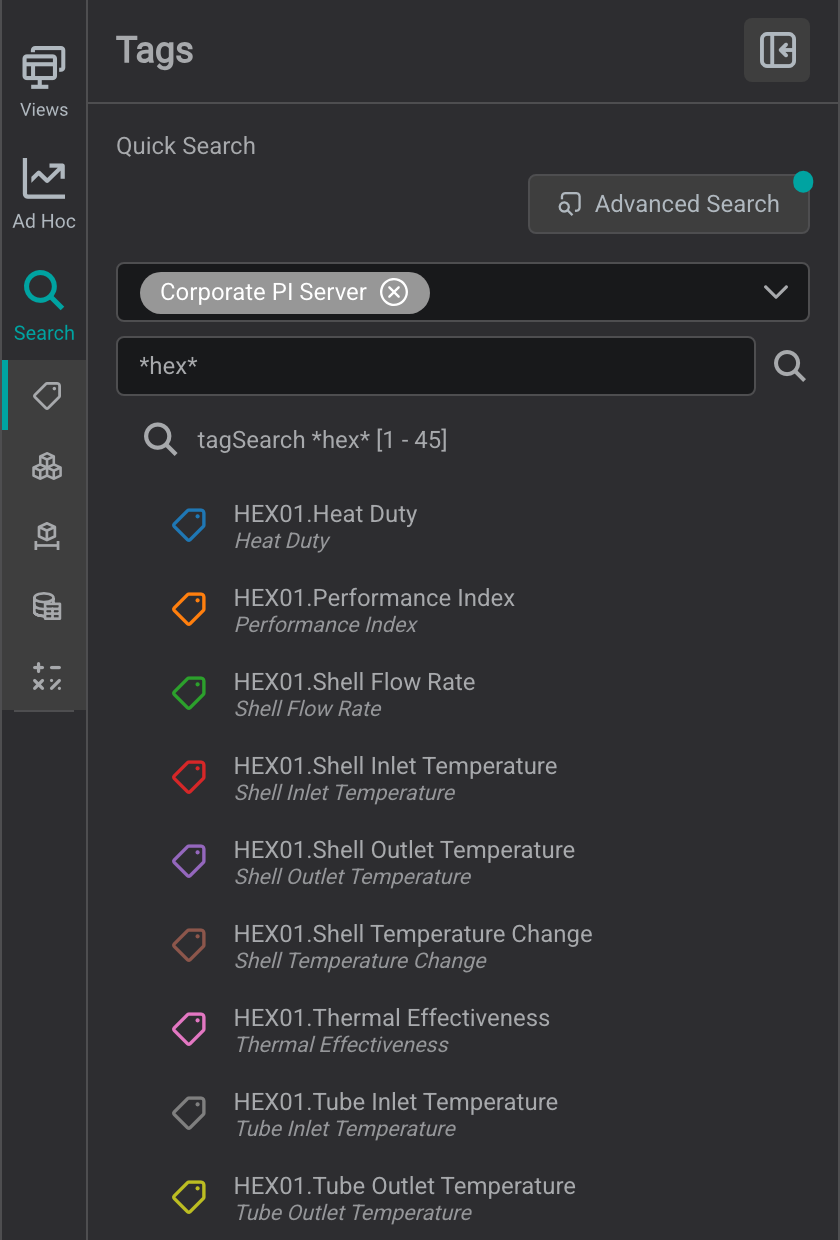
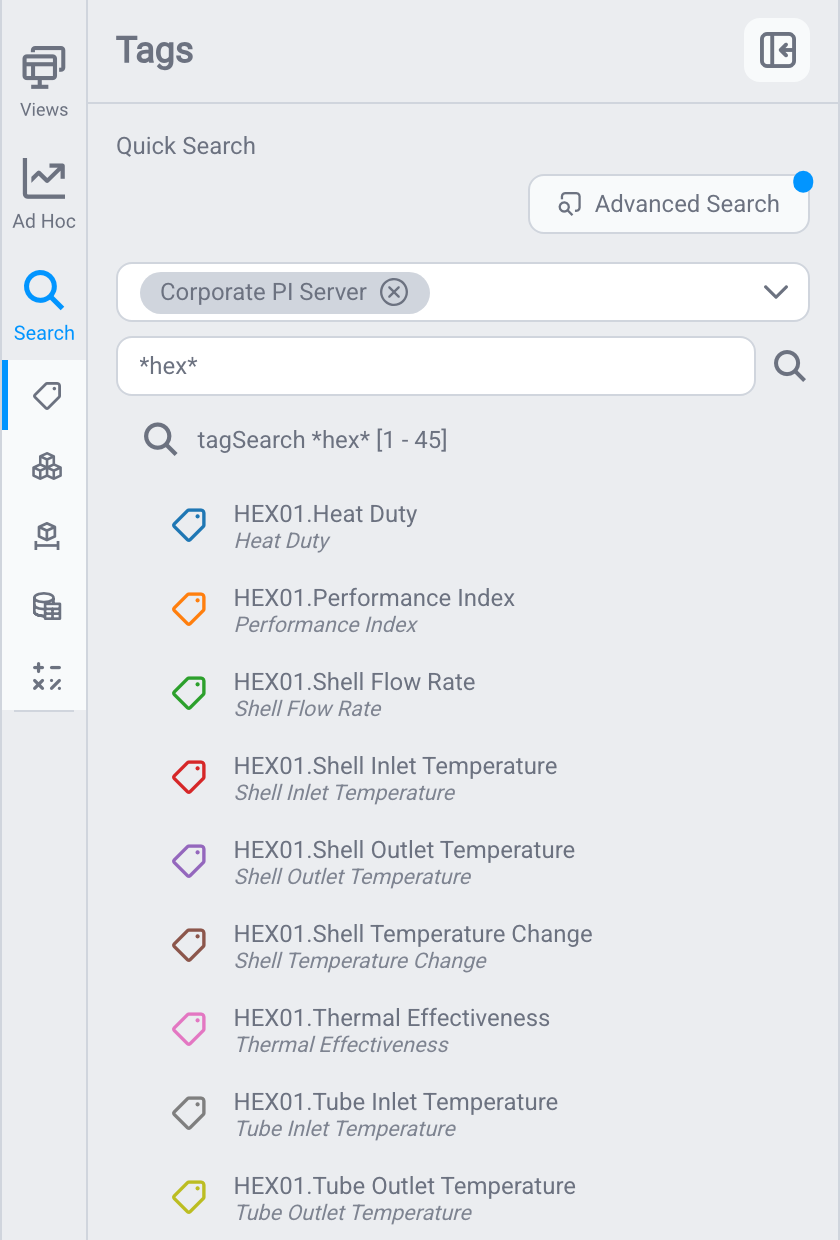
When the signal is not on the current display, use the Search tab in the side panel to find it across your IOTA instance, then trend it from the results.
Data types you can search for
Search returns several types of data:
- Tags: individual time-series signals, such as a temperature or pressure reading.
- Assets: equipment or locations in a hierarchy, each with attributes you can trend.
- Timeframes: named periods of time you can apply to a trend.
- Datasets: collections of related data defined in a data source.
- Calculations: calculations defined on the display you currently have open, so you can trend a calculated result alongside its source signals.
For time-series trending, the two you will use most are tags and asset attributes: both resolve to a signal you can place on a trend. Select one or more results and add them to a trend the same way you would from a display: double-click, or right-click and choose to add them to a trend.
Choosing a data source
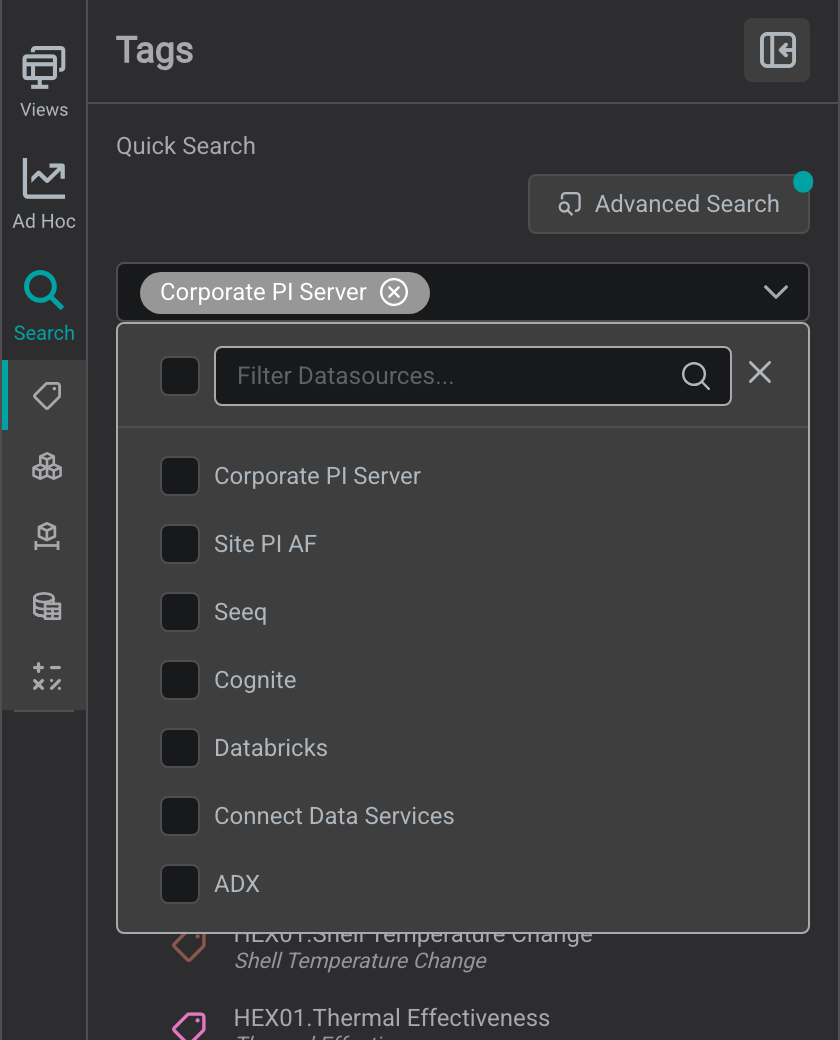
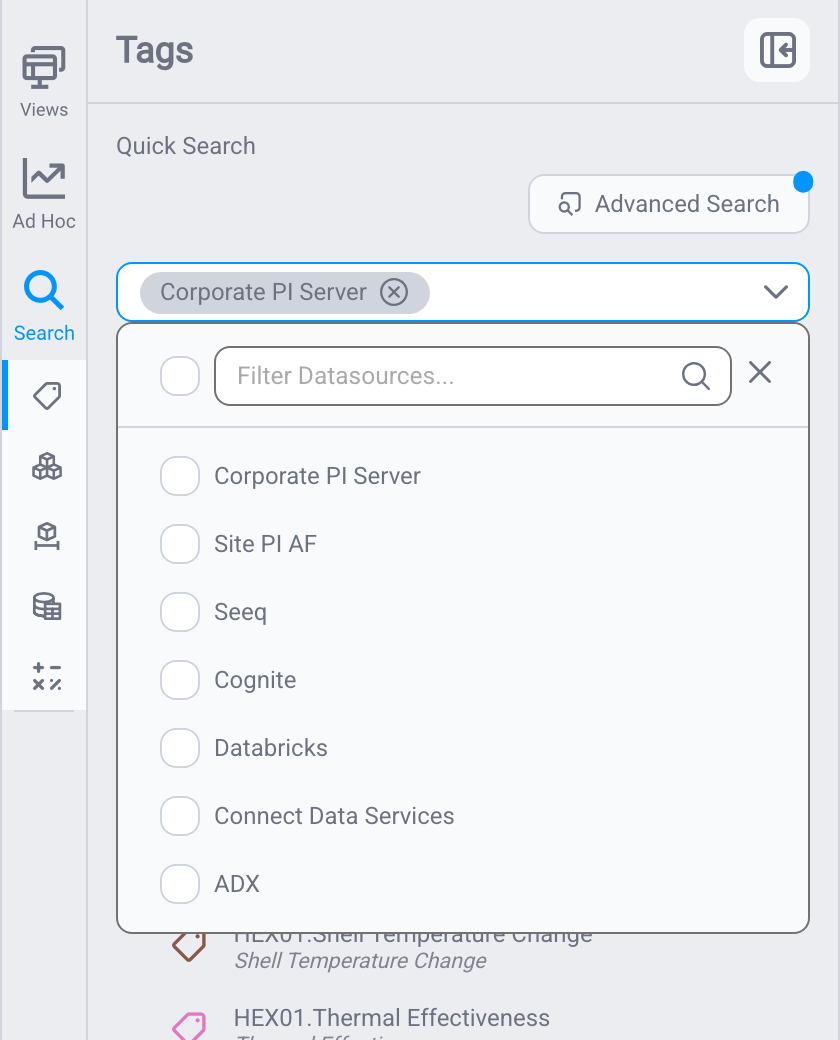
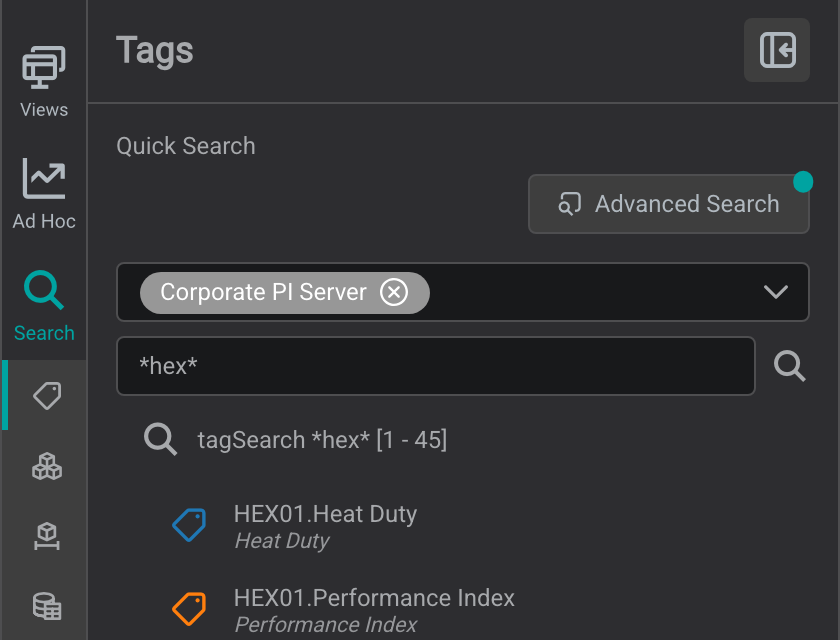
Search is scoped to a data source. Pick the data source you want to search before entering your search terms: different data sources (drivers) hold different tags, assets, and datasets.
Tips
Data source names are set by your administrator, so the ones in your instance will differ from these examples. Some sources are organized by tags (for example, PI Data Archive) and others by assets (for example, PI Asset Framework); pick the source that holds the data you are looking for.
Basic and advanced search
- Basic search matches your keyword against tag and asset names: enough for most lookups. It supports the
*wildcard for open-ended matching:Temp*finds names starting with "Temp",*flow*finds names containing "flow". Your keyword is passed straight to the selected data source, so wildcards work the same way they do when you query that source directly (the data source resolves the match). - Advanced search is a richer, driver-specific search dialog offered by some data sources, with filters tailored to that source. The available filters depend on the driver.
Tips
Advanced search options vary by data source. For details on a specific driver's search dialog, see that data source's documentation.
Trend what you found
Once a search returns the tag or asset you want, double-click it, or right-click → Show Trend, to open it in an ad hoc trend. From there, see Trending Data to compare signals, group scales by unit, place cursors, and highlight out-of-spec areas.
What's Next
Once you've found the signals you want, continue to Building a Trend to add them to a chart and set its time range.
Related
- Building a Trend: add signals and set the time window
- Trending Data: the ad hoc trend overview
- Searching for Tags, Assets & Datasets: the full Search panel reference