
Searching for Tags, Assets & Datasets
Searching for Tags, Assets & Datasets
The Search panel is how you connect data to components. Open it from the sidebar using the magnifying glass icon, or double-click any component that is already on the canvas. Once open, use it to find tags, assets, timeframes, and datasets, then drag results directly onto components.
The Four Search Tabs
The Search panel has up to four tabs depending on your connected data sources. Switch between them using the icons on the left edge of the panel.
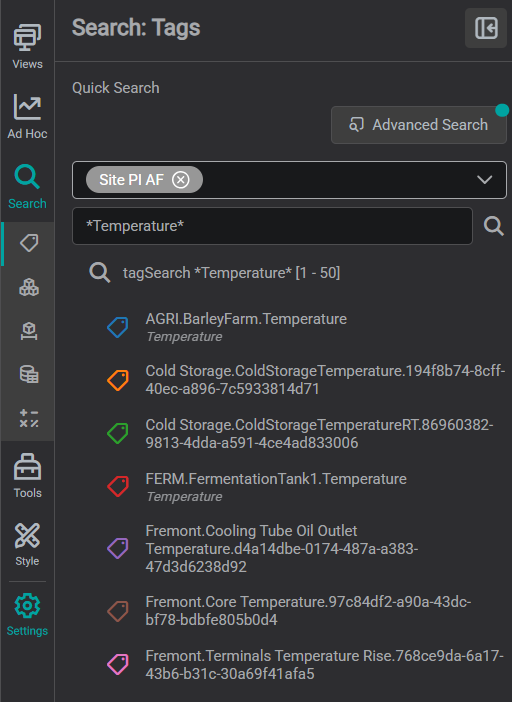
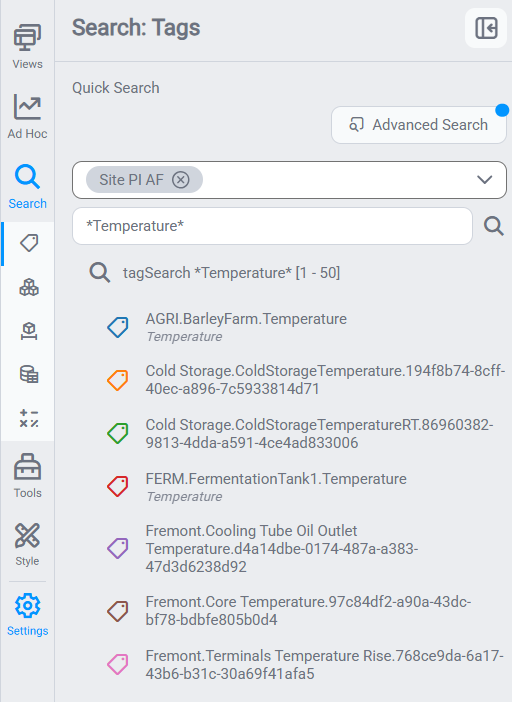
Tags
Individual time-series signals from a historian: PI tags, SQL columns, Cognite time series, and similar. Each tag represents one signal over time. Dragging a tag onto a component creates a direct binding to that signal name.
Use this tab when you know the exact signals you want to show and the display is not meant to be a reusable template.
Assets
Nodes in an asset hierarchy: OSIsoft AF elements, Cognite assets, and similar structured objects. Each asset has attributes (named properties like Speed, Temperature, Pressure) that point to underlying tags. Dragging an asset onto a component trains it to that asset, binding channels by attribute name rather than by raw tag name.
Use this tab when building templates that will work across multiple pieces of the same equipment type. See Understanding Asset Hierarchies for more detail.
Two toggles at the top of the tab control how it behaves, 1 Search Hierarchy and 2 Load Attributes, each shown and explained below.
Navigating the asset hierarchy
Assets are organized as a tree that mirrors your data source's structure, for example, a site at the top, units below it, and individual pieces of equipment underneath. Search results show only top-level matches by default. With Search Hierarchy (toggle 1) on, the tree is browsable: search matches parent nodes, and you expand them to reach their children.
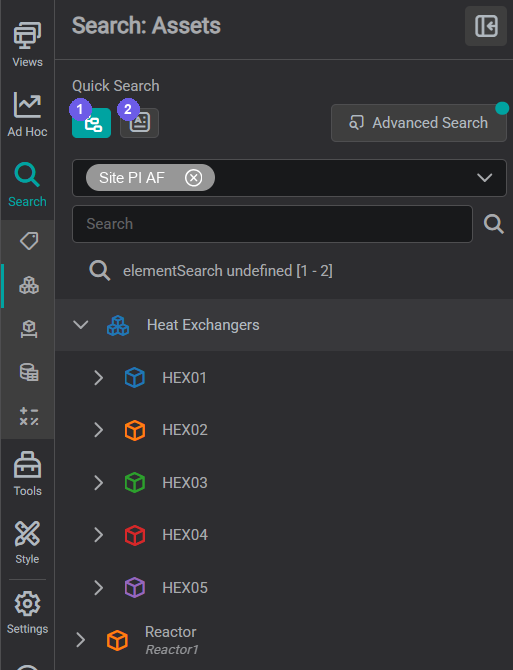
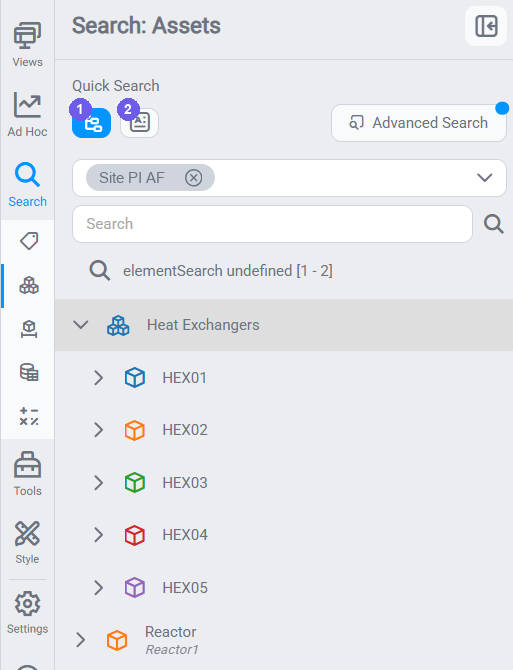
To explore child assets: click the expand arrow next to any asset node. The tree opens to reveal the child assets nested beneath it. Keep expanding to drill down to the specific equipment you want.
For example, searching for Heat Exchanger might return a Heat Exchangers parent node. Expanding it reveals HEX01, HEX02, HEX03, and so on: each of which you can expand further if it has sub-components.
Wildcard search cuts across the tree
A * wildcard (see Searching Effectively) matches assets at any depth, so it is a flat alternative to expanding the tree node by node. The trade-off is that a match loses its tree context: expand it afterward to confirm which parent it belongs to before dragging.
Showing attributes
Each asset has attributes: named properties configured in your data source that map to underlying tags. By default the tree shows only asset nodes. Enable the Load Attributes toggle (toggle 2, above the search results) to reveal each asset's attributes when the node is expanded.
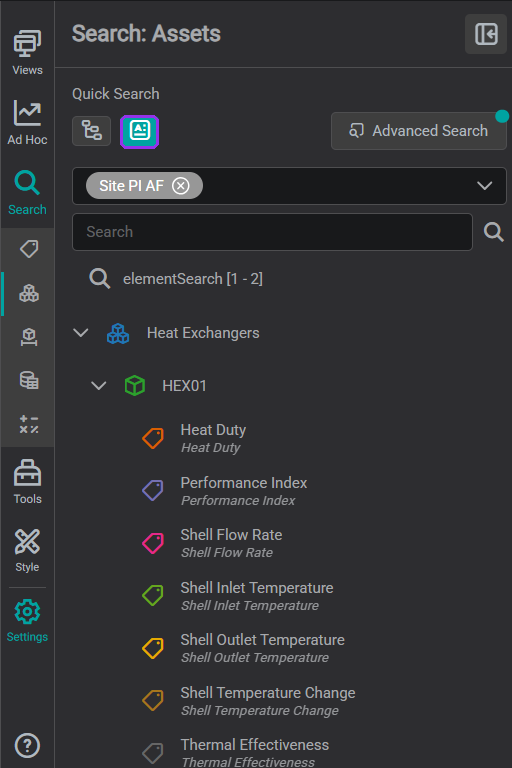
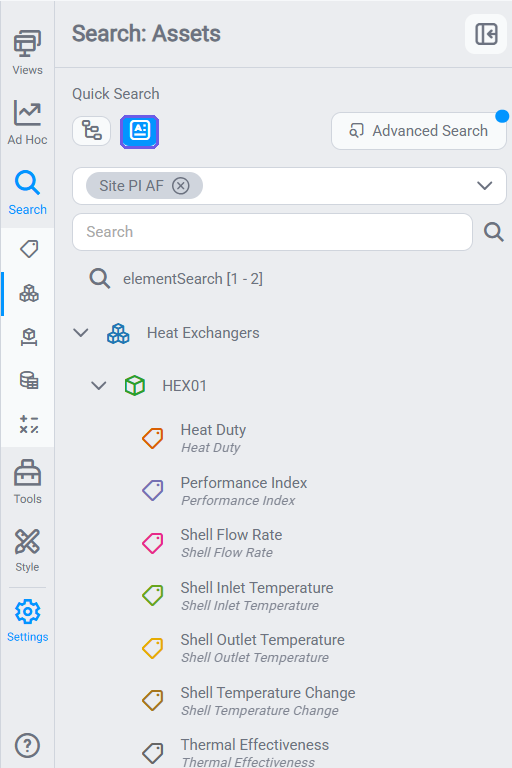
With attributes visible, expanding an asset node shows two types of items beneath it:
- Child assets: sub-elements that are themselves assets (for example,
Tube SideandShell Sidebeneath a heat exchanger) - Attributes: individual data properties on this asset (for example,
Tube Inlet Temperature,Shell Inlet Temperature,Heat Duty)
You can drag either:
- Drag an asset → trains the component to that whole asset (channels bind by attribute name).
- Drag an attribute → binds that one attribute's underlying tag directly, like dragging a tag from the Tags tab.
For why training an asset makes a display reusable, and how attributes map to component channels, see Understanding Asset Hierarchies.
Timeframes
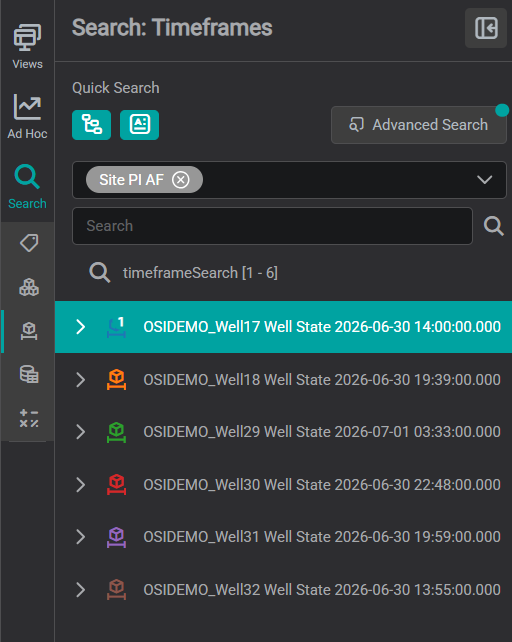
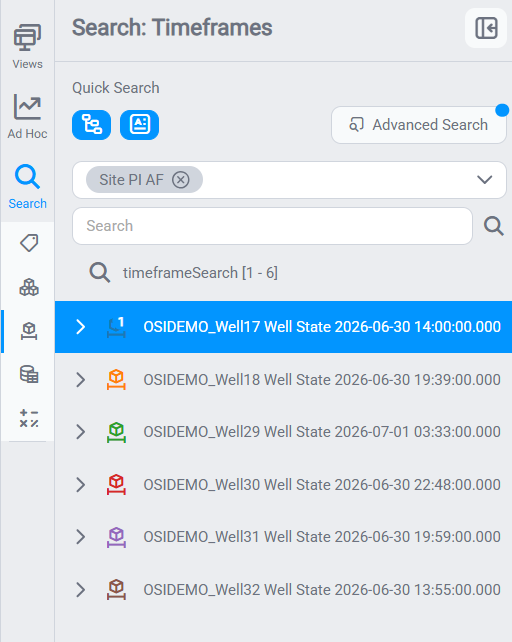
Named time ranges defined in the data source, for example, a production shift or a named event. Drag a timeframe result onto a Timeframe component to display that named period. This tab is only relevant when your data source supports named timeframes.
A common source of named timeframes is a PI AF Event Frame. The results below are Well State event frames: each row is a captured pump event (a state change on a well), listed with the event's start time. Dragging one onto a Timeframe component scopes the display to that event's window.
Datasets
A dataset is structured, tabular data, rows and columns, rather than a single time-series signal. Datasets come from query-based sources such as a Databricks SQL warehouse, Seeq Vantage, and similar SQL/query connectors. Each result shows the dataset's name and the source type it comes from, so you can tell a Databricks table apart from a Seeq dataset at a glance.
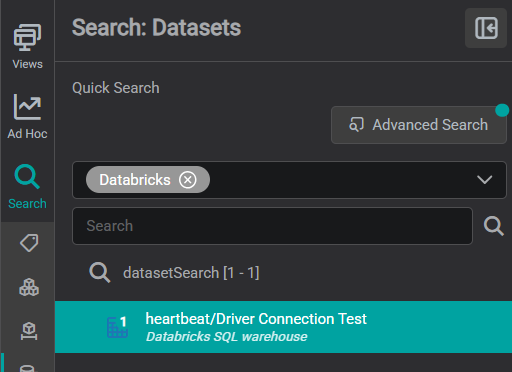
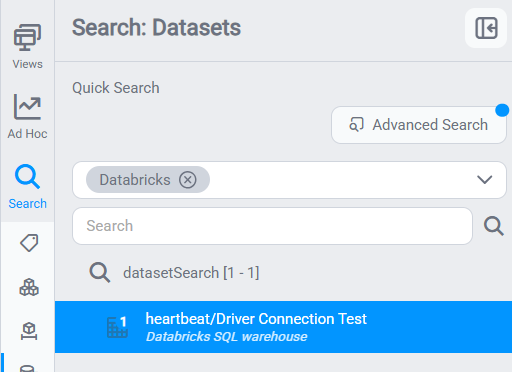
To use one, drag the dataset onto a Table component. The whole result lands at once: the Table shows one column per dataset field and one row per record. Unlike a tag or an asset attribute (which each contribute a single value or trace), a dataset brings its own multi-column structure with it, so there is nothing to map on drop.
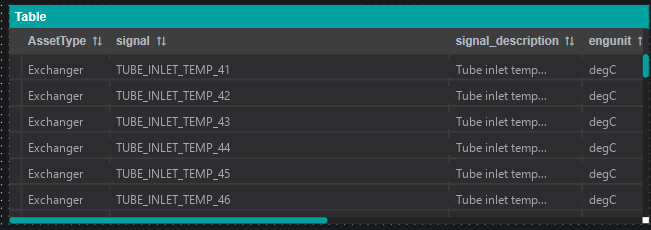
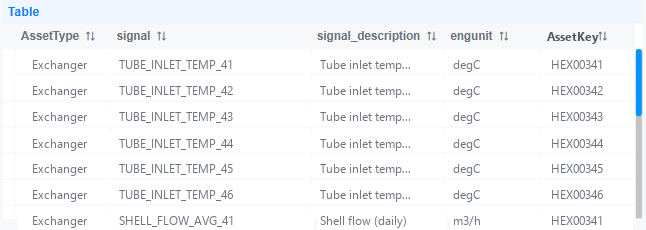
From there, refine the Table like any other (hide columns you do not need, rename headers, sort, or add filters), through its Settings panel. See Add a Table for the column options.
Warning
The Datasets tab only appears when at least one connected data source supports structured datasets (for example, a Databricks SQL warehouse or Seeq Vantage). If you do not see a Datasets tab, none of your connected data sources provide datasets.
Advanced Search
Every tab has an Advanced Search button at the top of the panel. It opens a dialog with filters specific to that entity type, a far more precise way to narrow results than the quick-search box, and a richer results table (data type, units, path, and so on). Set your filters, click Search to run them, or Close to dismiss the dialog.
The filters depend on your data source
The fields shown below are for PI AF (OSIsoft) hosts, which expose the historian's point and asset-framework attributes. SQL-based sources (Databricks, generic SQL, and similar) present a different, simpler set of filters; see Advanced search on SQL-based sources below.
Advanced tag search
For tags, Advanced Search exposes the underlying historian's point attributes:
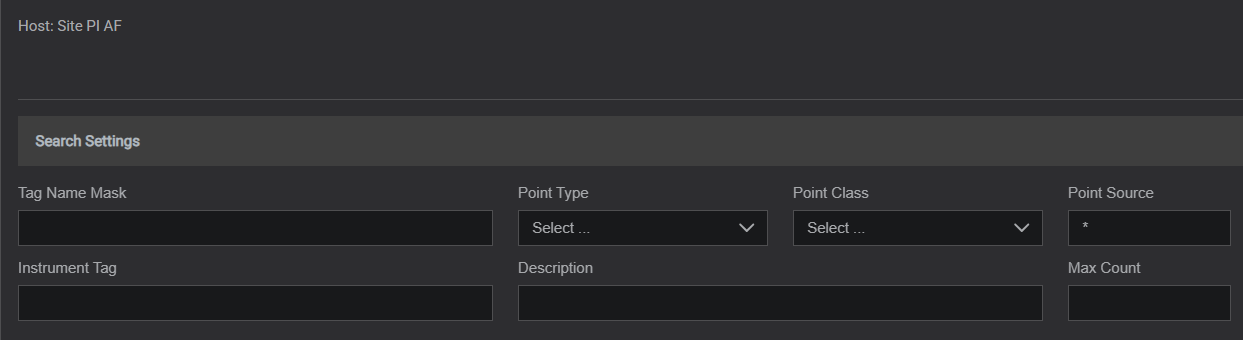
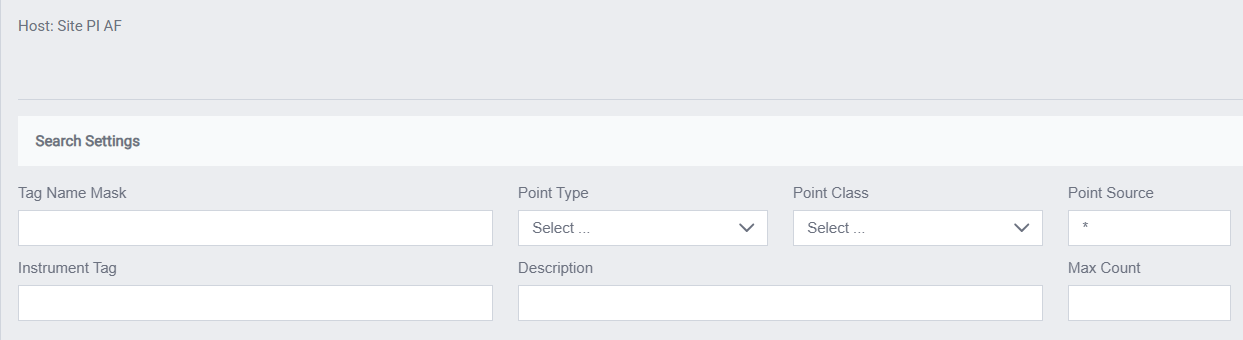
- Tag Name Mask: a wildcard pattern on the tag name (same idea as the quick search).
- Point Type: the tag's data type (
Float32,Int32,Digital,String, …). - Point Class: the point class (
classic,base, …). - Point Source: the interface or source that feeds the tag (
*matches any). - Instrument Tag: filter by the instrument / field identifier.
- Description: match text in the tag's description.
- Max Count: cap how many results are returned.
Advanced asset search
For assets, Advanced Search filters against the AF (asset) structure:
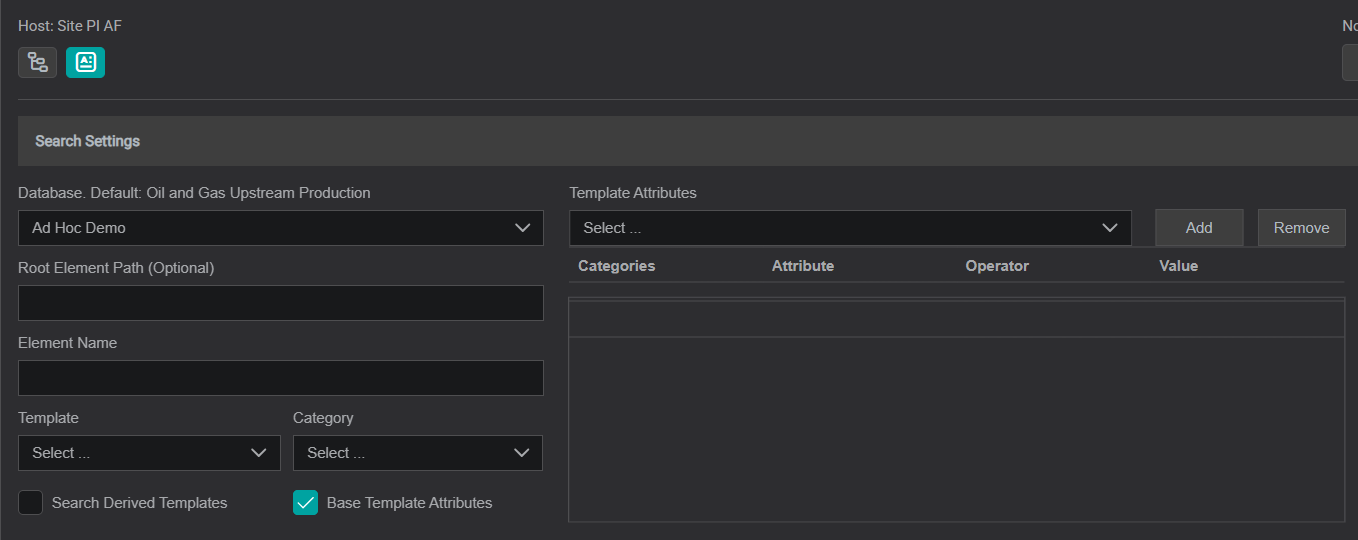
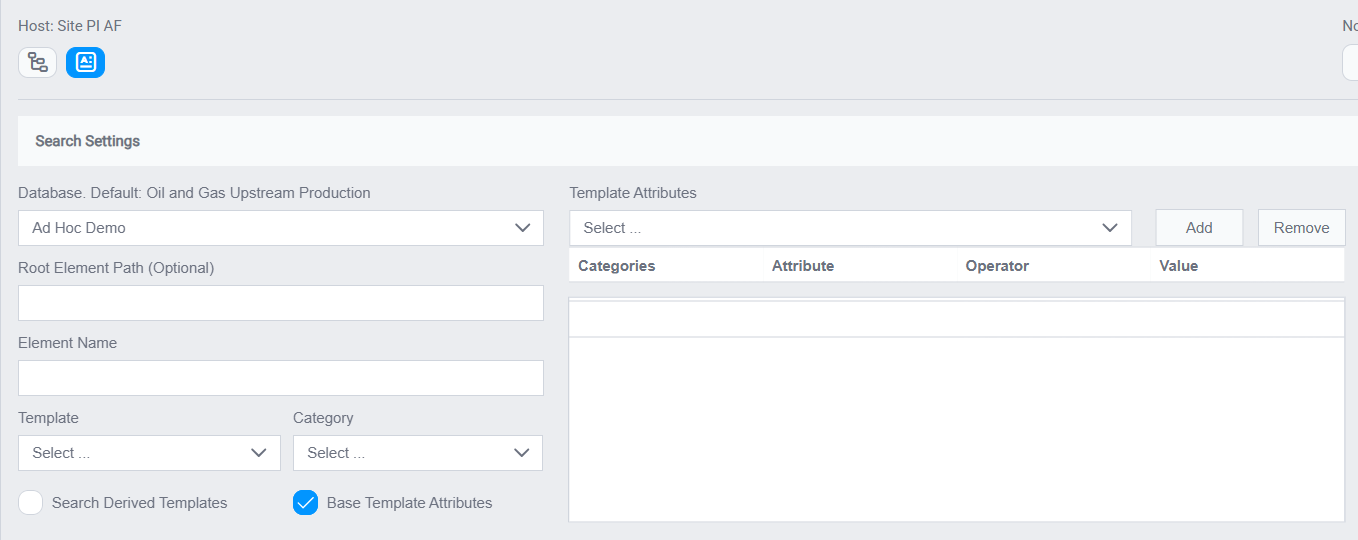
- Database: which AF database on the host to search (one server can serve several).
- Root Element Path: start the search under a specific branch of the tree instead of the top.
- Element Name: a wildcard match on the element (asset) name.
- Template: return only elements built from a given element template (for example, a
Heat Exchangertemplate). - Category: filter by the element's AF category.
- Search Derived Templates / Base Template Attributes: also include elements from templates derived from the chosen one, and match on base-template attributes.
- Template Attributes: add attribute-level conditions (Category → Attribute → Operator → Value) to find only elements whose attributes meet a rule.
Filtering by Template is the most common advanced use: it returns every asset of the same type (all your heat exchangers, all your pumps) so you can pick which one to train a component to.
Advanced search on SQL-based sources
When the selected source is a SQL-based connector (Databricks, generic SQL, and similar), Advanced Search shows a different, simpler set of filters. There are no PI point or template attributes; instead you narrow the search by table and path:
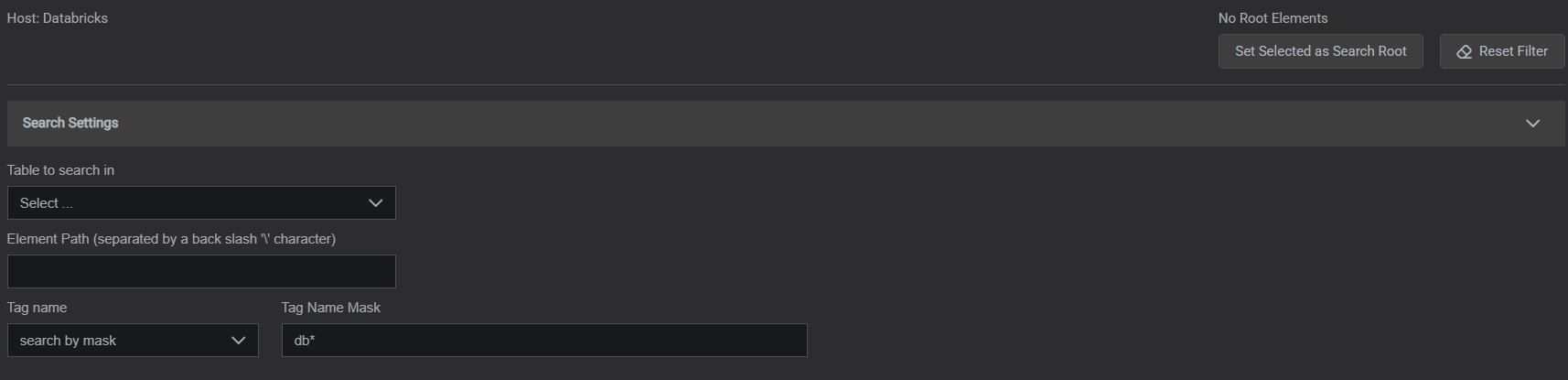
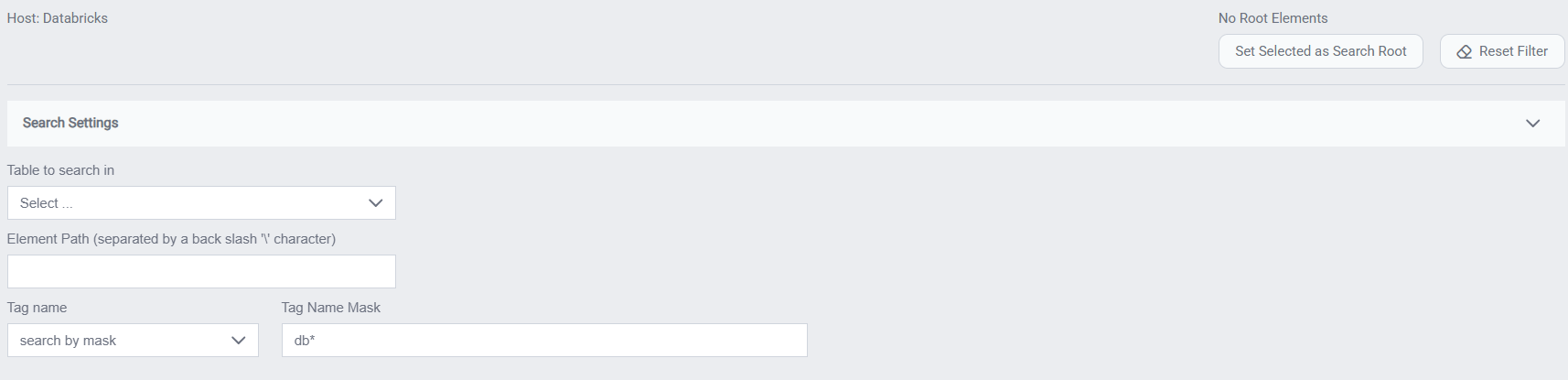
- Table to search in: pick which table (or dataset) in the source to query.
- Element Path: restrict the search to a branch of the source's path hierarchy (segments separated by a back slash
\). - Tag name: how to match the name: search by mask (wildcard) or the other available modes.
- Tag Name Mask: the wildcard pattern applied to the tag name.
The results table lists each match with its Name, Description, Path, Data Type, UOM, and LOW / UPPER range columns.
Choosing the Right Data Source
A data source selector appears above the search bar. It controls which source your search runs against. Open it to see every source configured for your instance, then tick the one you want to search. If you leave it on the wrong source, search results will be empty or show data from an unrelated system.
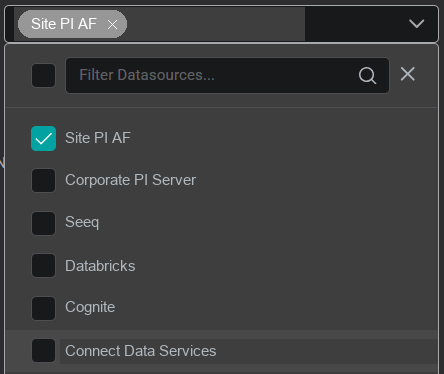
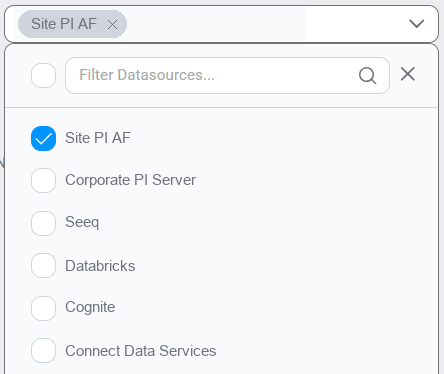
If you are unsure which data source name corresponds to your process historian, ask your administrator. Source names are configured in the Admin panel and may not match the underlying system name exactly.
Searching Effectively
- Use
*as a wildcard. The query*Temperature*finds every tag or asset whose name contains "Temperature". A leading*is often the fastest way to find tags when you only know a partial name. - Check the result count. The search results line shows the range returned, for example
tagSearch *Temperature* [1 - 50]. If it returns[1 - 0], broaden your search term or verify you have the right data source selected. - Hover over results to see the full name. Long tag names are truncated in the list. Hovering shows the complete identifier in a tooltip: useful when you need to confirm the exact tag before dragging.
- Use the description column. Many historians store a human-readable description alongside the tag name. The search results show both: scan descriptions when you are not sure of the tag name.
What's Next
Now that you can find the tags and assets you need, it is time to put them on a canvas. The next section walks through building a complete tag-based display step by step. Continue to Creating Displays with Tags.
Related
- Creating Displays with Tags: step-by-step example using tag search
- Understanding Asset Hierarchies: when and how to use the Assets tab
- Merging Data Sources: combining results from multiple data sources
- Line Chart Deep Dive: Function setting (Plotted Auto vs Recorded), trace formatting, scale controls, and known behaviors
- Asset Hierarchies: how tags and asset attributes differ, and attribute mapping