
Understanding Asset Hierarchies
Understanding Asset Hierarchies
Asset hierarchies organize your process equipment into a tree structure: plant, unit, equipment. IOTA reads these structures from your data source (OSIsoft AF, Cognite, and others) and exposes them in the Search panel's Assets tab. Understanding how hierarchies map to components is the foundation for building reusable templates that work across multiple assets.
Tags vs Assets: What Is the Difference
A tag is a single time-series signal. Its identifier is a flat name like PUMP_01.SPEED or HTX01_TIT_01. Tags have no structural relationship to other tags: they are individual streams of measurements.
An asset is a node in a hierarchy. It has a name (like HEX01) and a set of attributes: named properties such as TubeInletTemp, PerformanceIndex, HeatDuty. Each attribute points to an underlying tag, but the component does not see the tag name directly. It only knows the attribute name.
This distinction matters for building:
- If you bind a component to the tag
HTX01_TIT_01, that component always shows data for HTX01: it is fixed. - If you bind a component to the asset
HEX01via its attributeTubeInletTemp, you can later switch the component's asset context toHEX02and it will showHEX02'sTubeInletTempautomatically.
That switchability is what makes training components and asset-based templates possible.
How the Asset Tree Maps to Components
Consider a simple two-level hierarchy:
Heat Exchangers
  ├── HEX01
  │     ├── TubeInletTemp    → tag: HTX01_TIT_01
  │     ├── TubeOutletTemp   → tag: HTX01_TOT_01
  │     └── PerformanceIndex → tag: HTX01_PERF
  ├── HEX02
  │     ├── TubeInletTemp    → tag: HTX02_TIT_01
  │     ├── TubeOutletTemp   → tag: HTX02_TOT_01
  │     └── PerformanceIndex → tag: HTX02_PERF
When you drag HEX01 from the Assets tab onto a Value component, IOTA creates a channel named TubeInletTemp (or whichever attribute maps to that component type) and resolves it to the underlying tag at query time. The component stores the attribute name, not the tag name.
When the asset context switches to HEX02, through a training interaction or an asset group, the channel name TubeInletTemp stays the same, but the data returned is HTX02_TIT_01. No reconfiguration is needed.
What the Assets Tab Shows
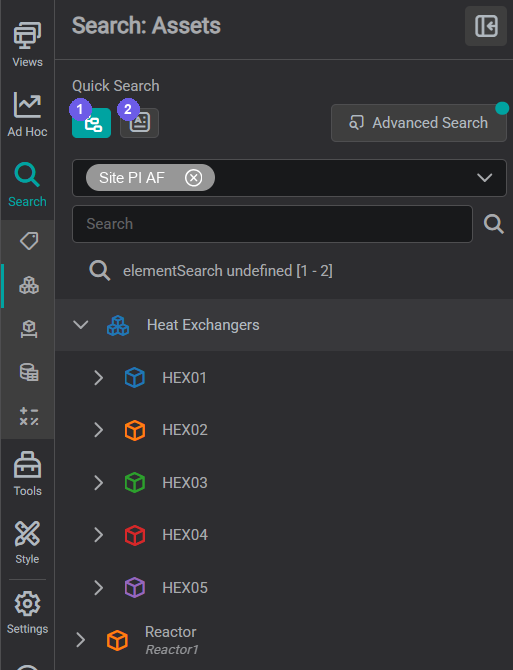
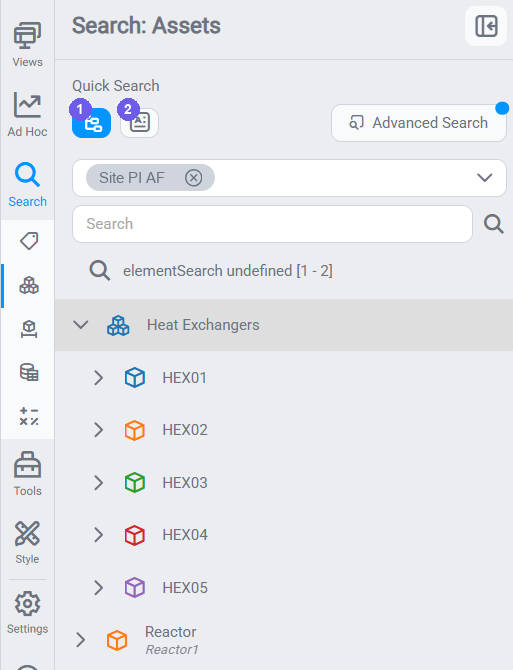
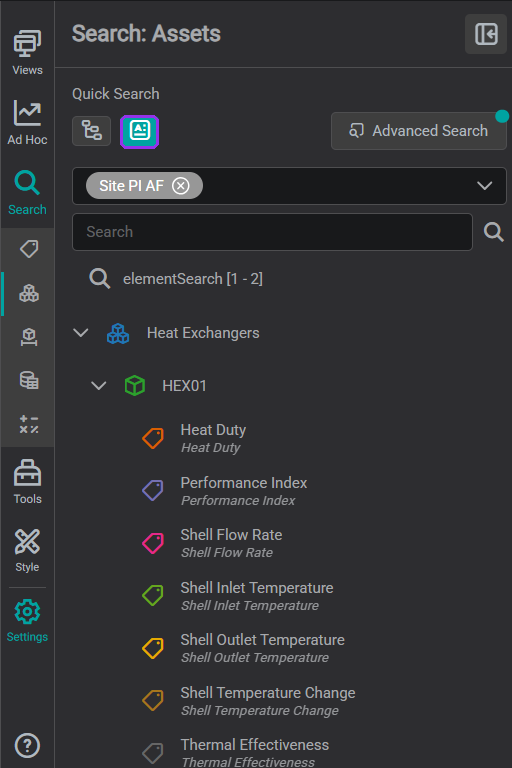
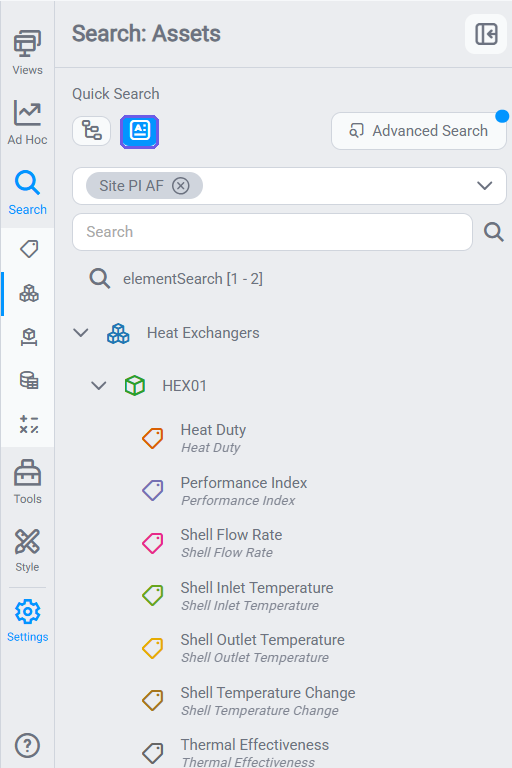
Open the Search panel and select the Assets tab. It offers two views of the same data, and together they show exactly what an asset hierarchy is.
Browsing the hierarchy. With Search Hierarchy on (toggle 1), results show the asset tree: a parent such as Heat Exchangers that expands to its children HEX01–HEX05. Each node shows its Name and a Type icon (AF Element, Cognite Asset, or a custom type). This is the structural view: how your equipment is organized.
Seeing an asset's attributes. Turn on Load Attributes (toggle 2), then expand an asset node to reveal its attributes: named properties like Tube Inlet Temperature, Heat Duty, and Thermal Effectiveness, each mapping to an underlying tag. This is the content view: the data an asset actually exposes.
You can drag either the asset node (to train the component to the whole asset: the typical approach) or an individual attribute (to bind one specific property).
For how these toggles work and how to drive the Assets tab, see Searching → Assets.
Attribute Mapping
When IOTA drops an asset onto a component, it uses attribute mapping to decide which asset attribute maps to which component channel. The mapping rules are stored in the component's channel settings as a templateMapping field.
For standard component types (Value, Line Chart, Gauge), IOTA applies a default mapping that matches common attribute names. If the asset's attribute names do not match what the component expects, you configure the mapping manually in the channel settings.
For custom components and more complex mapping scenarios, see Training Components.
Generic Mapping: matching attributes by name
Beyond the template-based default, IOTA offers Generic Mapping: linking a component to asset attributes by name rather than by a fixed template. In the mapping dialog you specify a custom attribute name; when you switch to a different asset, the component binds to the attribute of that same name, whatever the asset's template.
This is especially useful when assets lack consistent templates, for example with Seeq integrations, so one dashboard configuration can be reused across diverse assets instead of building a separate display for each asset type.
Tips
You do not need a multi-level AF hierarchy to use asset-based displays. A flat list of assets, all at the same level, works just as well. Training means binding the component to one asset from that list. You can later switch to another asset in the list.
Note
If you are migrating from OSIsoft PI Vision: assets in IOTA correspond to PI AF elements. Attributes correspond to PI AF attributes. The visual hierarchy in the Assets tab mirrors your AF structure.
What's Next
Now that you understand how assets and attributes are structured, the next step is to build components that bind to them dynamically: train a component once and point it at any asset. Continue to Training Components.
Related
- Training Components: build reusable templates using asset training
- Asset Groups: organize assets into collections for overview displays
- Searching for Tags, Assets & Datasets: how to navigate the Assets tab
- Merging Data Sources: combining data from multiple asset hierarchies