
Finishing & Sharing
Finishing & Sharing
Once you have built and tested a display, you finish it by publishing (locking) it, then get it in front of others in your organization.
Publishing a Display
After building and testing your display, lock it to make it available to viewers. Locked displays are read-only for end users and appear in the view hierarchy for anyone with access.
Ways to share and move a display
Everything you can do with a finished display lives in the additional menu in the Views panel toolbar. Select a display, open the menu, and you'll find:
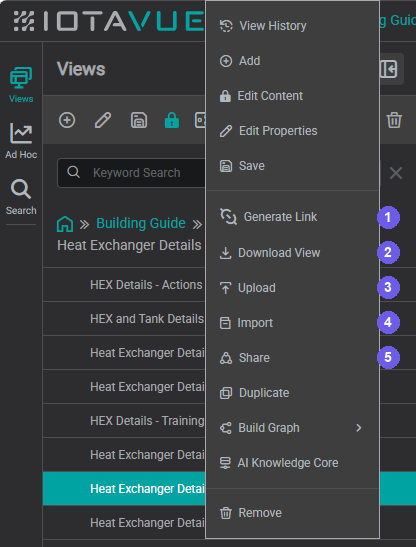
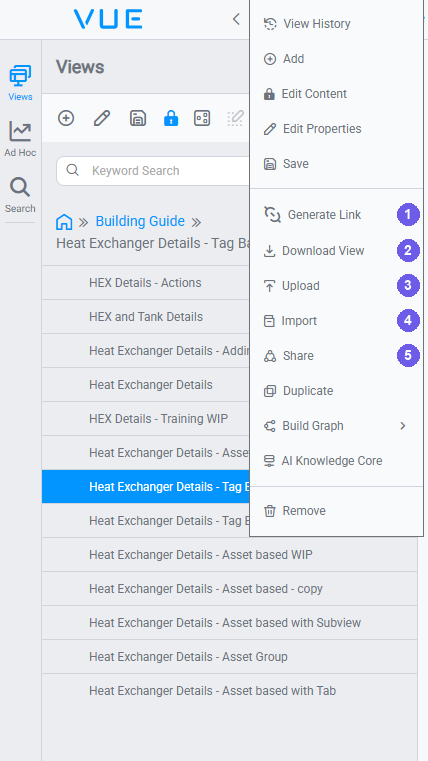
- Generate Link: hand out a read-only link to a single view.
- Download View: export the display to a file.
- Upload: bring a downloaded file back in as a new copy.
- Import: pull in displays from other systems.
- Share: grant people ongoing access to the display in place.
The rest of this page walks through each, in that order.
Generate a read-only link
Choose Generate Link (1), or right-click the view in the side panel, to create a shareable URL. Send it to anyone with access to the instance; the link opens straight to that view, without the folder-path context and without adding it to their view hierarchy. It is the quickest way to let someone see a display without managing per-user access.
Ad-hoc trends
Viewers share ad-hoc trends, on-the-fly line-chart analyses, the same way (right-click → Generate Link), and browse them under Ad Hoc Trends in the side panel (Private / Shared With Me / Shared By Me). That is a viewer workflow; see Saving Ad Hoc Trends and Sharing Ad Hoc Trends.
Download and upload a copy
Any display can be exported to a Base64 file (.b64) and later uploaded into the same or a different IOTA instance, to hand a copy to another user, keep an offline backup, or move a display between administrator accounts that cannot edit each other's content directly.
- Download View (2): select the display, open the additional menu, and click Download View to save it as a
.b64file. - Upload (3): click Upload and choose a
.b64file to add it to your hierarchy.
The uploaded display becomes an independent copy owned by whoever uploads it: which is why download-and-upload is the usual way to move a display across owner accounts. To share a display in place instead of handing off a copy, use Share, described below.
Duplicate a view instead
To duplicate a display within the same instance without the file round-trip, use Duplicate in the same additional menu: it creates an independent copy of the view and leaves the original untouched. Download → Upload is still the way to copy a display to a different instance or owner account.
Import from other systems
Import (4) brings displays in from tools other than IOTA VUE:
- Migration Utility: migrate displays from PI ProcessBook and other tools. See Migration Tools.
- Live Rendering: render a PI Vision display live through the view's Reference tab. See Live Rendering with IOTA VUE.
Grant access with Share
Share (5) is the main way to give your team ongoing access to a display. Displays live in the folder hierarchy shown in the IOTA Hub, and access is granted per display, to individual users, groups, or roles. Administrators can also manage this centrally from the Roles, Users & Groups → Sharing views page.
To share a display, select it, open the additional menu, and click Share. In the dialog, tick a permission level for each user, group, or role and click Apply:
- Read: open and view the display, but not interact with it
- Execute: interact with the display (dropdowns, selections, time changes) but not edit it
- Write: full editing rights
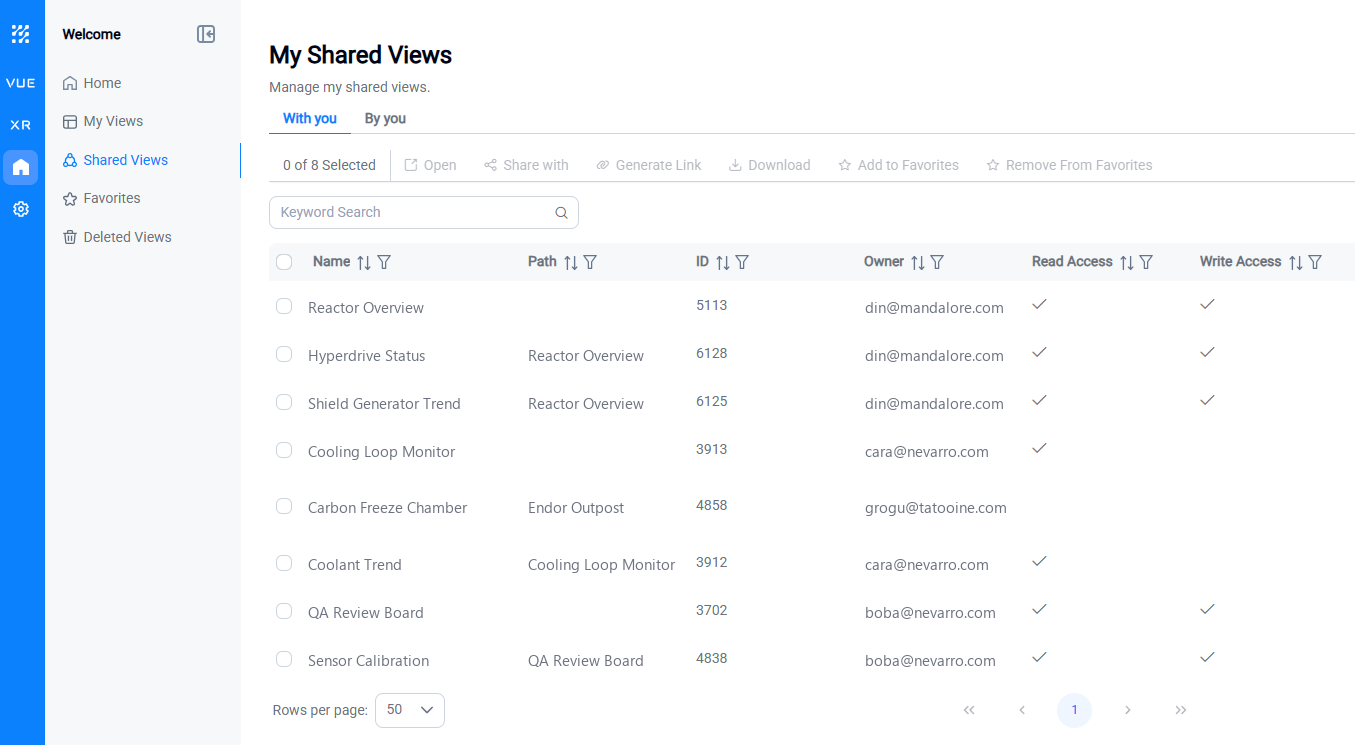
Each person you share with sees the display under Welcome → Shared Views, along with the access they were granted:
Making it appear in a user's sidebar
The sidebar Views tree shows a display only if the user has read access to it and to every folder above it, up to Home. Granting access to one display lets the user open it, but if they cannot read its parent folders, the tree cannot descend to it, so the display will not appear in their sidebar.
- Share the containing folder (and its ancestors), or place the display in a folder the user can already read. Sharing only the individual display is not enough for it to show in the tree.
- Even shared on its own, the display still reaches the user two ways: under Welcome → Shared Views, and through a generated link.
View Ownership Model
Every display has a single owner: the user account that created it. Ownership determines who can edit the display when it is locked:
- Owners can unlock and edit their own displays at any time
- Administrators can edit displays they own, but cannot edit displays owned by another administrator
- Regular users with appropriate access can edit displays owned by others if granted explicit edit permissions
Admin-to-admin editing limitation
If an administrator creates a display, another administrator cannot unlock and edit it without transferring ownership first. This is by design: administrator accounts are isolated from each other's content to prevent accidental overwrites across teams.
To transfer ownership, contact your IOTA system administrator.
What's Next
That is the full build-to-share workflow. For a final polish, the Engineering View lets you hide construction-only elements so viewers get a clean, focused display. Continue to Engineering View.
Related
- Engineering View: present a clean, viewer-facing display
- Building Real-World Displays: organize complex displays
- Troubleshooting: diagnostics for a support ticket