
Sharing Ad Hoc Trends
Sharing Ad Hoc Trends
Once you have saved a trend, you can share it with colleagues or send them a direct link.
Share with another person
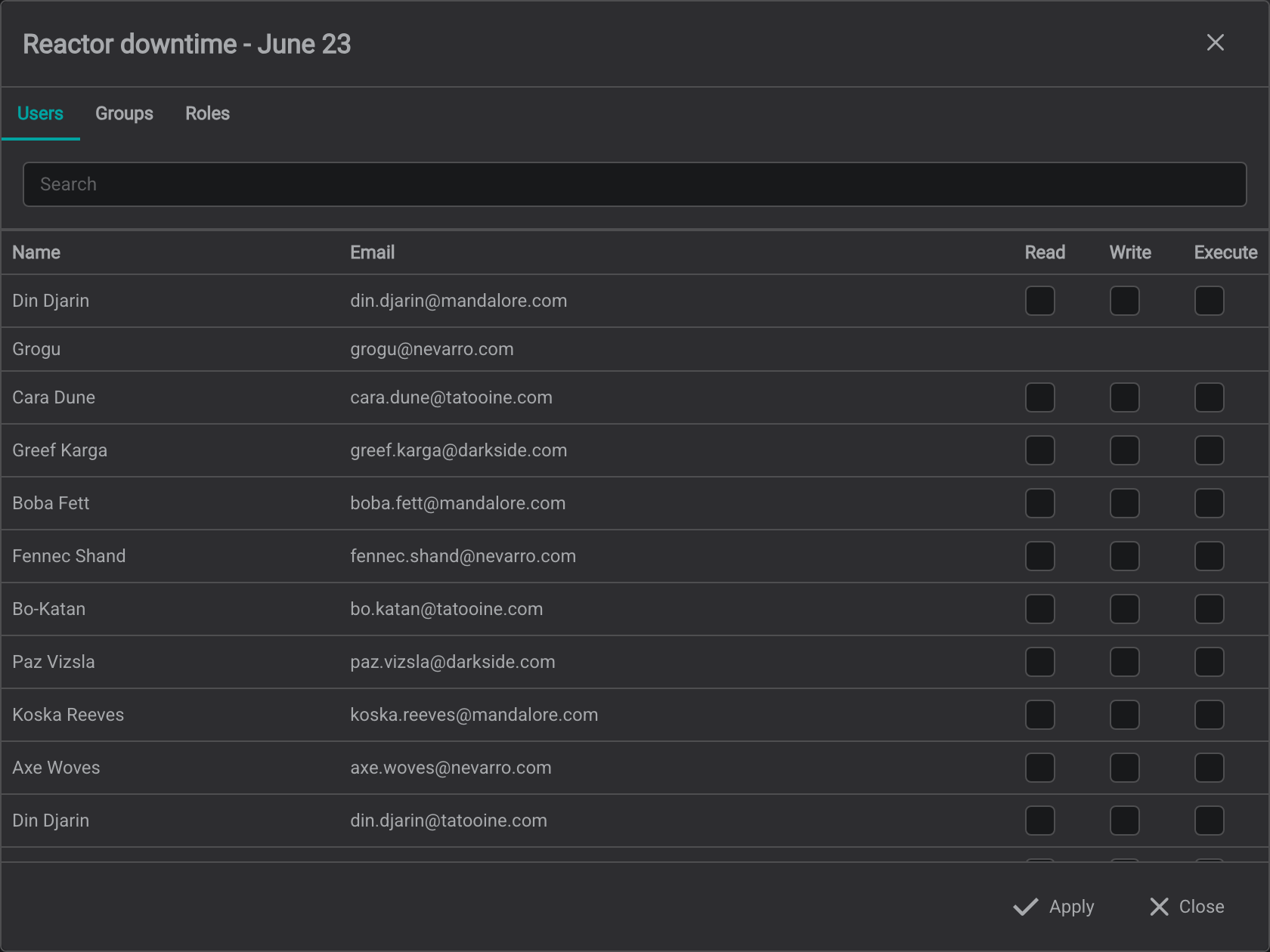
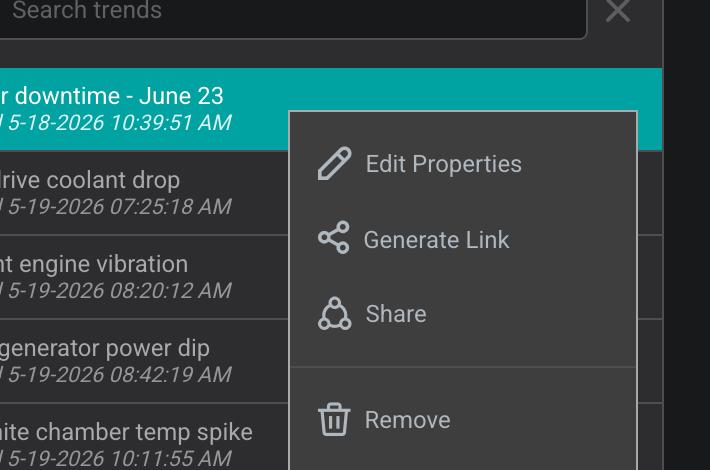
- In the Ad Hoc Trends side panel, right-click the saved trend and choose Share.
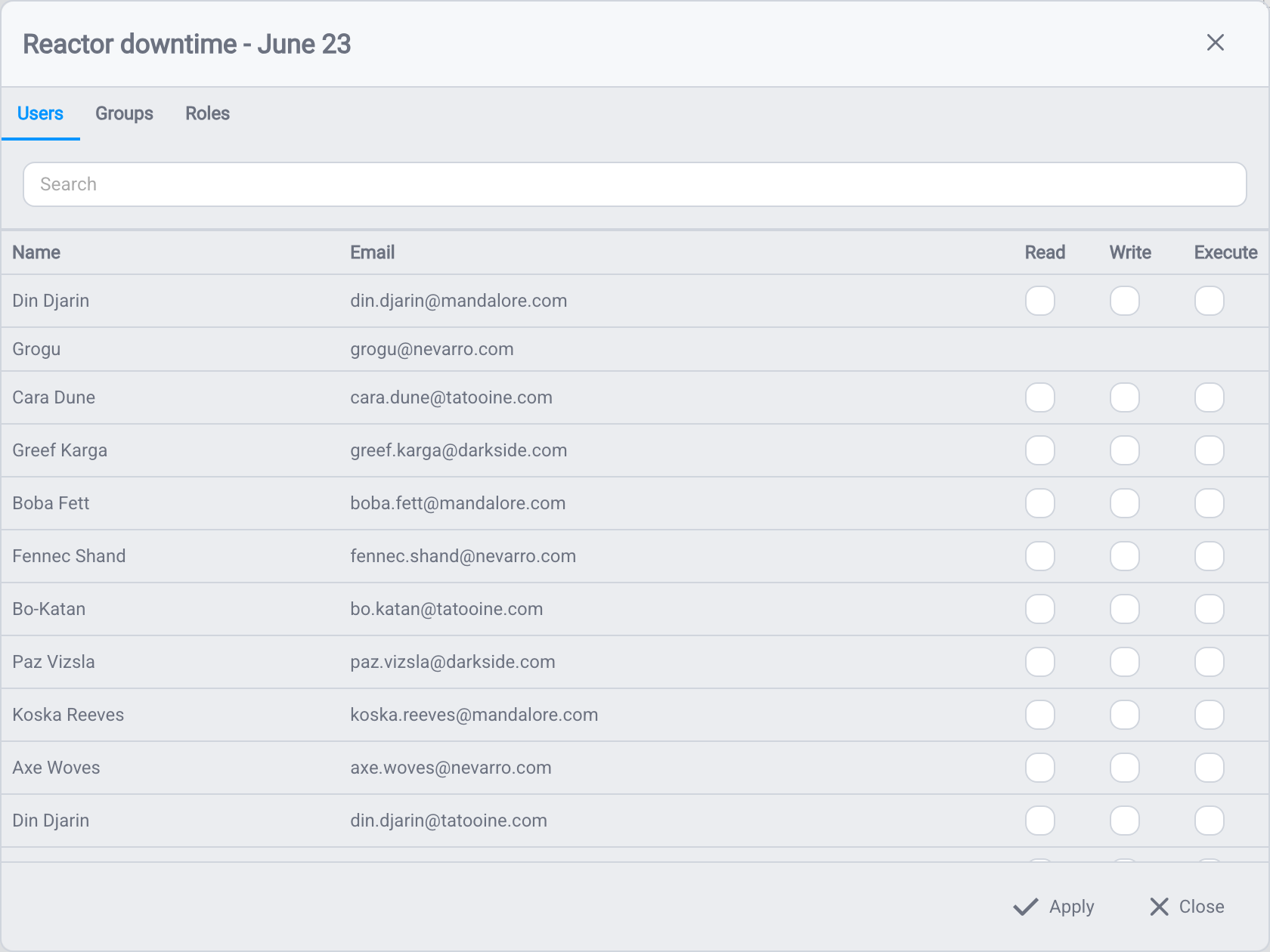
- In the picker, choose who to share with from three tabs, and set each one's access (Read, Write, Execute):
- Users: individual people.
- Groups: groups defined in your organization's identity provider (the same system you sign in with). Email domains also appear here as groups, so sharing with a domain group shares the trend with everyone who signs in with that email domain.
- Roles: IOTA roles your administrator has set up.
- Click Apply.
If you are not sure who to share with, ask your administrator: they manage groups and roles (see the Admin Guide).
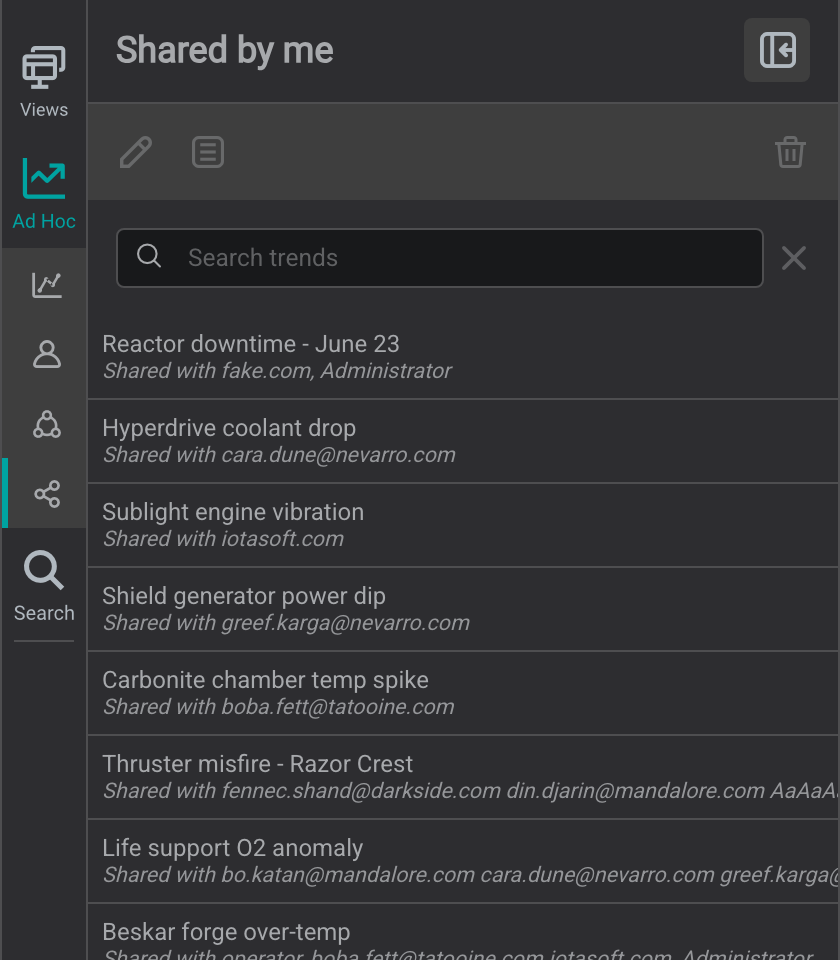
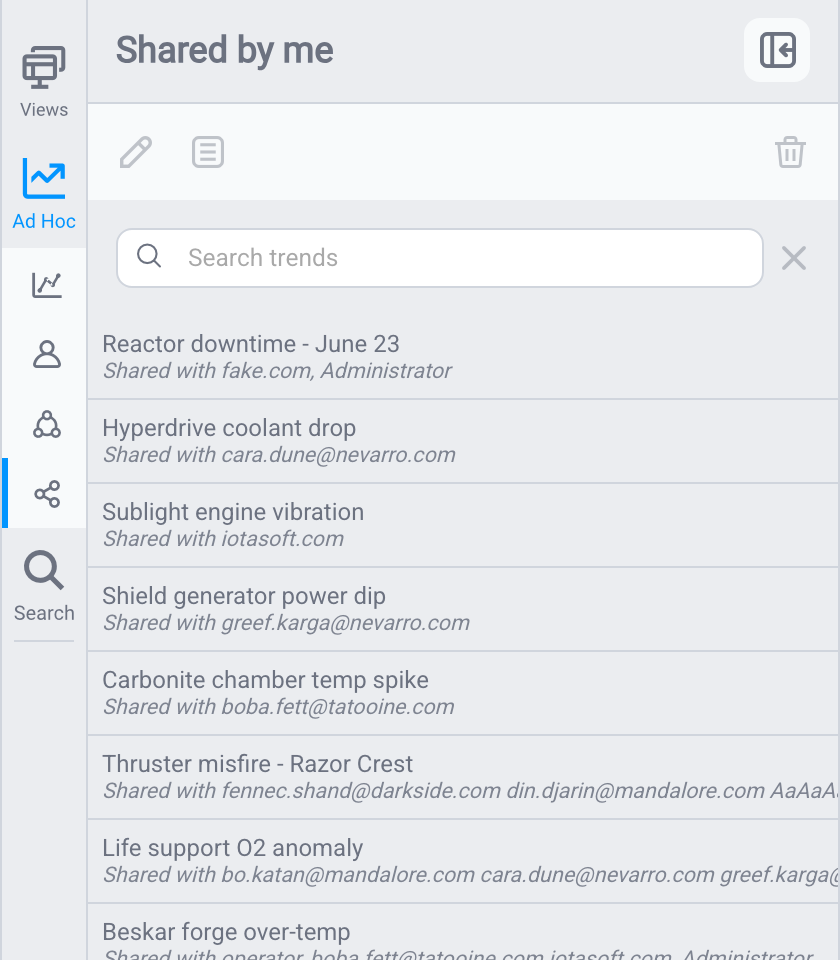
The trend's visibility changes from Private to shared. It now appears under Shared by me for you, and under Shared with me for each person you shared it with.
Send a link to a trend
There are two kinds of links, depending on what you want the recipient to see.
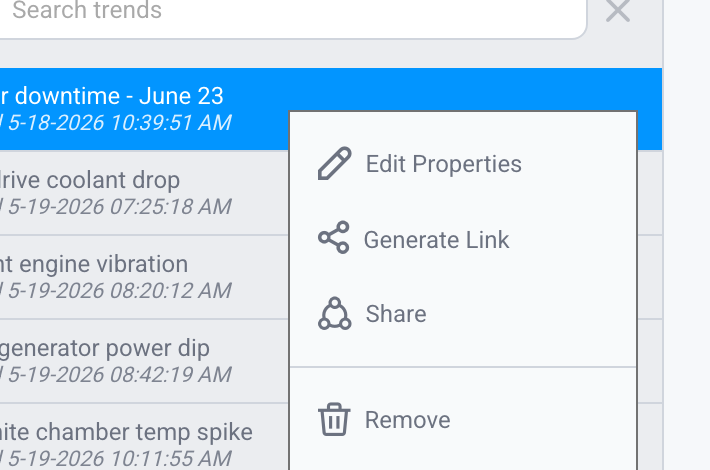
Link to the trend on its own. Right-click the trend in the side panel and choose Generate link. This copies a link to just the trend (…/iota?adhocs=<id>); when opened, the trend appears on the recipient's default landing page, which they can navigate from.
Link to what you are looking at now. Copy the address straight from your browser's address bar: the bar at the very top of the browser window. This link includes the display you are on plus any open trends (…/iota/<display>?adhocs=<id>). If more than one trend is open, their IDs are listed together, separated by commas (?adhocs=7274,7350).


Opening a shared link
Each part of a shared link opens independently:
- If you can open both the display and the trend, the display loads with the trend floating on top.
- If you can open the trend but not the underlying display, you still get the trend: it opens over a "view not found or you have no access to it" placeholder.
- A link to a trend you do not have access to is simply skipped.
To open a shared trend you must have access to it. If you do not, ask the owner to share it with you using the steps above.
What's Next
To take trend data outside IOTA Vue, continue to Data Export to save it as CSV for spreadsheets or reporting.
Related
- Data Export: export to CSV
- Saving Ad Hoc Trends: keep a trend for later
- Trending Data: the ad hoc trend overview