
Viewer Workspace
Viewer Workspace
The Viewer workspace is where you interact with IOTA Vue displays. From here you move between views, control the time range, and open the tools you need to explore your data.
When you first sign in, IOTA opens a display: either the first one in your list, or a specific landing display your administrator has set for you.
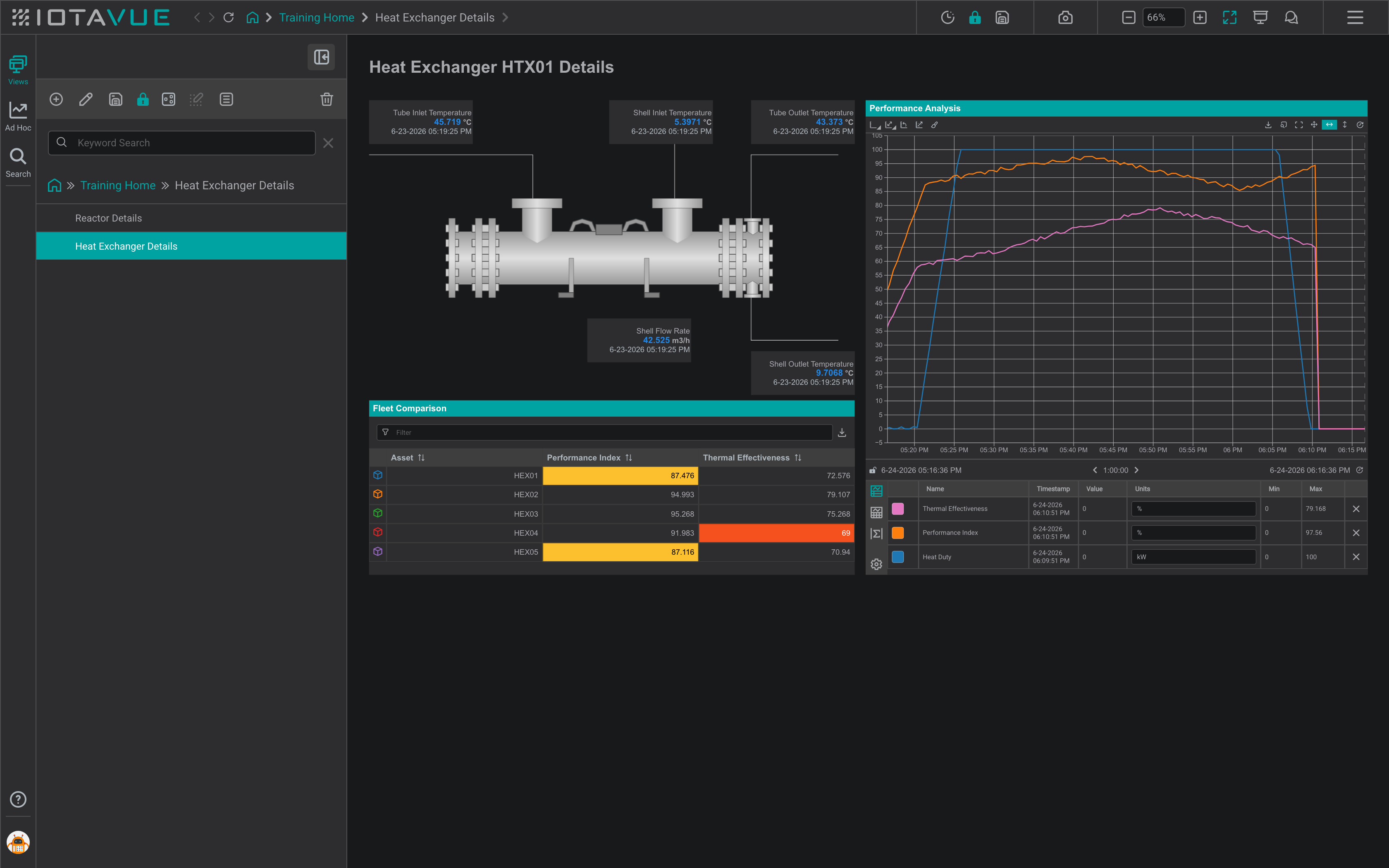
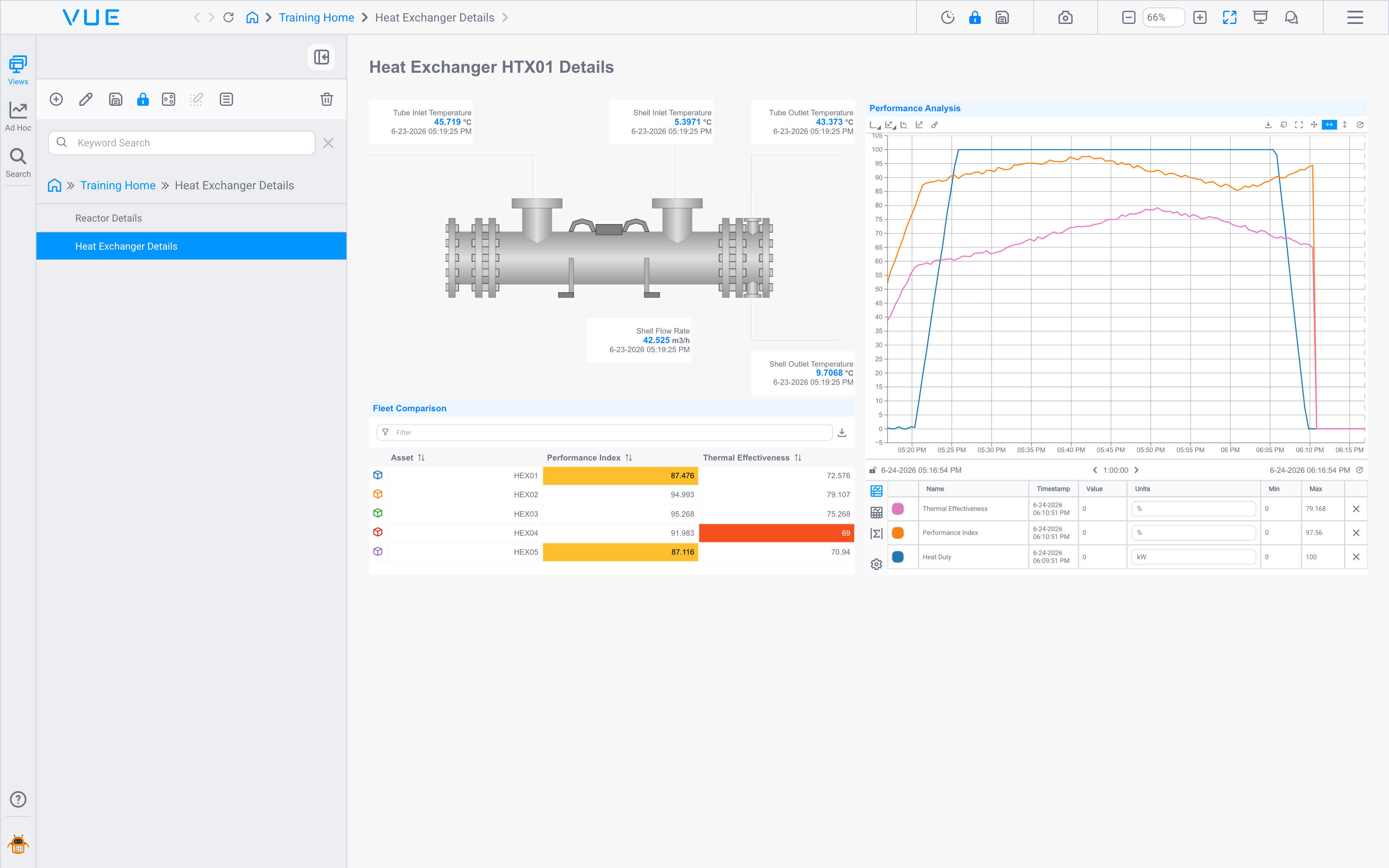
This guide is about working with the displays your team has already built: navigating between them, exploring their data, and trending. If you want to create your own displays, see the Builder Guide.
Side Pane
The side pane provides three main tools: switch between them using the icons on the left rail:
- Views: browse and open available displays, organized in folders
- Search: find relevant content and signals across your IOTA instance
- Ad Hoc Trends: browse and reopen trends you have saved or that others have shared with you (see Saving Ad Hoc Trends)
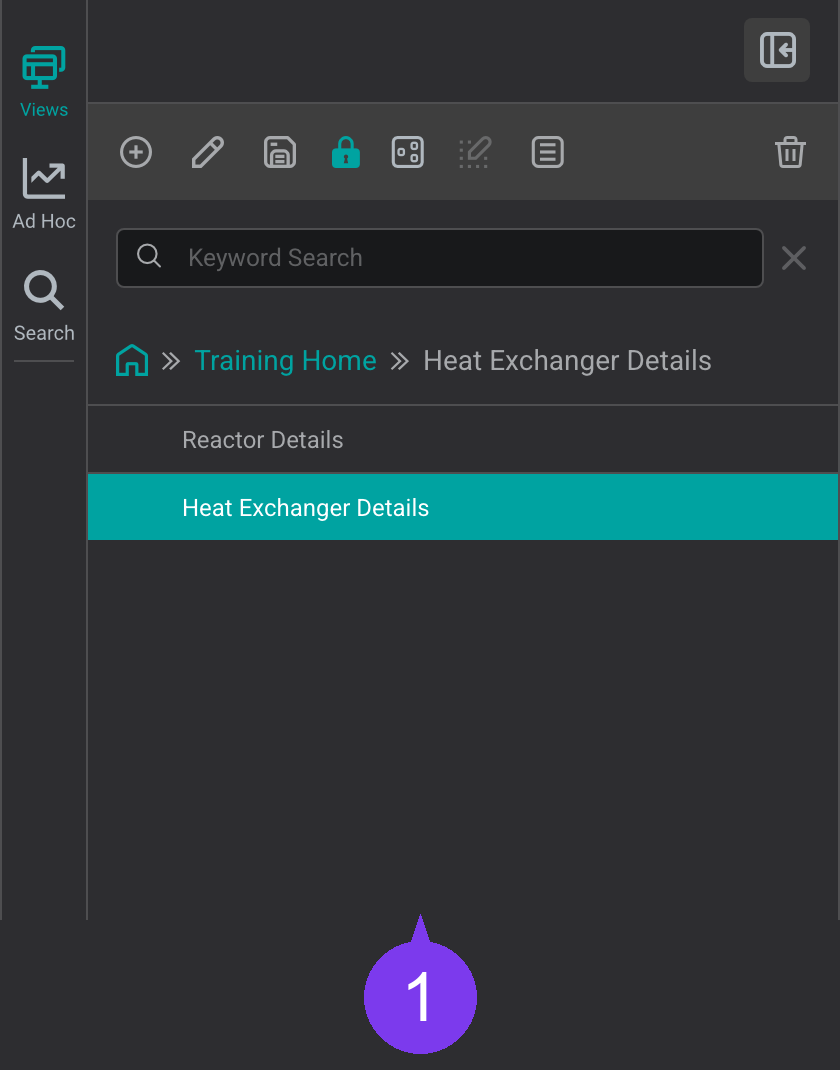
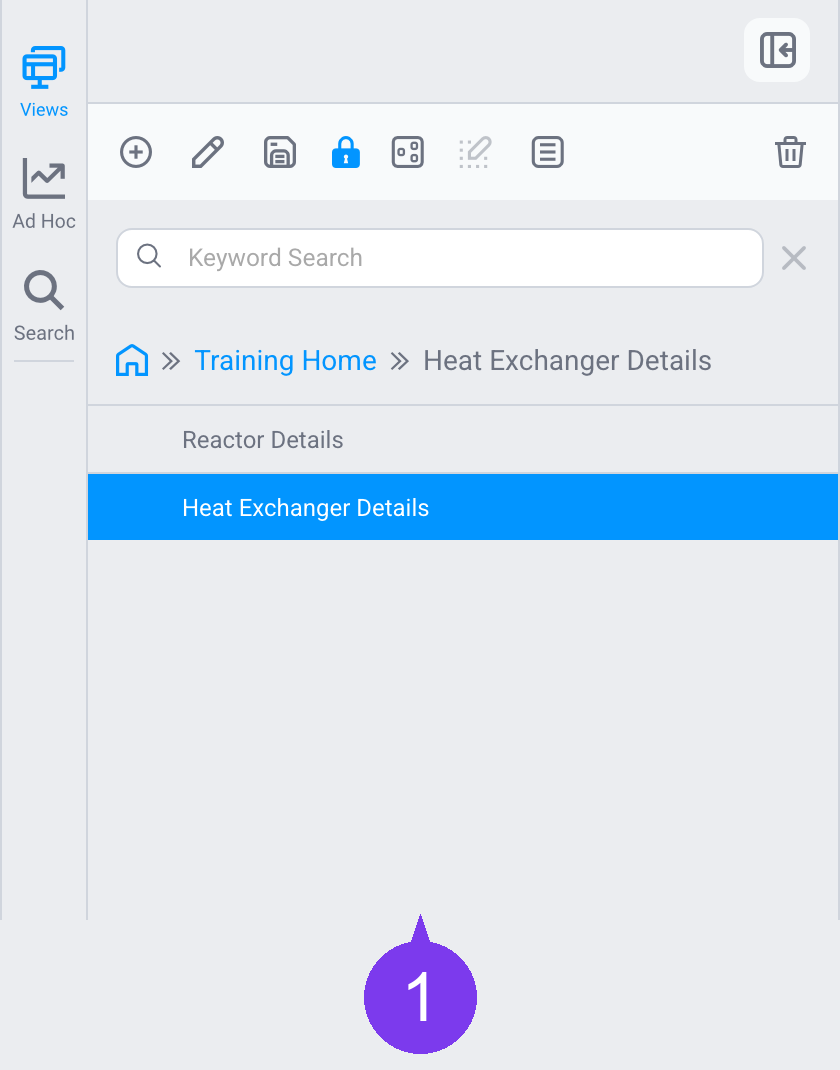
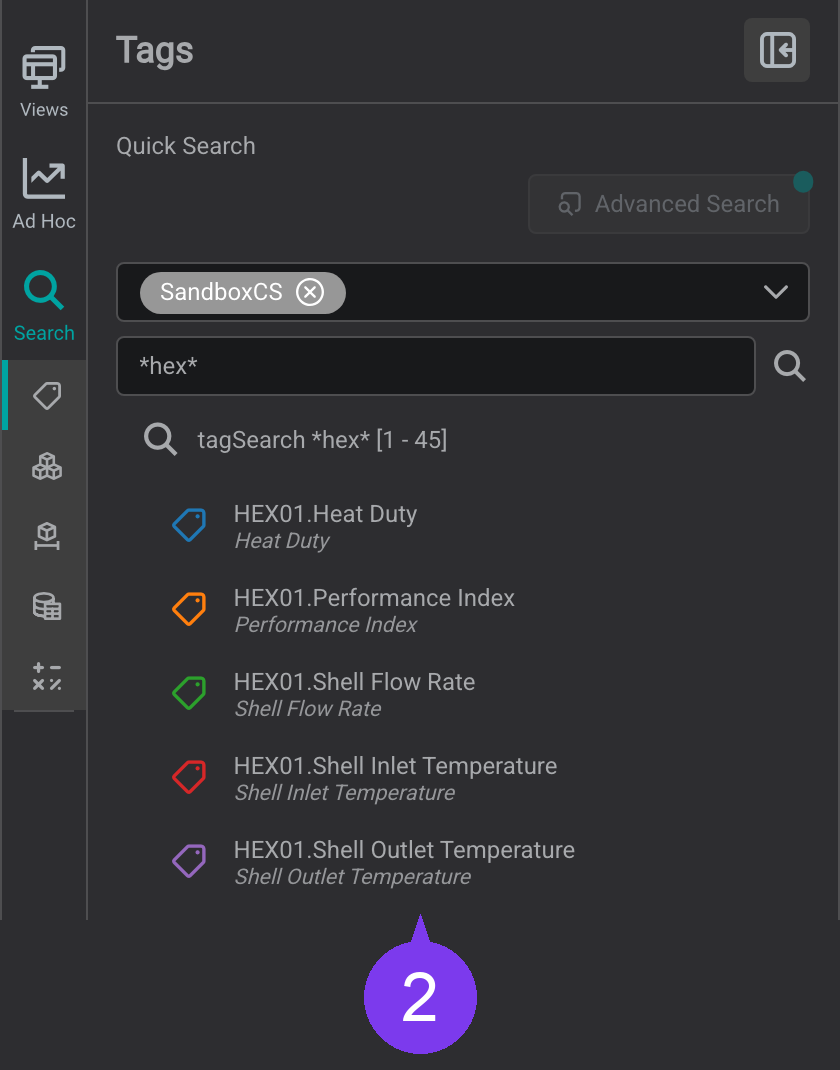
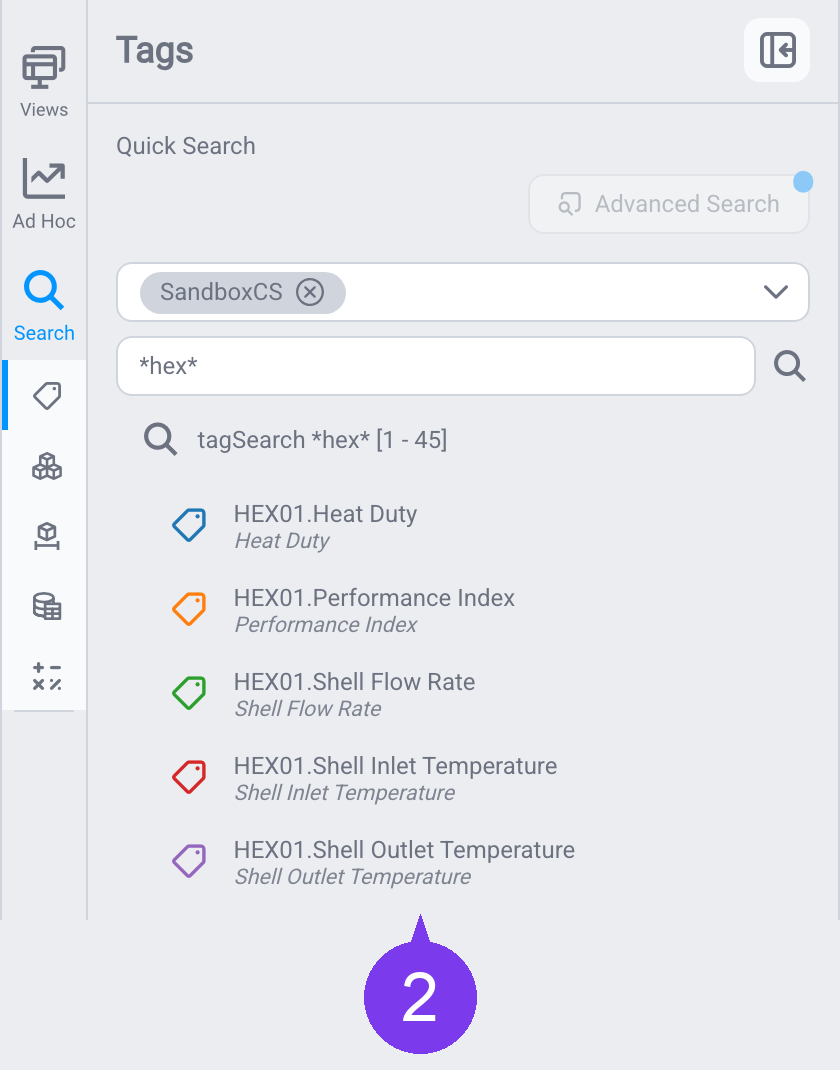
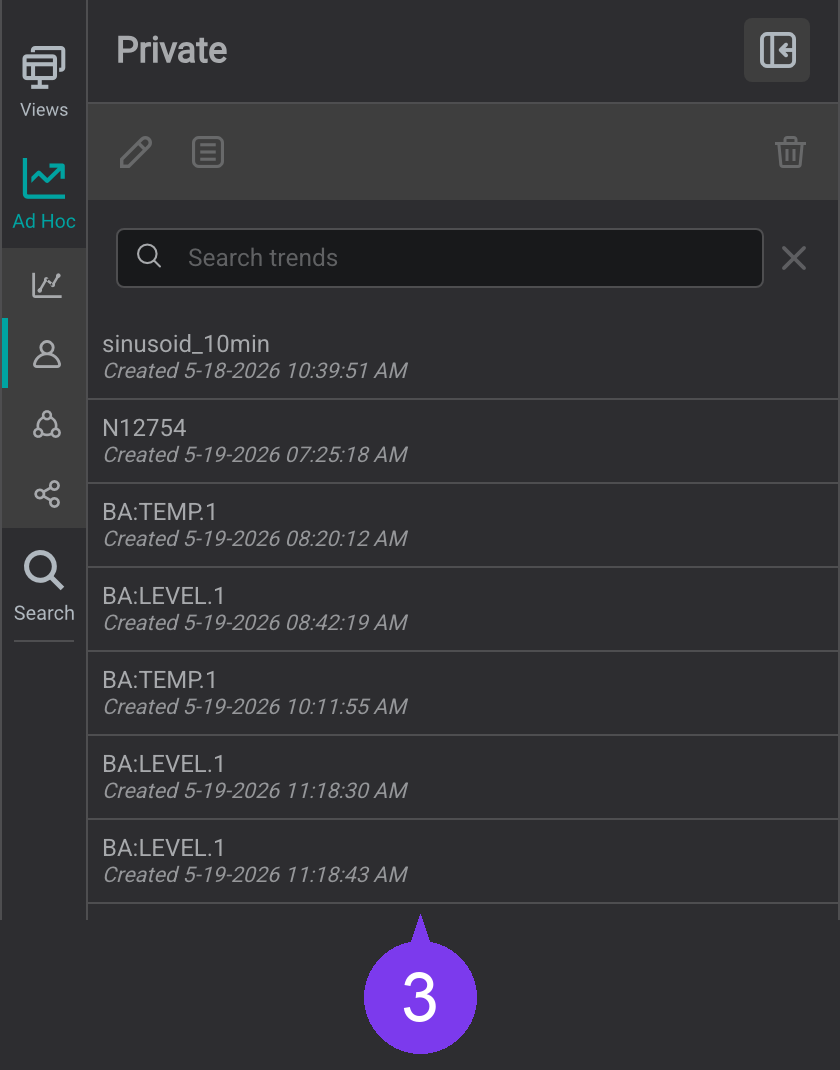
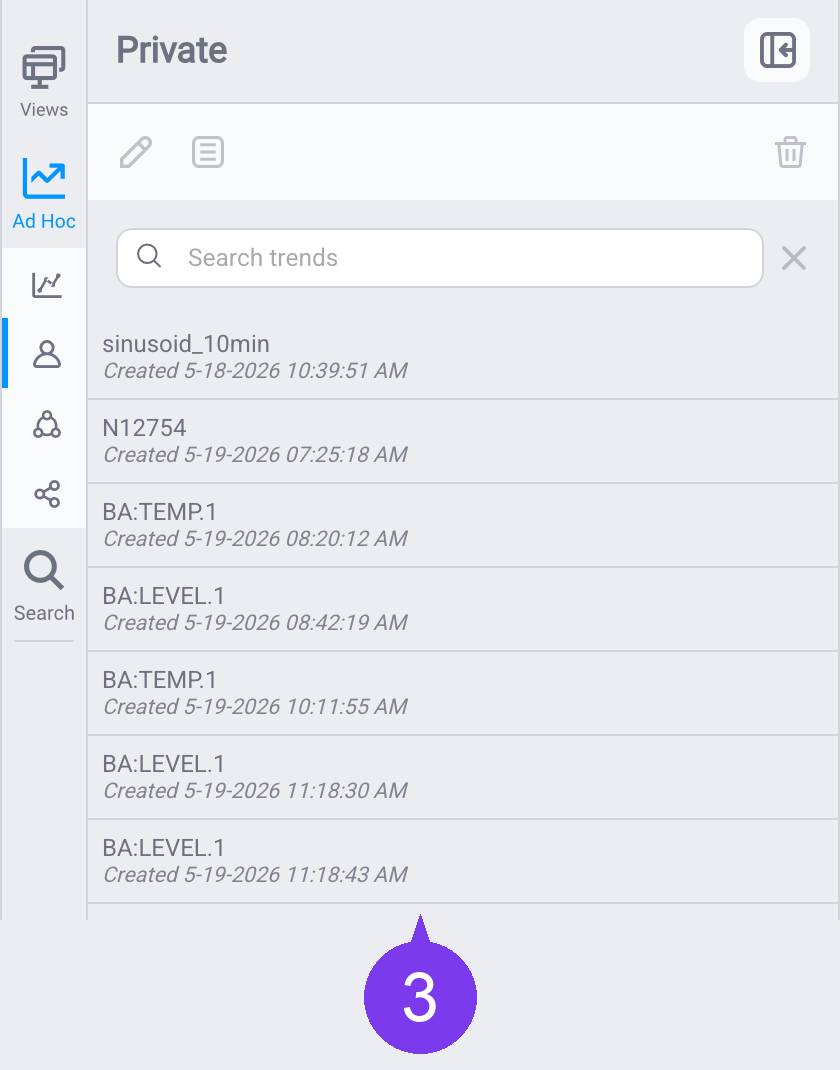
Use the Collapse/Expand button at the top of the side pane, or click directly on a tool's icon, to open and close these sections.
Navigating Between Views
Move between views from the top bar:


- Search: type a view name to jump straight to it.
- Breadcrumb trail: shows your location (
🏠 » Training Home » …); click the home icon or any segment to jump there. - Side pane; open the Views tool and browse the folder tree, or use its Keyword Search box to filter the list (for example, type part of a view's name to find it quickly):
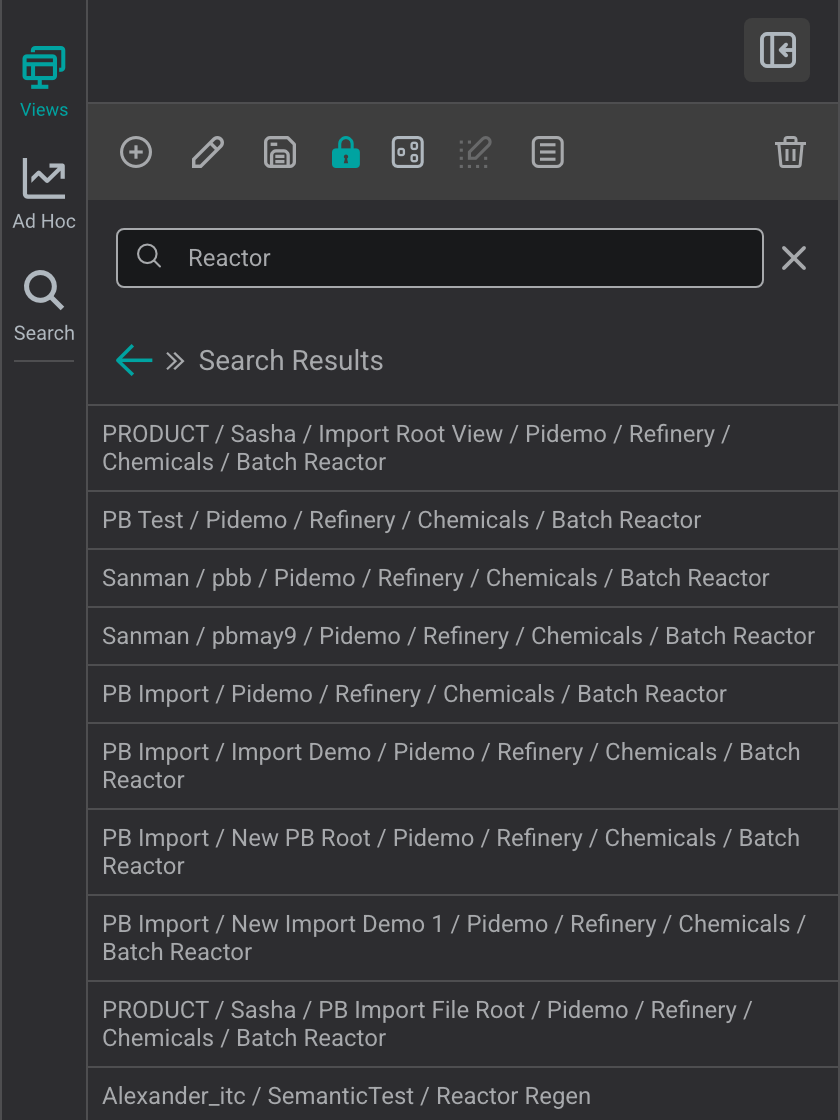
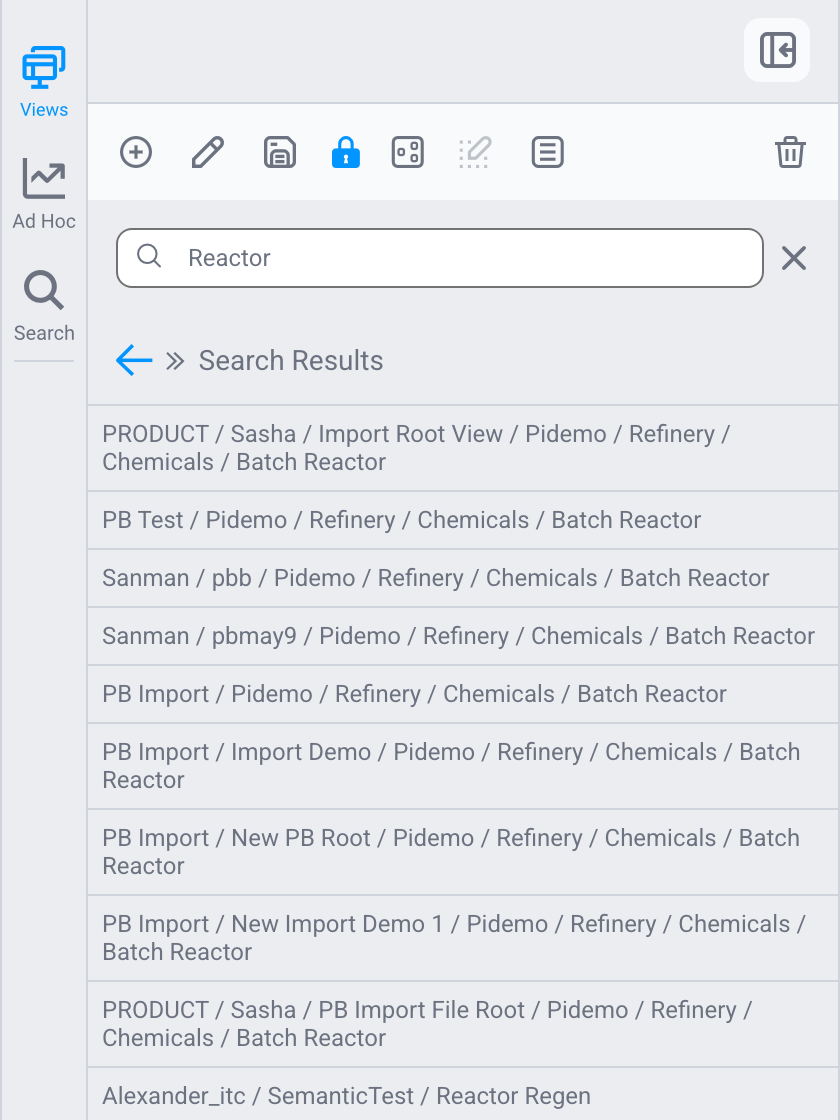
Tips
The Search box and the breadcrumb are both off by default: turn them on in your user profile (Show Search View / Show Breadcrumb). The breadcrumb also only lists views the builder marked Show in Breadcrumb Navigation: IOTA is built for sharing apps with many users, so, like a website, only the pages people need to navigate are exposed; private or working displays stay hidden. If an expected view is missing, ask its builder to enable it (see the Builder Guide).
Additional Top Menu Bar Items
The top menu bar gives you quick access to essential controls:


- Time control; open the time control to change the view's start and end time, or switch to replay mode
- Lock indicator: shows whether the current view is locked (read-only)
- Screenshot: download a
.pngimage of the current view - Zoom controls: zoom the current display in and out, set a zoom percentage, and use Fit to Page (the expand icon) to size the whole display to your screen
- Presentation mode: expand the view to fill the screen for large monitors and control rooms
Tips
For a full overview of building views and dashboards, see Building Your First Display.
What's Next
Now that you can move around the Viewer, continue to Exploring Data on a View to read live values, adjust the time range, and open an ad hoc trend from any display.
Related
- Exploring Data on a View: interact with live data on a display
- Trending Data: build ad hoc trends to investigate signals
- IOTA Hub: the home workspace for finding and opening views
- User Profile & Preferences: personalize the Viewer