
Saving Ad Hoc Trends
Saving Ad Hoc Trends
Ad hoc trends are temporary by default: they disappear when you close them. You can save a trend to return to it later, or to share it with a colleague.
Save a trend for future work
- Open an ad hoc trend, add the signals you want, and set the time range.
- Click Save in the trend window's header.
The trend saves immediately: there is no dialog and no confirmation message. Instead, the page address updates to include ?adhocs=<id>. That change in the address bar is your confirmation that the trend was saved.
The trend window stays open and you can keep working. If you change anything afterwards, the Save button shows an unsaved-changes marker until you save again.




Find your saved trends
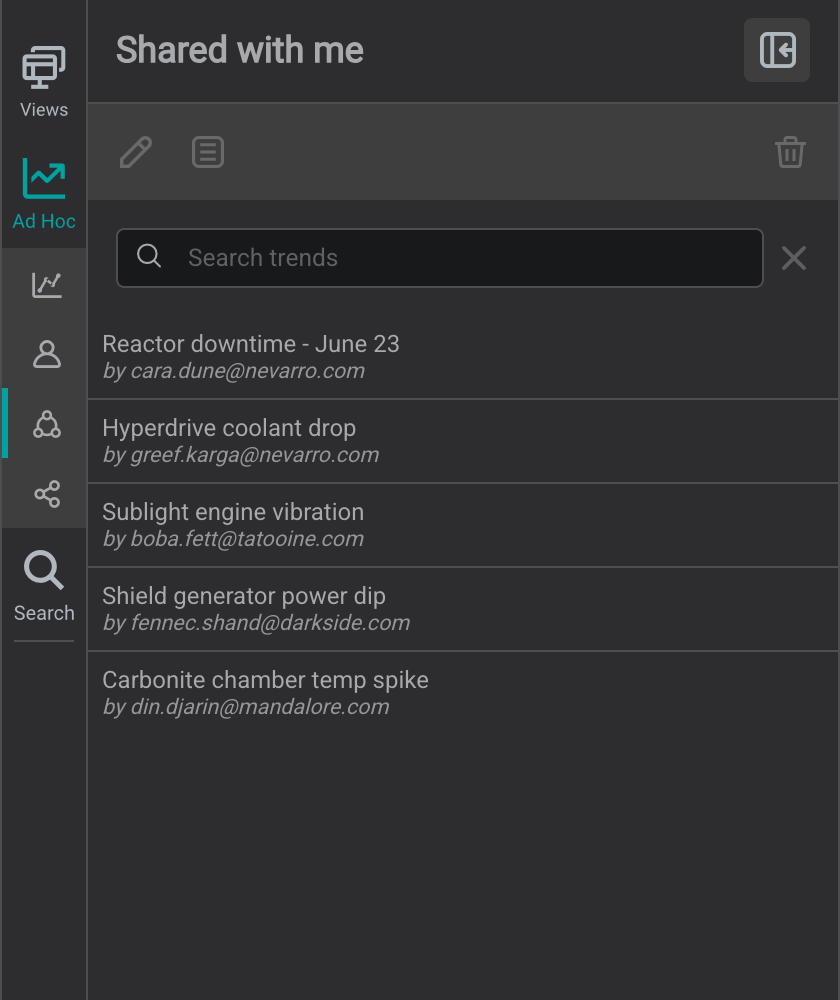
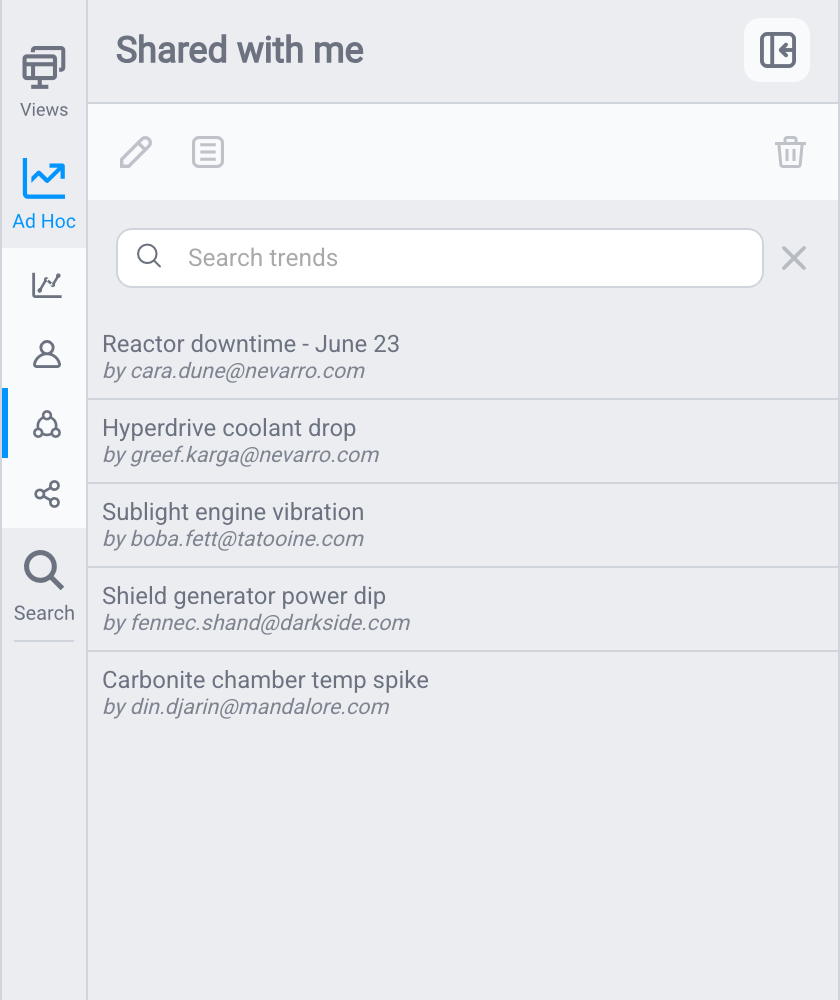
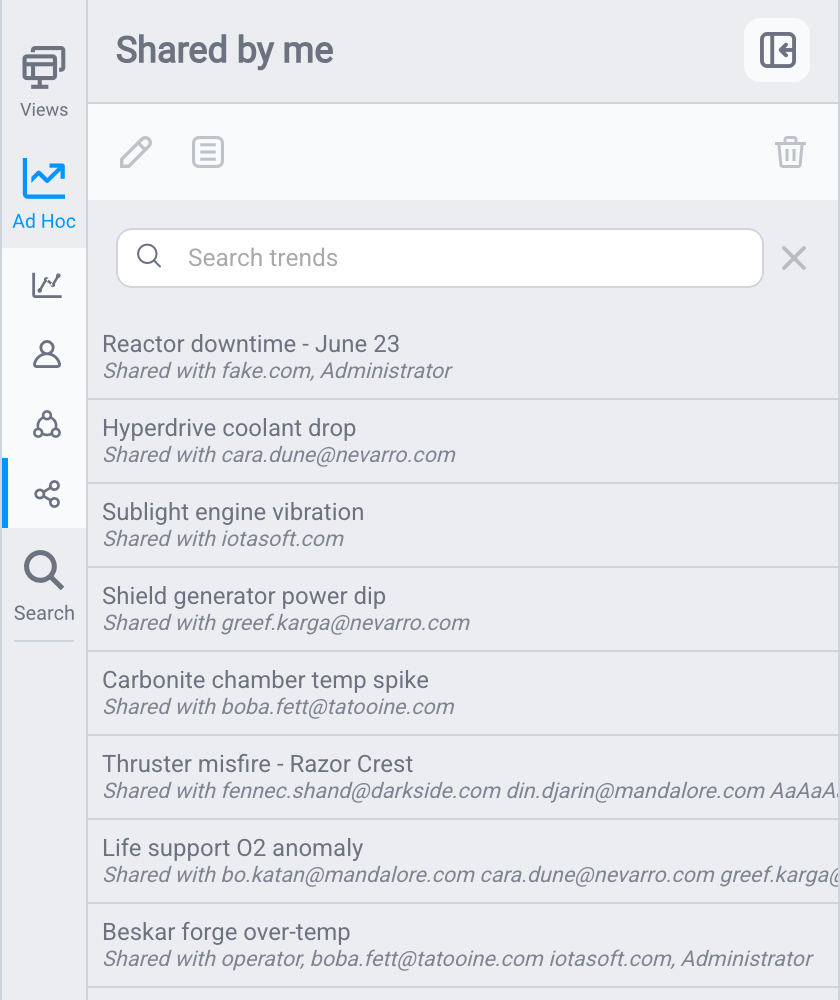
Open the Ad Hoc Trends tab in the side panel, directly below Views. Saved trends are grouped into three categories: switch between them with the icons on the inner rail:
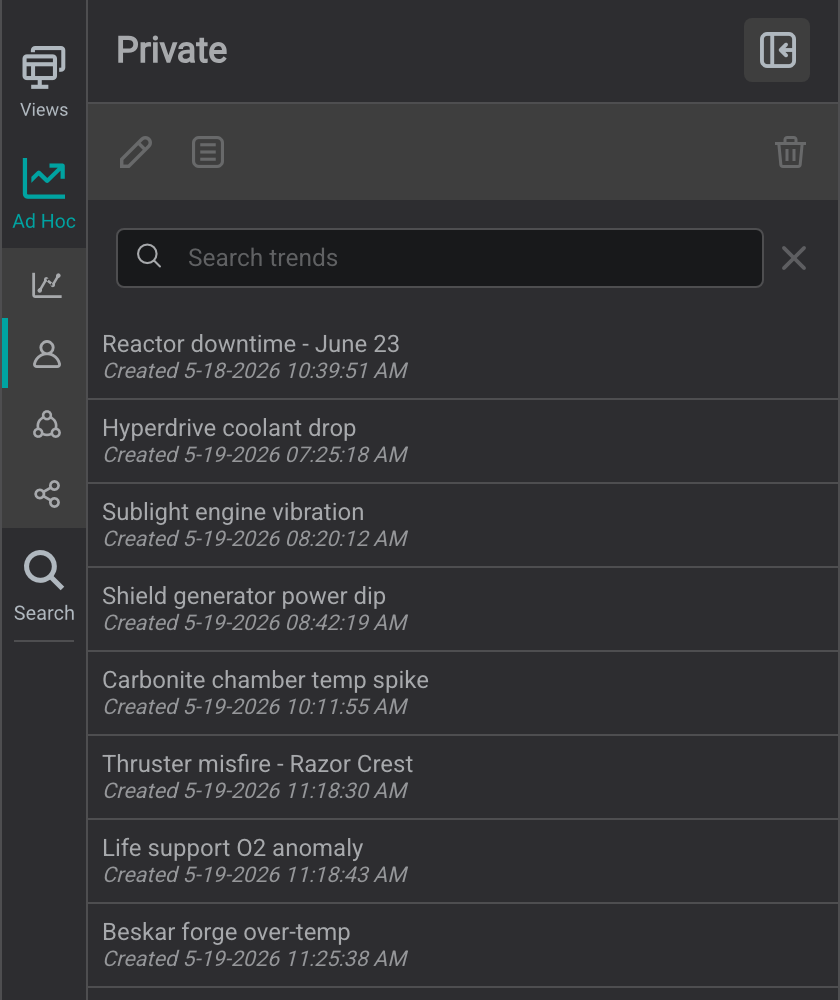
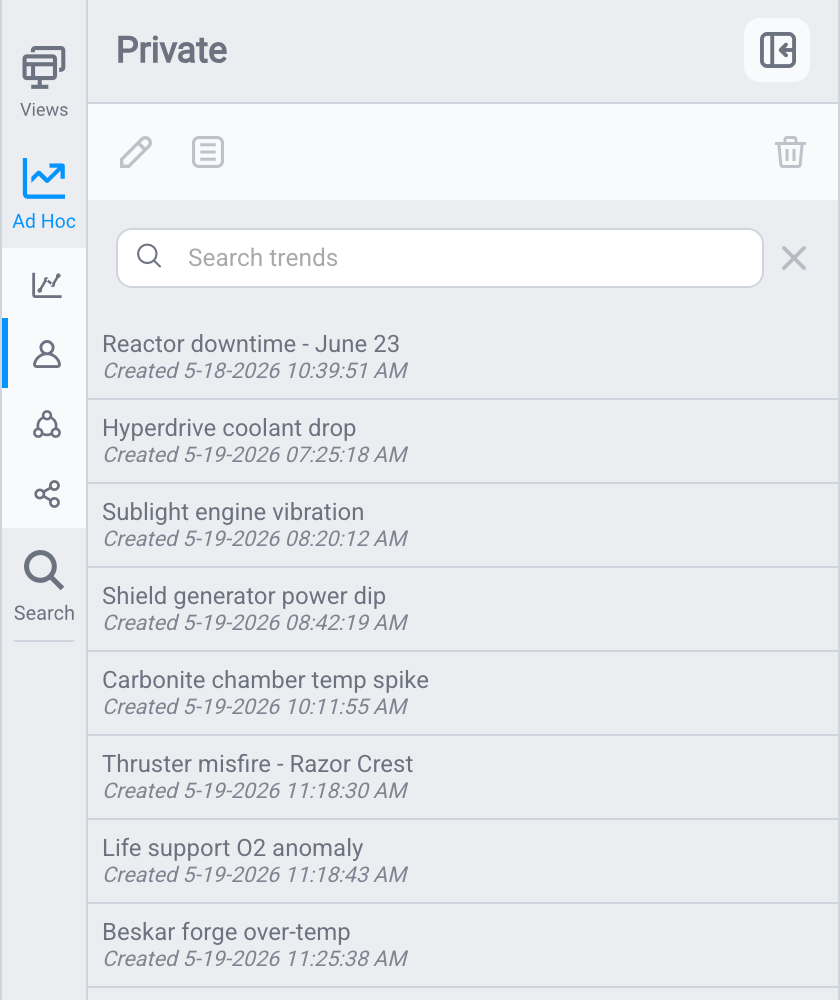
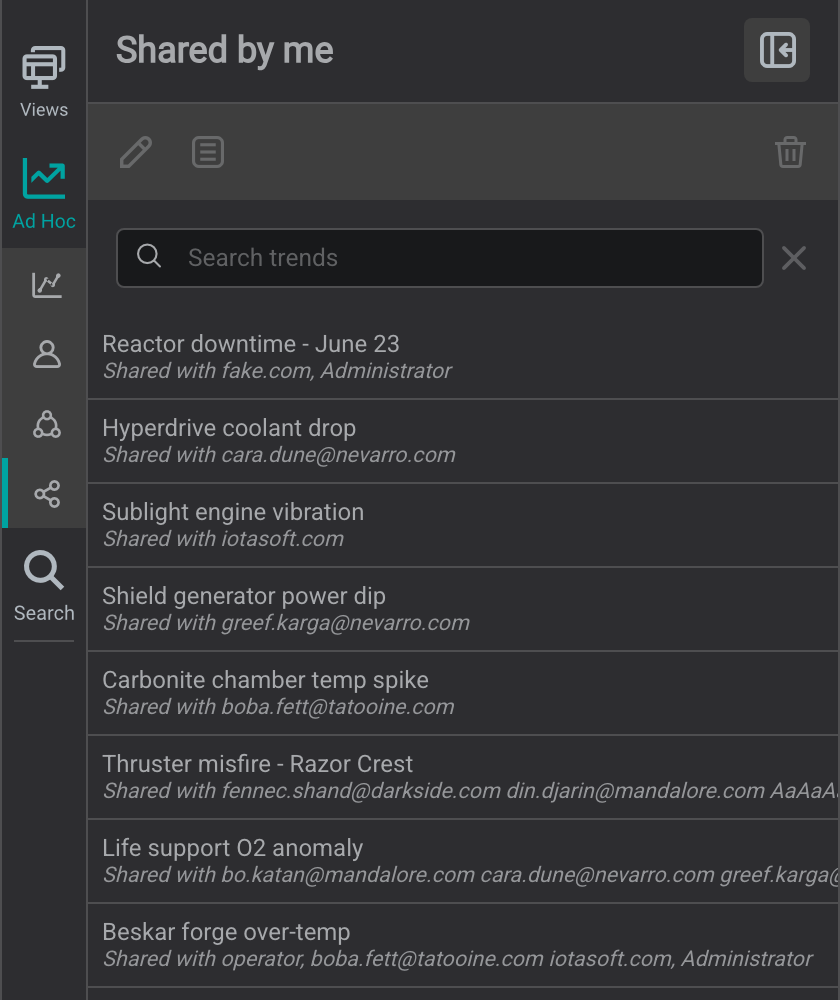
- Private: trends only you can see (the default for a newly saved trend). Each row shows the trend's Created date.
- Shared with me: trends others have shared with you. Each row shows who shared it (
by …): this is the trend's owner, not necessarily the person who clicked Share (someone with permission may share it on the owner's behalf). - Shared by me: trends you have shared. Each row shows who you shared it with (
Shared with …).
Use the search box to filter within a category. Double-click a trend to reopen it: it opens as a floating window on top of the display you are currently viewing, so you do not lose your place. To share a trend, see Sharing Ad Hoc Trends.
What a reopened trend remembers
Reopening a saved trend restores your signals, time range, scale settings, and trace formatting.
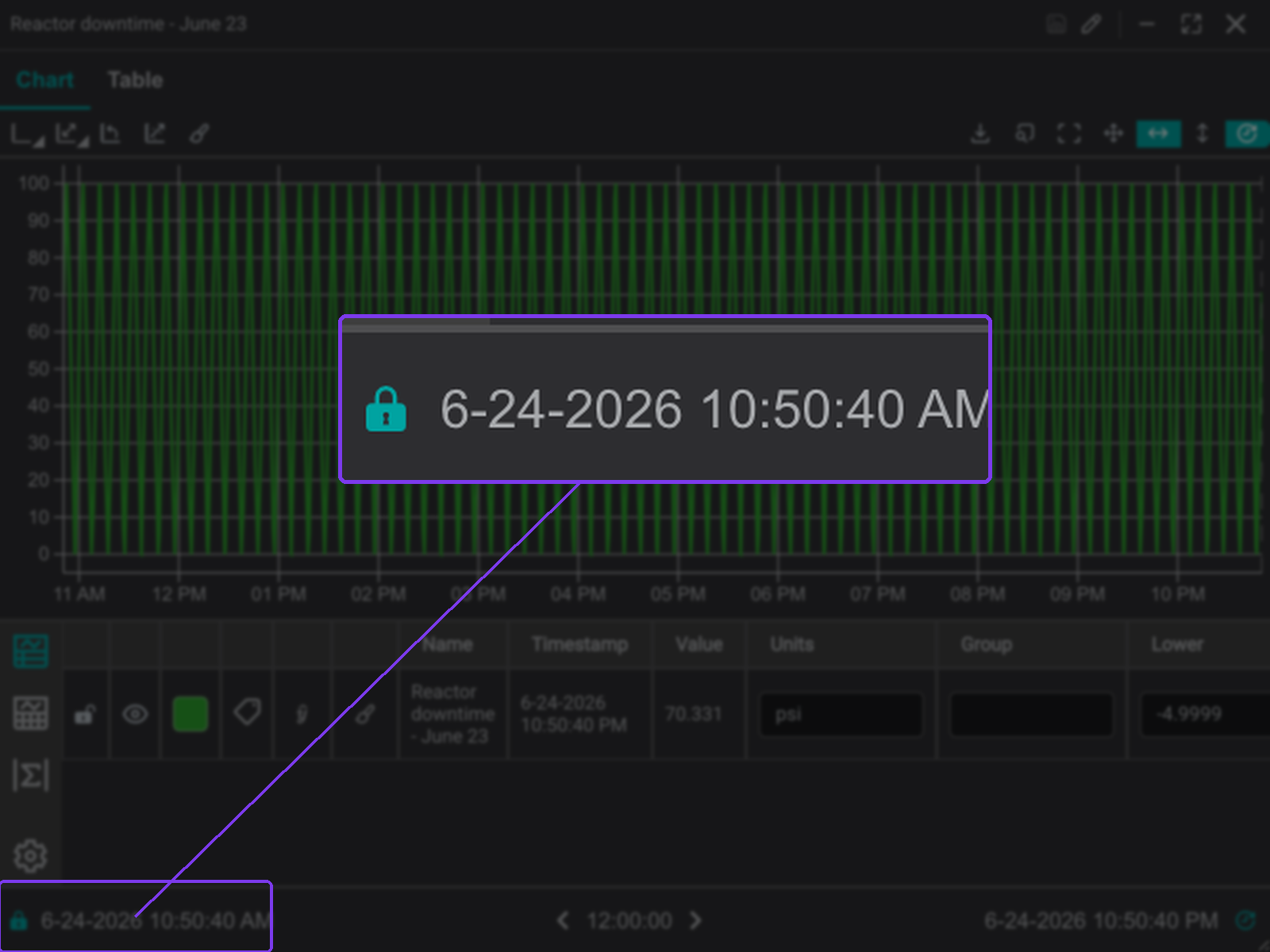
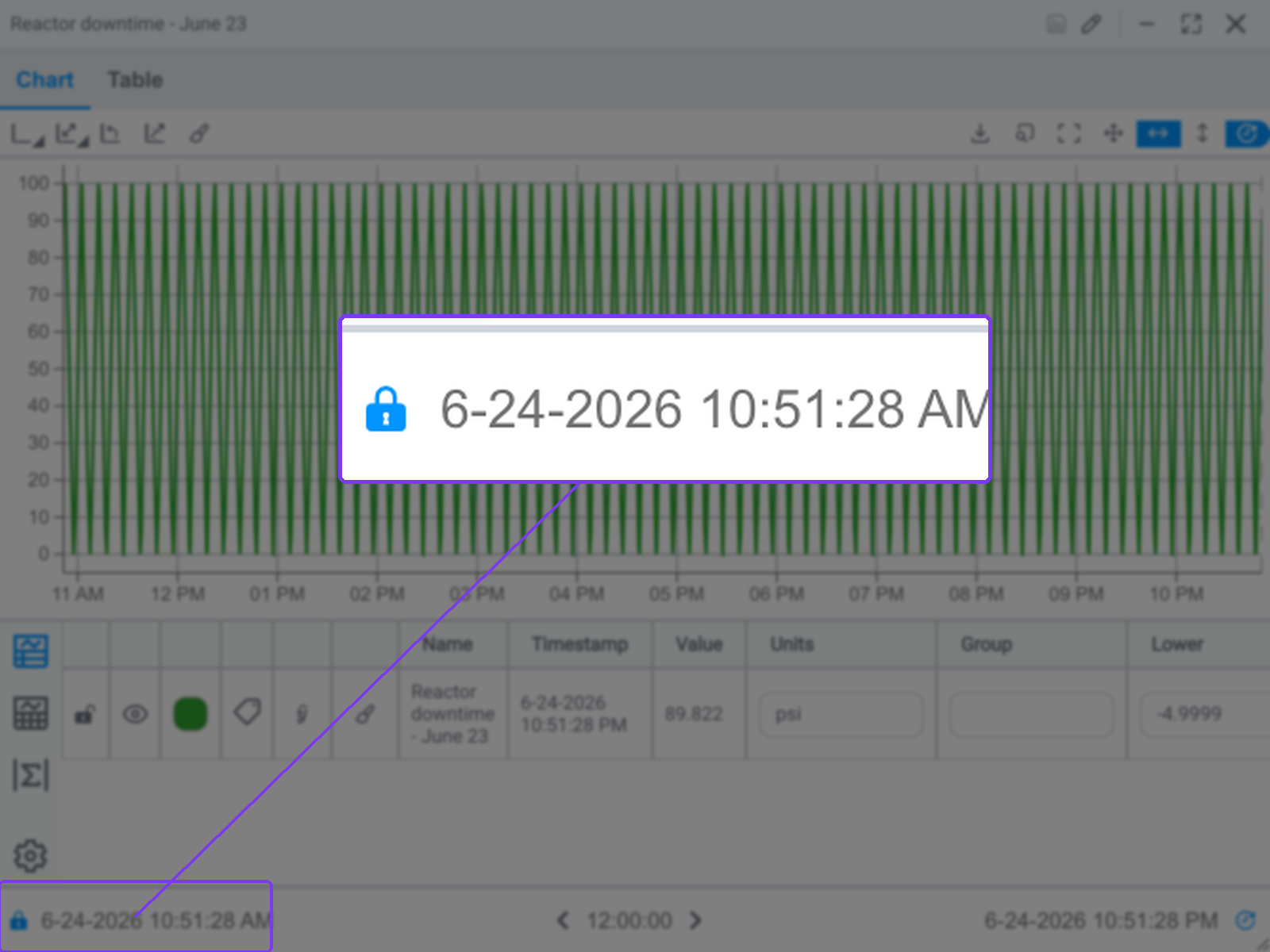
By default, a reopened trend keeps its own saved time range and ignores the display's time control: a lock indicator appears at the bottom of the chart. If you want the trend to follow the current display's time instead, unlock it using that indicator.
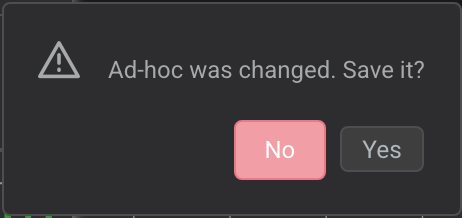
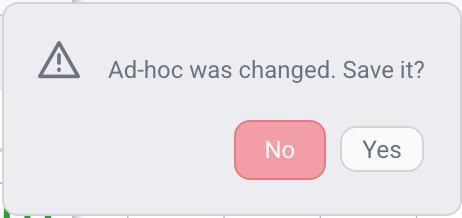
Changing a reopened trend (its signals, time range, scale, or formatting), marks it as having unsaved changes (the Save button shows a marker). If you try to close the trend before saving, IOTA prompts you to save so you do not lose your edits.
Rename or describe a trend
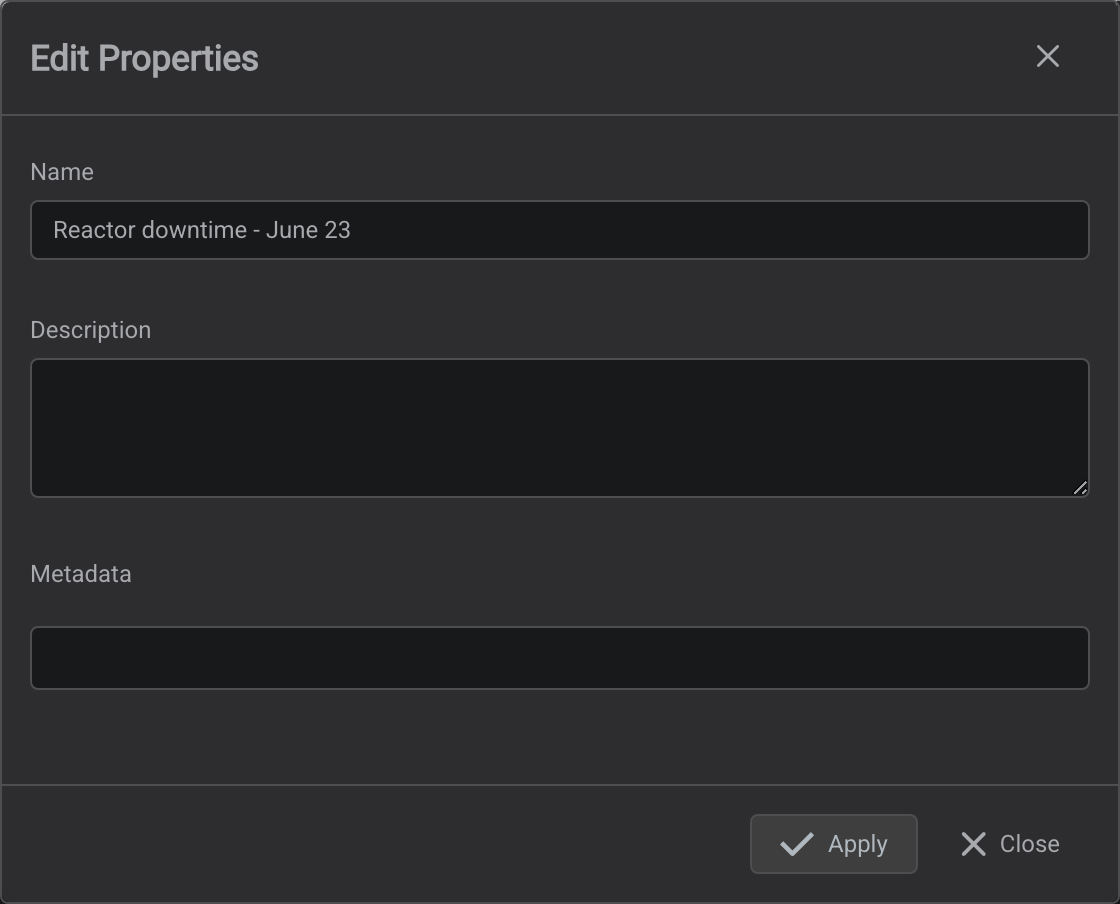
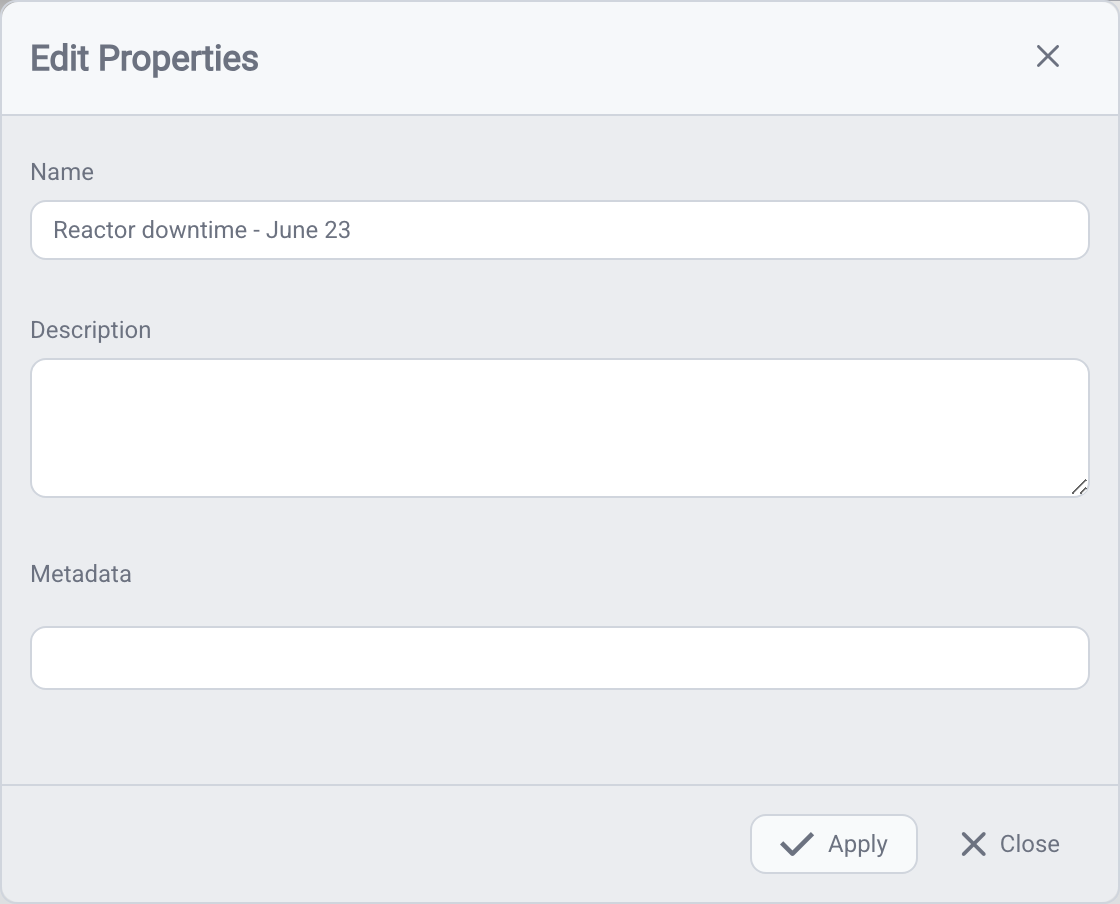
To rename a saved trend or add notes, right-click it in the side panel and choose Edit Properties, then edit the Name and Description fields and click Apply.
Make a copy of a trend
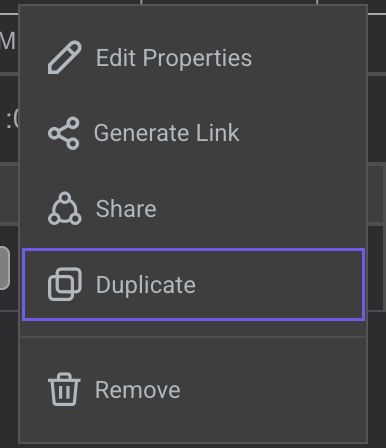
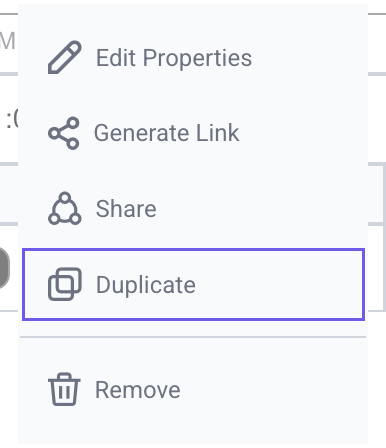
To branch from an existing trend without rebuilding it, duplicate it: right-click the saved trend in the Ad Hoc Trends side panel and choose Duplicate.
IOTA creates a new saved trend named Copy of <original name>, copying the original's signals, time range, chart settings, and description. The copy gets its own ID and address, you become its owner, and its visibility resets to Private. It is independent of the original: rename, edit, or share it without affecting the trend you copied from.
Tips
For the full ad hoc trend reference, see Trending Data.
What's Next
With a trend saved, continue to Sharing Ad Hoc Trends to send it to colleagues or share a direct link.
Related
- Sharing Ad Hoc Trends: share a trend with colleagues
- Analyzing a Trend: cursors, regressions, and statistics
- Data Export: export the data to CSV