
Go to Seeq
Go to Seeq
The Go to Seeq feature lets you open any IOTA display item directly in a Seeq Workbench worksheet with one click. The selected signals and the current time range transfer automatically: no manual reconfiguration needed in Seeq.
How It Works
- Lock the display (viewer mode).
- Right-click any component that has a connected data channel.
- Select Go to Seeq from the context menu.
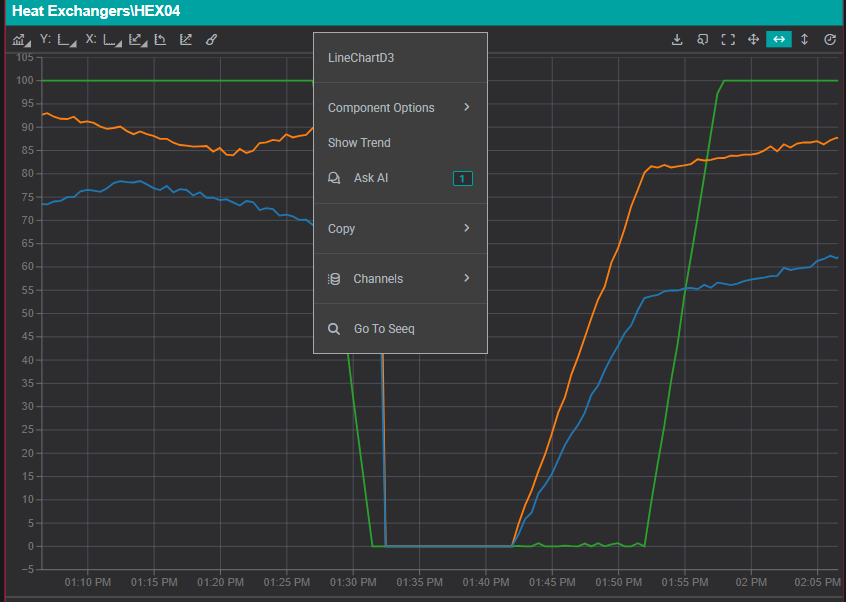
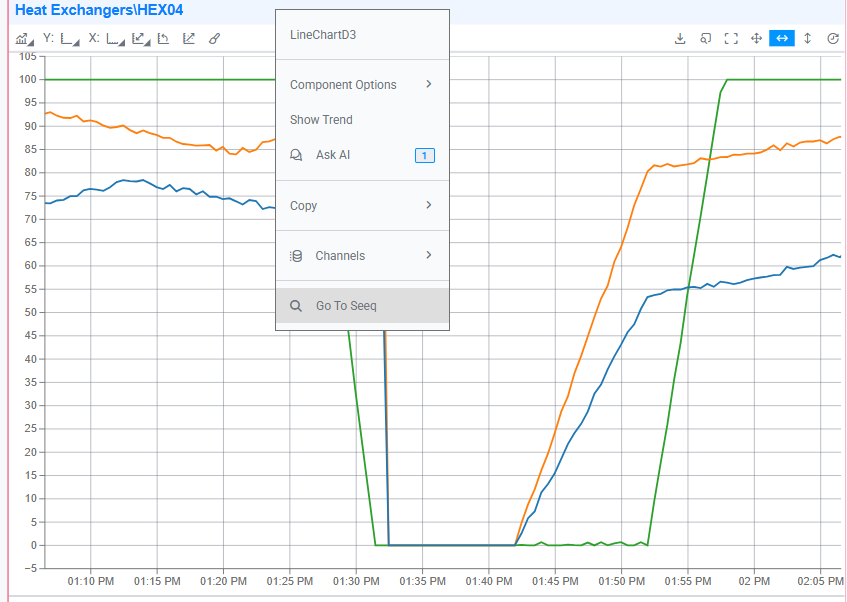
- A new browser tab opens Seeq Workbench with the selected signals pre-loaded and the IOTA time range applied.
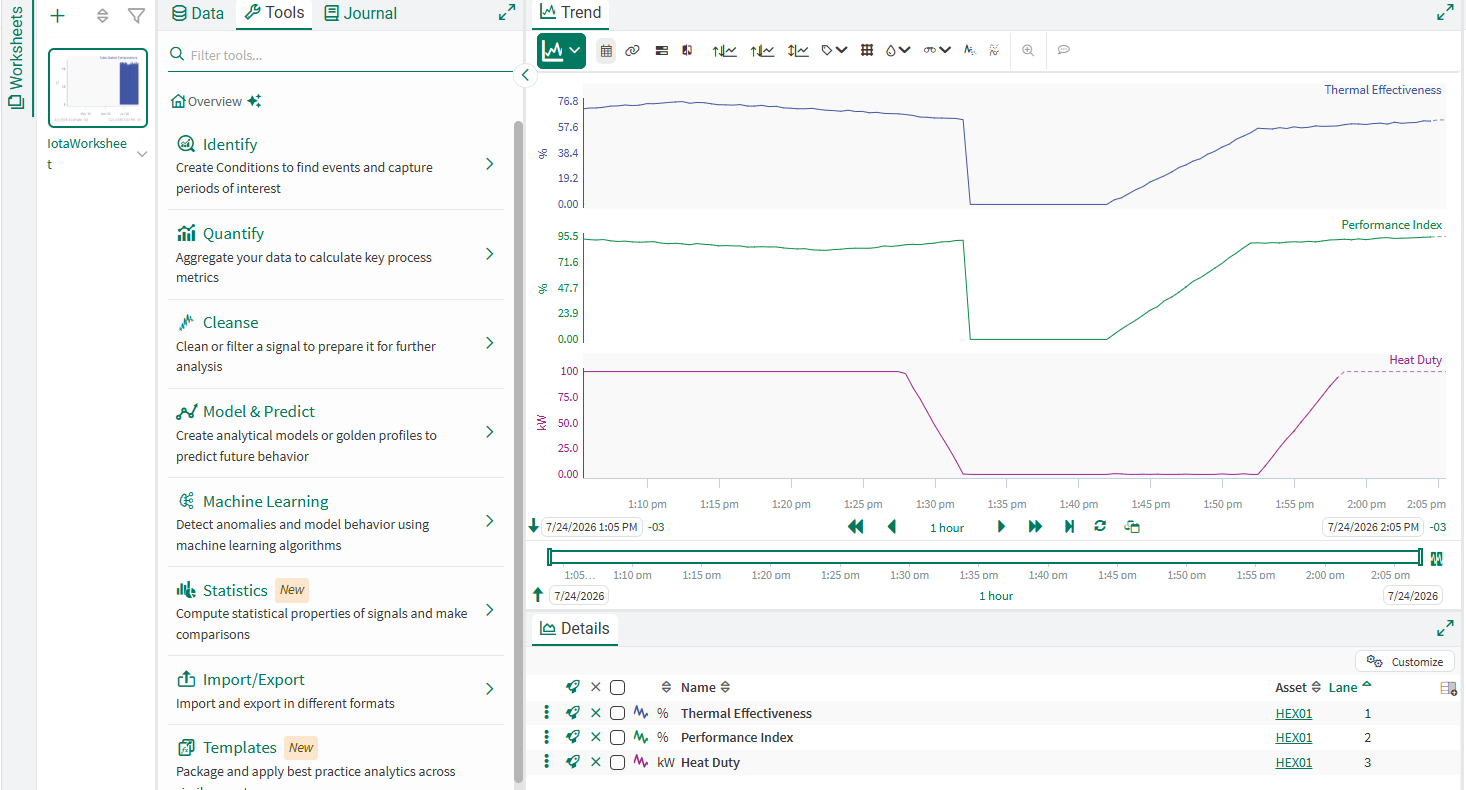
The feature passes:
- The signal identifiers for all channels bound to the component
- The current GTC time range as the worksheet start and end time
Tips
To use Go to Seeq, your IOTA environment must be connected to a Seeq instance via the Seeq driver. Ask your administrator if you do not see this option.
Supported Components
Go to Seeq works with any component that has at least one data channel bound to a signal in a Seeq-connected data source. The component type does not matter: whatever Seeq-connected channels the component holds are the ones that transfer.
Supported Data Sources
The feature works with signals from any data source that is also accessible from Seeq. In practice, this means:
- Seeq driver: direct connection; all signals supported
- OSIsoft PI / PI AF: if both IOTA and Seeq are connected to the same PI server, PI tags and AF attributes transfer by path
- Other sources: depends on whether Seeq has a connector for the same data source
Note
If a signal cannot be resolved in Seeq (for example, because it comes from a data source Seeq does not support), Seeq will open but the signal may not load. Check with your Seeq administrator.
What's Next
That wraps up the Viewer Guide. When you're ready to build your own displays, continue to the Builder Guide.
Related
- Merging Data Sources: combine PI, Seeq, and other sources in one display
- Seeq Driver Configuration: administrator setup for the Seeq connection
- Calculations: PI System and Python calculations as a data source