
Navigation Between Displays
Navigation Between Displays
Navigation lets viewers move between displays while keeping their context, for example, clicking a row in a fleet comparison table to open the heat exchanger detail display pre-loaded with that asset's data.
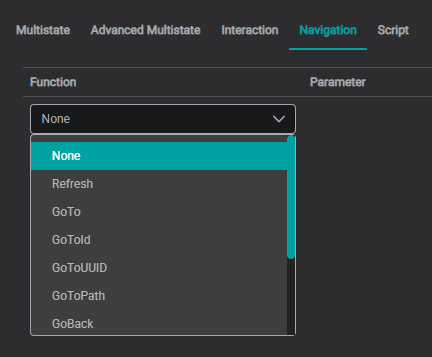
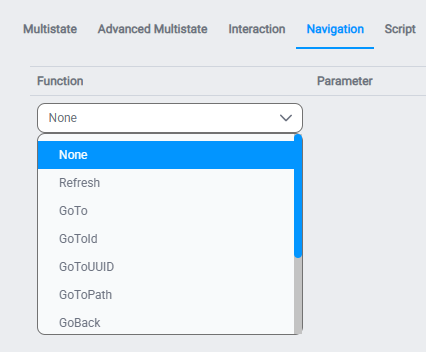
You configure it from the Actions panel, one of the generic settings every component shares, by selecting a component, choosing a trigger (onClick or onDblClick), and opening the Navigation tab. Its Function dropdown lists the ways to move between displays.
Save and reload before deciding navigation is "broken"
After wiring a navigation action, if clicking the component doesn't move to the target display, save the display and reload the page before concluding it's broken. Some bindings only re-resolve on a fresh load, so a reload frequently confirms the wiring was correct all along and rules out a stale-state false alarm.
Navigation Methods
IOTA Vue supports several ways to navigate between displays:
| Method | How it works | When to use |
|---|---|---|
| Component click action | Configure onClick on any component to navigate on click | Table rows, cards, buttons: the most common pattern |
| Script-based navigation | Call navigation functions in JavaScript with full parameter control | Dynamic targets, conditional logic, complex context passing |
| Breadcrumb trail | Viewer clicks the top breadcrumb to jump up the view hierarchy | Built-in back navigation; set its visibility and parent per-view in Edit Properties |
The rest of this page focuses on the component click action method, navigation you configure from a component's Actions panel, since it's the most common way to link displays. For script-based navigation see Navigation Functions; the breadcrumb trail needs no setup.
Sharing Asset Context Between Displays
The most common reason to link displays is the fleet overview → asset detail jump: a viewer picks an asset on one display and lands on a detail display already loaded with that asset's data: no dropdown selection needed on arrival.
The examples below build this on the same Heat Exchanger screens used throughout this guide. Both start from the Heat Exchanger Details display (schematic, value overlays, chart, and a Fleet Comparison table) and open the HEX Details - Actions detail view for whichever exchanger the viewer chose. They differ only in the trigger and the navigation function:
- Dropdown and SVG popup: pick an exchanger from a dropdown, then double-click the schematic to open the detail view in a
Popupoverlay. - Table row (
GoTo): click a row in the Fleet Comparison table toGoTothe detail view, replacing the current display.
Whichever trigger you use, the asset selection is carried across the same way: described next.
Passing Asset Context During Navigation
A plain GoTo or Popup opens the target view, but on its own it doesn't tell that view which asset to show. IOTA carries the selection across with viewContext: a context the source view writes and the target view reads. There are two ways to use it:
- Without scripting (recommended): on the source view, an Interaction writes the current selection into
viewContext(Producer Component Propertyselected→ Consumer ComponentviewContext→ Consumer Component FunctionSetOptions); the target view reads it on theonCreatetrigger (viewContext→SetChannels) so its trained components load that asset. The two examples below build this end to end. - With scripting: call the navigation functions in JavaScript for dynamic targets and conditional logic. See Navigation Functions and Passing Context.
Interactions stay on the current display; use Navigation to move
An Interaction never reaches a component on another view (the Consumer picker only lists components on the current display), so you can't use one to jump displays: that's a Navigation action's job. To carry the selected asset across, write it into viewContext on the current view (Producer Component Property selected → Consumer Component viewContext → Consumer Component Function SetOptions), then let the target view read viewContext on onCreate.
Example: Dropdown and SVG Popup
The GIF opens on the detail view (HEX Details - Actions), the view we'll drive, then wires it up: a Dropdown on the Heat Exchanger Details display picks an exchanger, and double-clicking the SVG schematic opens that detail view in a popup, already showing the exchanger the dropdown is on. No scripting is involved.
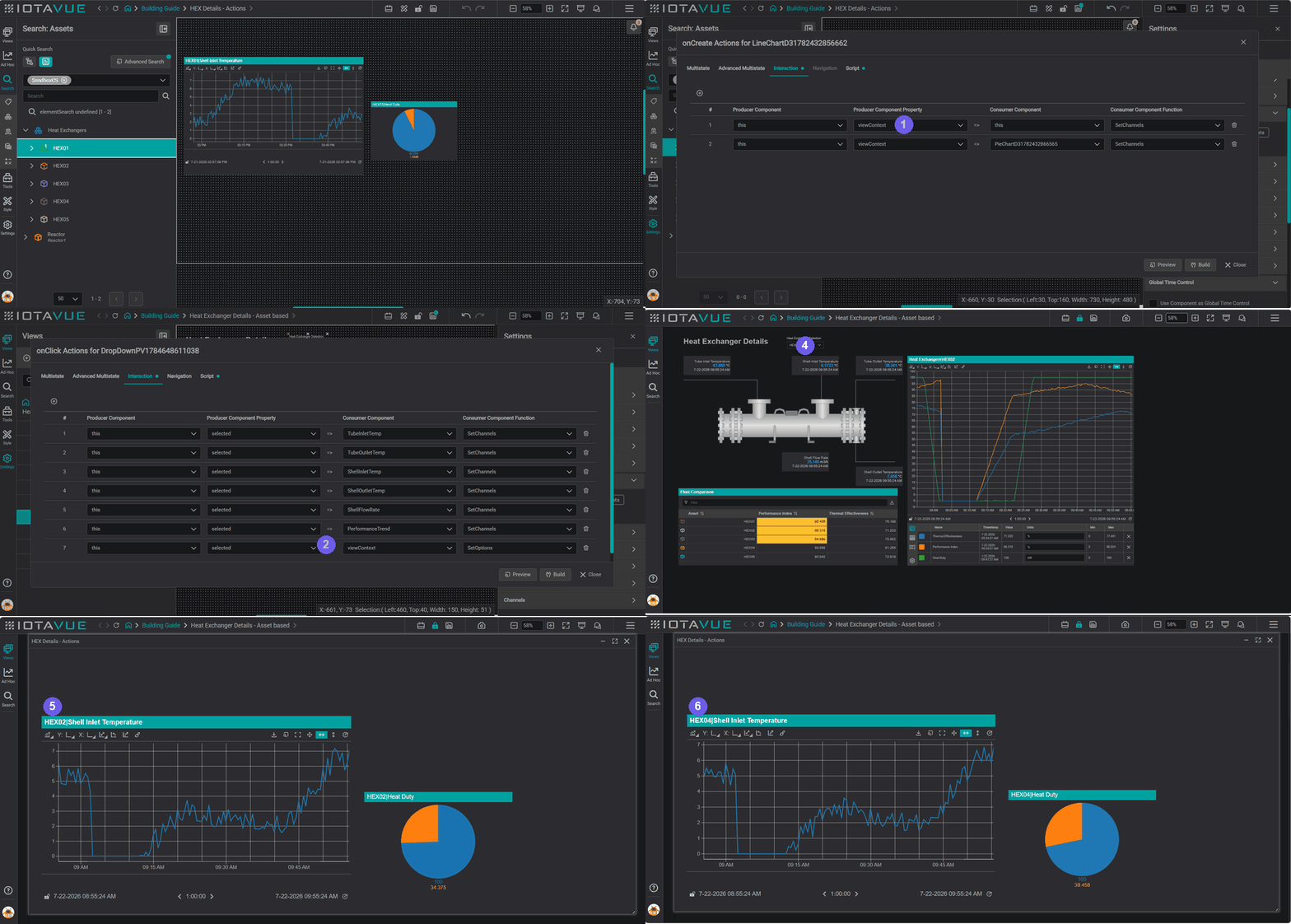
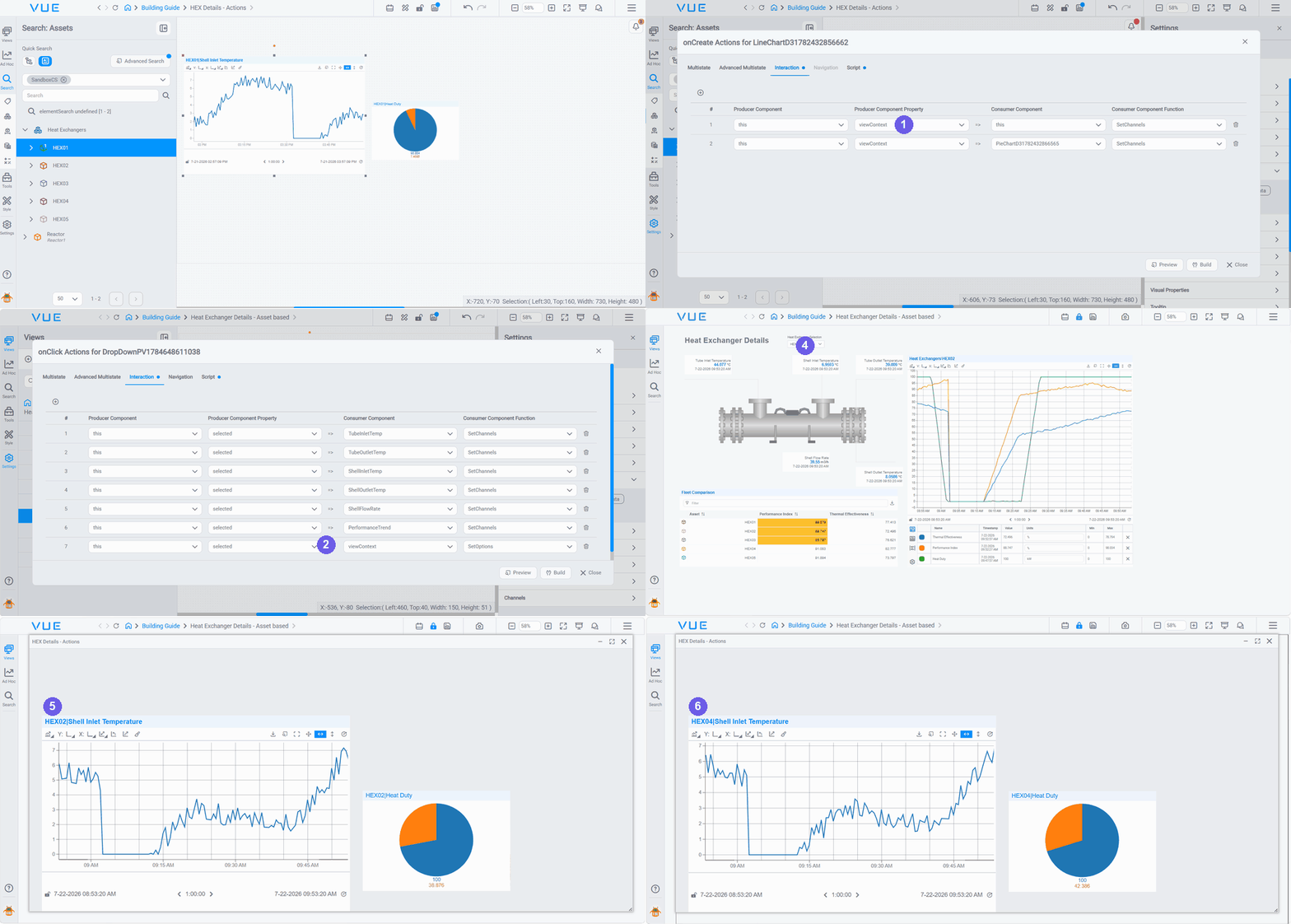
- Prepare the detail (target) view to receive context. On each trained component in the detail view, open the Actions panel, select the
onCreatetrigger, and on the Interaction tab add a row per component: Producer Componentthis, Producer Component PropertyviewContext, Consumer Component the component, Consumer Component FunctionSetChannels. On load, each component readsviewContextand shows whichever asset was passed. - Write the selection into
viewContexton the source view. Add a row to the Dropdown'sonClickInteraction: Producer Component Propertyselected→ Consumer ComponentviewContext→ Consumer Component FunctionSetOptions: alongside theSetChannelsrows that update the on-page components. - Open the detail view on double-click. On the SVG schematic, select the
onDblClicktrigger and, on the Navigation tab, set Function toPopupwith the target set to HEX Details - Actions. (Popupoverlays the view without leaving the current display;GoToreplaces the current display instead.) - Save and lock the display, then pick an exchanger in the dropdown.
- Double-click the schematic: the popup opens and its
onCreatereadsviewContext, so the charts show the selected exchanger. - Swap the dropdown and double-click again: the popup updates to the new exchanger.
Show the asset in the title
The popup's chart titles read HEX02|…, HEX04|… because their Title Source is the asset path. To do the same, open Settings → Title and set Title Source to Channel Path; see Training Components.
A context-wired view shows "No Data" when opened directly
A detail view whose components read viewContext on onCreate will show "No Data" or empty charts if you open it straight from the Views panel: there's no context yet. That's expected; test it by navigating in from the source display. (Placing a Dropdown on the detail view too gives viewers a fallback way to pick an asset when they open it directly.)
Popup too big or too small?
The popup shows the target view at that view's own workspace size. If it doesn't fit the way you want, adjust it on the target view; open its Properties → Background tab and change the workspace dimensions. See Setting workspace dimensions.
Example: Table Row (GoTo)
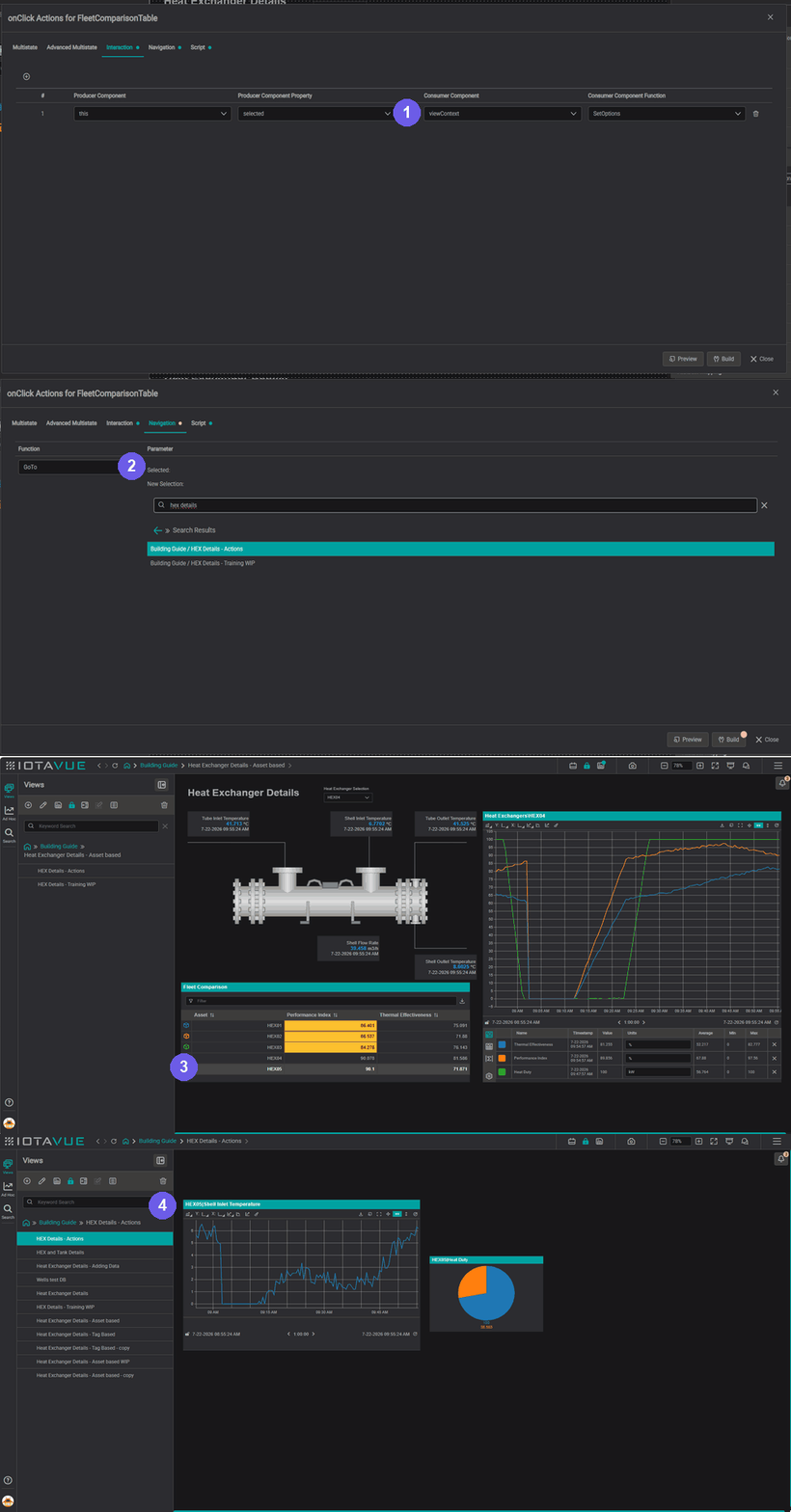
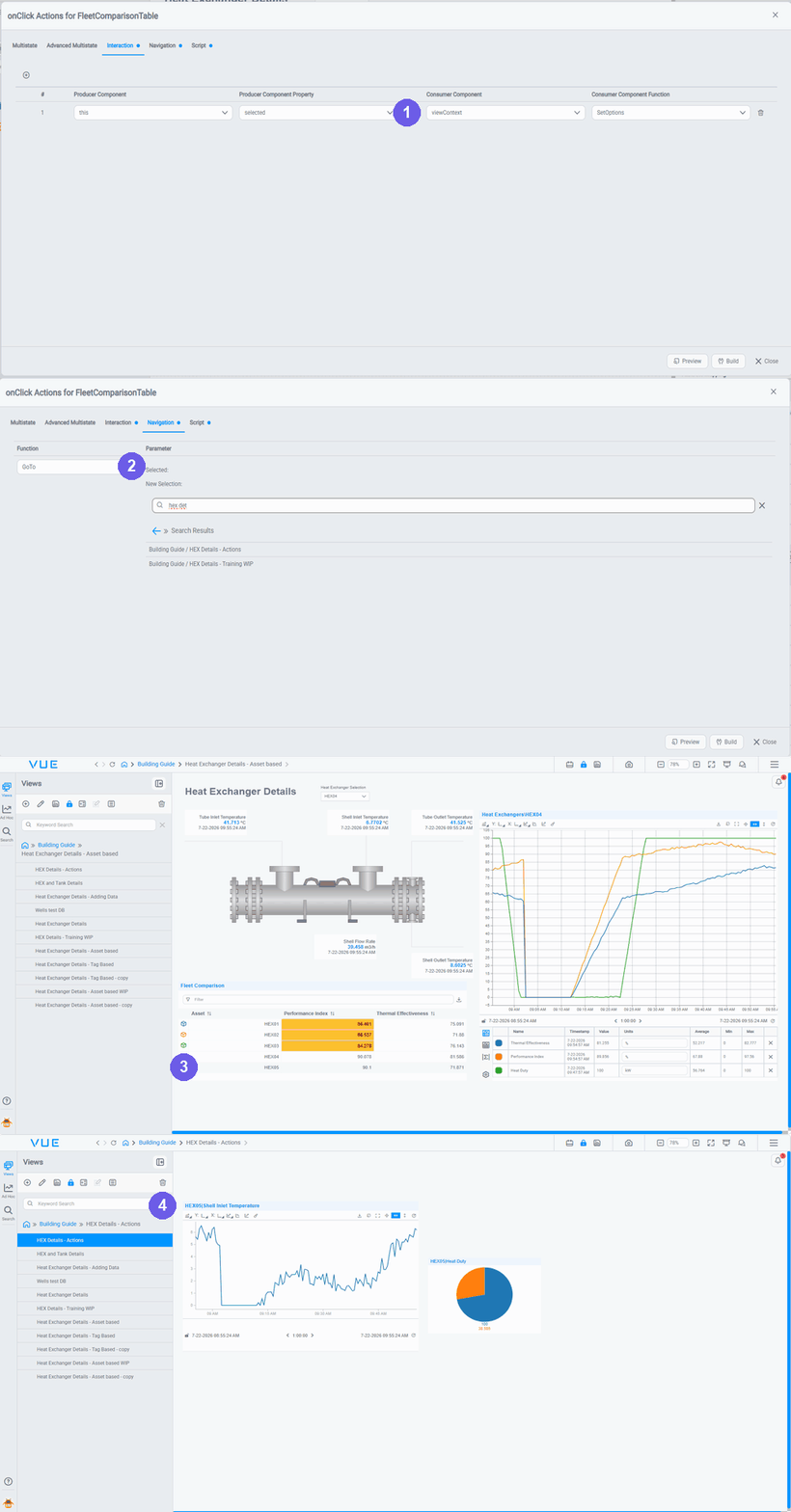
The same viewContext wiring works from a Table: the classic fleet-overview → detail jump. The one difference from the popup example above is the navigation Function: GoTo replaces the current display with the detail view, instead of overlaying it in a popup.
- Write the selection into
viewContext. On the Fleet Comparison table'sonClickInteraction, add a row: Producer Componentthis→ Producer Component Propertyselected→ Consumer ComponentviewContext→ Consumer Component FunctionSetOptions. - Navigate on click. On the same trigger's Navigation tab, set Function to
GoToand pick the detail view (HEX Details - Actions) as the target. - Click a row. Selecting an exchanger (HEX05 here) writes it into
viewContextand fires theGoTo. - The detail view opens in place: its
onCreatereadsviewContext, so its trained components load the exchanger you clicked.
Other triggers work the same way: a Button makes a good explicit "open" control, and an SVG single-click (onClick → GoTo) navigates in place too. Pair any of them with the viewContext wiring to carry the selected asset across.
Navigation Action Functions
GoTo is the most common choice, but the Navigation action's Function dropdown offers several ways to move around; set it in the Navigation tab (available on onClick and onDblClick). Use Popup to overlay a detail view without leaving the current one, and GoToUrl to link out to an external system.
Full list of navigation functions
Every function in the dropdown (GoTo, GoToId, GoToPath, GoToUUID, GoToUrl, Popup, GoBack/GoForward, Refresh, GoToSeeq, and None), is described on the Navigation Functions page.
Link out to an external system
To send viewers somewhere outside this instance: a maintenance work-order tool, a control-room dashboard on another server, or any web address; use GoToUrl:
- Select the component (a Button works well for an explicit "open" action; any component with a trigger works).
- Open the Actions panel and choose the trigger (
onClickoronDblClick). - On the Navigation tab, set Function to
GoToUrl, enter the address in the URL field, and set Same Tab to choose whether it replaces the current tab or opens a new one.
What's Next
You can now link displays together. To make navigation genuinely useful you need somewhere to navigate from: a fleet overview where each row jumps to a detail display. The next page builds exactly that. Continue to Asset Groups.
Related
- Actions & Interactions: configure onClick actions, including Navigation
- Training Components: how asset context is received by trained components on the target display
- Asset Groups: build the fleet overview that navigation links from
- Navigation Functions: scripting reference for Go To, Go To ID, Go To Path
- Passing Context: full reference for context variables passed between displays
- Actions: Video: configuring navigation triggers and interactive behaviors; note: trigger names and UI shown in the video differ from the current version