
The ViewContext function lets one component hand data to components on another view: you write values into the context before navigating, and the destination view reads them back. This is how the Fleet Comparison table on the Navigation Between Displays page opens a heat exchanger's detail view already scoped to the row you clicked.
Example: Fleet row → detail view
On the Fleet Comparison table, the onClick action writes the selected asset into the view context and then navigates to the detail display. Configured through the Actions dialog, it generates this script (shown on the Script tab):
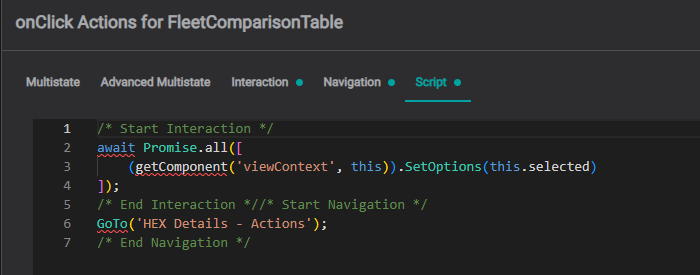
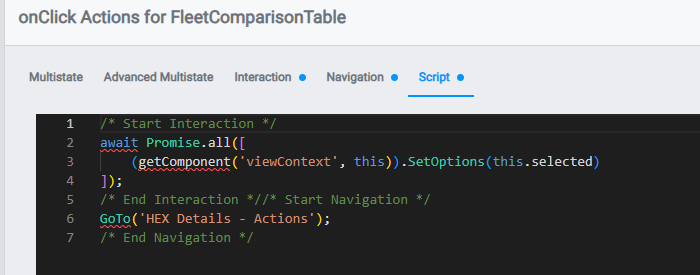
Producer: the Fleet Comparison table writes the selection into the context, then navigates:
/* Start Interaction */
await Promise.all([
    (getComponent('viewContext', this)).SetOptions(this.selected)
]);
/* End Interaction */

/* Start Navigation */
GoTo('HEX Details - Actions');
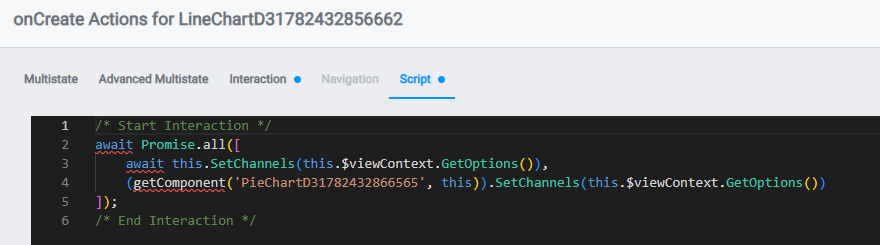
/* End Navigation */Consumer, on the detail view, each component's onCreate reads the context back and binds to it. Here a line chart binds itself and a pie chart:
/* Start Interaction */
await Promise.all([
    this.SetChannels(this.$viewContext.GetOptions()),
    (getComponent('DetailPie', this)).SetChannels(this.$viewContext.GetOptions())
]);
/* End Interaction */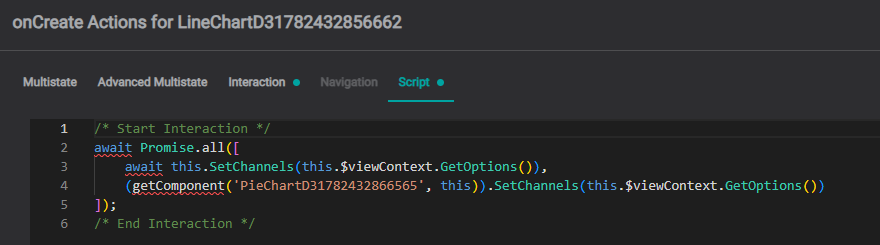
Because the selected asset travels through the context, the detail view opens already showing the exchanger the operator clicked: no hard-coded asset per view.
See Navigation Between Displays for the same example built through the Actions UI, and Component Scripts for the SetOptions / GetOptions parameters and more scripting examples.
What's Next
Continue to Component Scripts to run custom logic on a single component.
Related
- Navigation Between Displays: navigation actions and context
- Global Scripts: view-level scripts with full component access
- Scripting Guide: the scripting overview and function reference