
Overview
IOTA Vue interactions allow to pass data channels/objects from one visual component to another.
The interaction in IOTA Vue implements Producer -> Consumer model.
Warning
All applicable interaction scripts must be defined on selected component (Producer).
The component interactions require two steps:
- Obtain reference to
Consumercomponent instance - Specify on
Consumerinstance which interaction function to use and passProducercomponent as parameter.
In the script selected component (Producer) is defined with keyword:this.selected
Warning
All interaction functions must be applied to Consumer component object
Example: sync a display from a dropdown
Everything you wire in the Actions dialog is a script underneath, so an interaction you built in the UI can just as easily be read or written by hand.
Take the recurring Heat Exchanger example from the Builder Guide: a display whose schematic overlays, value tiles, and performance trend are all trained to a single exchanger (HEX01), alongside a Dropdown populated with the fleet (HEX01–HEX05). Picking an exchanger fires the dropdown's onClick, which calls SetChannels on every component so they all re-point to the chosen asset at once, and SetOptions stores that selection in the viewContext so a detail display opened afterward starts on the same exchanger. The Script tab shows exactly this:
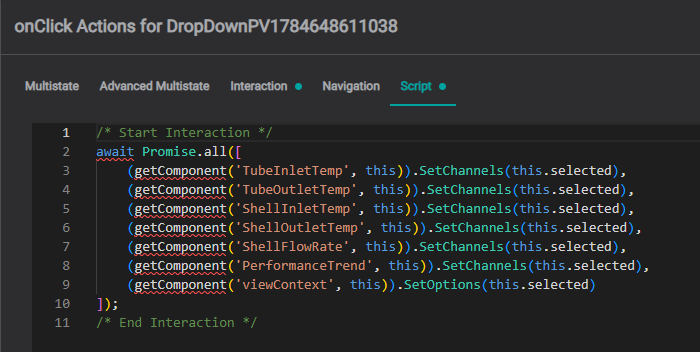
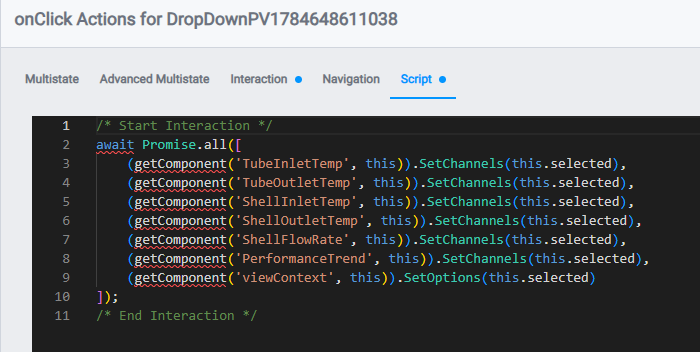
await Promise.all([
    (getComponent('TubeInletTemp', this)).SetChannels(this.selected),
    (getComponent('TubeOutletTemp', this)).SetChannels(this.selected),
    (getComponent('ShellInletTemp', this)).SetChannels(this.selected),
    (getComponent('ShellOutletTemp', this)).SetChannels(this.selected),
    (getComponent('ShellFlowRate', this)).SetChannels(this.selected),
    (getComponent('PerformanceTrend', this)).SetChannels(this.selected),
    (getComponent('viewContext', this)).SetOptions(this.selected)
]);
It's the same wiring shown in Actions & Interactions built through the UI: the Script tab is the generated equivalent. The rest of this page breaks it down: how to reference a component with getComponent, and the functions you can call on it (SetChannels, SetOptions, and more).
Step 1 - Get Consumer Component
This function retrieves specific component object from the memory registry by its variable name.
Function name: getComponent
Parameters:
| Parameter | Type | Required | Description |
|---|---|---|---|
| Variable Name | string | 🟢 | Variable name as defined in component settings |
Result:
| On Success | On Failure |
|---|---|
Component instance | null |
var table = getComponent('Table123');Step 2 - Consumer Functions
The functions below are the ones you'll script most often. For the complete list of consumer functions and producer properties, including which components support each, see the Interaction Reference.
Select
Selects specific row in table. If I pass fqn it will select same fqn in the table
getComponent('Table123').Select(this.selected);Search
Provides search support in referenced Assets (fqns).
getComponent('Table123').Search(this.selected);Highlight
Highlights the timeframe area on line chart of passed TimeFrame object.
getComponent('Table123').Highlight(this.selected);SetChannels
Assigns producer channels to consumer.
getComponent('Table123').SetChannels(this.selected);Warning
Consumer channels will be replaced
The dropdown example above calls SetChannels on several components at once to switch a whole display to a new asset.
AddChannels
Appends producer channels to existing consumer channels.
getComponent('Table123').AddChannels(this.selected);Note
Existing consumer channels remain as is
SetTime
Applies the producer's time range (start and end) to the consumer, for example, syncing a Timeframe or chart selection onto a Line Chart. Supported on Bar Chart, Line Chart, and XY Chart. Use SetStartTime or SetEndTime to set just one end of the range.
getComponent('PerformanceTrend').SetTime(this.selected);SetOverlay
SetOverlay appears in the Interaction dropdown, but the current app has no matching handler: it is non-functional. Use SetTime (or SetStartTime / SetEndTime) instead. See the Interaction Reference.
SetOptions and GetOptions
SetOptions writes a value into a component's option list; GetOptions reads it back. Their main use is the viewContext component when carrying a selection between displays: the producer writes the current selection into the view context with SetOptions before navigating, and a component on the destination view reads it back with GetOptions (usually on onCreate) to scope itself to that selection.
(getComponent('viewContext', this)).SetOptions(this.selected); this.SetChannels(this.$viewContext.GetOptions());For the full pattern, carrying a selection from a Fleet Comparison row into a detail view, see Passing Context.
What's Next
Continue to Navigation Functions for the scripting API that moves between displays.
Related
- Interaction Reference: the complete catalog of producer properties and consumer functions, and which components support each
- Actions & Interactions: wiring interactions through the UI, with worked examples
- Passing Context: carrying a selection between displays with
SetOptions/GetOptions - Component Scripts: each function's parameters and component support
- KB articles: Basics: Functions · IOTA Functions, Global & Component Properties · OpenBranch for Dynamic Tree Navigation · Scripting Example: Parent & Child Asset Dropdowns