
AI Skills
AI Skills
A skill is a short, administrator-written instruction the assistant loads when a conversation matches its description. Skills teach the assistant your plant's vocabulary and standards without changing the product.
How a skill is used
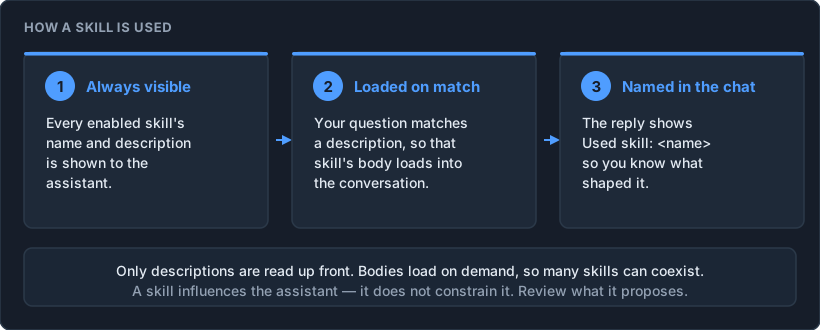
The split matters when you write one: the description decides whether the skill is used; the body decides what it does.
Who can manage skills
Skills are managed by anyone whose role holds the Manage AI Skills permission. It is on the built-in Administrative role, and it can be granted to any other role instead, so managing skills is not reserved to administrators. Everyone else benefits from skills without seeing or editing them.
The same permission also opens the Knowledge Core administration pages. Two further AI permissions, View AI Sessions and View AI Statistics, are listed in Who can do what.
Creating a skill
Open the Administration Page by selecting the IOTA logo in the top-left corner, then Administration from the welcome page. Open AI Skills, and select New skill.
| Field | Rules | Write it as |
|---|---|---|
| Name | Lowercase letters, digits and hyphens; 1–64 characters; unique | A short label you would say out loud: pump-diagnostics, display-standard-v3 |
| Description | Required; up to 1,024 characters | When the assistant should use it. Be specific about scenarios; this is the text the assistant reads to decide. Example: "When the user asks about pump faults, vibration, bearing wear or seal leaks." |
| Body | Required; Markdown; up to 20,000 characters | What the assistant should do: which tags or attribute names to prefer, which components to use, house style, units, what to avoid |
| Enabled | On by default | Switch Off to pause a skill without deleting it |
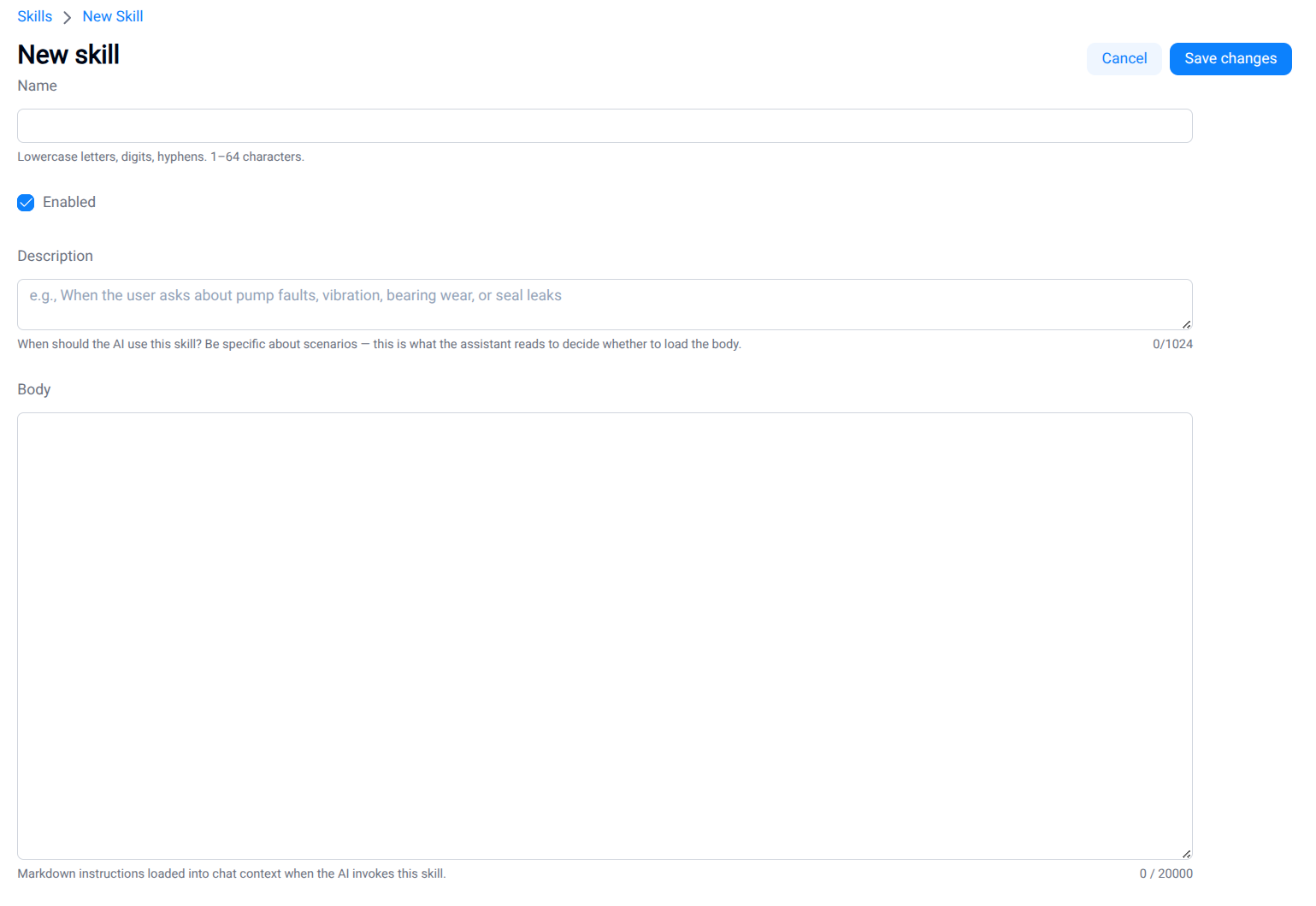
Select Save changes. The skill is available in the next message anyone sends.
Skill writing best practices
- Write for a colleague who is competent but new to your site. Give naming conventions ("suction pressure attributes end in
_PI_S"), preferred components, thresholds and colours. - Keep one skill to one job. Two focused skills beat one long one.
- Say what not to do ("never bind to
*_SIMtags"). - Test it with the Getting Started flow and read the result critically. The body is an instruction, not a guarantee.
Controlling changes to skills
A skill is instance-wide: once Enabled is on, it can shape any user's conversation, including people who never knew it existed. Treat a skill like a change to a display standard rather than a personal note. The product currently does not enforce an approval step, hence we recommend the following:
| Step | What to do |
|---|---|
| Draft | Create the skill with Enabled switched Off. Someone with the Manage AI Skills permission writes it. |
| Review | Have a second person read the body before it is enabled. They are checking the channel names and the "what not to do" section. |
| Test | With the skill enabled, run the Getting Started build example against a view you know, and check the bindings on what comes back. |
| Record | Note who wrote it, who reviewed it and what changed. |
| Review | Re-read your enabled skills on a set cadence, and whenever your display standards change or the model changes. |
Retiring a skill. Switch Enabled Off rather than deleting, when you are unsure - it stops being used immediately and can be switched back on.
Seeing what is actually used. Skill usage appears in AI Statistics (prompt budget by component, kind skill), so you can tell which skills are being loaded and which are not being used.
Limitations
- A skill influences the assistant; it does not constrain it. Users must still review proposed views.
- Skills are instance-wide. There is no per-user or per-group skill yet.
- Very long bodies consume context budget and can crowd out view detail.
What's Next
- Getting Started: create your first skill and use it to build a view