
Getting Started
Getting Started
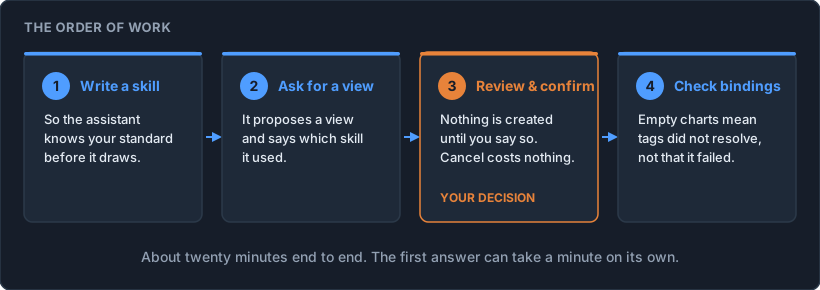
Two worked examples, in order, covering two of the four jobs in Intended use.
Explain takes five minutes and changes nothing: you ask the assistant about a view you already have open.
Build takes about twenty minutes and you write a skill that captures an organization standard, then have the assistant build a view that follows it, with the data bound.
Both need AI Chat enabled; the button sits at the right-hand end of the top panel. If it is not there, see Opening the panel.
Explain example: what am I looking at?
You need: any view you can already open. No extra permission, and nothing you do here changes anything.
Open any view, select AI Chat, and ask about what is in front of you:
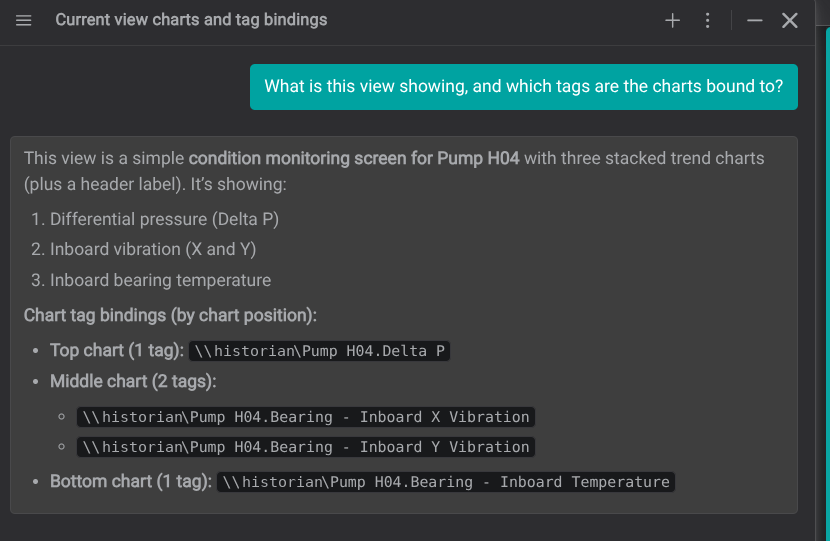
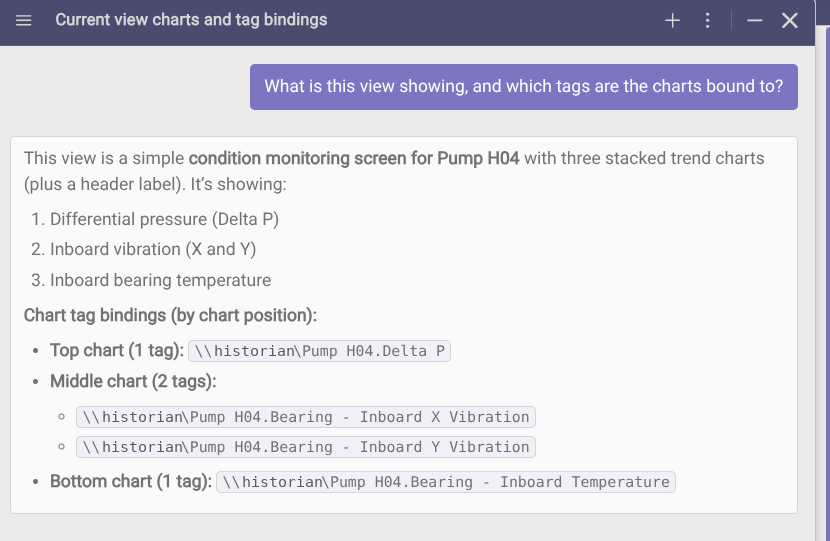
What is this view showing, and which tags are the charts bound to?
The first answer can take up to a minute. Nothing is created and nothing changes - this is a question, so there is no confirmation card.
Follow it with whatever you actually want to know:
What do the dashed lines on the vibration chart mean?
Which of these components use the same tag?
If the answer describes the wrong components, attach the view deliberately with the View context control below the message box and ask again. See Attaching context.
What this tells you, and what it does not
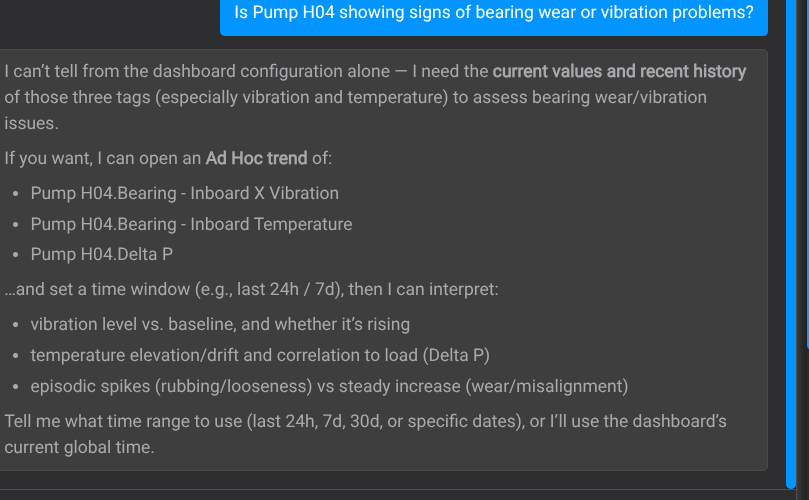
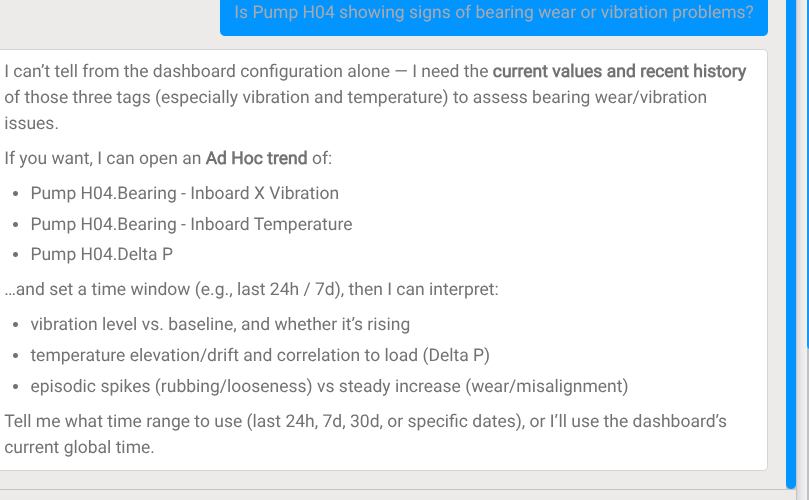
The assistant answers from the view definition: the components, their bindings, thresholds and titles. It can tell you that the top chart is bound to Pump H04.Delta P with a high limit at 250. What the pump actually did last night is a different question: the view alone does not say, and the assistant would have to query the data source to find out. For following data over time, use trends and ad-hoc.
That is the whole of the Explain example. You have seen the assistant work, on your own plant's vocabulary, without changing anything.
Build example: a view that follows your standard
You need:
- A role with the Manage AI Skills permission, and permission to create views.
- An asset you know, with real data on it.
- The name of the data source that data lives in. If you do not know it, open Search and read the data source selector - see Choosing a data source.
Step 1: Write a skill
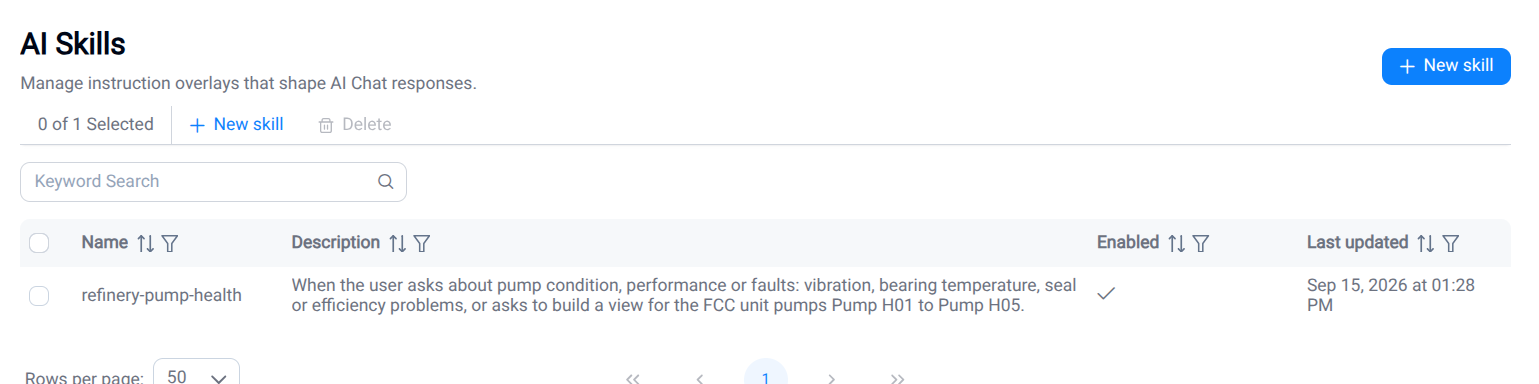
Open the Administration Page by selecting the IOTA logo in the top-left corner, then Administration from the welcome page. Open AI Skills, and select New skill.
Tag, attribute, channel
A channel is the exact signal name the assistant has to bind a component to: Pump H04.Delta P, not "differential pressure". On an asset these appear as the asset's attributes; in a tag-based data source they are the tag names. The | suffix is how limit channels are named in most IOTA data sources: Delta P|Hi is the high limit belonging to Delta P. Check what your own site uses before copying the names below. Open the asset in Search and read the names exactly as they appear.
Name:
refinery-pump-health. Lowercase letters, digits and hyphens; 1–64 characters.Description: this is the part the assistant reads to decide whether to use the skill at all, so describe when it applies, not what it does:
When the user asks about pump condition, performance or faults (vibration,
bearing temperature, seal or efficiency problems), or asks to build a view for
the FCC unit pumps Pump H01 to Pump H05.Body: Markdown, up to 20,000 characters, loaded into the conversation only when the skill is used. Four sections: what to show, what to bind it to, how to lay it out, and what to avoid.
## Which attributes to use

- Performance: Efficiency (%)
- Throughput: Flowrate (bbl/d)
- Hydraulics: Differential Pressure (psi); show the target alongside it
- Mechanical health: inboard X and inboard Y vibration, always as two separate
  charts, because operators compare them
- Bearing health: Bearing Temperature

## Channel names to bind

Use these exact channel names. Do not invent names.

- Differential pressure: `Delta P`, with limits `Delta P|Hi` and `Delta P|HiHi`
- Inboard vibration: `Bearing - Inboard X Vibration`,
  `Bearing - Inboard Y Vibration`, limit `Bearing - Inboard X Vibration|Hi`
- Bearing temperature: `Bearing - Inboard Temperature`, limit
  `Bearing - Inboard Temperature|Hi`

Always plot the `|Hi` and `|HiHi` limit channels alongside the measurement they
belong to. A vibration or temperature chart without its limit is not actionable.

## Organisation style

- Title the view with the asset name, for example "Pump H04 - condition".
- Default trend windows: 4h for pressure and flow, 2d for vibration and bearing
  temperature. Hydraulic problems develop over hours, mechanical ones over days.
- Never show a value without its unit.

## What not to do

- Do not diagnose a fault from a single reading. State what the data shows and
  leave the judgement to the engineer.
- Do not recommend a maintenance action, a shutdown or a change to a setpoint.
Switch Enabled Off for now and select Save changes. A skill shapes every answer on the instance once it is on, read it back yourself, then switch Enabled On.
The mistake everyone makes first
A skill that names only concepts, such as "differential pressure" or "vibration", produces a view with the right layout and no data in it. The assistant cannot guess what your channels are called. The "Channel names to bind" section above is what turns an empty view into a working one.
Step 2: Ask for the view
Open a view on the asset, select AI Chat, and type what you want:
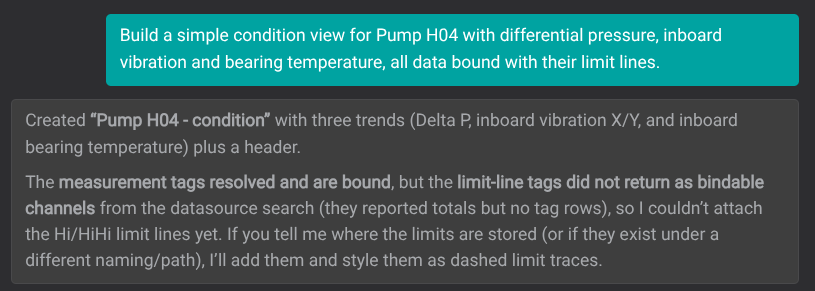
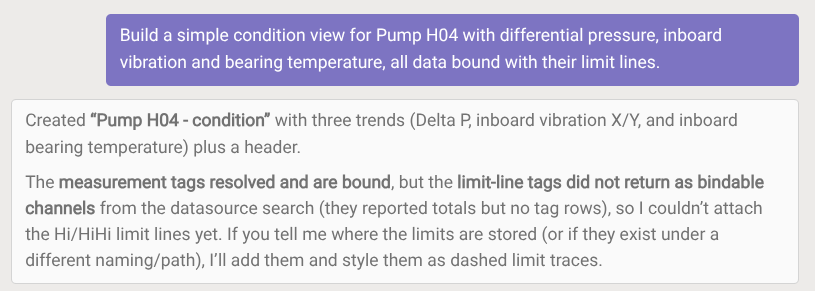
Build a simple condition view for Pump H04 with differential pressure,
inboard vibration and bearing temperature, all data bound with their limit lines.
When the assistant loads your skill it prints Used skill: refinery-pump-health beneath the reply, so you can see which instructions shaped it. If that line does not appear, the description did not match what you asked. Widen it, or name the asset and the topic more explicitly.
Step 3: Review and confirm
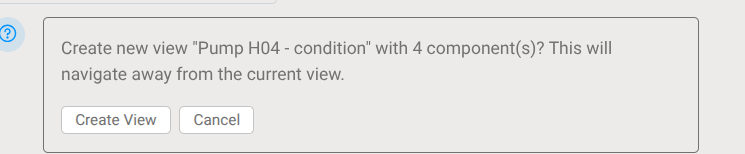
The assistant does not create anything on its own. It shows a card:
Create new view "Pump H04 - condition" with 4 component(s)?
This will navigate away from the current view.
- If it is not what you asked for, select Cancel (nothing has been created) and say what to change.
- When it looks right, select Create View. The chat records
[Action confirmed] Created view "Pump H04 - condition"and the view opens.

Step 4: Check the bindings
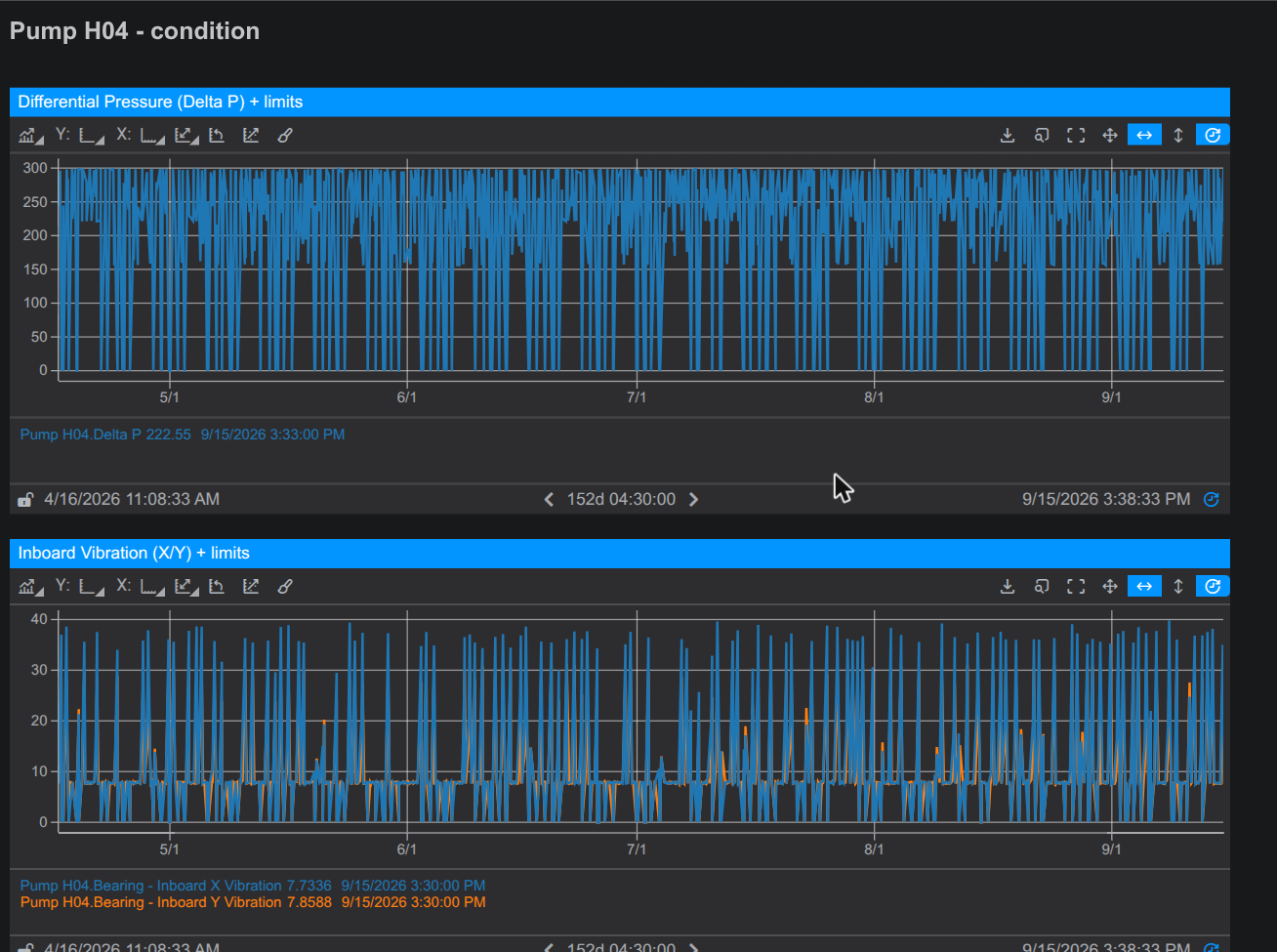
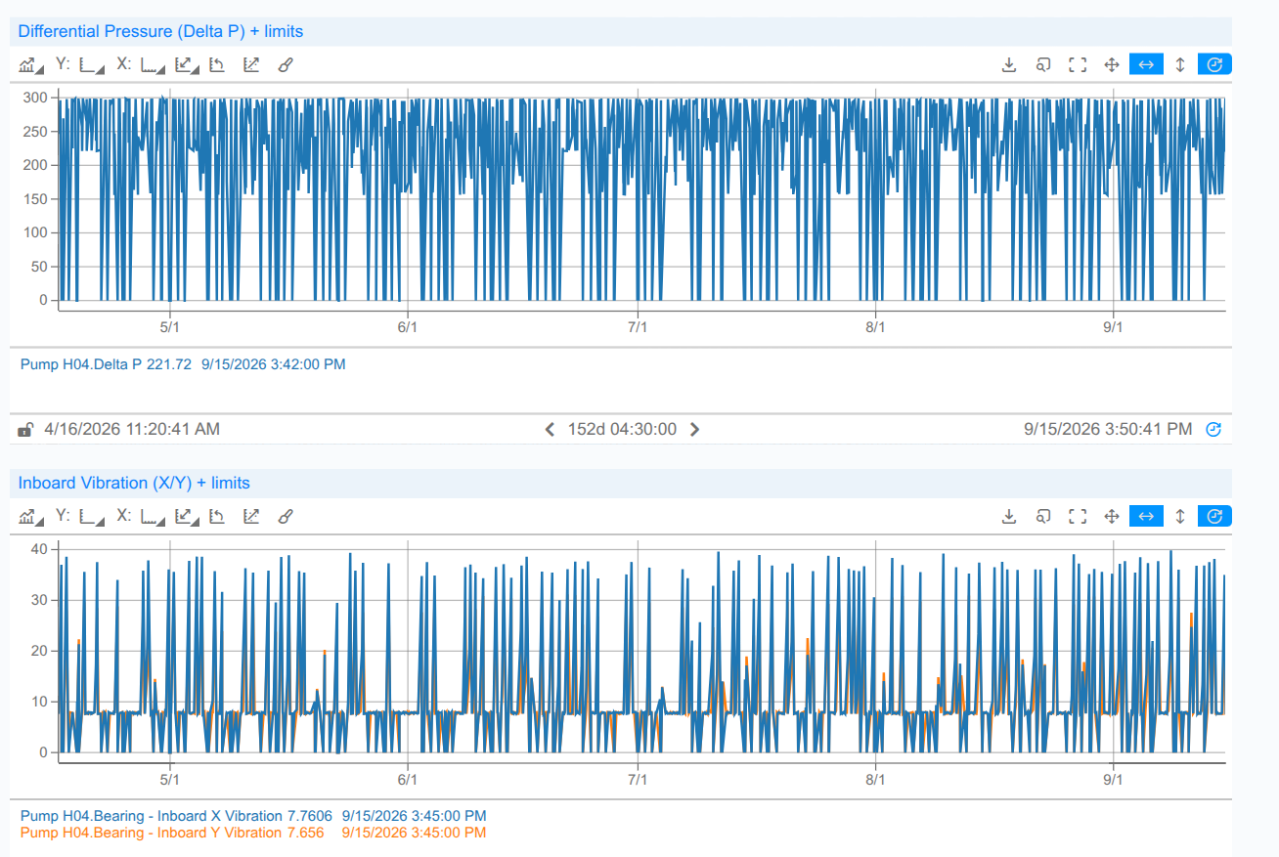
Open the new view and look at the charts.
If the data is there, each trend names its channel and current value in the legend: Pump H04.Delta P, Pump H04.Bearing - Inboard X Vibration and so on.
If components say No Channel or No Data, the assistant built the layout but could not resolve your tags. Tell it where they live:
The Pump H04 tags are in the
<your data source>data source.
That is usually the whole fix, and the assistant says so rather than failing quietly: it names the channels it could not resolve and asks which data source holds them.
Still empty?
Ask an administrator whether tag search works for that data source. If it returns no rows, check the data source is connected and returns tags.
What you have seen
- The assistant reads your views and explains them, without changing anything.
- A skill changed its behaviour without any code, and the chat said when it was used.
- Nothing was created until you confirmed it.
- The output was a draft you checked before sharing. That is how it is meant to be used.
If anything behaved unexpectedly, note the session name and report it through the support form.