
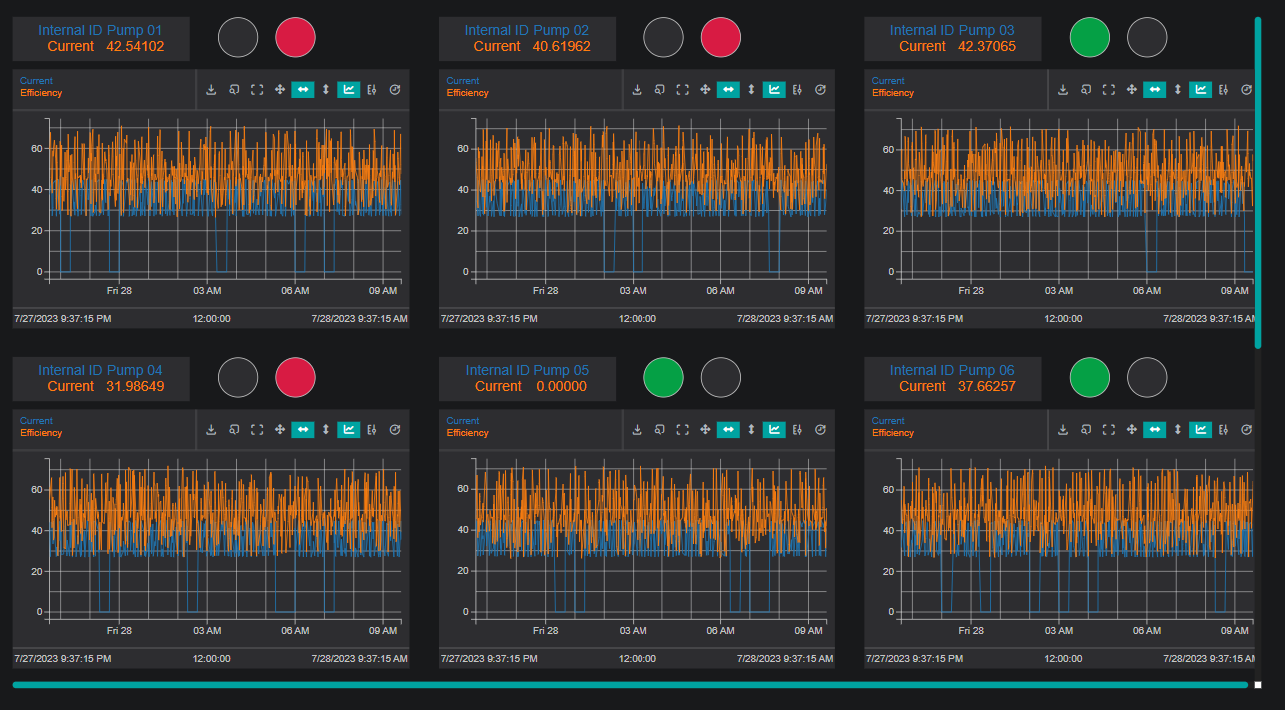
Asset groups are a way to easily view the status of multiple assets simultaneously.
Creating a Group
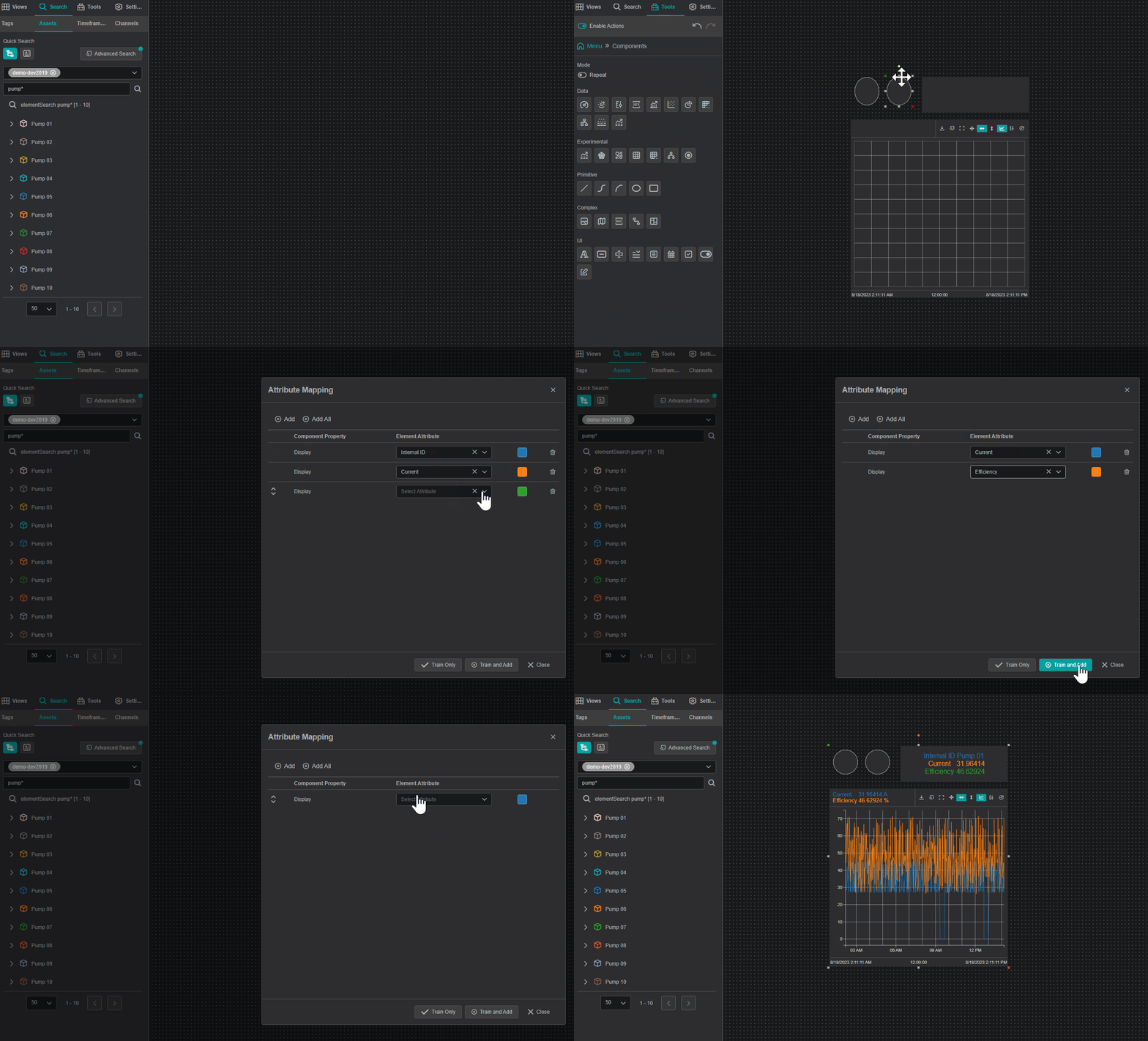
To start using asset groups, first create a component or group of components that you would like to replicate for multiple assets. This can be as simple as a single line chart or as complex as 10 different components stitched together.
Example
Start by dragging the components onto the screen, training with asset data and attribute mapping, and configuring settings as needed.
When you are ready, select all components by clicking and dragging around the components or clicking on each component while holding down the Ctrl key. Right click and select Group.
Editing a Group
To edit a group, simply right click and select Edit Group. Once you've made your changes, exit editing mode from the Views tab.
From the Views tab you can save the changes that you made to the group. Upon clicking Save the following dialog will appear:
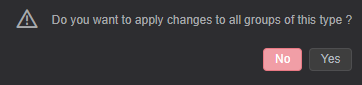
By selecting no, the changes are applied only to the component you were editing. By selecting yes, the changes are applied to all components of this group type.
Note
If you are using this group on multiple displays, consider whether you want the changes applied globally.
Example
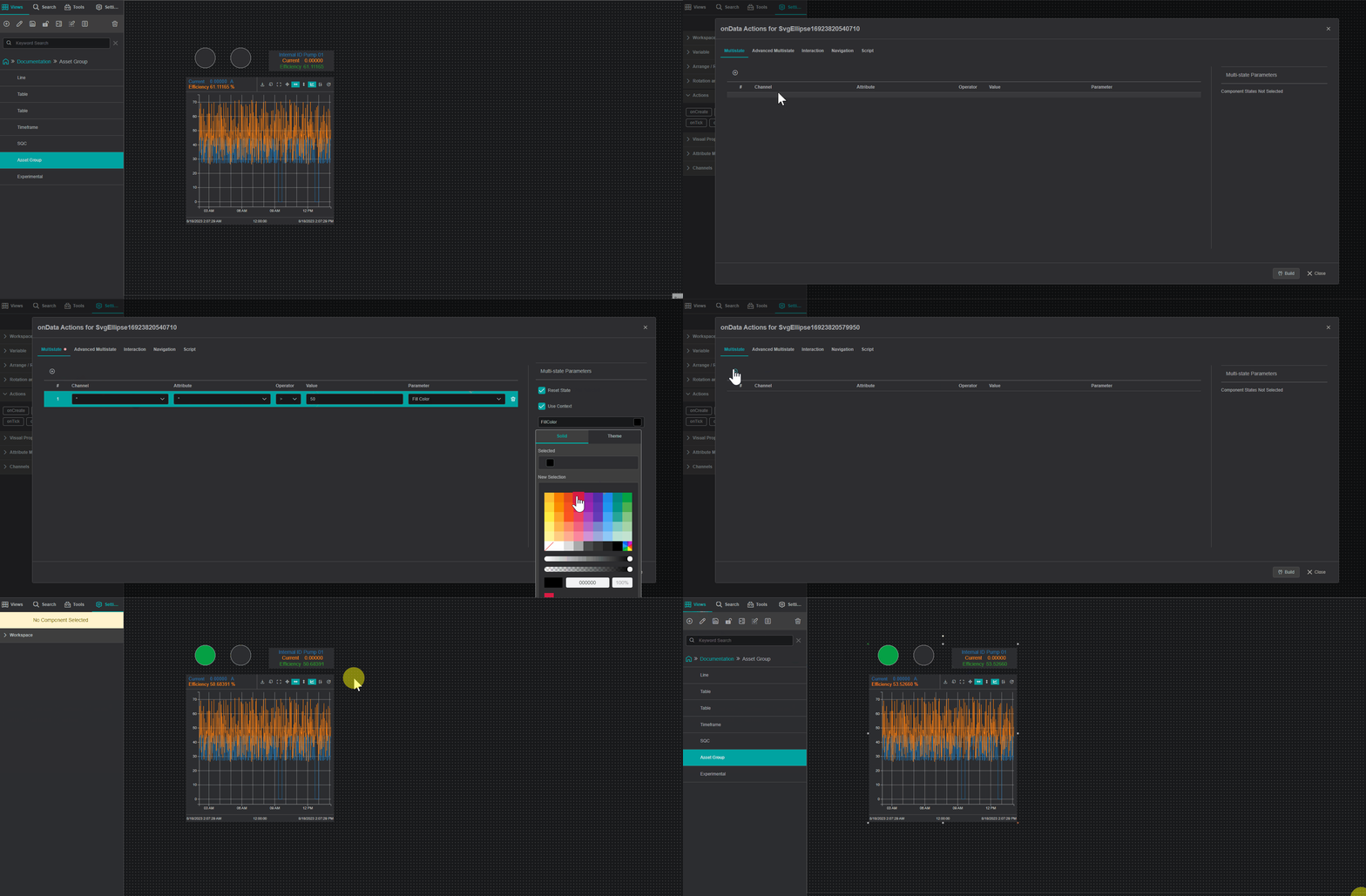
Edit your group to add a multistate to your primitive components to quickly show whether something is in a good or bad state.
In this example, for efficiency values greater than 50%, the left circle will be green. For efficiency values less than or equal to 50%, the right circle will be red.
Creating an Asset Group
Once you've created a group, you can simply drag your asset search onto the asset group to see the same group for each asset.
Using the Component Specific menu options, you can configure the group to fit your display.
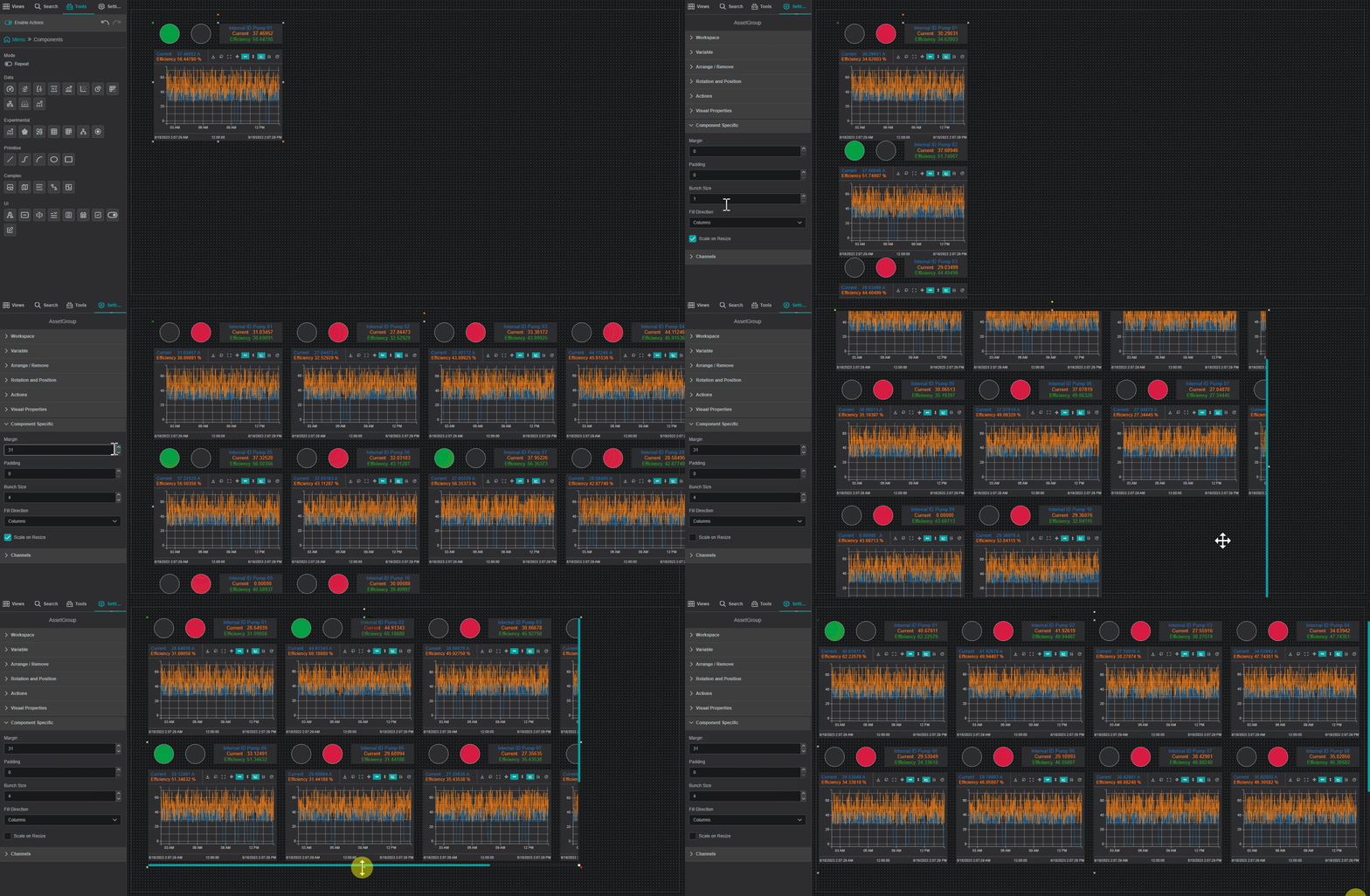
Component Specific Settings
The Component Specific settings provide options for customizing the Margin, Padding, Bunch Size, Fill Direction, and scaling.
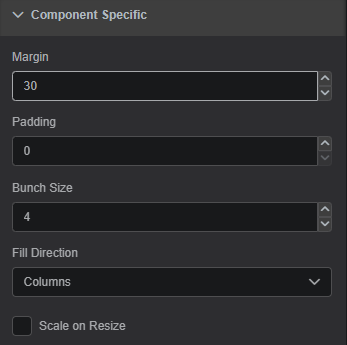
Margin: Defines the spacing between each componentPadding: Defines the spacing between the components and the border of the asset groupBunch Size: Defines how many components in the specified fill directionFill Direction: Defines whether the components are filled as columns or rowsScale of Resize: When selected, the asset group will scale as you change the size of the group. When not selected, the visible area of the asset group decreases and scroll bars appear.