
IOTA Hub serves as the central workspace for dashboard development and system management. It provides templates, tools, and administrative capabilities for creating visualizations and managing the system.
Organization
IOTA Hub consists of two main areas:
| Area | Access Level | Contents |
|---|---|---|
| Welcome Area | All users | Templates, data exploration tools, view management, and support resources |
| Admin Area | Administrators | System configuration, data connections, user permissions, and usage analytics |
Quick Start
Open IOTA Hub
- Click the logo in the top-left of IOTA VUE, or go to your instance URL with
/welcome.
- Click the logo in the top-left of IOTA VUE, or go to your instance URL with
Explore the Welcome Area
- In the Home section, open Quickstart Templates or use Quick Trend to explore data.
Save a Copy (for templates and examples)
- Templates, Example Displays, and Quick Trend results open in read-only mode.
- Use Save View As to create your own editable version.
- The new copy will appear in IOTA VUE Editor and My Views.
Manage and Share Views
- Organize dashboards in My Views, access Shared Views, mark Favorites, or restore items from Deleted Views.
(For Administrators)
- Open the Admin Area via the sidebar gear icon.
- Configure data connections, manage users and permissions, and view system analytics.
Access and Navigation
Opening IOTA Hub
Access IOTA Hub through:
- Logo click: Click the logo in the top-left corner of the IOTA VUE interface
- Direct URL: Navigate to your instance URL with
/welcomeappended
Navigation Elements
The sidebar provides access to key functions:
| Icon | Function | Description |
|---|---|---|
'%3e%3cmetadata%20id='metadata11'%3e%3crdf:RDF%3e%3ccc:Work%20rdf:about=''%3e%3cdc:format%3eimage/svg+xml%3c/dc:format%3e%3cdc:type%20rdf:resource='http://purl.org/dc/dcmitype/StillImage'%20/%3e%3cdc:title%3e%3c/dc:title%3e%3c/cc:Work%3e%3c/rdf:RDF%3e%3c/metadata%3e%3cdefs%20id='defs9'%20/%3e%3csodipodi:namedview%20pagecolor='%23ffffff'%20bordercolor='%23666666'%20borderopacity='1'%20objecttolerance='10'%20gridtolerance='10'%20guidetolerance='10'%20inkscape:pageopacity='0'%20inkscape:pageshadow='2'%20inkscape:window-width='1920'%20inkscape:window-height='1016'%20id='namedview7'%20showgrid='false'%20inkscape:zoom='6.352'%20inkscape:cx='50'%20inkscape:cy='57.510669'%20inkscape:window-x='0'%20inkscape:window-y='0'%20inkscape:window-maximized='1'%20inkscape:current-layer='Layer_1'%20/%3e%3cpath%20d='m%2050.316707,0.42132891%20c%20-27.260037,0%20-49.41878115,22.15874409%20-49.41878115,49.41878009%200,27.260037%2022.15874415,49.418781%2049.41878115,49.418781%2027.260037,0%2049.41878,-22.158744%2049.41878,-49.418781%200,-27.260036%20-22.158743,-49.41878009%20-49.41878,-49.41878009%20z%20m%200,89.27263609%20c%20-21.999328,0%20-39.853856,-17.854528%20-39.853856,-39.853856%200,-21.999328%2017.854528,-39.8538549%2039.853856,-39.8538549%2021.999328,0%2039.853855,17.8545269%2039.853855,39.8538549%20v%200%20c%200,21.999328%20-17.854527,39.853856%20-39.853855,39.853856%20z'%20id='path2'%20style='stroke-width:1.59415;fill:%23b3b3b3'%20/%3e%3cpolygon%20points='37,53%2047,53%2047,63%2053,63%2053,53%2063,53%2063,47%2053,47%2053,37%2047,37%2047,47%2037,47%20'%20id='polygon4'%20transform='matrix(1.5941542,0,0,1.5941542,-29.391004,-29.867601)'%20style='fill:%23b3b3b3'%20/%3e%3c/svg%3e) | New View | Opens a new view in the IOTA VUE Editor |
 | Welcome Area | Opens Home Page of the Welcome Area |
 | Admin Area | Opens system administration (requires admin rights) |
 | Menu Toggle | Toggles sidebar menu navigation for each area |
Welcome Area
The Welcome Area provides dashboard development and view management functionality through five main sections:
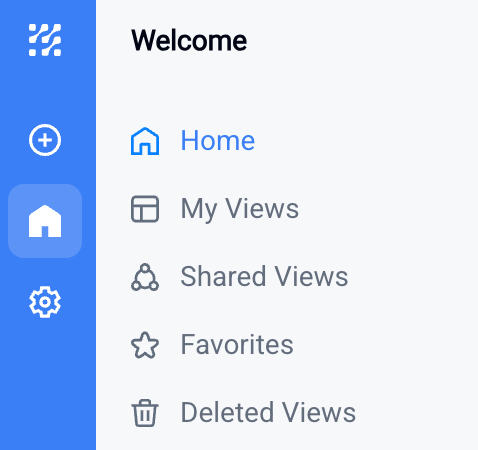
| Section | Function |
|---|---|
| Home | Access templates, data exploration tools, recent views, and resources |
| My Views | Manage views you have created |
| Shared Views | Manage shared views |
| Favorites | Access frequently used views |
| Deleted Views | Recover deleted views |
Home Page
The Home section provides access to templates, data exploration tools, and resources for dashboard creation.
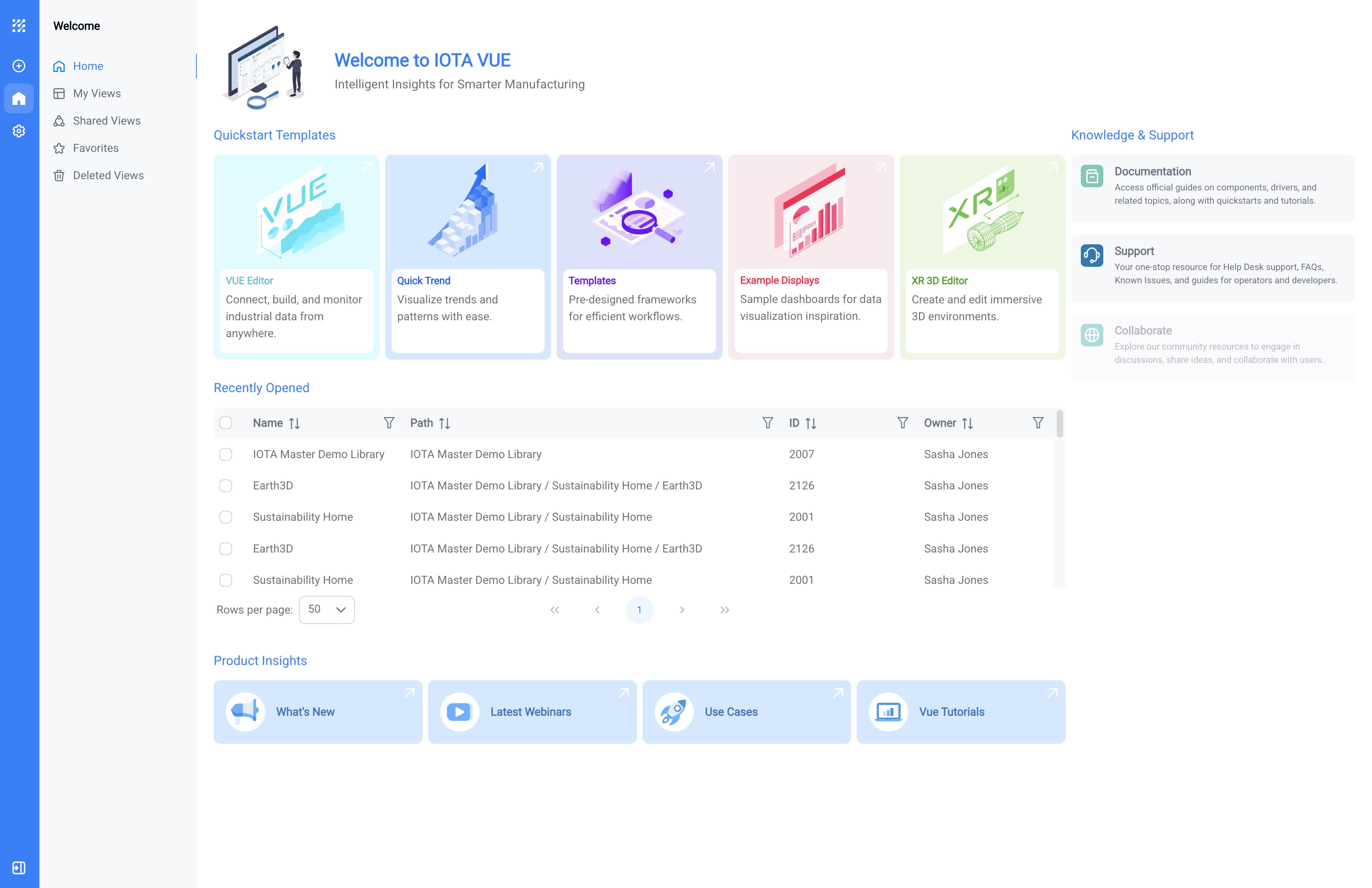
Available Sections
| Section | Purpose |
|---|---|
| Quickstart Templates | Pre-configured tools and templates for quick dashboard development |
| Recently Opened | Access to recently used views |
| Product Insights | Links to product updates, tutorials, and use cases |
Quickstart Templates
This section provides tools and templates for quick dashboard creation and data exploration.
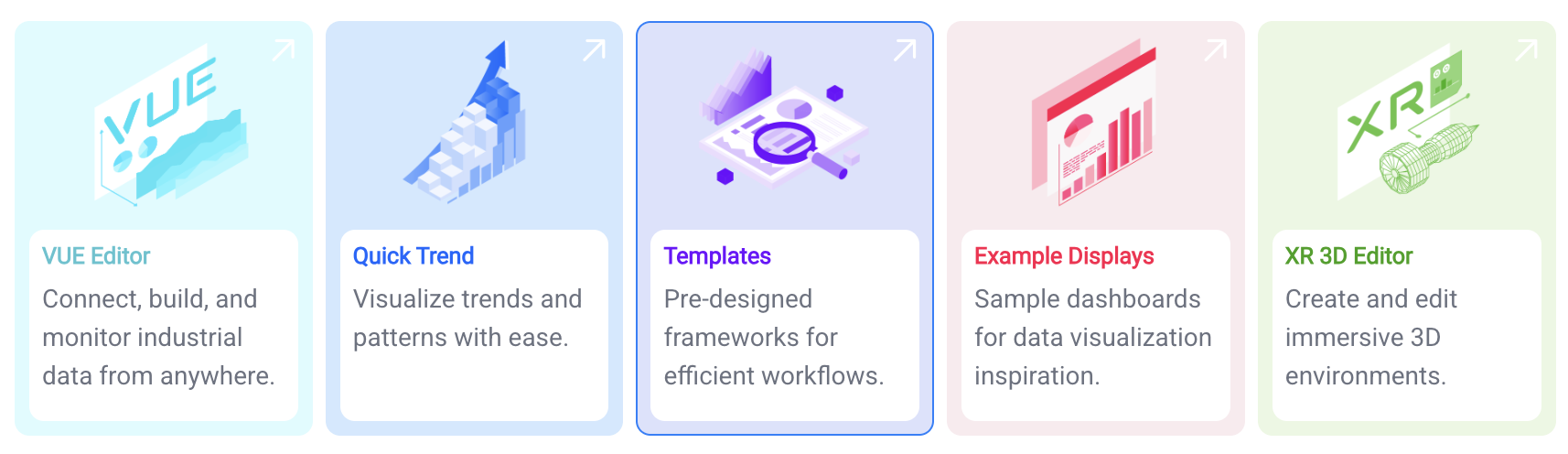
VUE Editor
Opens the VUE Editor for creating custom visualizations and dashboards.
Quick Trend
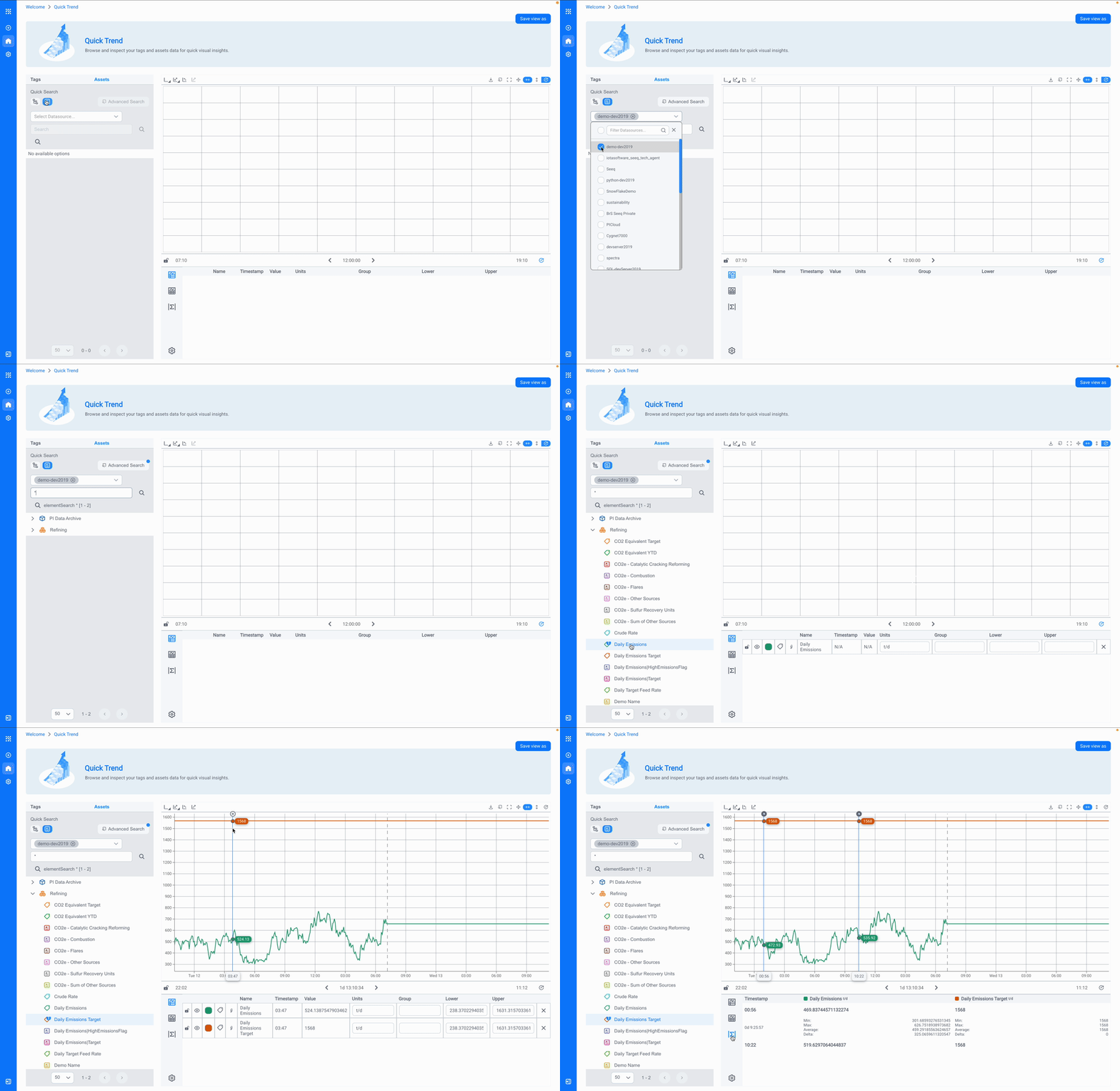
Provides quick data exploration capabilities. Search for tags or assets and visualize their data without creating a full dashboard.
How to Use Quick Trend
- Use the Data Search to find the tag or asset you want to explore. You can search by Tags or Assets
- Click a search result to display its data in a Line Chart, with descriptive metadata and statistics below (if provided by the data source)
- Add regression lines for quick trend analysis
- Add cursors by clicking on the + button to see statistics between data points calculated for the time between the cursors
Related topics: Search, Ad-hoc Trend, Line Chart
Templates
The Templates tile provides three pre-built dashboard templates for common use cases:
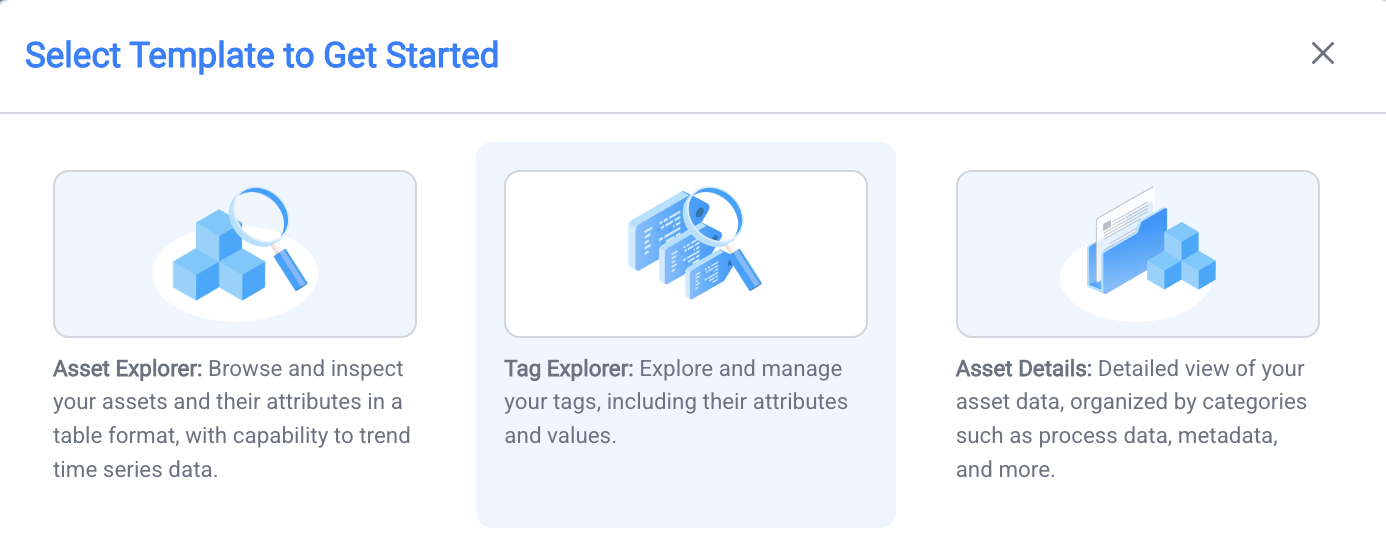
Asset Explorer - Browse asset attributes, view metadata, and create interactive time series visualizations.
Usage:
- Search for an asset using Data Search
- Select the asset to display its attributes in a table
- Click attributes in the table to visualize them in the Line Chart below
- Remove items by right-clicking the Selected Attributes table →
Channels→ Remove items usingX - Export selected attributes as CSV or apply table filters
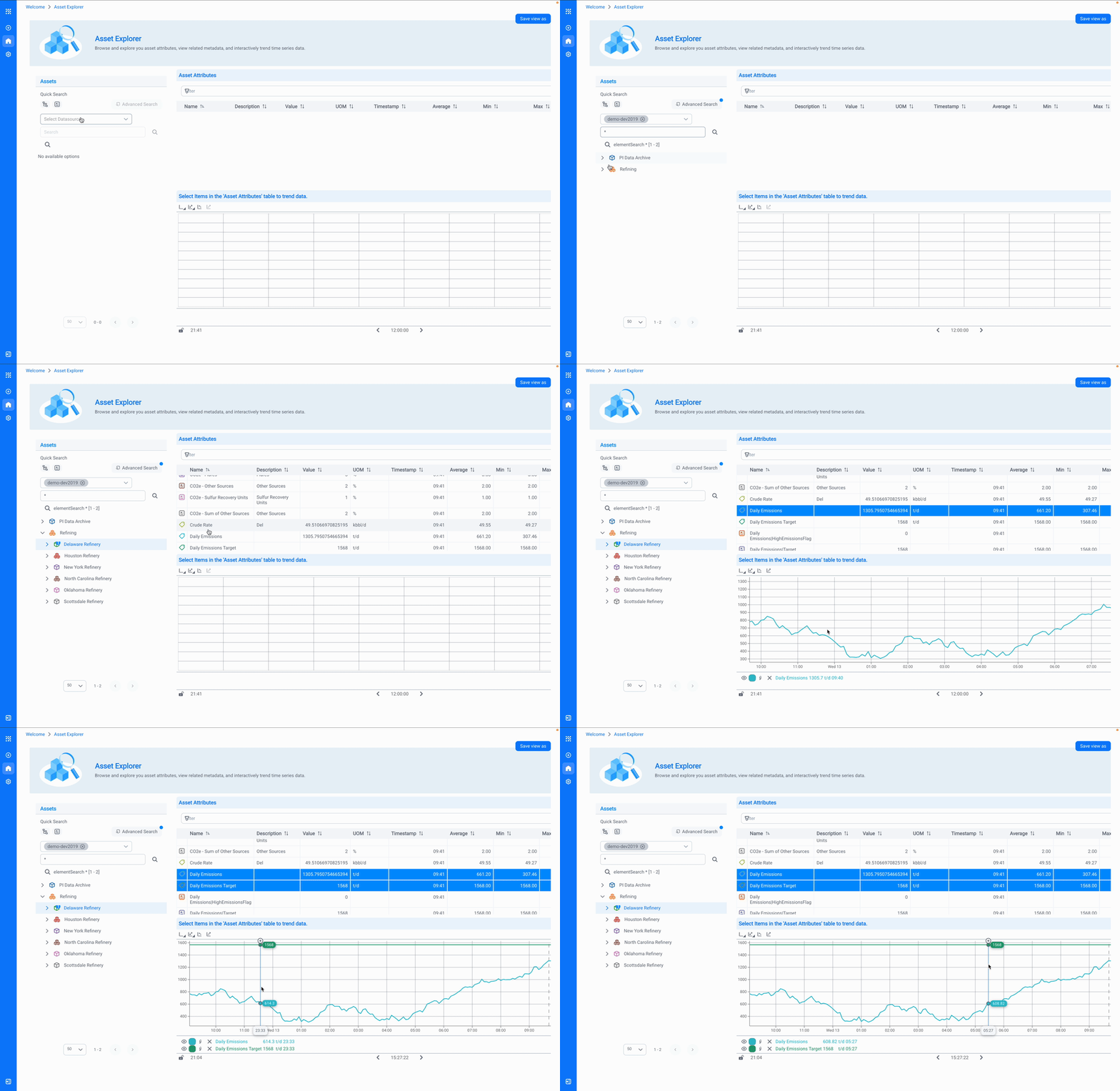
Related topics: Search, Line Chart, Tables
Tag Explorer - Search tags, explore metadata, and create interactive time series visualizations. Uses the same workflow as Asset Explorer but focuses on tag-based data.
Usage:
- Search for tags using Data Search
- Select tags to display available data in the table
- Click tags in the table to visualize them in the Line Chart below
- Remove items by right-clicking the Selected Tags table →
Channels→ Remove items usingX - Export selected tags as CSV or apply table filters
Related topics: Search, Line Chart, Tables
Asset Details - A dashboard template designed to display comprehensive asset information including data categories, related events, and key parameters.
Usage:
- Save the template using Save View As to create an editable copy in IOTA VUE Editor
- Switch to Edit Mode
- Use Data Search to locate relevant attributes, tags, or time ranges
- Drag and drop data onto template components to populate them
Related topics: Search, Line Chart, Tables
Example Displays
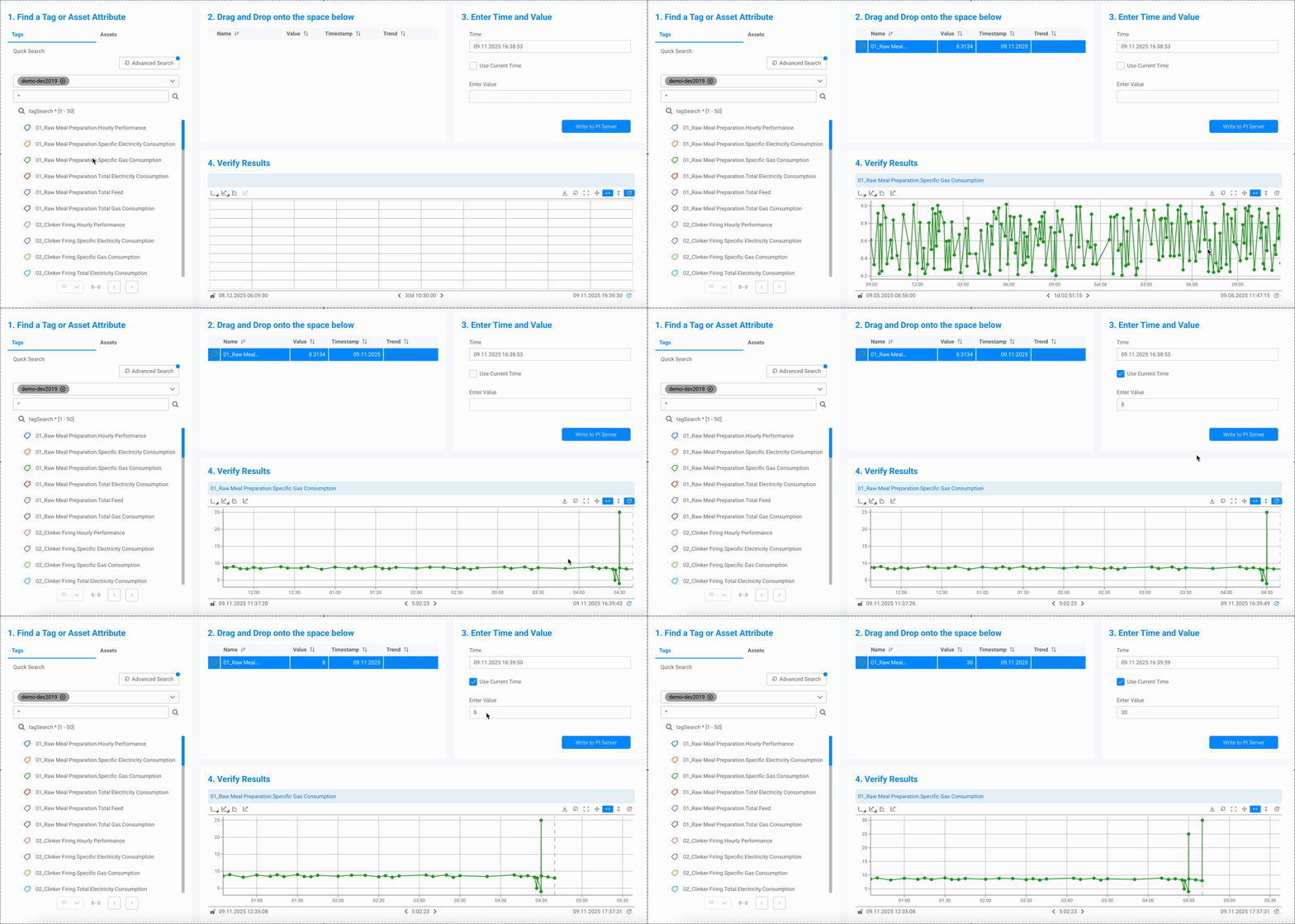
Example Displays provide functional dashboard demonstrations that showcase component usage, layout patterns, and interactive workflows (such as write-back to PI/Seeq).
Each example serves as both a working dashboard and a learning resource for understanding component functionality.
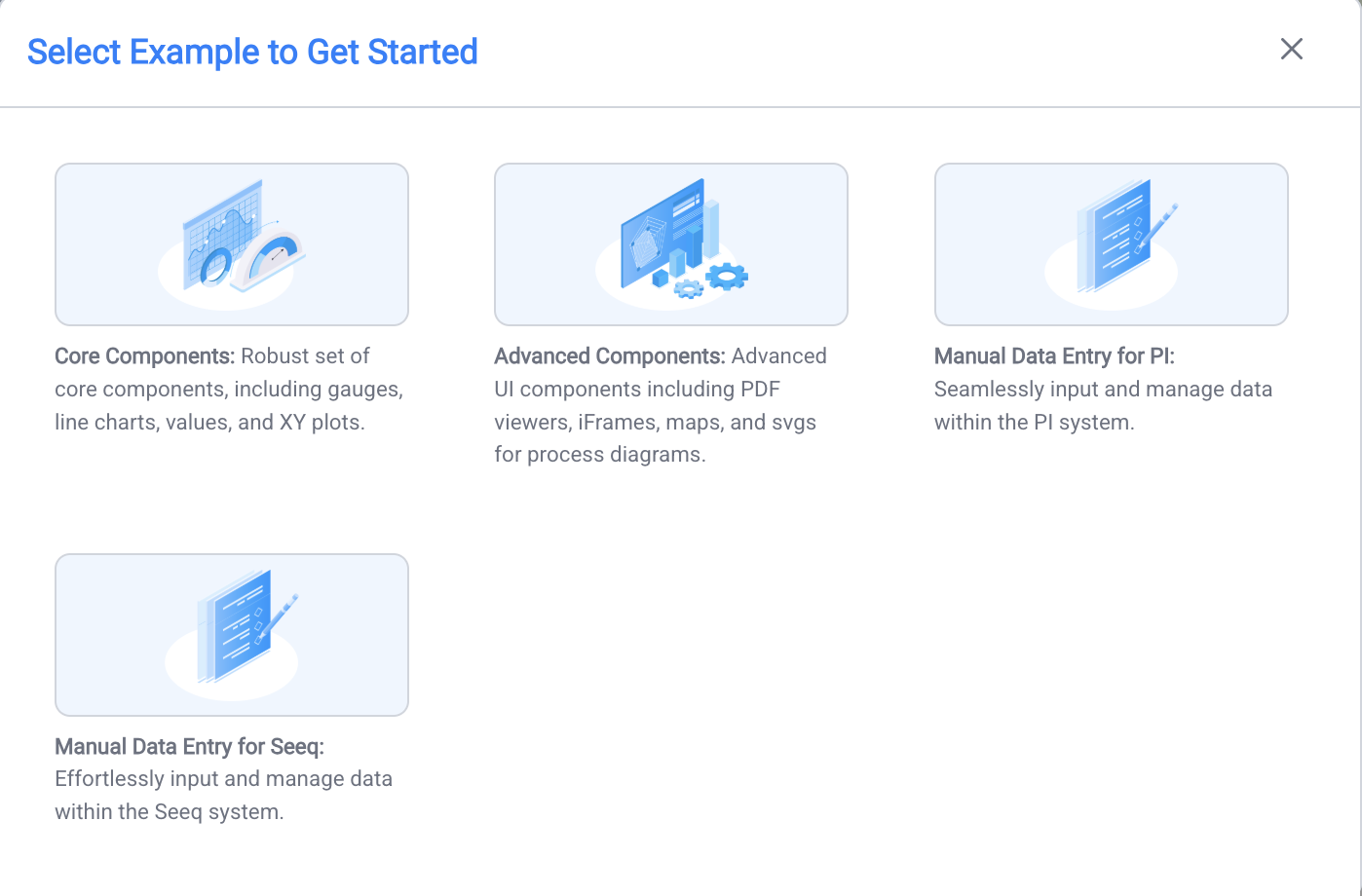
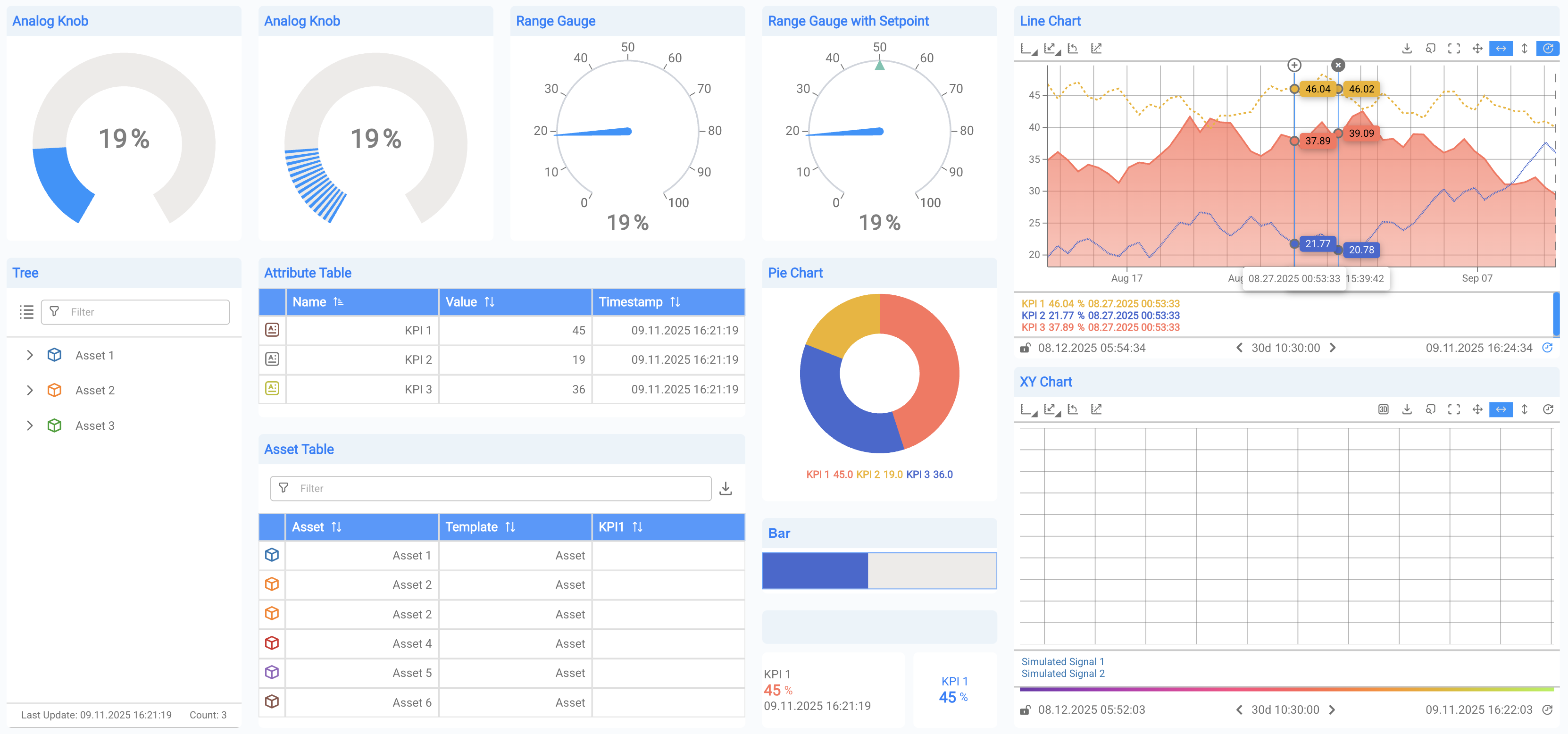
Dashboard examples displaying tree and bar components, gauges, values, XY plots, and line charts.
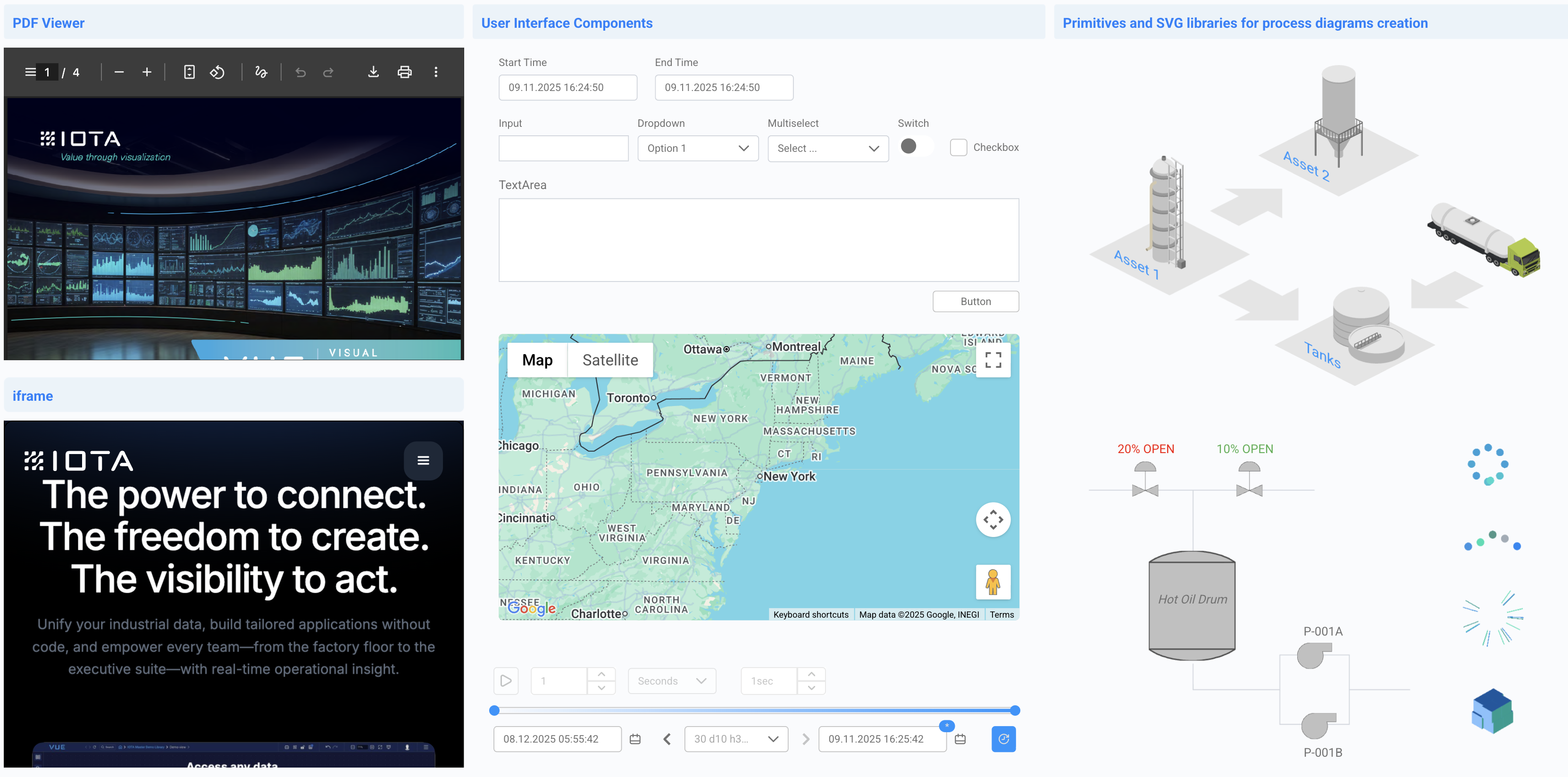
Dashboard examples using PDF viewers, iFrames, maps, user interface components like dropdowns and switches as well as SVG libraries and primitive components for process diagrams.
Dashboard examples demonstrating write-back functionality to data systems using input components.
Pro Tips
- In Edit Mode, select components like the Write to PI Server button to inspect Actions
- Review the script in the Script section (e.g.,
onClickaction) to understand the behavior - For write-back workflows, drag a tag onto the button to configure what gets written
For detailed scripting guidance see the Knowledge Base: Scripting Guide – Write-Back to PI
XR 3D Editor
Opens the 3D editor for creating and editing 3D visualizations.
Saving Template and Example Dashboards
Quick Trend, Templates, and Example Displays can be saved for reuse:
- Click Save View As
- Enter a name and location
- Continue editing in IOTA VUE (remember to save changes there)
Additional Home Sections
Recently Opened - Displays recently accessed views with filtering and sorting options.
Product Insights - Provides links to product updates, webinars, use cases, and tutorials.
My Views
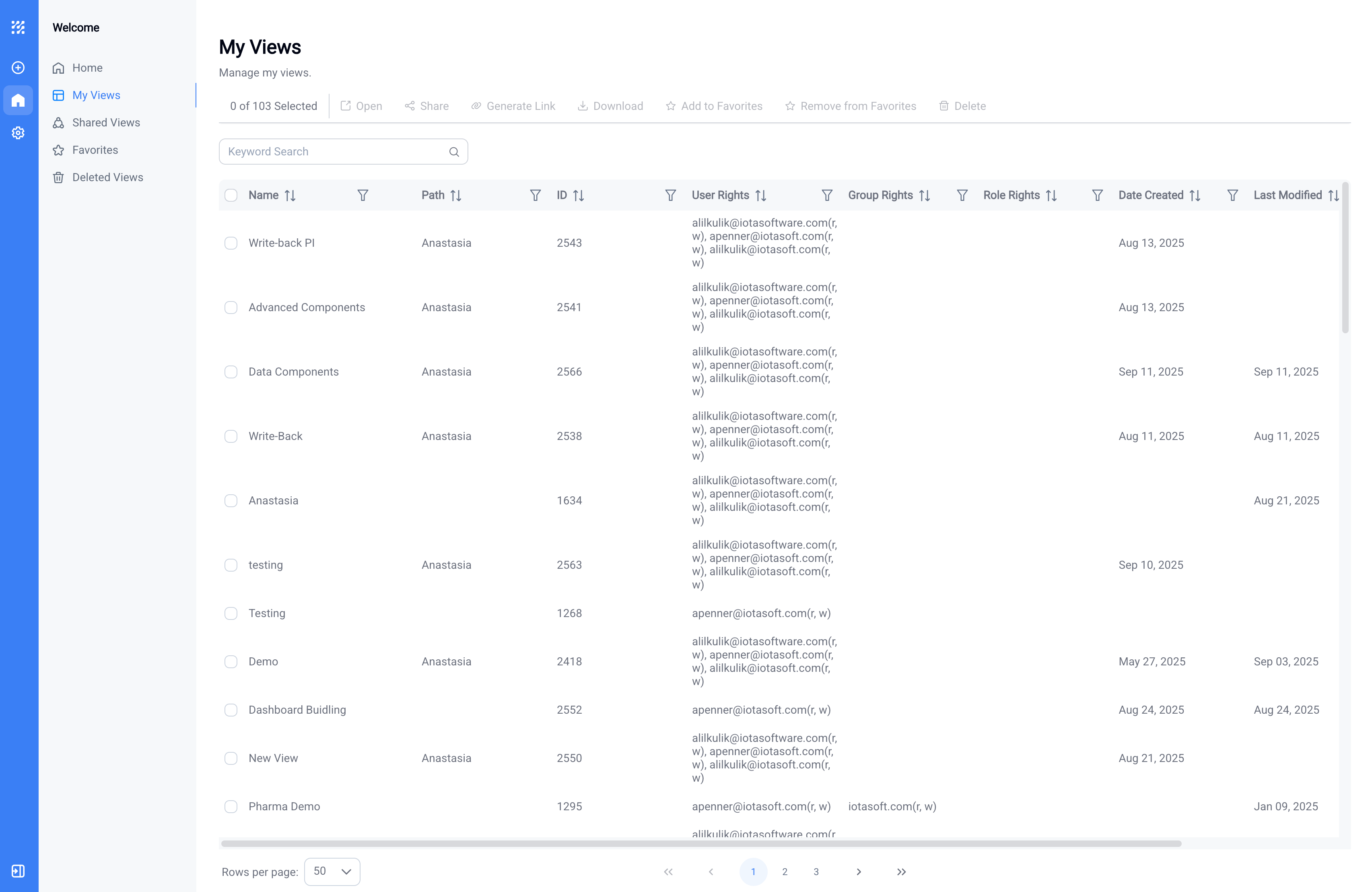
The My Views section allows you to manage views you have created, including permissions, search, filtering, and bulk actions.
View Information Display
The table lists the following details for each view:
| Column | Information Displayed |
|---|---|
| Name | View name |
| Path | Storage location (shown only if not in root directory) |
| Unique ID | System-generated identifier |
| User Rights | Individual user access permissions: w (write) or r (read-only) |
| Group Rights | Group access permissions based on groups defined in your identity provider: w (write) or r (read-only) |
| Role Rights | Admin-defined role permissions: w (write) or r (read-only) |
| Date Created | Original creation timestamp |
| Last Modified | Most recent update (by any user with access) |
| Last Accessed | Most recent opening (by any user with access) |
Permission & Role Management
Select one or multiple views and click the Share button to modify access permissions. You can grant or revoke read/write access for individual users, groups, and roles. For role configuration, see the Admin Area.
Search and Filter Capabilities
Keyword Search: Use the search bar to look across all columns and data:

Advanced Filtering: Configure detailed search criteria using multiple options:
| Filter Element | Function |
|---|---|
| Match Type | Choose Match All or Match Any for multiple search criteria |
| Search Type | Select from options: Contains, Starts with, Equals, and others |
| Search Field | Enter search terms |
| Add Rule | Create additional filter criteria with independent search types |
| Remove Rule | Delete individual filter rules |
| Apply | Execute search with defined filters |
| Clear | Remove all active filters |
Sorting: Click column header arrows to sort in ascending or descending order.
View Management Actions
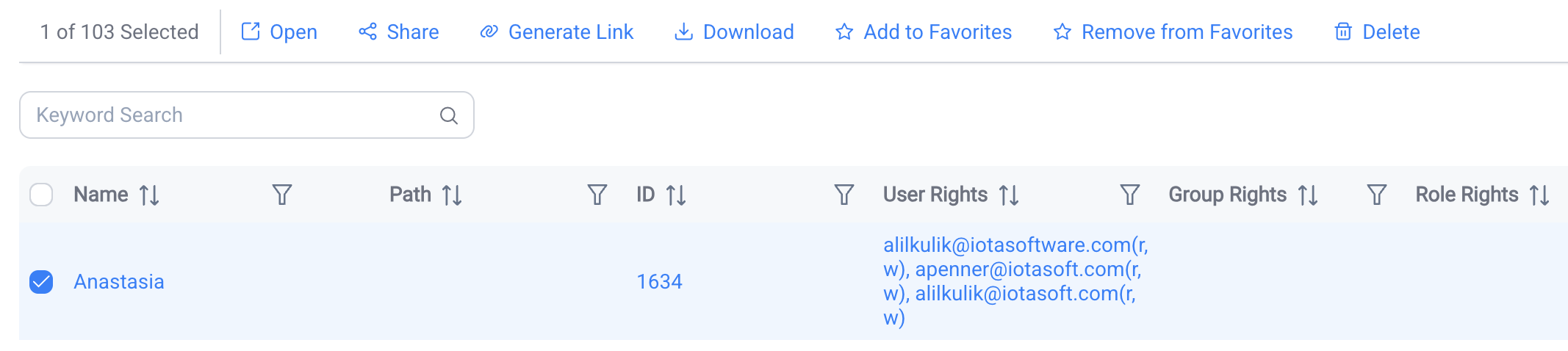
Use checkboxes to select individual views or multiple views for bulk operations:
| Action | Function |
|---|---|
| Open | Launch view in IOTA VUE Editor |
| Share | Modify access permissions and sharing settings for users, groups, and roles |
| Generate Link | Create shareable URL for the view (recipients must still be granted access permissions separately) |
| Download | Export view file for backup or sharing |
| Add to/Remove from Favorites | Manage favorites list (view favorites in the Favorites section) |
| Delete | Remove views (recoverable from Deleted Views) |
Shared Views
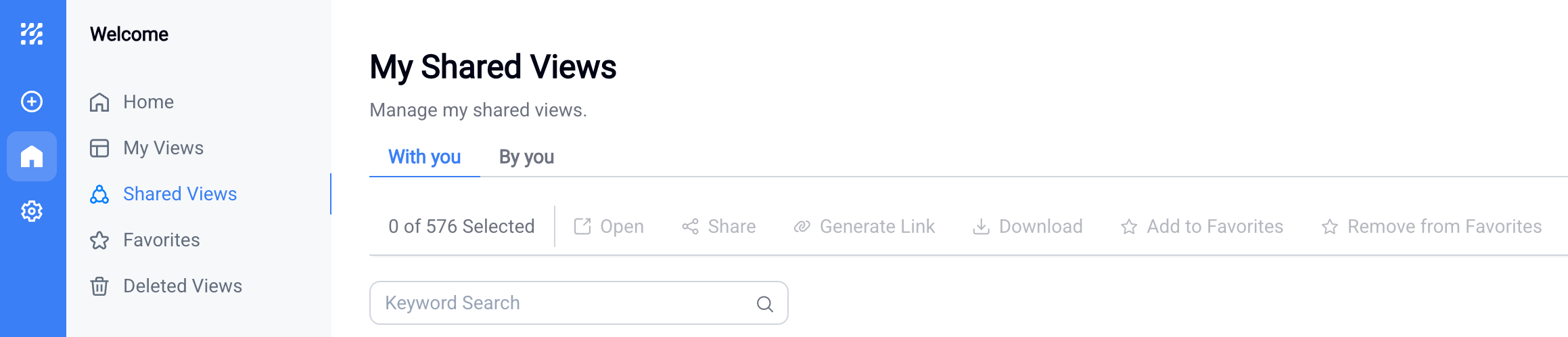
The Shared Views section shows views shared with or by you. Its interface matches My Views.
View Categories
| Tab | Content | Details |
|---|---|---|
| With You | Views shared with you | Displays original owner and your permission level (w for write, r for read-only), plus permissions for groups and roles you belong to |
| By You | Views you have shared | Shows access recipients and their permission levels. Use the Share button to modify or revoke permissions |
Ownership Information
The Shared Views section includes an Owner column showing the original view creator. Administrators can reassign ownership through the Admin Area.
Favorites
The Favorites section provides quick access to frequently used views. It uses the same management interface as My Views.
Managing Favorites
Adding Favorites: Select views in My Views or Shared Views and click "Add to Favorites".
Available Functions:
- All search, filtering, and sorting capabilities from My Views
- Remove from Favorites (does not delete the actual view)
Deleted Views
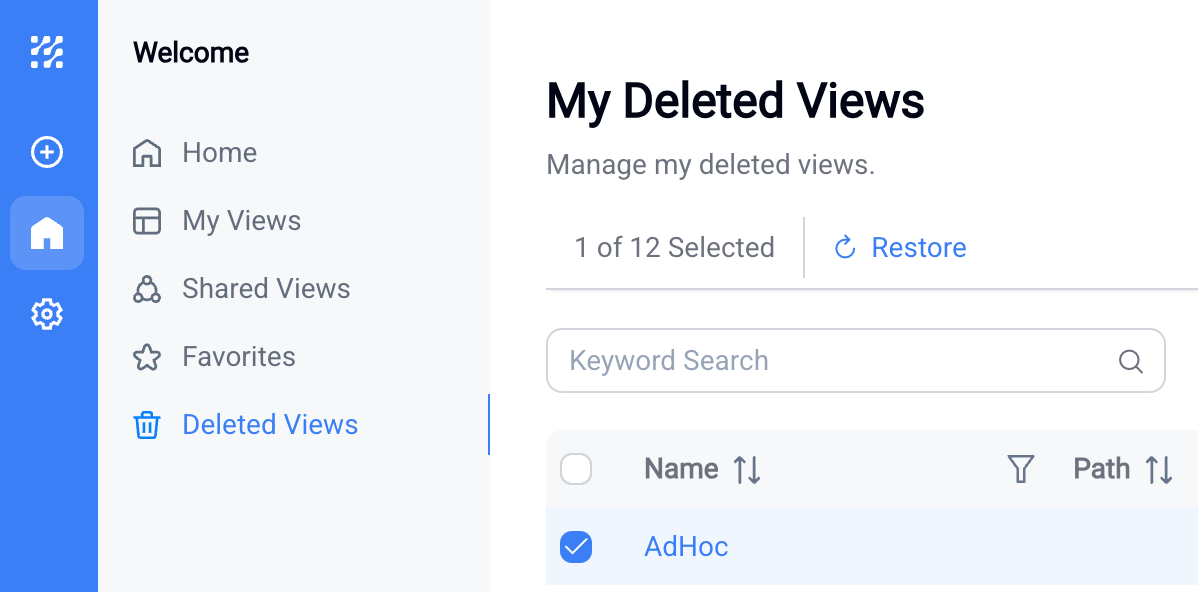
The Deleted Views section enables recovery of accidentally deleted views. It provides the same filtering and sorting options as My Views.
Additional Information
- Deletion timestamp: Date and time when the view was deleted
- Deleted by: User who deleted the view
Recovery Process
- Locate view: Browse or search for the deleted view using the same filtering options as My Views
- Select for restoration: Use the checkbox to select the view
- Restore: Click the
Restorebutton - Completion: View returns to its original location with all original permissions intact