
PI System Calculations
PI System Calculations provide a powerful way to transform data on the fly without the need to set up calculations in AF Analytics.
IOTA allows you to quickly apply mathematical operations to PI points or attributes, enabling immediate, real-time insights into your processes.
This functionality uses PI Performance Equations (PE) syntax, the same syntax used in AF Analytics and PI Vision. For complete syntax reference, see AVEVA PI Vision Calculation Syntax.
Calculations is being updated
The Calculations experience is being actively improved. The steps and screenshots on this page reflect the current build; expect the UI paths and images to be refreshed as the updated feature ships.
Requirements
- All PI points used in a calculation must originate from the same Data Archive.
- Assets in a calculation must come from the same AF database.
- Mixing PI points and assets in the same expression is not supported.
Info
This functionality is currently available only for PI tags and assets and only in the current view. To create calculations with other data sources across assets or displays, use Python Calculations.
Creating a Calculation
1. Access the Calculation Editor
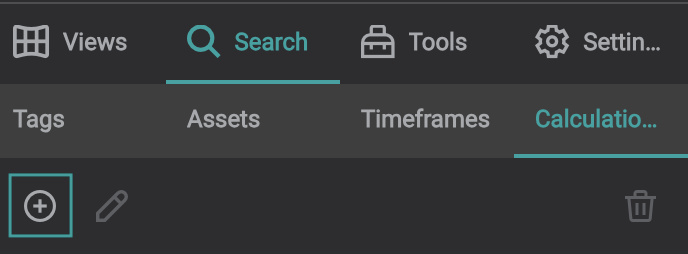
- Navigate to the Search tab located in the left pane.
- Select the Calculation tab below.
- Click the + icon to add a new calculation. The Calculation Editor window will appear.
2. Select Data for the Calculation
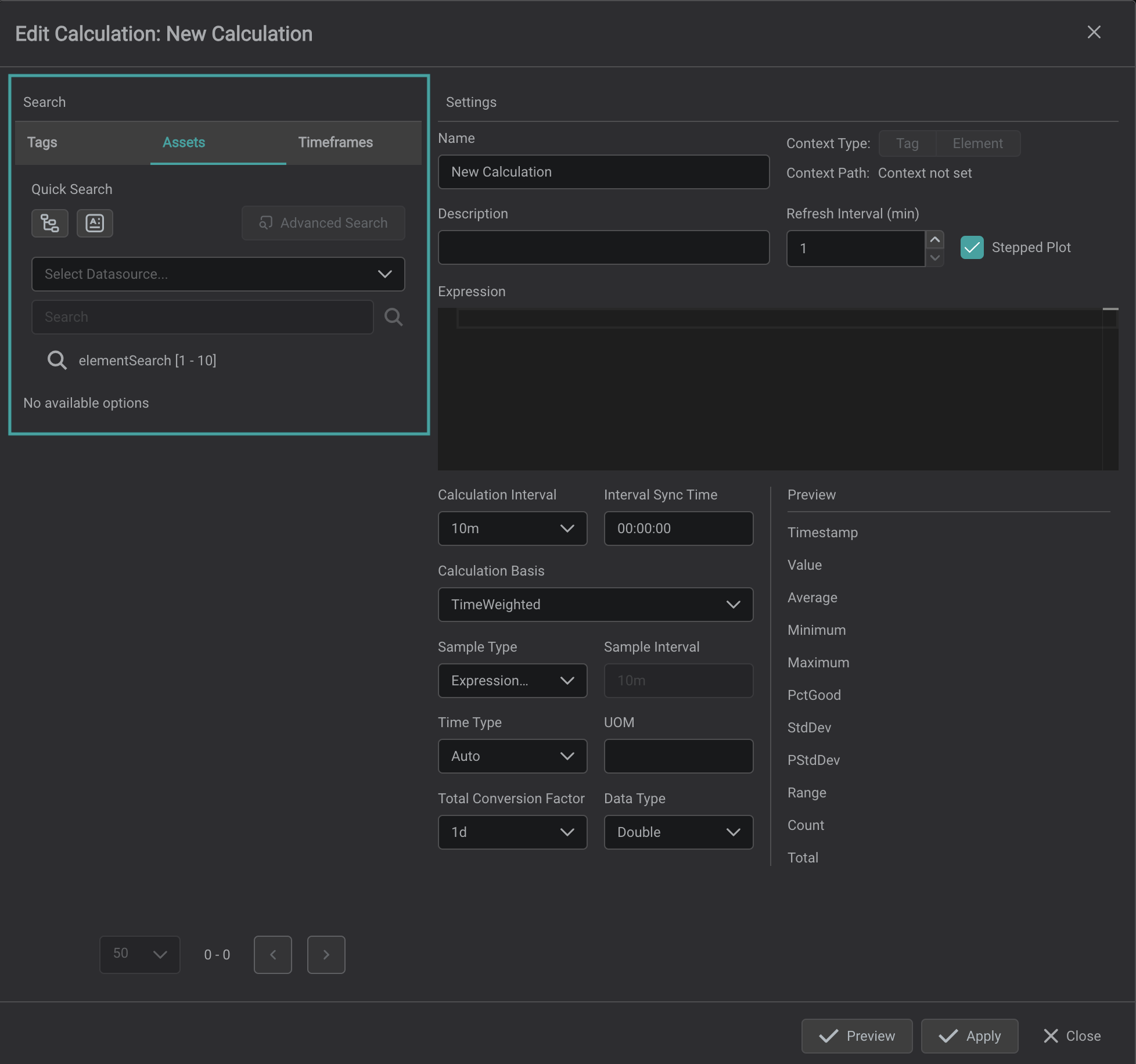
- On the left side, you'll find the Data Search area. Choose the data type you want to use for the calculation.
- Define the data source and search for the data as you typically do.
3. Name and Describe the Calculation
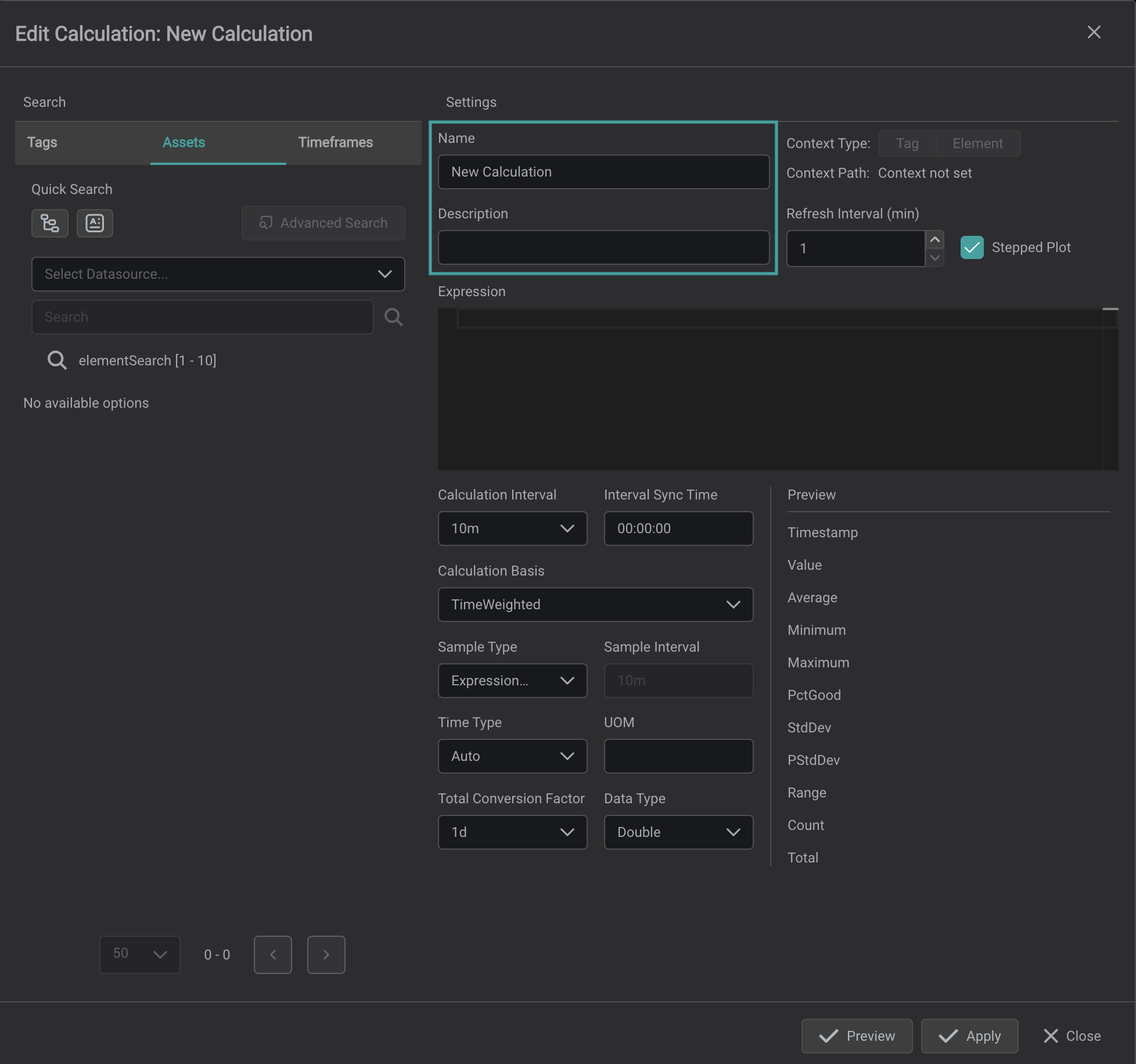
- Provide a meaningful name for the calculation.
- Add a description to easily identify it later.
4. Define the Expression
Drag and drop the desired attributes or PI points into the Expression field.
Construct your calculation expression using these attributes and appropriate mathematical operators.
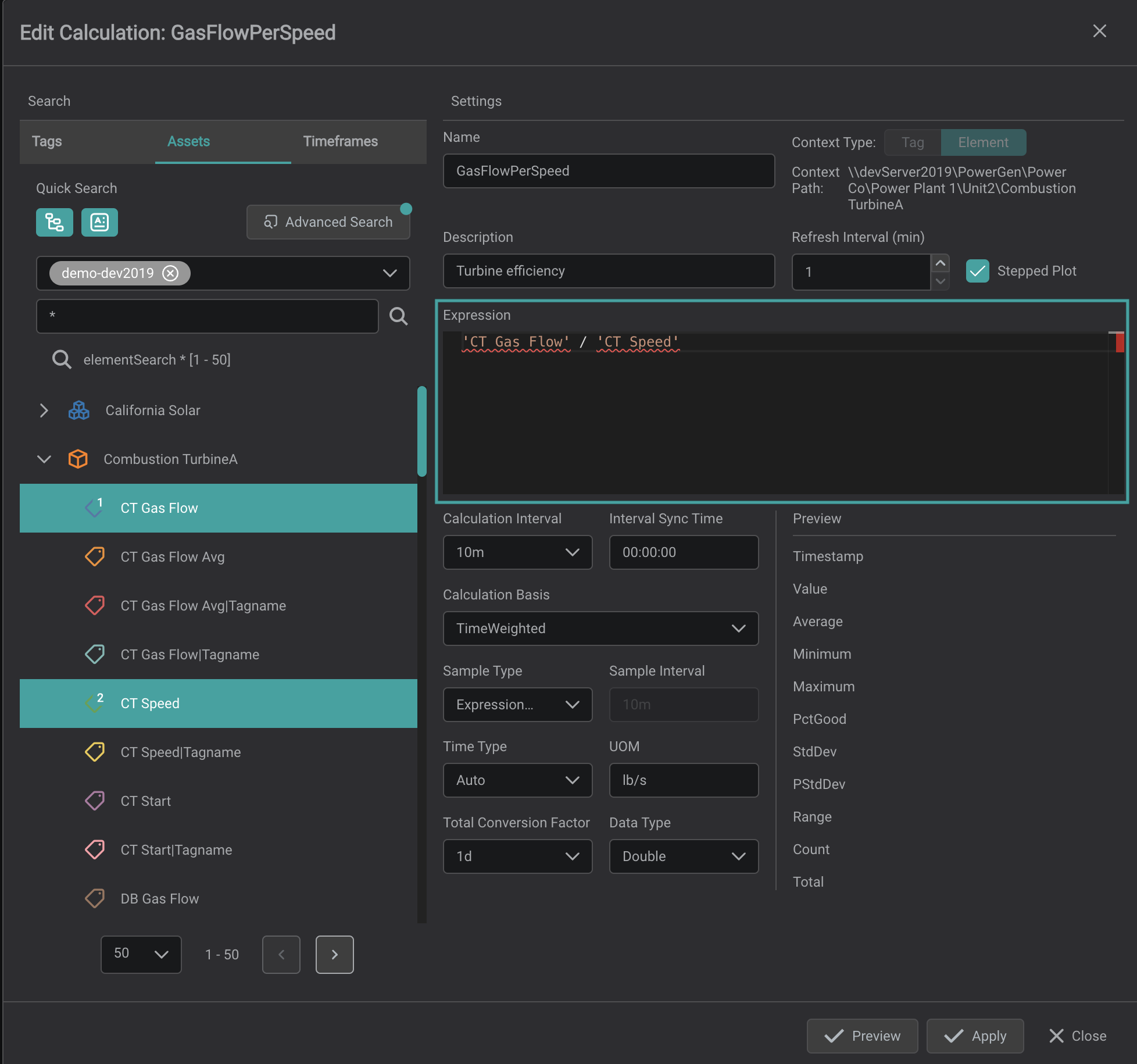
Creating a calculation expression is similar to writing a standard arithmetic equation. You can use arithmetic operators such as +, -, *, /, and functions like Sqr() or Sin().
Expressions consist of operands (the data points or attributes) and operators (the mathematical symbols).
Info
For a complete list of available Performance Equation functions, refer to the AVEVA Performance Equations Functions Reference.
Basic Expressions
- Addition:
'TagPressure' + 'TagTemperature'adds the values of TagPressure and TagTemperature. - Subtraction:
100 - 'TagFlowRate'subtracts the value of TagFlowRate from 100. - Multiplication with Function:
2 * Sqr('TagVoltage')multiplies 2 by the square root of TagVoltage.
Examples
| Mathematical Operation | Expression | Description |
|---|---|---|
| Addition | 'TagPressure' + 'TagTemperature' | Adds the values of TagPressure and TagTemperature |
| Subtraction | 100 - 'TagFlowRate' | Subtracts the value of TagFlowRate from 100 |
| Multiplication with Function | 2 * Sqr('TagVoltage') | Multiplies 2 by the square root of TagVoltage |
Complex Expressions
You can create more complex expressions by combining multiple operations and using parentheses () to control the order of evaluation.
Examples
| Expression | Description |
|---|---|
('TagLevel' * 'TagDensity') / (10 + 'TagViscosity') | Multiplies TagLevel and TagDensity, then divides by the sum of 10 and TagViscosity |
Sin('TagAngle') * 'TagForce' | Multiplies the sine of TagAngle by TagForce |
Asset-Based Calculations
Asset-based calculations allow you to use data in a structured, hierarchical context.
- Attribute Dragging: Drag AF attributes into the Expression field to incorporate them into expressions.
- Asset Context: When you drag an asset into the editor, it sets the asset context, meaning calculations will automatically reference attributes relative to that asset.
Attribute Paths
- Single Database: All attributes in a calculation must be from the same AF database.
- Relative Paths: Attributes at or below the asset context level can use relative paths, simplifying expressions.
- Absolute Paths: Attributes from higher levels or separate branches need their full paths relative to the AF database root.
Note: For calculations across different data sources or AF databases, use Python Calculations.
5. Configure the Calculation
After defining your expression, you can configure several options to tailor the calculation to your needs:
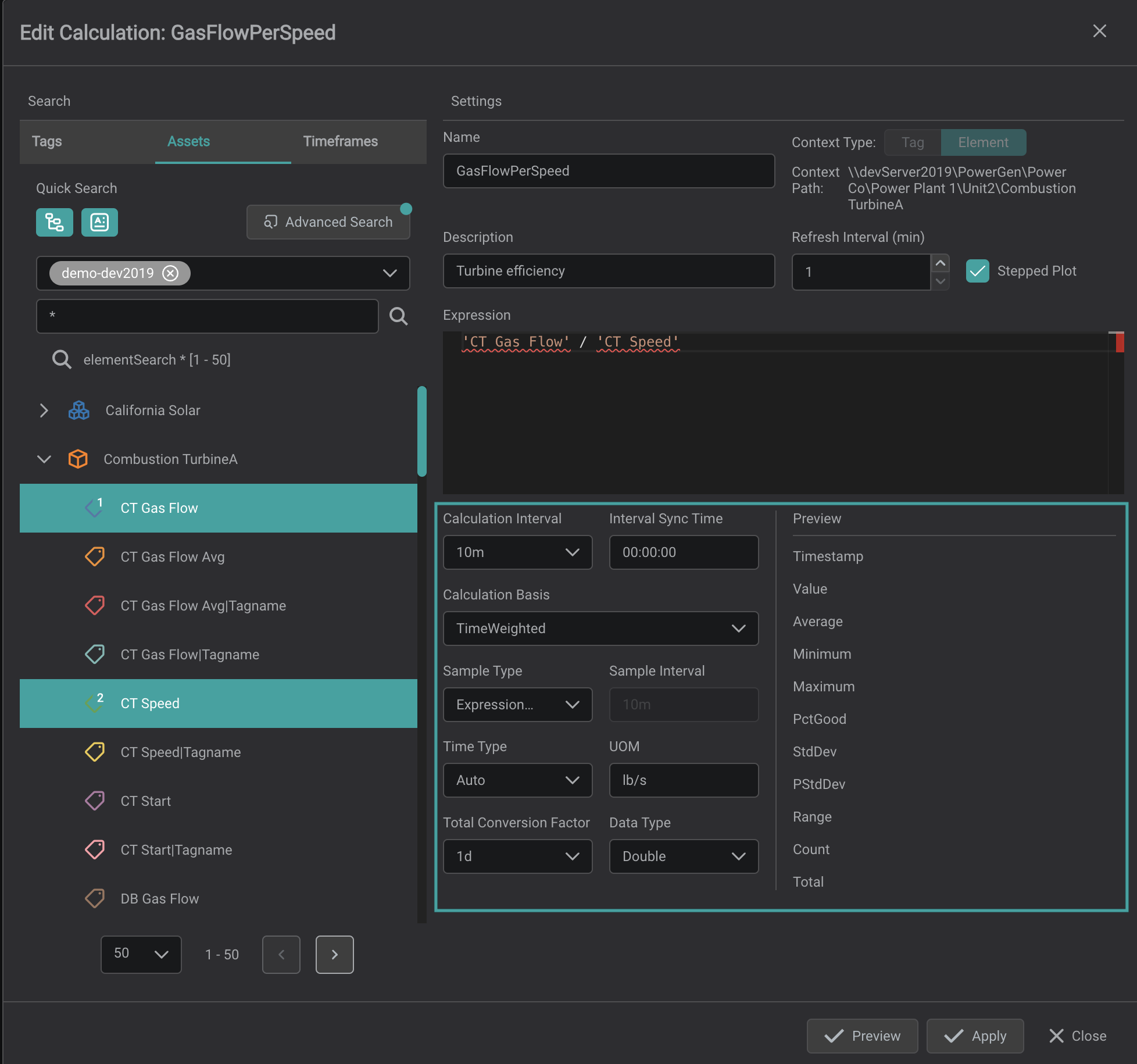
Calculation Interval & Interval Sync Time
The Calculation Interval defines the specific time span over which calculations are performed.
The Interval Sync Time specifies the time of day (24-hour format) from which calculation intervals begin.
Calculation Basis
- Time-Weighted: Data points are weighted based on the time they represent.
- Event-Weighted: Each data point is weighted equally, regardless of time interval.
Sample Type
- ExpressionRecordedValues: Uses actual recorded values at each timestamp.
- Interval: Samples data at regular intervals set by the
Sample Interval.
Sample Interval
Sets the time between samples (e.g., every 5 minutes).
Time Type
- Auto: Automatically selects the most suitable time type.
- EarliestTime: Uses the first timestamp in each interval.
- MostRecentTime: Uses the latest timestamp in the interval.
Unit of Measure (UOM)
Defines the unit for calculated values (e.g., psi, °C, L/s).
Data Type
- Double: Floating-point number
- String: Text
- Int32: 32-bit integer
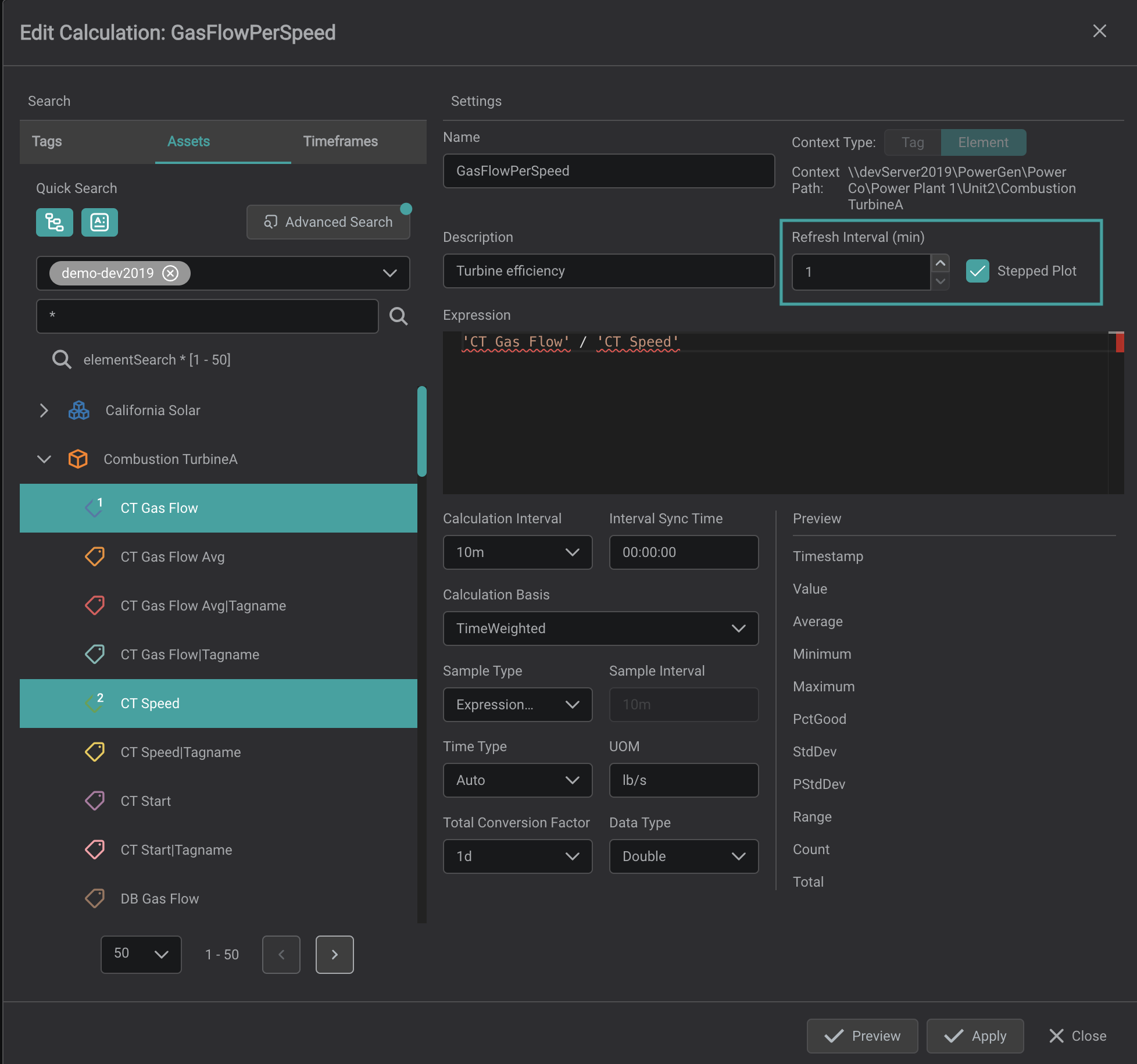
- Refresh Interval: How frequently the calculation updates with new data.
- Stepped Plot: Whether the data is displayed as a stepped plot.
6. Preview the Calculation
The Preview window displays sample results with timestamps, including statistics like Average, Minimum, Maximum, Percent Good (PctGood), and Standard Deviation.
7. Apply and Manage the Calculation
- Click
Applyto save the calculation. - The saved calculation appears in the
Calculationtab. Drag it onto a component (such as a Line Chart) to display results. - To edit a calculation, select it and click the pencil icon.
- To delete a calculation, select it and click the trash icon.
Note
Calculations are specific to the display where they were created. To use calculations across different displays, use Python Calculations.
Summary
- PI System Calculations allow on-the-fly data transformation using PI points or attributes.
- All data in a calculation must come from the same Data Archive or AF database.
- Expressions are built using standard arithmetic operators and PE functions.
- Use the Preview to verify results before applying.
Additional Resources
- PI Vision Calculation Syntax: Official AVEVA documentation
- Performance Equations Functions Reference: Complete reference of all available PE functions
What's Next
PI expression and summary calculations cover many cases; when you need custom logic beyond what expressions allow, use Python. Continue to Python Calculations →.
Related
- Calculations: the calculations overview
- Python Calculations: Python-based calculations
- Searching for Data: find calculated results to display