
Python Calculations
Python Calculations enable you to create new tags, assets, and timeframes without the need to manually add them to the connected database. When used for statistical analysis, calculations grant all capabilities available within Python, including calling libraries for additional functionality.
Use Python Calculations for any data source (SQL, Historian, ADX, Seeq, etc.), or when you need to join data from multiple sources into one output. For PI-only transformations, see PI System Calculations.
Calculations is being updated
The Calculations experience is being actively improved. The steps and screenshots on this page reflect the current build; expect the UI paths and images to be refreshed as the updated feature ships.
1. Creating a Calculation
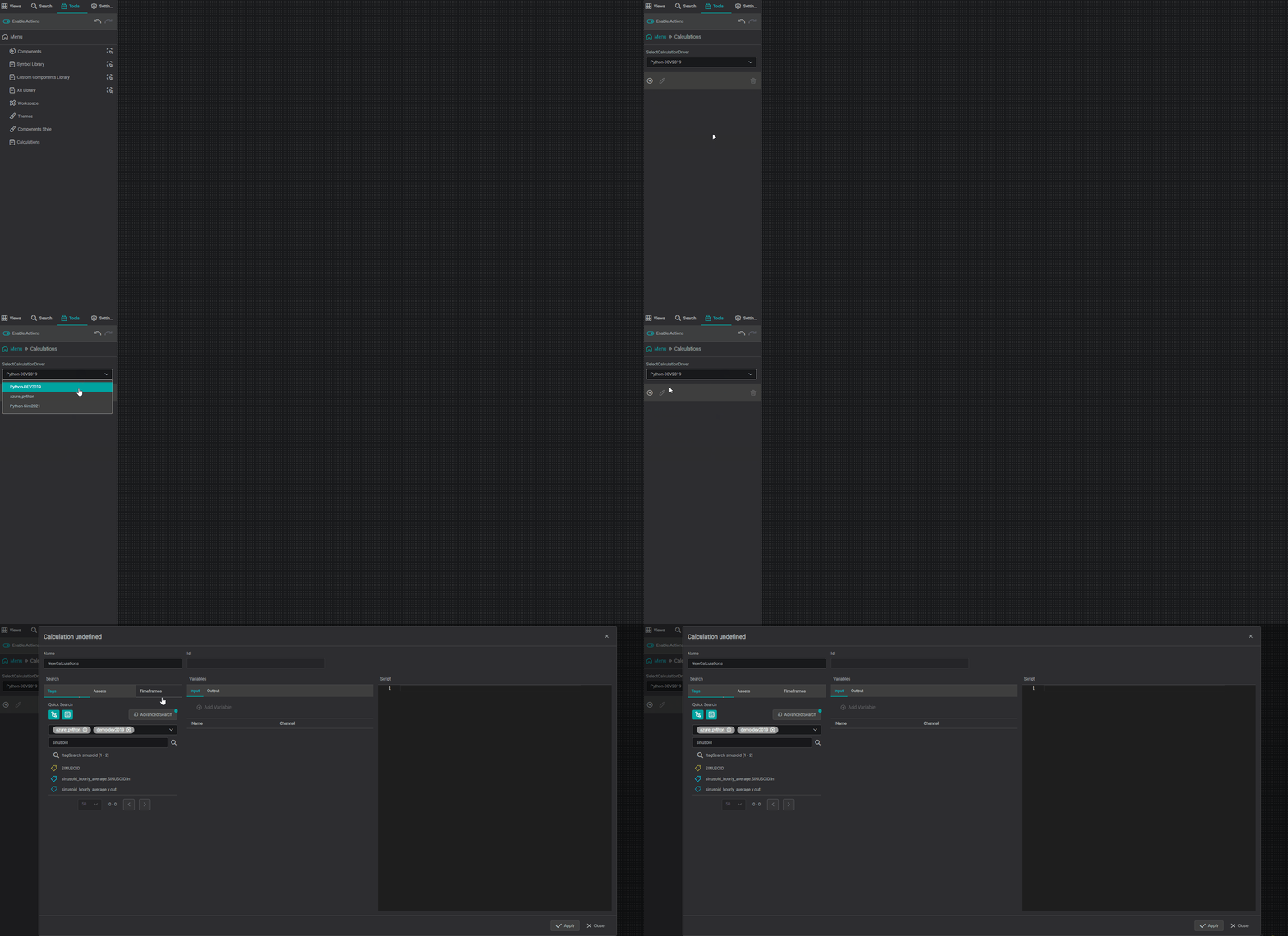
After selecting Calculations in the Tools Menu  , select the correct driver responsible for calculations.
Then proceed to add  a new calculation, or edit
  existing ones.
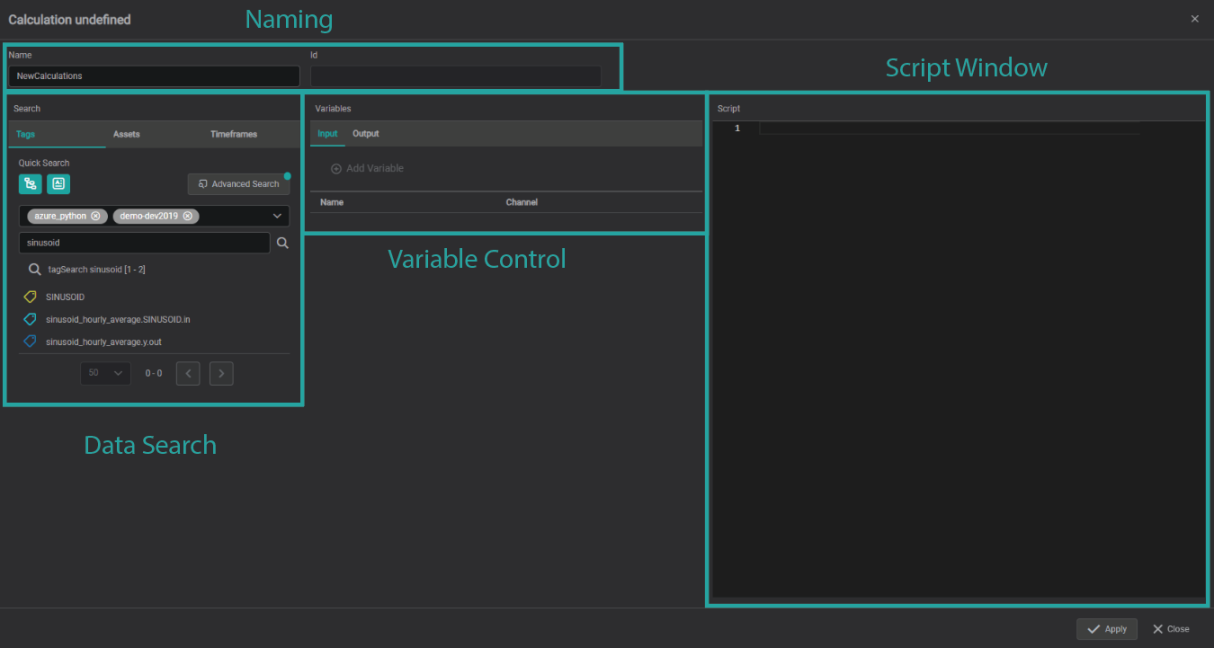
The calculation creator will then open with the following areas:
Info
One calculation can contain many output tags, assets, and timelines, not just one. Assign as many as you need.
Naming
When managing calculations, naming them appropriately is the key to success.
Once properly named, you can search for calculations by name, or by the ID assigned after completion.

Data Search
Similar to the Search tab  , this area is used for locating the data you wish to assign as variables within the calculation window.
Any previous data created using calculations will be stored within the calculation driver used.
For more information on advanced searching options see Advanced Search.
Variable Control
The Variable Control area enables you to configure the data and variable input and output in the script window.
Once you have located all the data you wish to use, select the Input tab and drag the data into the Variable Control area.
Input Tab
The Input tab is where data is turned into the variables used in the Script window.
By default the variable name is set to the root data name, but it can be changed to whatever you want to use in the script window.
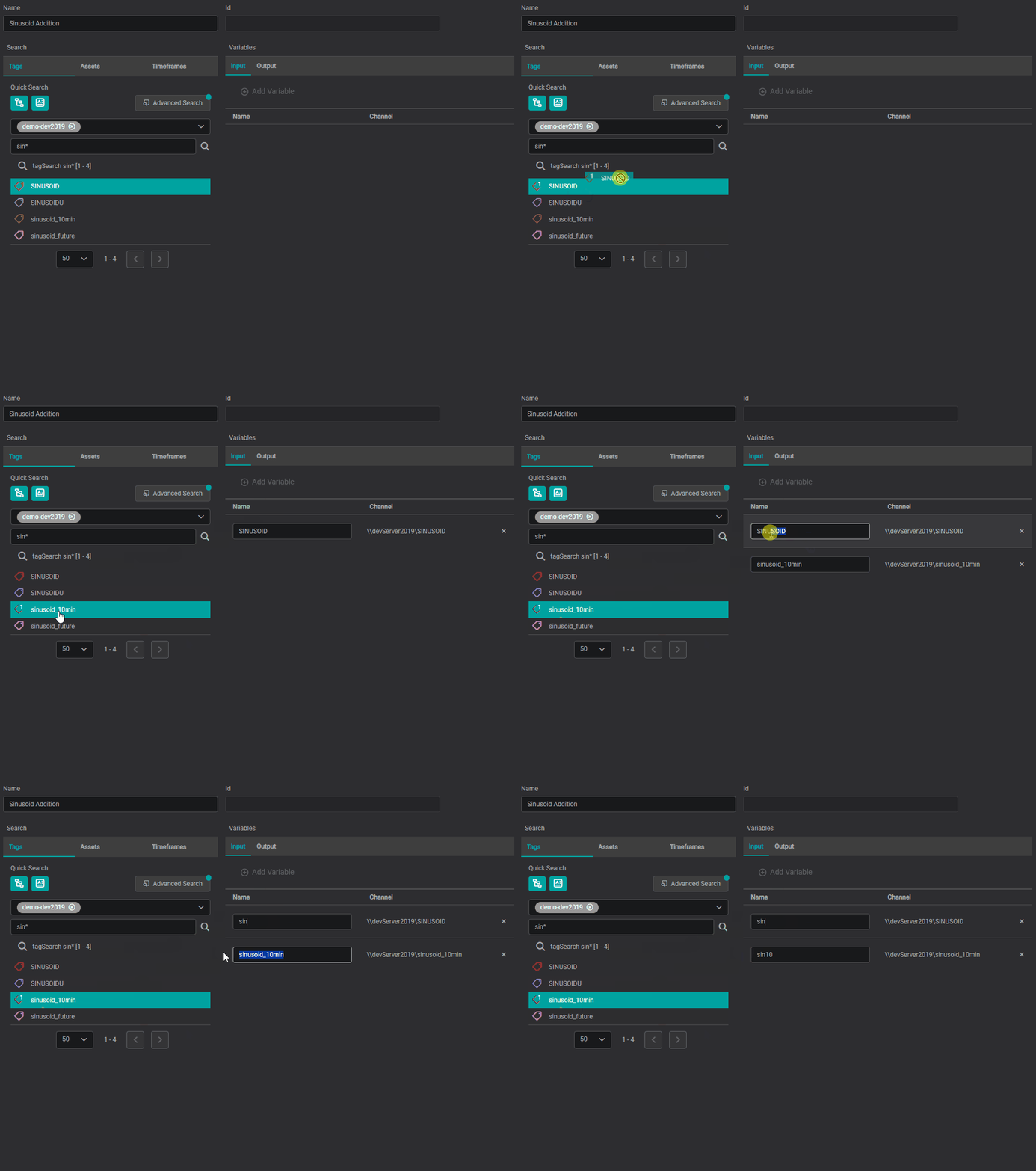
Output Tab
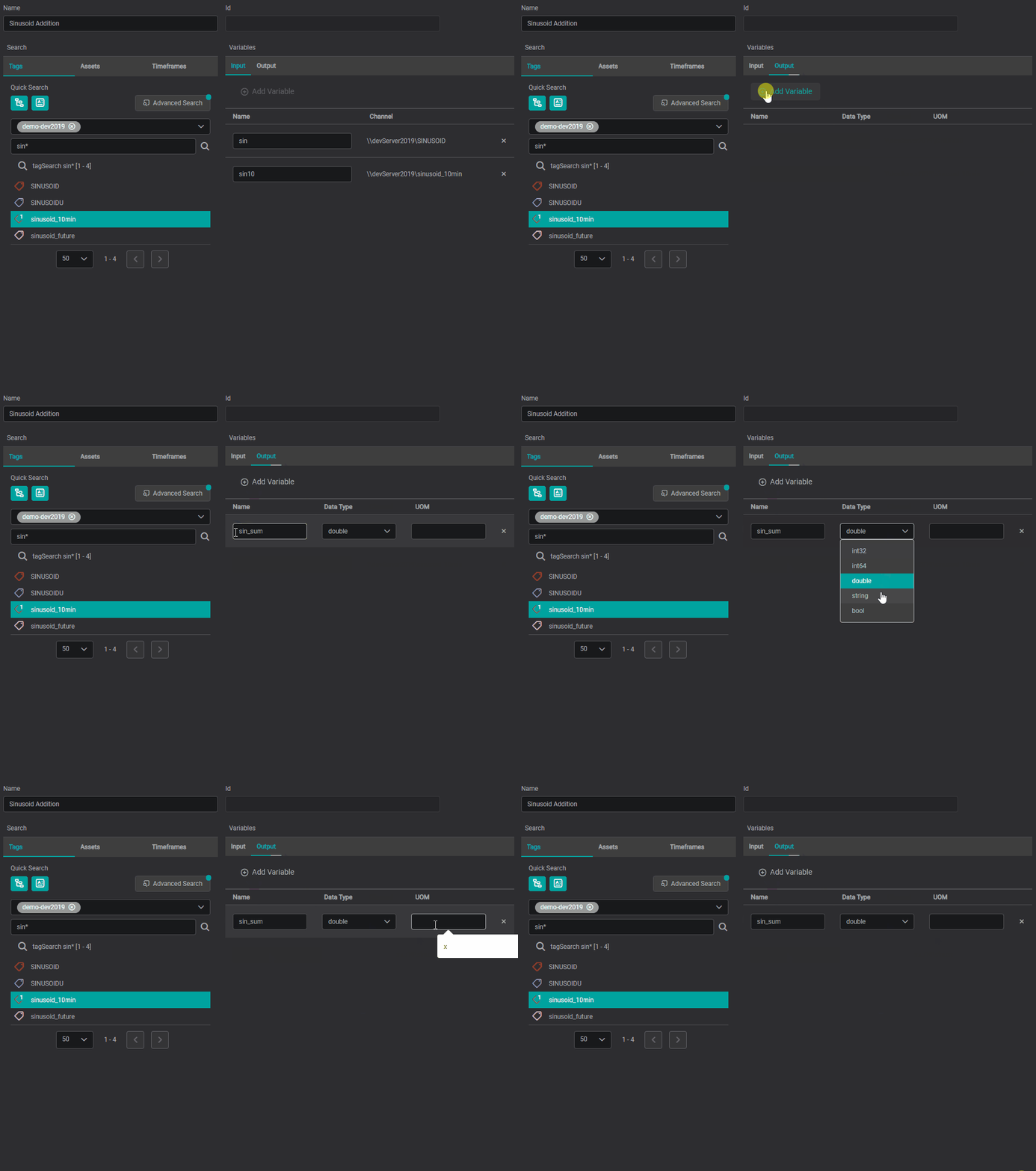
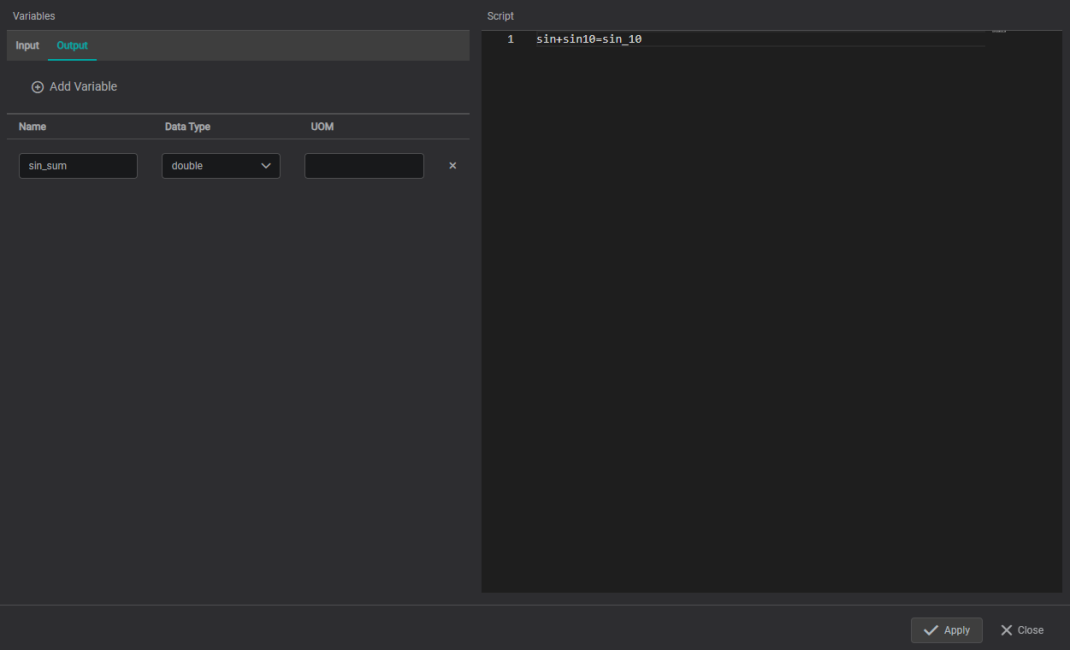
The Output tab is where all created tags, assets, and timeframes are configured and named.
Assign the output variable name to the exact name used in the script window.
Data Types
There are 5 data types supported:
Int32: Most numerical whole value (integer) applications.Int64: Very large numerical whole value (integer) applications.Double: Numerical applications using decimals. (Default)String: Non-numerical, text-specific applications.Bool: "On/Off" or "Yes/No" logic applications.
Unit of Measure
Just as with data from attached data sources, calculation outputs can be assigned user-defined units (UOM). No UOM is defined by default.
Script Window
The Script window is where calculations take place using the variables assigned in the Variable Control area along with any functions used in the calculation.
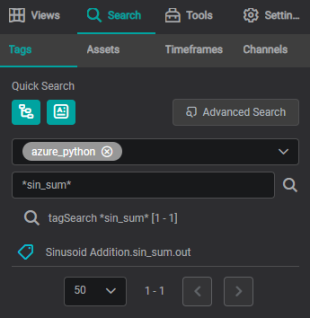
After applying the calculation, the produced data follows a Calculation Name.variable name.variable type naming convention, for example, Sinusoid Addition.sin_sum.OUT as seen below.
2. Calculations in Action
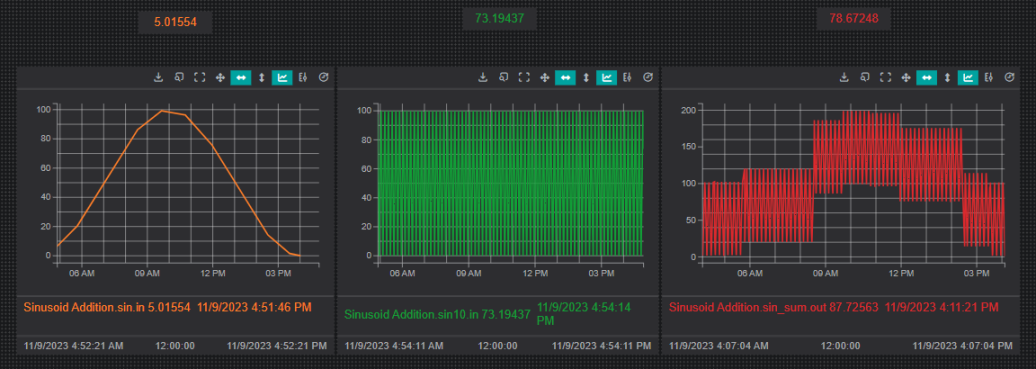
Calculations can be used for simple analysis such as addition, subtraction, multiplication, and division, but also for much more complex computations.
What's Next
That completes the data layer: sources, merging, and calculations. The next section shifts to structuring displays that have grown complex, using tabs and subviews to keep them navigable. Continue to Organizing Complex Displays.
Related
- Calculations: the calculations overview
- PI System Calculations: calculations on a PI/AF source
- Searching for Data: find calculated results to display