
Snowflake Endpoint
Snowflake
Snowflake is one of two destinations that do two jobs. It lands Parquet
files in an internal stage, and it can then load those files into a table.
This page covers the first half: the connection, the account it runs as, and
where the files go. What happens to them afterwards is set per task, on the
Loading a Lake Table page.
The form is two sections: Connection, then Landing.
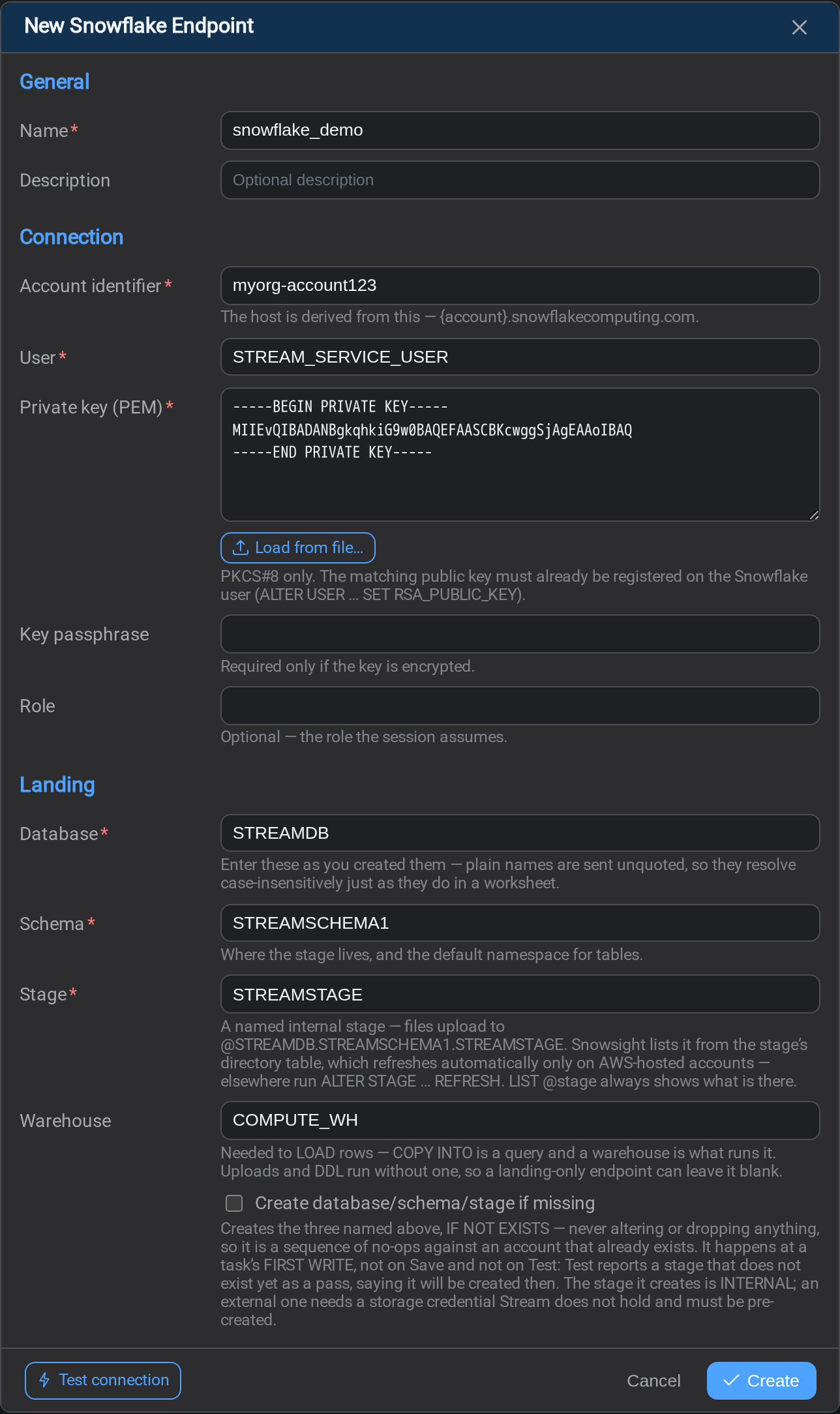
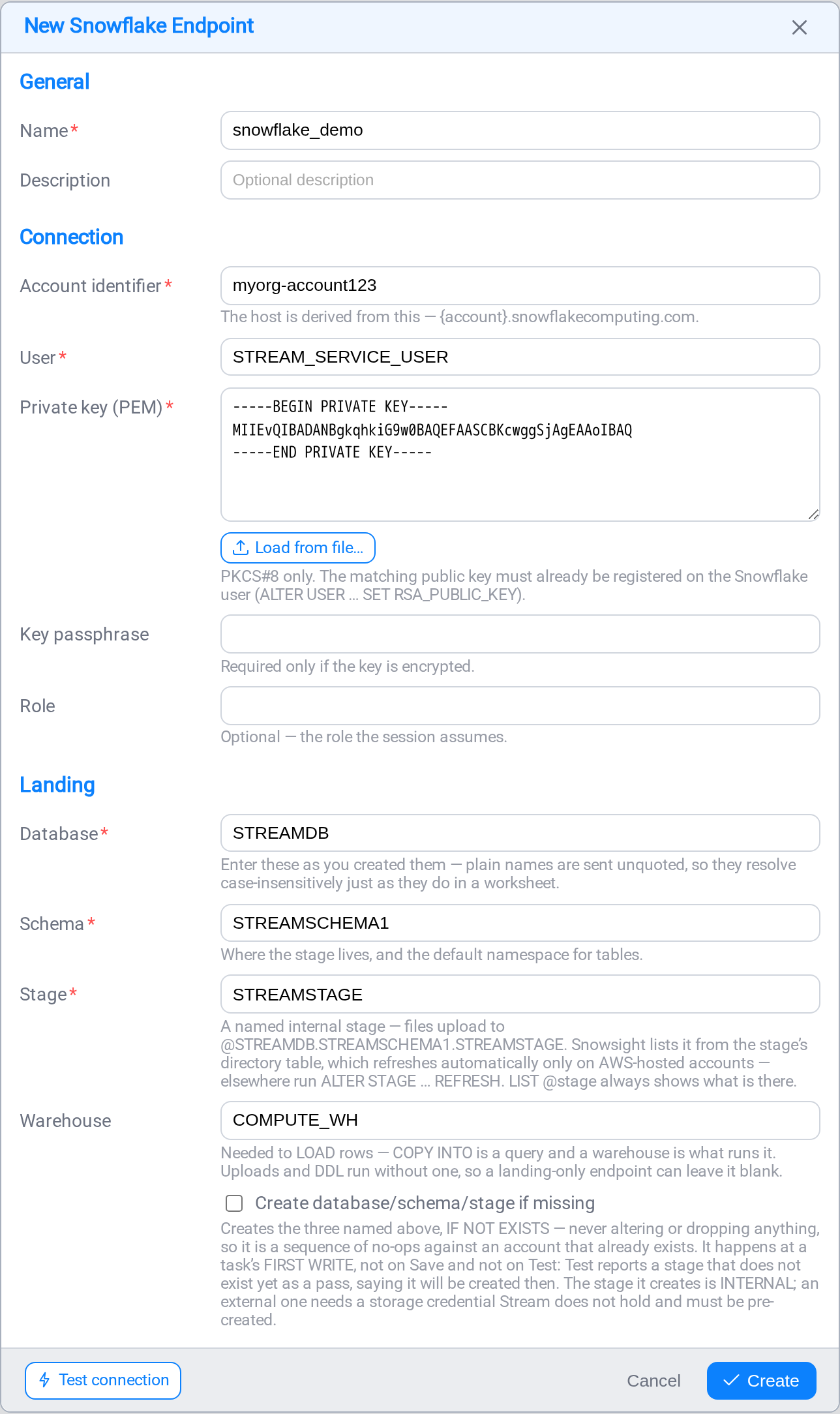
Connection
Authentication is by key pair, not by password. Nothing expires: the token is
minted locally from the private key, so an unattended task cannot stop one morning
on an expired credential.
| Field | Notes |
|---|---|
| Account identifier | orgname-account_name, or xy12345.us-east-1 |
| User | The Snowflake user the public key is registered on |
| Private key (PEM) | PKCS#8 only; use Load from file… |
| Key passphrase | Required only if the key is encrypted |
| Role | Optional: the role the session assumes |
The host is derived from the account ({account}.snowflakecomputing.com), so
there is no host field.
Where to find the account identifier
The preferred form is your organisation name and account name joined by a
hyphen: myorg-account123. Two ways to get both halves:
From Snowsight. Open the account selector at the bottom of the left-hand
navigation, find the account in the list, and choose View account details. The
dialog shows the account identifier and the account URL.
From SQL. Run these in a worksheet:
SELECT CURRENT_ORGANIZATION_NAME(), CURRENT_ACCOUNT_NAME();Join them with a hyphen: ORGNAME-ACCOUNT_NAME.
The other format is the legacy one
You may also have an identifier like xy12345.us-east-1: the Snowflake-assigned
account locator plus its region. Stream accepts it, but Snowflake documents this
form as not recommended, and it changes if the account moves region. Preferorgname-account_name.
If you have a Snowsight URL such as https://myorg-account123.snowflakecomputing.com,
the part before .snowflakecomputing.com is the identifier.
Creating the key pair
Stream needs the private key; Snowflake needs the matching public key
registered on the user.
macOS and Linux
# Private key, unencrypted PKCS#8
openssl genrsa 2048 | openssl pkcs8 -topk8 -inform PEM -out rsa_key.p8 -nocrypt

# The matching public key
openssl rsa -in rsa_key.p8 -pubout -out rsa_key.pub
For an encrypted private key, drop -nocrypt and you will be prompted for a
passphrase: that passphrase goes in the endpoint's Key passphrase field.
Windows Command Prompt
Windows has no openssl on the path by default, so the one-liner above fails:
C:\dev_iota\ssh_snowflake>openssl genrsa 2048 | openssl pkcs8 -topk8 -inform PEM -out rsa_key.p8 -nocrypt
'openssl' is not recognized as an internal or external command,
operable program or batch file.
Git for Windows ships one. Call it by its full path, and do it in three steps
rather than piping:
"C:\Program Files\Git\usr\bin\openssl.exe" genrsa -out rsa_key.pem 2048

"C:\Program Files\Git\usr\bin\openssl.exe" pkcs8 -topk8 -inform PEM -in rsa_key.pem -out rsa_key.p8 -nocrypt

"C:\Program Files\Git\usr\bin\openssl.exe" rsa -in rsa_key.p8 -pubout -out rsa_key.pub
You now have three files. rsa_key.p8 is the one Stream wants: load it with
Load from file…. rsa_key.pub goes to Snowflake. rsa_key.pem is the
intermediate PKCS#1 form and is not used again; delete it.
Treat the private key like a password
Anyone holding rsa_key.p8 can authenticate as that Snowflake user. Keep it out
of source control, and delete your local copy once it is loaded into the endpoint.
Stream stores it encrypted and never sends it back to a browser.
Preparing the public key for SQL
Open rsa_key.pub, remove the -----BEGIN PUBLIC KEY----- and-----END PUBLIC KEY----- lines, and join the remaining lines into one
unbroken string. That string is what you paste into the SQL below.
Setting up the service user
Run this as ACCOUNTADMIN, or a role with CREATE USER.
1. A dedicated role
USE ROLE ACCOUNTADMIN;

CREATE ROLE IF NOT EXISTS stream_service_role;
A role of its own, not SYSADMIN or ACCOUNTADMIN. Everything Stream is allowed
to do is then visible in one place, and revoking it is one statement.
2. The service user
CREATE USER stream_service_user
  TYPE = SERVICE
  RSA_PUBLIC_KEY = 'MIIBIjANBgkqhkiG9w0BAQEFAAOCAQ8A...'  -- the cleaned public key
  DEFAULT_ROLE = 'stream_service_role'
  COMMENT = 'IOTA Stream — automated loads';

GRANT ROLE stream_service_role TO USER stream_service_user;
TYPE = SERVICE marks the user as something that "interacts with Snowflake without
human intervention". A service user has no password and cannot sign in to
Snowsight.
If your account does not offer TYPE = SERVICE
Older accounts use the equivalent shape: leave the password empty and let the key
be the only credential.
CREATE USER stream_service_user
  PASSWORD = ''
  LOGIN_NAME = 'stream_service_user'
  DISPLAY_NAME = 'IOTA Stream Service Account'
  RSA_PUBLIC_KEY = 'MIIBIjANBgkqhkiG9w0BAQEFAAOCAQ8A...'
  DEFAULT_ROLE = 'stream_service_role'
  MUST_CHANGE_PASSWORD = FALSE
  DISABLED = FALSE;
Named key pairs are the newer mechanism
Snowflake now also supports ALTER USER … ADD KEY PAIR, which adds named keys,
role restriction and key expiry. RSA_PUBLIC_KEY still works and is what the
examples above use; if you are standardising on key rotation, read
Key-pair authentication and key-pair rotation
before you choose.
3. Grant only what Stream needs
Least privilege. Stream needs to reach the warehouse, the database, the schema and
the stage, and to read and write the tables it loads.
-- Reach the infrastructure
GRANT USAGE ON WAREHOUSE your_warehouse TO ROLE stream_service_role;
GRANT USAGE ON DATABASE your_database   TO ROLE stream_service_role;
GRANT USAGE ON SCHEMA your_database.your_schema TO ROLE stream_service_role;

-- Upload files into the stage, and read them back for COPY INTO
GRANT READ, WRITE ON STAGE your_database.your_schema.your_stage
  TO ROLE stream_service_role;

-- Read and write the tables it loads
GRANT SELECT, INSERT, UPDATE, DELETE, TRUNCATE
  ON ALL TABLES IN SCHEMA your_database.your_schema TO ROLE stream_service_role;
GRANT SELECT ON ALL VIEWS IN SCHEMA your_database.your_schema
  TO ROLE stream_service_role;

-- ...and on tables created later, which is what makes this survive
GRANT SELECT, INSERT, UPDATE, DELETE, TRUNCATE
  ON FUTURE TABLES IN SCHEMA your_database.your_schema TO ROLE stream_service_role;
GRANT SELECT ON FUTURE VIEWS IN SCHEMA your_database.your_schema
  TO ROLE stream_service_role;
FUTURE grants are the ones people forget
Without them, the first table a task creates works, and every table created after
the grants were run is invisible to the service role. The failure arrives weeks
later and looks like a Stream problem.
4. If Stream should create tables or the stage itself
Only needed if you tick Create database/schema/stage if missing, or turn on
Create table if missing on a task:
GRANT CREATE TABLE ON SCHEMA your_database.your_schema TO ROLE stream_service_role;
GRANT CREATE STAGE ON SCHEMA your_database.your_schema TO ROLE stream_service_role;

-- Only if Stream should create the database and schema too
GRANT CREATE SCHEMA ON DATABASE your_database TO ROLE stream_service_role;
Leave these out if your platform team creates objects: Stream will use what is
already there.
5. Check it from the service role's point of view
USE ROLE stream_service_role;
USE WAREHOUSE your_warehouse;
SELECT CURRENT_VERSION();
LIST @your_database.your_schema.your_stage;
If both statements work as that role, the endpoint's Test Connection will too.
The public key must be registered before the first test
Until RSA_PUBLIC_KEY is set on the user, every attempt fails as "authentication
failed" with nothing on screen explaining why. It is the same message as a wrong
user name.
Landing
| Field | Notes |
|---|---|
| Database | Required |
| Schema | Required |
| Stage | A named internal stage |
| Warehouse | Optional for landing; required by any task that loads |
| Create database/schema/stage if missing | Off by default |
Database and schema are required here, unlike Databricks, where the equivalent
fields are optional, because they do double duty: they locate the stage as
well as naming where tables go. The form shows the resolved stage reference,@{database}.{schema}.{stage}, as you fill them in.
Enter names as you created them
Stream sends plain identifiers unquoted, so they resolve case-insensitively
exactly as they do in a worksheet: streamdb finds STREAMDB. A quoted
identifier in Snowflake is case-sensitive, so a lowercase quoted name never matches
an object created the usual way. This is the first thing to check when a database
you can see in Snowsight is reported as missing.
Warehouse
PUT, LIST and DDL all run without one, so a landing-only endpoint can leave it
blank. COPY INTO is a query and does need one, so any task that loads a table
requires it.
Create database/schema/stage if missing
Lets you point Stream at an empty account. It creates the containers it needs,
outermost first, all IF NOT EXISTS: nothing is altered or dropped.
Off by default, because creating a database is a different permission from writing
files.
- It happens at a task's first write, not when you save the endpoint and not
when you test it. Test Connection reports a stage that does not exist yet as a
pass, saying it will be created then. - The stage it creates is internal. An external stage needs a storage
credential Stream does not hold, so create that yourself first. - Unlike Databricks, no warehouse is needed for this: Snowflake's DDL is a
metadata operation.
Why there is no view over the files
Databricks offers a View ingest mode that queries the landed files in place.
Snowflake does not, and it is not an oversight: an external table over those files
needs an external stage, cloud storage Snowflake reads directly, and Stream
uploads to an internal one. Copy Into is the only way rows reach a table
here.
Test Connection
Four checks, in the order the failures actually happen:
- private key: the PEM's format, checked locally before anything leaves the
machine. The cheapest and most valuable one: a PKCS#1 key and an encrypted key
with no passphrase both fail inside the connector as "authentication failed",
which is indistinguishable from a wrong user name. - credentials:
SELECT CURRENT_VERSION(), which proves the account, the
user, the key registration and the role in one call - stage:
LIST @stage. An empty stage passes; the question is whether it
exists and is readable - warehouse: whenever one is configured
Uploaded files may not show in Snowsight straight away
Snowsight's Stage Files tab reads the stage's directory table, which is a
separate piece of metadata from the files themselves.
Automatic refresh of that metadata for internal stages is available only for
accounts hosted on AWS, not on Azure or Google Cloud, and only when the stage was
created with a directory table enabled. Elsewhere, refresh it yourself:
ALTER STAGE your_database.your_schema.your_stage REFRESH;LIST @stage reads the files directly and always shows them, and the load itself
is unaffected either way. This catches people out when they go looking for files
that are already there.
Snowflake documentation
The Snowflake pages behind the guidance above:
- Account identifiers: the two formats, and finding yours
- Key-pair authentication and key-pair rotation: generating keys,
RSA_PUBLIC_KEY, named key pairs - CREATE USER:
TYPE = SERVICE,DEFAULT_ROLE,RSA_PUBLIC_KEY - GRANT <privilege>: the grant syntax used above
- Directory tables: what Snowsight's Stage Files tab reads
- COPY INTO <table>: the load Stream runs
Related
- Endpoints: the list, and how a connection is tested
- Loading a Lake Table: the ingest modes, and where the rows go
- Databricks: the other lake destination