
Tasks
Tasks
A task is the job. Everything before it (endpoints, patterns, caches), exists so
that a task can say three things:
- What to read
- Whether to calculate anything first
- Where to put the result
Open Tasks from the Stream menu.
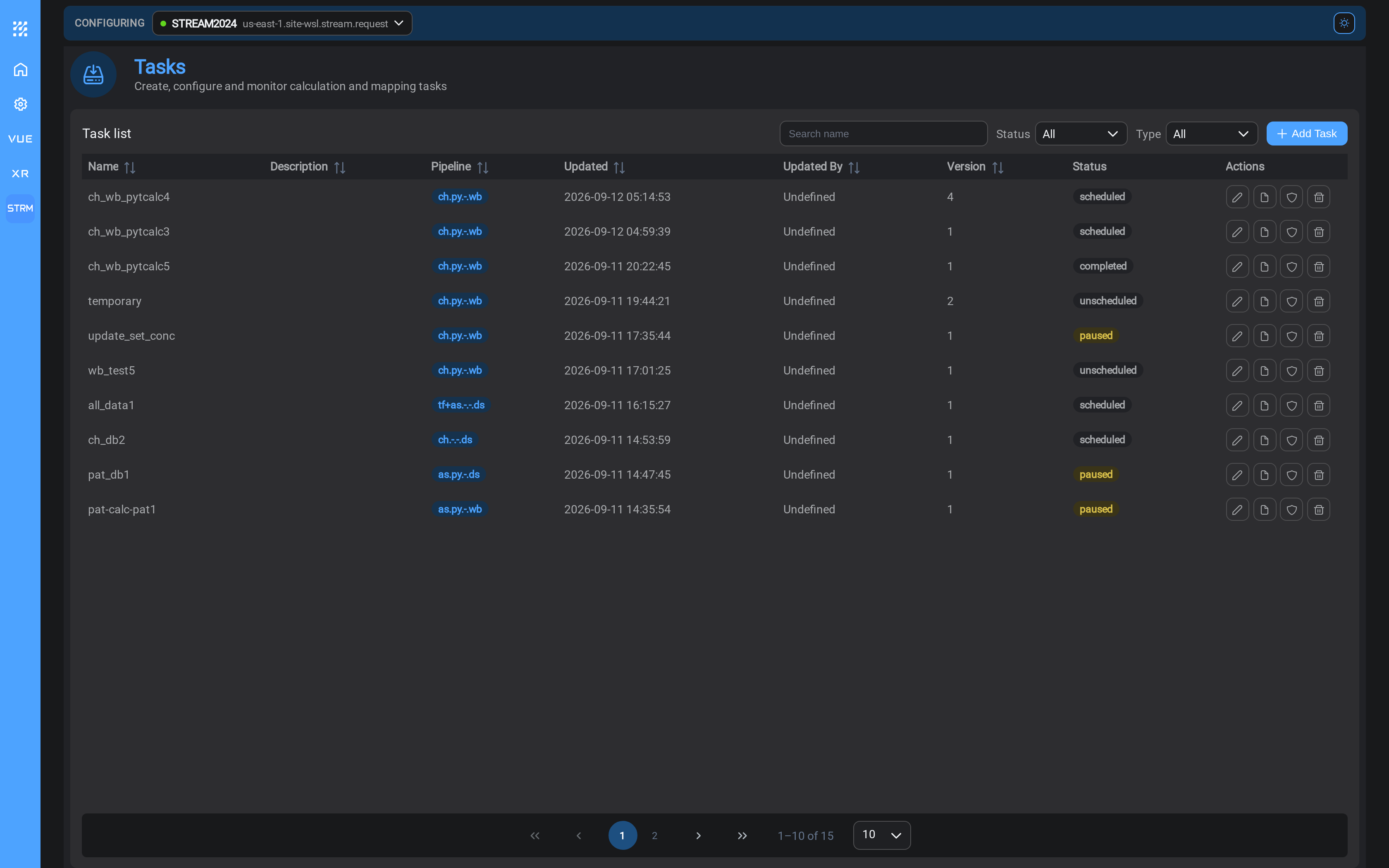
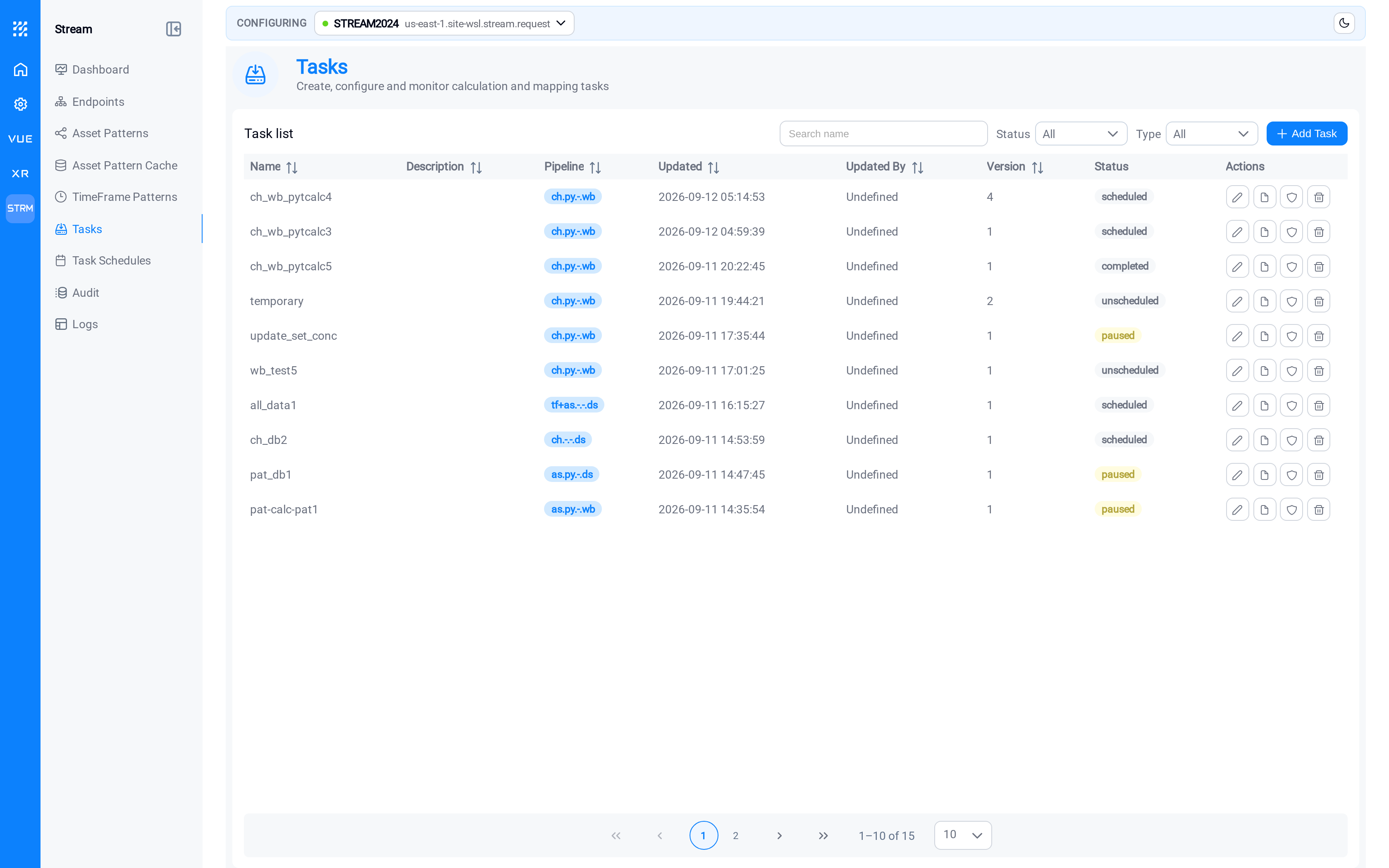
| Column | What it tells you |
|---|---|
| Name | Your name for the job |
| Description | What it is for |
| Pipeline | What the task is, in the composer's own shorthand; see below |
| Updated / Updated By | When it last changed, and by whom |
| Version | Increments each time the task is saved |
| Status | What its schedule is doing |
Status, and why a task can have none
A task's status is its schedule's state. A task that has never been scheduled has
no state to report, so it shows Unscheduled.
That is the most useful thing on this page. Filter Status to Unscheduled and
you get the list of jobs somebody built and never turned on: which is exactly the
list worth reviewing before you go looking for why an output is empty.
| Status | Meaning |
|---|---|
| Running | Executing now |
| Scheduled | Waiting for its next run |
| Paused | Will not run until resumed |
| Completed | A run-once schedule that has finished |
| Error | The last run failed |
| Unscheduled | No schedule at all: this task never runs |
Create a task
Select Add Task. Before any configuration, Stream asks what the job is made of:
four rows, read top to bottom.
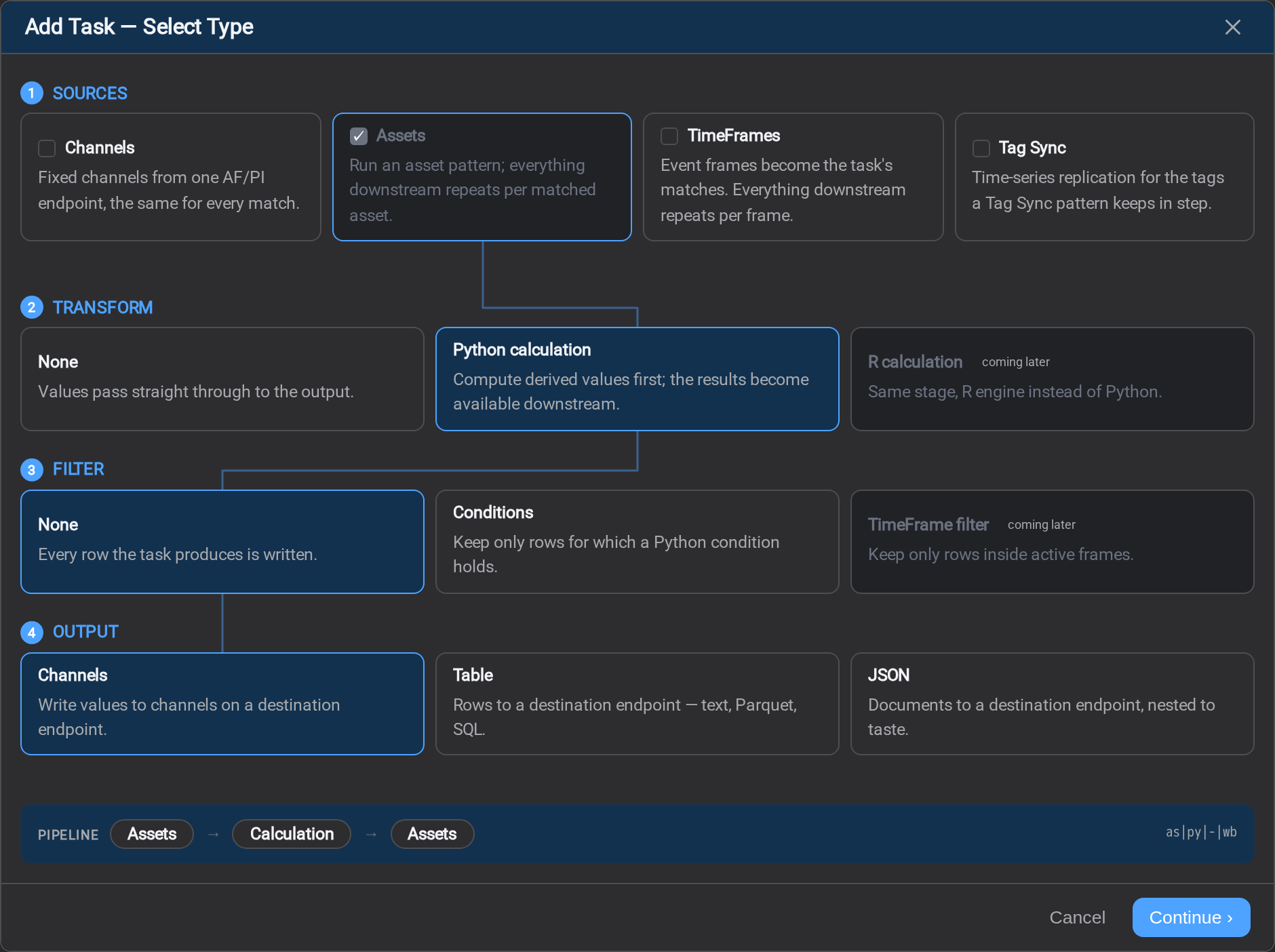
The PIPELINE strip at the bottom shows what you have picked, in words and in the
shorthand the rest of the console uses. Check it reads the way you intended before
continuing: it is the same string that appears in the Pipeline column of the
list, in the run log, and in the audit trail.
tf+as+ch|py|-|ds is one task: TimeFrames, assets and channels as its sources, a
Python calculation, no filter, a table for output.
Sources: what to read
Sources is a multiple choice. Tick one, two or all three of the first three; every
combination is a real task, and each source you add is another thing the same job reads.
| Source | What it contributes |
|---|---|
| Channels | Specific, named tags or attributes from one PI System. A fixed list that does not fan out. |
| Assets | An asset pattern. Everything downstream repeats once per matched asset. |
| TimeFrames | A TimeFrame pattern. Event frames become the task's matches, and everything downstream repeats once per TimeFrame. |
| Tag Sync | Time-series replication for the tags a Tag Sync pattern keeps in step. Exclusive: see below. |
They are offered simplest first. Channels is the easiest to reason about, assets fan
the work out over a pattern, and TimeFrames repeat all of it per TimeFrame: the last of
the three is also the least common and the hardest to picture, which is why it is last.
Assets is the choice that scales, and the reason Stream exists. One pattern
pairing a weather station with the pumps beneath it gives you a thousand matches; the
calculation and the output you define here run once per match, so you configure one
job and it covers the whole field. Add a pump next month and the same task covers it
with no edit.
Where the matches come from, and what each run costs
A task on an asset pattern runs once per match, and where that match list comes from
depends on whether the pattern itself is scheduled:
- Scheduled: the task reads the matches from the pattern's latest cached run. No
AF search happens while the task fires; the run costs only the data reads. - Not scheduled: the task resolves the pattern against AF itself, on every
fire, before it reads any data. The matches are the same ones the cache would
hold, only later and at the task's expense.
The run log says which happened. See
Asset Pattern Cache for the cost and
how to move it.
Channels does not fan out: what you list is what it reads. You do not need assets
or a pattern at all: list the tags, calculate on them if you want, and map them to a
table or a JSON stream.
TimeFrames makes the task about event frames: the AF object Stream calls a
TimeFrame, rather than clock time: one row per batch, per phase, per downtime
event, instead of one row per fixed interval. See
TimeFrame Patterns.
Combining sources multiplies them
Tick TimeFrames and Assets together and every TimeFrame is combined with every
asset match: a cross product, not a join. That is what you want for "these readings,
for this batch". Check the match count before you tick both against a pattern that
matches a thousand assets.
Tag Sync is the one source that cannot be combined with anything. It reads the tags
its pattern keeps in step, so there is no match to fan out over, and pairing it with an
asset pattern would ask for the cross product of a tag list and an asset list. Ticking
it clears the other three and ticking one of them clears it: a swap rather than a
refusal, so you are never stranded inside a tag sync with no way out. It also settles
the rest of the pipeline — Transform is None and Output is Channels — and the whole job
has a page of its own: Tag Sync Task.
A value that is genuinely shared belongs in Channels alongside the pattern: a
site-wide ambient reading, a shift setpoint; read once and made available to every
match. If the value varies per match, it belongs in the pattern instead.
One source is always required, a task has to read from something, so the last
remaining tick cannot be turned off.
All of them are covered in detail on Channels.
Transform, whether to calculate
| Choice | What it does |
|---|---|
| None | Values pass straight through. Use this when you are copying data, not deriving it. |
| Python calculation | Compute derived values first; the results become available to the output. |
R calculation appears in the dialog marked coming
later. It is not available yet.
Choose None when the job is "copy these readings into that table". Choose
Python calculation when the job is "work out this figure from those readings".
Filter: which rows survive
| Choice | What it does |
|---|---|
| None | Every row the task produces is written |
| Conditions | Keep only the rows for which a Python condition holds |
The condition is a Python script that sets keep, row by row, and it runs after the
calculation and before the mapping. It has its own tab; see
Conditions.
TimeFrame filter appears marked coming later. It
is not available yet.
Output: where it goes
| Choice | Where the result lands |
|---|---|
| Writeback to channels | Back into your PI System, as attribute or tag values |
| Table | Rows to a destination endpoint: a text file, Parquet, or a SQL table |
| JSON | Documents to a destination endpoint, structured how you like |
Writing assets or event frames back into AF is planned and not offered yet.
Writeback to channels requires a calculation: there is nothing to write back
unless something computed it. If you pick it with None selected, Continue ›
stays unavailable.
Select Continue › and Stream opens the configuration dialog for the combination
you chose.
The configuration tabs
Which tabs you see depends on the choices you just made: a task with no calculation
has no Calculation tab, and one that writes back to channels has no Output tab
because its destination is already decided.
| Tab | What you do there | Appears when |
|---|---|---|
| General | Name the task, and bind it to its pattern or endpoint | Always |
| Time Alignment | Decide which moment in time each value is read at | Source is not Tag Sync |
| Channels | List the specific tags or attributes to read | Source includes Channels |
| Cached Tags | Per-tag state, manual fills, and the trail of what was written | Source is Tag Sync |
| Calculation | Write the calculation and declare its variables | Transform is a calculation |
| Calc Preview | Check the values the calculation produced | Transform is a calculation |
| Conditions | Write the condition that decides which rows are written | Filter is Conditions |
| Mapping | Choose the columns or document shape to write | Output is Table or JSON |
| Preview | Check the rows or documents the mapping would write | Output is Table or JSON |
| Output | Pick the destination endpoint and the format; on a tag sync, how much goes over per write call | Output is Table or JSON, or source is Tag Sync |
| Schedule | Give the task its schedule now, or leave it for later | Always |
The two preview tabs are different tabs. A task that both calculates and maps has
both: Calc Preview checks the numbers, Preview checks the shape they are written
in.
Each has its own page:
General
Name the task and bind it to what it reads: the pattern for a pattern task, the
endpoint for a channel task, and set its throughput if a remote source needs smaller
calls. It has a page of its own: General.
Give it a name that says what the job is, not what it is built from:Exchanger efficiency to SQL will mean something to a colleague in a year;patcalcds3 will not.
Time Alignment
Process values arrive at irregular times. Two sensors on the same asset do not report
at the same instant, and a task combining them has to decide when a row is produced
and what each channel contributes to it.
That decision is made here, and it is the single biggest influence on how many rows a
task writes: the same three channels produce 17 rows under one mode and 3 under
another. It has a page of its own: Time Alignment.
If you are copying data rather than combining it, the defaults will do. Come back to
that page when a calculation gives results that look subtly wrong, when the first rows
of every run are missing, or when the row count is not what you expected.
Calculation Preview
Labelled Calc Preview in the console. It runs the calculation without writing
anything and shows the result, as values or as a chart, and it appears on any task
with a calculation: write-back, table or JSON alike.
It runs the configuration in front of you, not the saved one, so it is also where
a script is debugged.
Use it every time before saving. A task that produces no rows and a task that
produces wrong rows both look identical from the Tasks list: successful. The preview
is where the difference is visible, and it costs nothing to look.
It has a page of its own, with a worked example:
Calculation Preview.
Preview
A task that writes a table or a JSON document gets a second preview, after Mapping,
showing the rows or documents themselves: the grid for a table, the nested
documents for JSON. It has a page of its own: Preview.
Schedule
The last tab can give the task its schedule as you create it, so it starts running the
moment you save. It opens with Schedule later checked, which saves the task on its
own and leaves scheduling to Task Scheduler.
A task holds at most one schedule, and once it has one this tab hands the job over to
the scheduler. It has a page of its own: Schedule.
Running a task by hand
The Actions column lets you run a task immediately, without waiting for its
schedule. Use this after any change: run it once, then check Logs to
confirm it did what you meant.
The other action controls copy a task: useful when you want a second job that
differs in one field, and delete one.
Changing a task that is already running
Saving a task increments its Version, and the next scheduled run uses the new
version. A run already in progress finishes on the version it started with.
If a change is significant, pause the schedule first, make the change, preview it,
then resume. That avoids a half-configured task firing between two of your edits.
What's Next
A task does nothing until it has a schedule. Continue to Task Scheduler →.
Related
- General: naming a task and binding it to its source
- Tag Sync Task: replicating the time series behind a tag sync
- Calculation Preview: checking the numbers before you save
- Preview: checking the rows or documents a mapping produces
- Schedule: giving the task a schedule as you create it
- Calculation: writing the calculation and its variables
- Mapping: the columns or document a task writes
- Output: destination and format
- Logs: what happened on the last run