
Task Mapping
Task Mapping
The Mapping tab decides the shape of what a task writes: which columns a table
gets, or which fields a JSON document gets, and where each value comes from. It
appears when the task's output is Table or JSON.
You define that shape once, and it produces one row, or one document, per match.
A pattern pairing a weather station with a thousand pumps gives you a thousand rows of
the same shape, from one definition here.
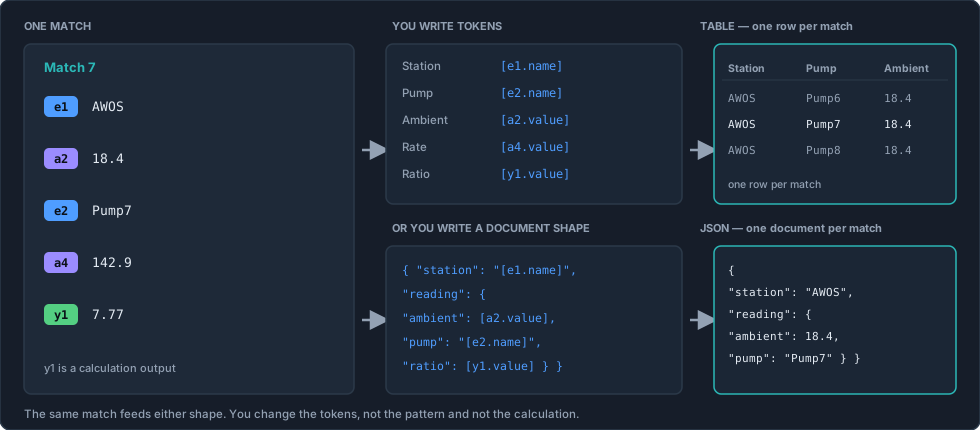
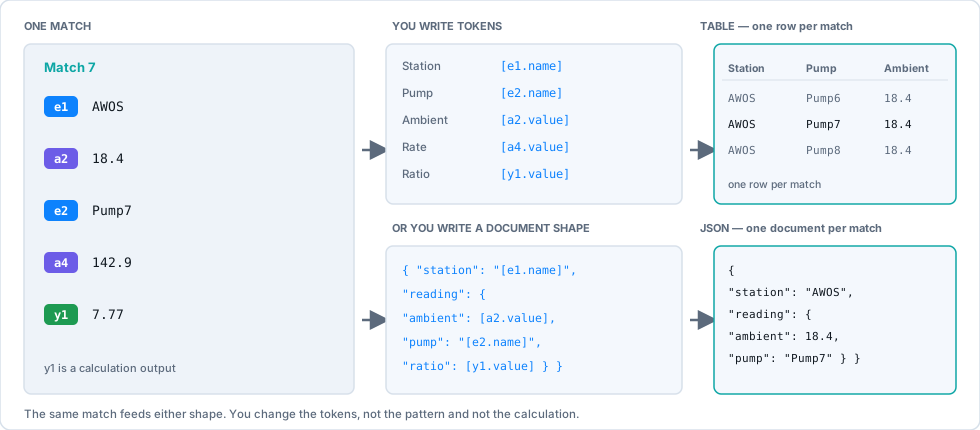
Both shapes read from the same place: the match's filled slots. A table lays them
out flat, one row per match. JSON lets you nest them into a document. Switching
between the two means rewriting this tab, not the pattern, and not the calculation.
The tab has three parts:
- Table name and partitioning across the top: where the output goes
- The source pane on the left: what you have to work with
- The column list on the right: the shape you are building
The source pane
Two tabs, and between them they hold everything available:
| Tab | Holds |
|---|---|
| Pattern | The pattern's elements and attributes, with their keys |
| Calculation | The outputs your calculation produced |
Drag an element or attribute into the column list to add a column for it, or
double-click it. Ctrl-click or shift-click first to take several at once: the
quickest way to build a wide table.
The column list
Each row is one column in the output.
| Column | What it does |
|---|---|
| Order | Drag the grip to reorder. This is the order columns appear in the output |
| Column name | What the column is called in the table or document |
| Value | Where the value comes from |
| Type | The data type to write it as |
| Nullable | Whether a missing value is allowed |
| Index | Whether to index this column |
Values, and the tokens that fill them
The Value cell is an expression resolved per row. It can be literal text, one
token, or any mixture of the two: the literal parts are kept exactly as typed, and each
token is replaced by what it resolves to.
| Value | What the cell holds | |
|---|---|---|
Plant 1 | Plant 1 | literal text: the same in every row |
[a1.value] | 42.7 | one token: a new value on every row |
[e1.name]_[a1.uom] | Pump101_bar | two tokens and the text between them |
Line 3 · [e1.name] | Line 3 · Pump101 | text and a token together |
The tokens/text control switches between inserting a token and typing literal text,
so you can combine them.
Reading the tokens is easy once you know the two parts. A token is[key.property]: which slot, then what to read off it:
[ a2 . value ]
   │      └── the property — what to read
   └───────── the key — which slot of the match
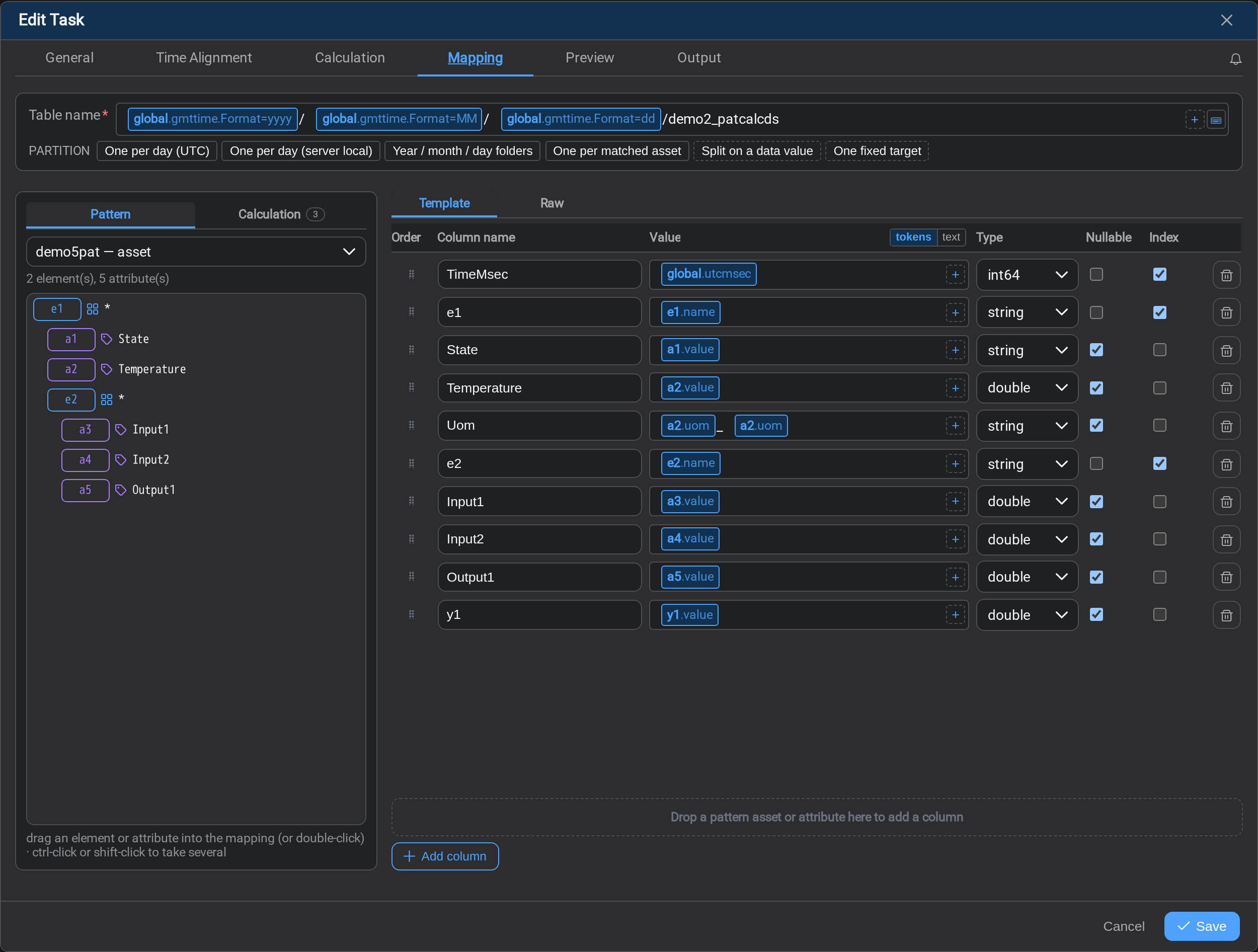
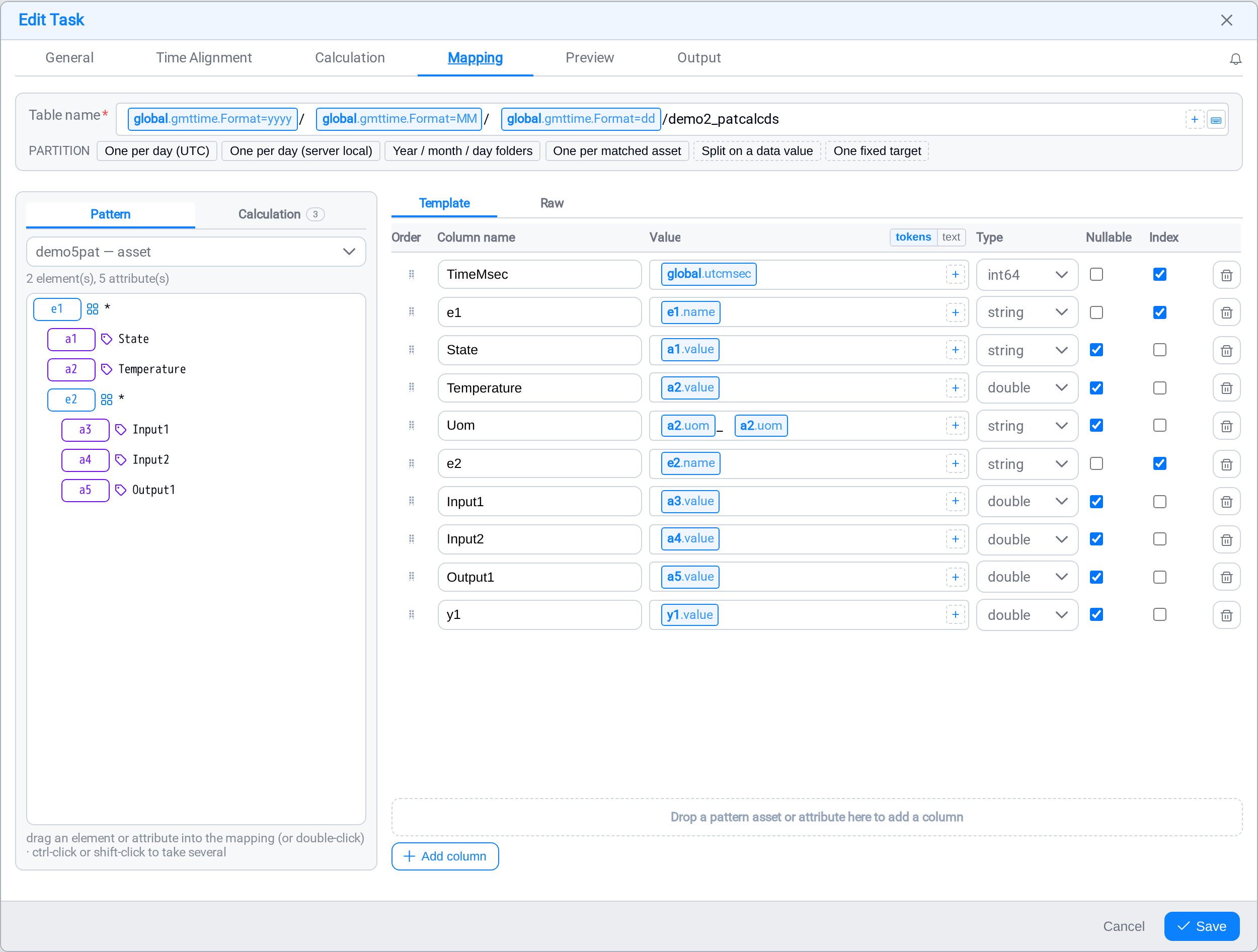
So the mapping in the screenshot reads: a Temperature column holding a2.value,
a Uom column holding that attribute's unit, an e1 column holding each matched
asset's name, and a y1 column holding the calculated result.
Keys and property names are not case-sensitive, and [a2] on its own means[a2.value]: the value is the default when you name no property.
A token has a third, optional part: a modifier, which is something done to the
value before it lands:
| Part | What it is | Example |
|---|---|---|
| Key | Which object to read: a channel variable (x1), a pattern element or attribute (e1, a1), an event frame (tf1), a calculation result (y1), or scope for the row itself | [a1] |
| Property | What to read off it; see Object properties | [a1.uom] |
| Modifier | Format= formats a DateTime (a .NET pattern, case-sensitive: yyyy, MM, dd); Uom= converts a reading to another unit | [scope.gmttime.Format=yyyy-MM-dd] |
The console has these tables too
Help, beside Rebuild mapping, lists every property of every kind with an example
of what it resolves to.
What you can read off each kind of slot
Which properties exist depends on what the slot holds. The table below is the short
version; Object properties lists every one with its type and an
example of what it resolves to, and the Help button beside Rebuild mapping shows
the same tables in the console.
| The slot holds | Properties you can read |
|---|---|
An element (e1, e2) | name, path, description, template, categories, id |
An attribute (a1, a2…) | everything an element has, plus value, uom, datatype, and the reading's time as gmttime, lcltime, utcsec, utcmsec |
A channel (c1, x1…) | value, the reading's time as gmttime, lcltime, utcsec, utcmsec, and the four every slot answers: name, description, uom, id |
A calculation output (y1) | value: a computed result has nothing else |
global | gmttime, lcltime, utcsec, utcmsec, index, page, firstutc, lastutc |
[c1.name] is the tag's name, not the variable's
A channel slot is not only a reading: it binds to an AF attribute or a PI point, and
those four properties come from that object: [c1.name] resolves to the tag or
attribute the channel points at, not to the c1 you typed. Where the object has no
such concept, a PI point has no template, the property resolves to an empty string
and records no error.
description, template and categories on an element are the ones worth
remembering. They let a row carry the context of the asset it came from: its
template, its category: which is exactly what you want when the table is later
filtered or grouped by equipment type.
How often a token changes, and why it matters
Every property resolves at one of four rates, and this is what decides whether a
token can partition the output:
| Changes | Examples | Meaning |
|---|---|---|
| Per row | a2.value, scope.utcmsec, scope.index | A new value on every row |
| Per match | e1.name, a2.uom, e2.template | Fixed for one asset, differs between matches |
| Per page | scope.page, scope.firstutc | Fixed for a page of the run |
| Per run | the run clock | One value for the whole run |
A per-match token in the table name gives you one target per asset. A per-row
token gives you a new target whenever the value changes: which for a timestamp means a
new file per row unless you format it down to a day or an hour. That is the mechanism
behind the partition presets described below.
An identity column is the one people forget. Without it, a table of a thousand
pumps' production figures has no column saying which pump, and that is not
recoverable afterwards. Any task fanning out over a pattern needs at least one column
identifying the asset.
On a pairing pattern, name the varying element, not the fixed one. A column
holding e1.name when e1 is the weather station gives you a thousand identical
rows saying AWOS; the useful column is the pump's, e2.name. Include both if you
have more than one station, so each row records the pair it came from.
An identity column is the one people forget. Without it, a table of a thousand
pumps' production figures has no column saying which pump, and that is not
recoverable afterwards. Any task fanning out over a pattern needs at least one column
identifying the asset.
On a pairing pattern, name the varying element, not the fixed one. A column
holding e1.name when e1 is the weather station gives you a thousand identical
rows saying AWOS; the useful column is the pump's, e2.name. Include both if you
have more than one station, so each row records the pair it came from.
A value cell can hold more than one token, plus literal text between them, which is
how you build a composite like a full asset path or a compound identifier.
Combining tokens turns a number into text
A cell holding one value token is that value's own type: [a2.value] is a
number, and a double column stores it as one. The moment you add anything else, the
cell becomes text: [e2.name]_[a2.value] is a string, and so is [a2.value] [a2.uom].
That is usually what you meant for a label, and never what you meant for a
measurement. Keep numeric columns to a single token, and put the unit in its own
column rather than gluing it on.
Nullable
Tick Nullable when a value may legitimately be absent for some assets.
This matters more than it sounds on a pattern task. If a pattern matches 400 assets
and 3 of them are missing an attribute, a non-nullable column makes those 3 rows
fail. A nullable column writes them with the value empty and the rest of the row
intact: usually what you want, since a row identifying the asset and missing one
reading is more useful than no row at all.
Leave identity and timestamp columns non-nullable. A row with no asset name and no
time is not worth writing.
Index
Tick Index on the columns you will filter or join on later: typically the
timestamp and the asset identifier. In the screenshot those are TimeMsec, e1 ande2.
This is a hint to the destination, so it has effect where the destination
understands it: a SQL table. It does nothing for a CSV file.
Type
Set the type to match what the value actually is. Stream fills it in from the
pattern or the calculation where it can, so this is usually a check rather than a
decision. A timestamp written as int64, values as double, names as string.
Table name and partitioning
The field above the grid takes the same kind of expression as a Value, and what it
names depends on the output:
| Output | The field is called | What the resolved text is |
|---|---|---|
| Table → a SQL destination | Table name | The table written to, created on demand. It has to survive SQL identifier validation, which a free-form data value may not. |
| Table → a file or lake destination | Table name | The file path, without its extension: the writer adds that. Each / or \ becomes a folder. |
| JSON | Document name | The document the objects are written into: a file path, the same way, holding an array of the documents the run produced. |
It resolves per row, and that is what partitions the output. The moment the resolved
text changes, the run closes the current table or document and starts the next one. The
example resolves to a year folder, a month folder, a day folder and then the task name,
so that one expression produces a dated folder tree without you managing it.
Two things the name field will not do for you
A per-row token such as [a1.value] cuts a new target on almost every row, which is
rarely what was meant: format a timestamp down to a day or an hour instead.
And a calculation result cannot appear there at all: the name resolves before any row
exists, so there is nothing for [y1.value] to be.
The partition presets
Rather than assembling that by hand, use a preset:
| Preset | Result |
|---|---|
| One per day (UTC) | A new target each day, on UTC boundaries |
| One per day (server local) | The same, on the server's local day |
| Year / month / day folders | A dated folder tree: the example above |
| One per matched asset | A separate target per asset the pattern matched |
| Split on a data value | A separate target per distinct value of a column you choose |
| One fixed target | Everything into one table or file, always |
Choosing between them is mostly about how the output will be consumed:
- A reporting tool reading one SQL table: use One fixed target.
- Files somebody browses or archives: use a dated option, so no single file grows
without limit. - A downstream system expecting one file per unit: use One per matched asset.
One fixed target plus Append grows forever
A fixed target with Append on the Output tab means one file that
never rotates. On a task running every fifteen minutes that becomes a problem some
months later, quietly. Use a dated partition, or a write mode that replaces.
Template and Raw
The column list has two views. Template is the grid described above and is what
you will use.
Raw shows the same mapping as the underlying JSON. It is useful for two things:
checking a complex mapping at a glance, and copying a mapping between tasks. Editing
the grid is safer.
Before you save
Open the Preview tab. It shows the actual rows this mapping
produces, which answers the questions the grid cannot:
- Are the columns in the order you want?
- Is the asset identifiable in every row?
- Are the values where you expected, rather than shifted by a column?
- Does anything show as empty that should not be?
What's Next
With the shape decided, choose where it is written and in what format. Continue to
Task Output →.
Related
Object properties: every property a token can name
Task Calculation: producing the values a mapping writes
Task Output: destination, format, and write mode
Asset Patterns: the keys the tokens refer to