
Asset Patterns
Asset Patterns
A pattern lets you read from several assets at once, as one unit, and then have
that unit repeat across your whole plant.
That second half is what makes patterns worth learning. Say you want to know how
ambient temperature affects oil production. The temperature comes from a weather
station; the production figures come from the pumps around it. Those are different
assets, and the analysis needs both together.
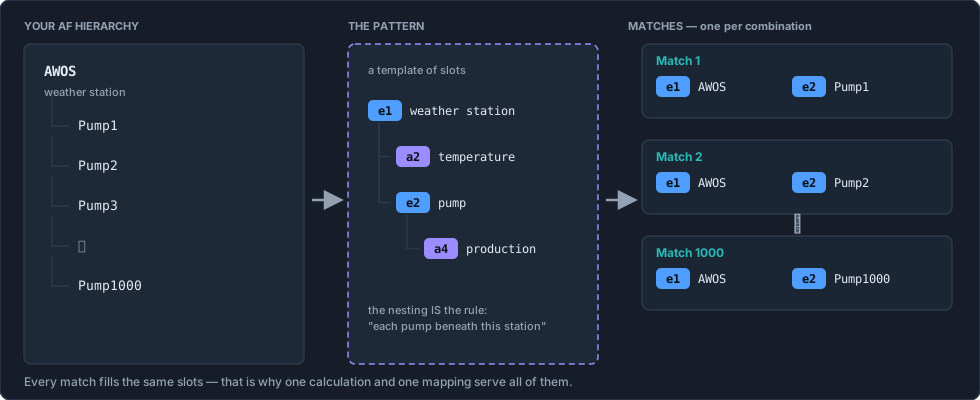
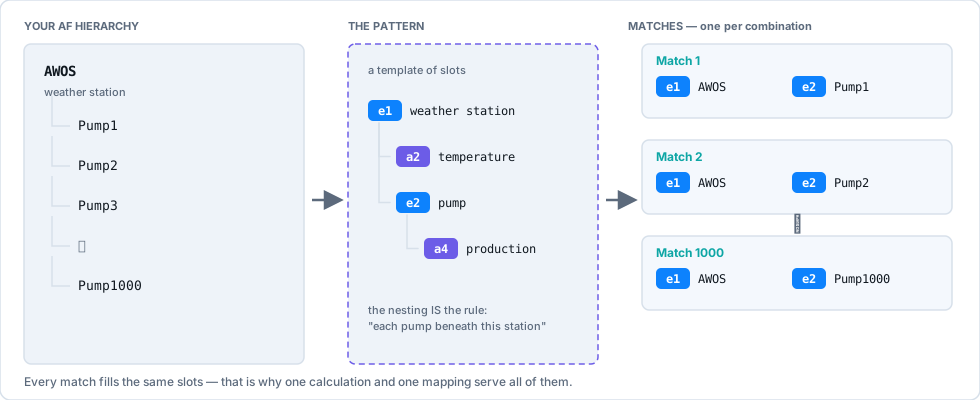
In your AF hierarchy the weather station sits above the pumps as their parent. A
pattern describes that relationship (a weather station, and a pump beneath it), and
resolves it into every combination that exists:
AWOS + Pump1
AWOS + Pump2
AWOS + Pump3
   …
AWOS + Pump1000
Each combination is a match, and each match is one unit of work. The task built
on this pattern runs a thousand times, once per pair, with the weather station's
temperature paired against each pump's production.
Caching a pattern is optional, and it saves the search
A task on a pattern has to know which assets it matched before it can read anything.
Without a cache it works that out on every single run, by searching AF.
Schedule the pattern instead and the matches are resolved once per cadence, stored, and
reused: every task on that pattern reads the stored list and gets straight to the data.
You choose the cadence: hourly, nightly, whatever your hierarchy actually changes at.
Nothing breaks without it. An uncached pattern is correct, just slower, and every task
using it pays for the same search over and over. See
Pattern Cache.
The idea in one sentence
A pattern is a template of numbered slots; a match is that template with the slots
filled in.
Everything downstream depends on that distinction. The pattern
defines the slots: e1 for the station, a2 for its temperature, e2 for the pump,a4 for its production. Resolving the pattern produces a thousand matches, and
every one of them has the same slots filled with different assets.
Because the shape is identical every time, anything you write against the slots works
for all of them. The calculation reads a4 and gets pump 1's rate on match 1 and pump
1000's on match 1000. The mapping writes [e2.name] and gets the right pump's name in
every row. Neither knows or cares how many matches there are.
If you have used SQL, the closest analogy is a view over a join: the pattern is the
query, a match is a row, and the slots are the columns. The difference is that the
"tables" here are asset hierarchies and time-series, not tables.
Why this matters
You write the calculation once, and the mapping once. One formula relating
temperature to production. One table definition. They work identically for pump 1
and for pump 1000.
Compare the alternative: a thousand tasks, or one task with a thousand hand-listed
tag pairs. Both are the same work repeated, and both have to be edited when pump
1001 is commissioned. With a pattern you edit nothing: the new pump appears in the
hierarchy, the pattern matches it on the next resolve, and the task covers it.
A pattern is therefore scalable, because one definition covers any number of
assets, and maintainable, because there is one thing to change when the analysis
changes.
What a pattern is made of
A pattern is a small tree of elements and attributes:
- Elements are the assets: the weather station, the pump
- Attributes are the values on them: temperature, production rate, state
- The nesting says how they relate: a pump beneath a weather station
Stream resolves that tree against your hierarchy and returns every combination that
fits. A pattern with one element gives you one match per asset. A pattern with a
parent and a child gives you one match per pair: which is where the combinations
come from.
Open Patterns from the Stream menu, select Add Pattern, and choose
Asset Pattern.
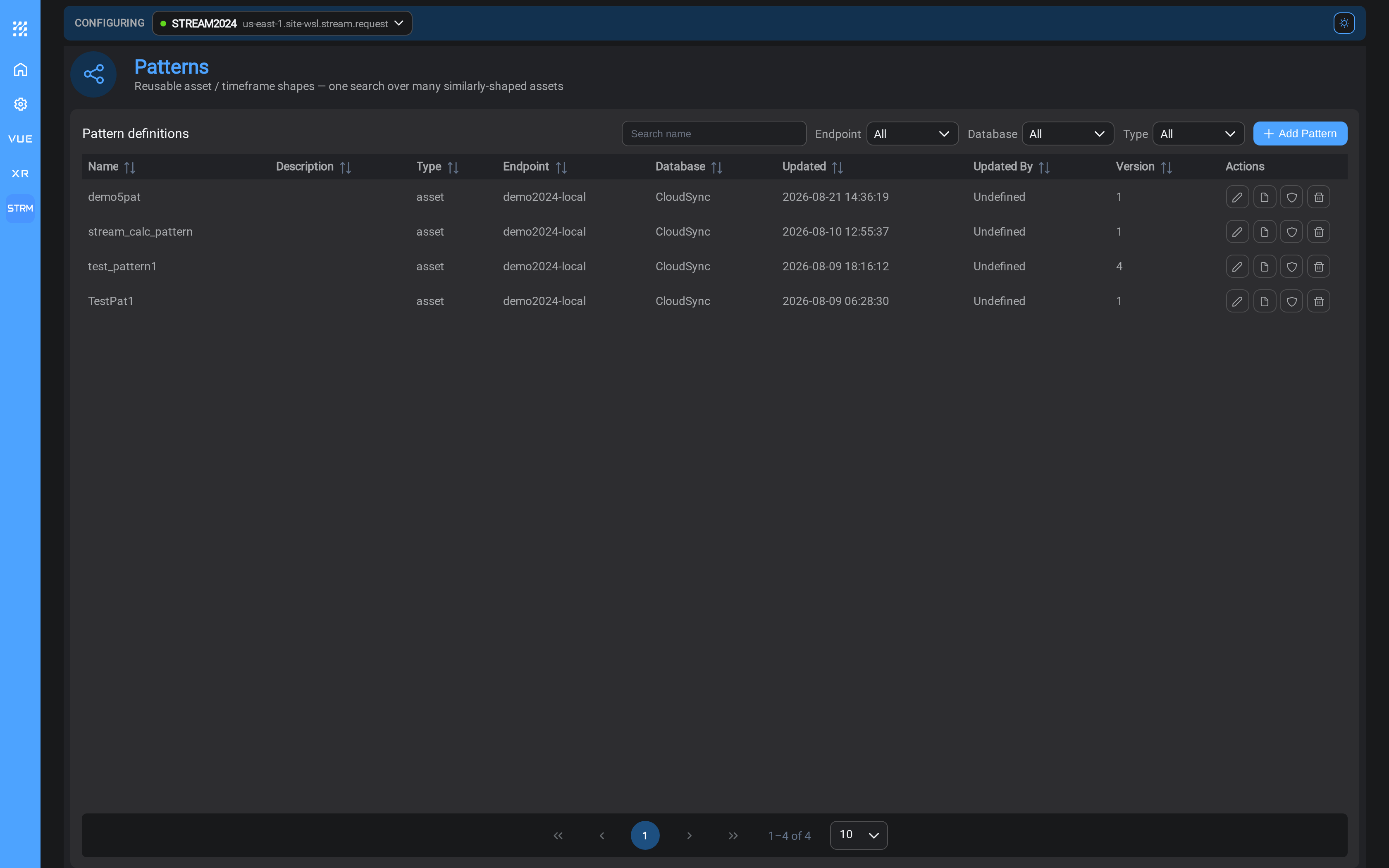
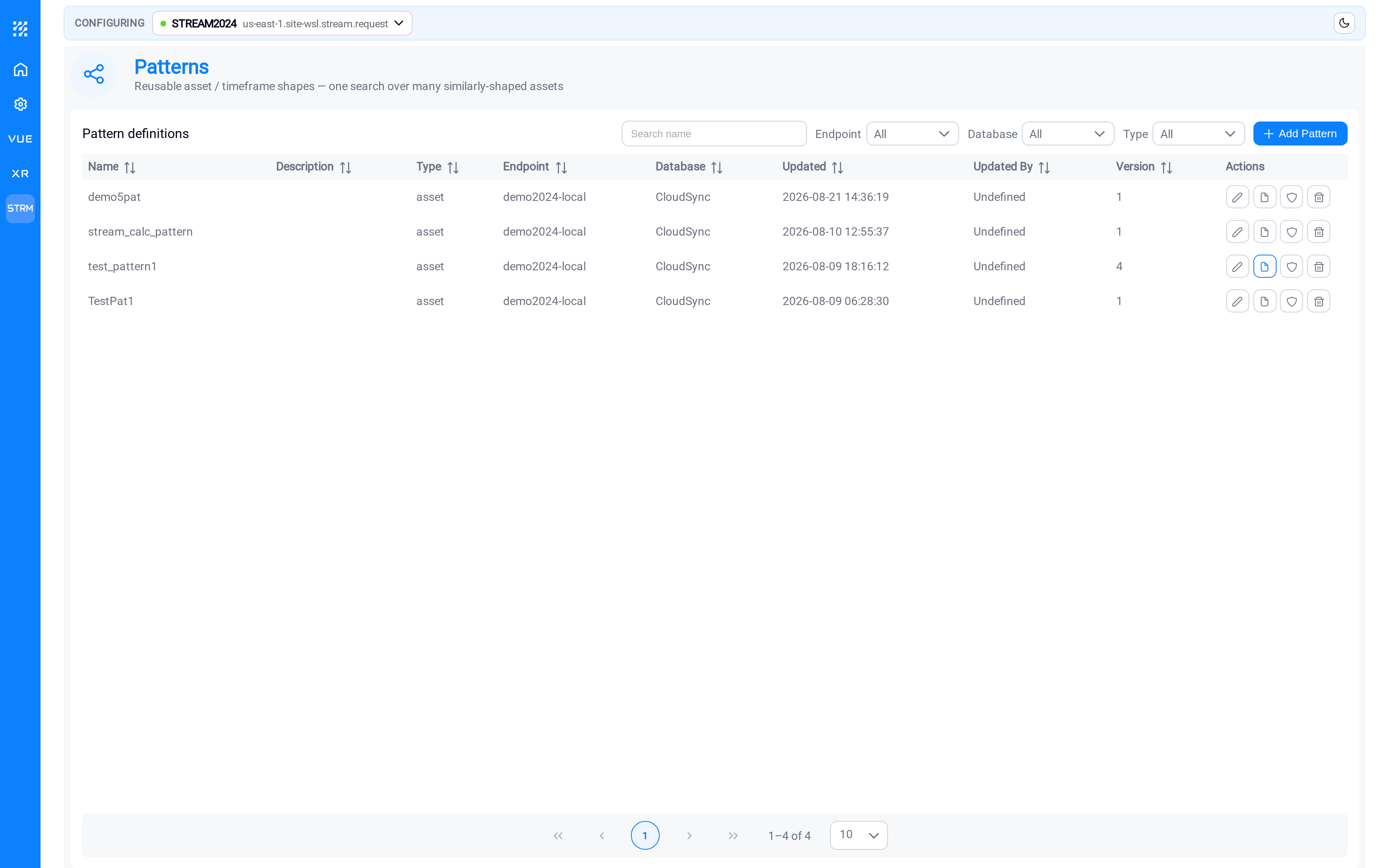
Each row is one pattern, showing which endpoint and AF database it searches. The
Actions column has controls to edit, delete, and jump to this pattern's
audit history or logs.
Create a pattern
Select Add Pattern. The dialog has three tabs, and you work through them left
to right.
General
Name the pattern and tell it where to look.
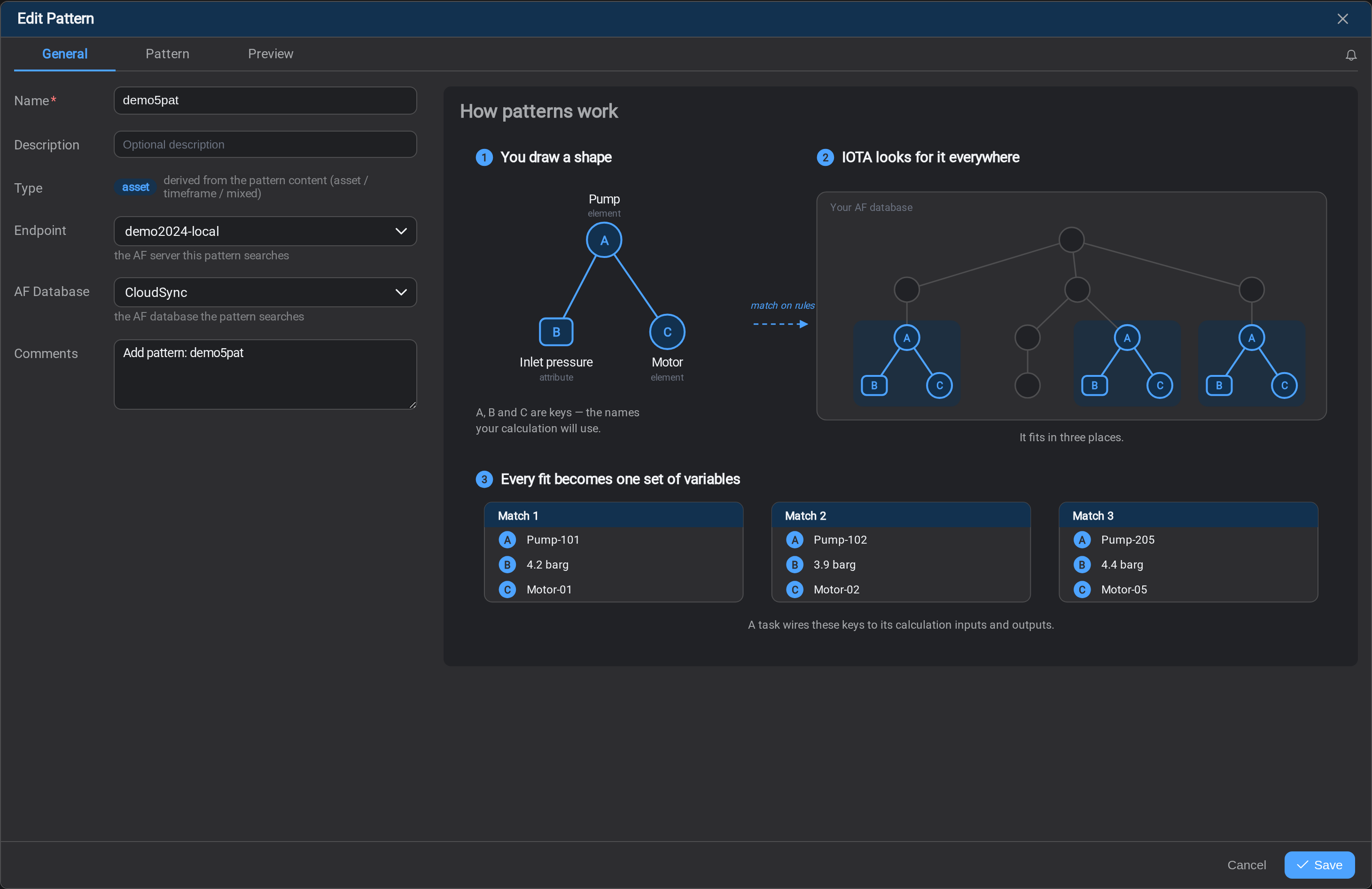
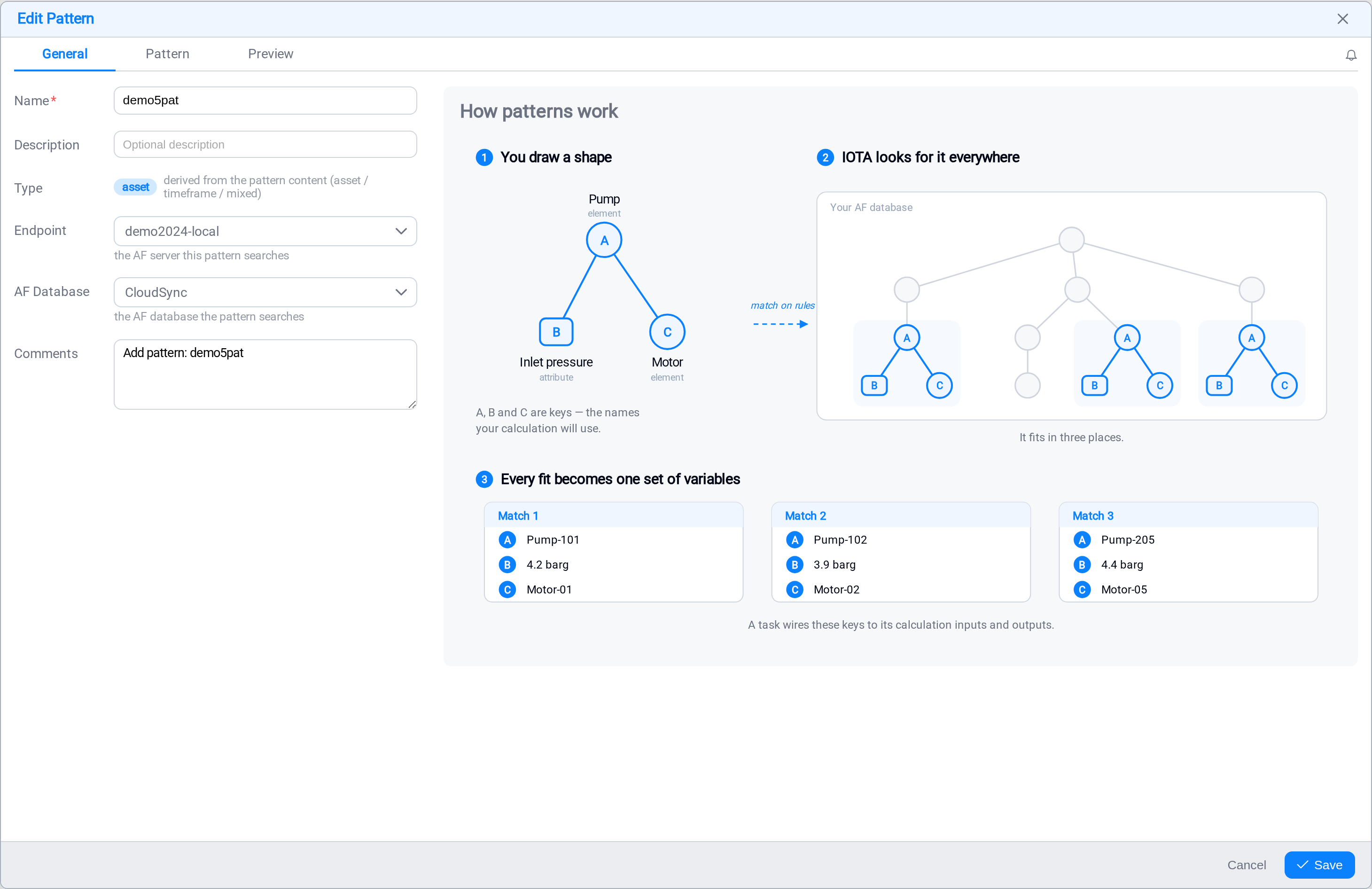
| Field | Notes |
|---|---|
| Name | How tasks will refer to this pattern |
| Description | Free text: worth recording what the pattern is for |
| Type | Whether the pattern matches assets or timeframes |
| Endpoint | Which PI System connection to search |
| Database | Which AF database within it |
Pick the endpoint before the database: Stream lists the databases it can actually
see through that connection, so the list stays empty until an endpoint is chosen.
Pattern
This is where you describe the assets. The tab has three panes, and you work across
them left to right.
| Pane | What it is for |
|---|---|
| Left | Browse your AF hierarchy. Search by name or mask, expand with ⌄ |
| Middle | The attributes of whatever you selected on the left. Tick the ones you want |
| Right | The pattern you are building |
The working sequence
Four steps, left to right. The screenshot below shows the state at the end of
step 3, just before the drag.
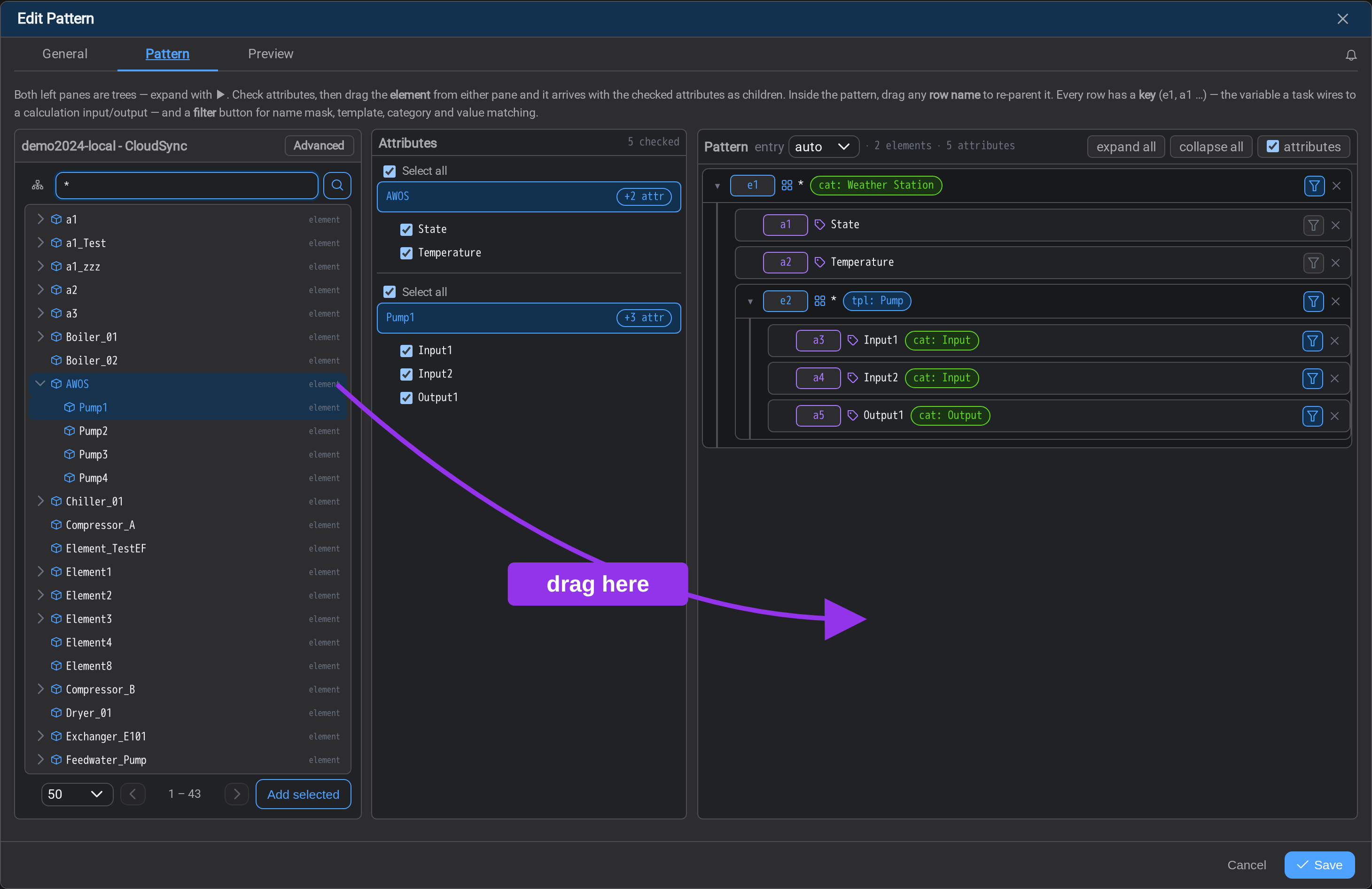
1. Find your assets. Type a name or a mask in the left pane: SIN* finds
everything starting with SIN, * lists everything, and select the search control.
Use the page-size control and arrows at the bottom to work through large results.
2. Expand to reach the children. Select the ⌄ caret beside an element to open
it. In the screenshot, AWOS is expanded to reveal Pump1 throughPump4 beneath it. This is where you see the parent/child relationship you are
going to turn into pairs.
3. Select the elements and tick their attributes. Click an element to select it,
then Ctrl-click to add more: here both AWOS and Pump1 are selected. The
middle pane fills with the attributes of everything selected, grouped by element,
with a count at the top. Tick the ones you want, or use Select all for a whole
group.
4. Drag into the Pattern pane. Drag either selected element across to the right,
and it arrives with its checked attributes already attached as children: you do
not add them one at a time. Drag the second element too, then drop it onto the first
to nest it.
Select both halves of the pair before you drag
Selecting the parent and the child together means the middle pane shows both sets of
attributes at once, so you tick everything the analysis needs in one pass. In the
screenshot that is State and Temperature from the weather station plus Input1,Input2 and Output1 from the child: five attributes, one trip.
Add selected at the bottom of the left pane brings several elements across at
once, which is quicker than dragging when you have picked out many.
Building a pattern that pairs assets
Re-parenting is what turns a list into combinations. Drag one element's row name
onto another inside the Pattern pane, and it becomes that element's child.
For the weather-station example:
- Add the weather station element, with its temperature attribute ticked.
- Add the pump element, with its production attributes ticked.
- Drag the pump's row onto the weather station's row.
The Pattern pane now reads as a parent with a child beneath it, and that nesting is
the instruction: for each weather station, find every pump under it, and give me
one match per pair.
The count at the top of the pane, 2 elements · 5 attributes in the screenshot,
describes the pattern, not the matches. One weather station and one pump in the
pattern can still produce a thousand matches.
Nesting is a relationship, not a filter
Putting the pump beneath the weather station does not mean "pumps named like weather
stations". It means "pumps that live under a weather station in the hierarchy". If
your assets are siblings rather than parent and child, the pattern will not pair
them: the hierarchy has to already express the relationship you want to analyse.
Row keys
Every row in the pattern carries a small key: e1, e2 for elements, a1, a2
for attributes.
These are how a task refers to the pattern's parts, and they are what makes one
calculation serve a thousand assets.
When you write the calculation, you wire its inputs to keys: a2 for the weather
station's temperature, a4 for the pump's production: never to attribute names.
On each match those keys resolve to that pair's values. The formula is written
once and reads pump 1's production on match 1 and pump 1000's on match 1000, without
knowing anything about either pump's naming.
The same applies to the mapping: one column defined as a4.value
produces the right pump's figure in every row.
Keys are assigned as you add rows and stay stable afterwards, so a calculation does
not break when you add another attribute to the pattern later.
Narrowing what matches
A bare element row matches on name alone. The filter control on each row (▽)
opens the matching options, so you can require a template, a category, or a value
instead.
| Filter on | Use it when |
|---|---|
| Name mask | The assets follow a naming convention |
| Template | The assets were built from a known AF template: usually the most reliable choice |
| Category | The assets are tagged into an AF category |
| Value | You want only assets whose attribute is in some state |
In the screenshot above, e1 requires the Weather Station category and e2
requires the Pump template. The badges on each row show the filters that
are active, so you can read the whole pattern's rules without opening anything.
Prefer template or category over name masks where you can. A naming convention
holds until somebody commissions an asset that does not follow it; a template
holds because the asset could not have been built without it.
The entry control
The entry dropdown at the top of the Pattern pane sets which row the search
starts from. Leave it on auto unless you have a reason not to: Stream picks
the row that makes the search cheapest.
Preview
The Preview tab resolves the pattern against your PI System and shows you what it
actually matched. Nothing happens until you ask it to: select Run Preview.
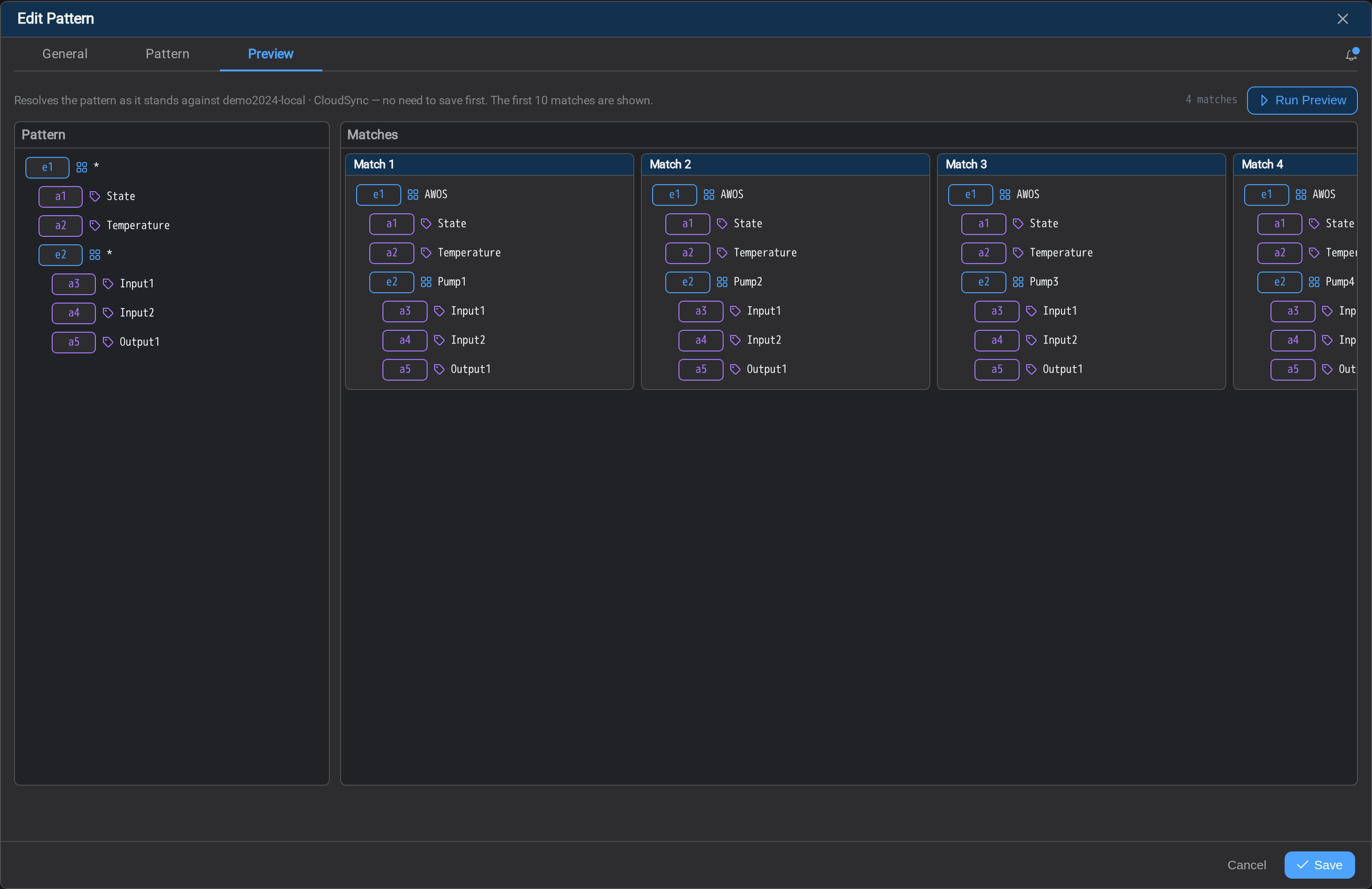
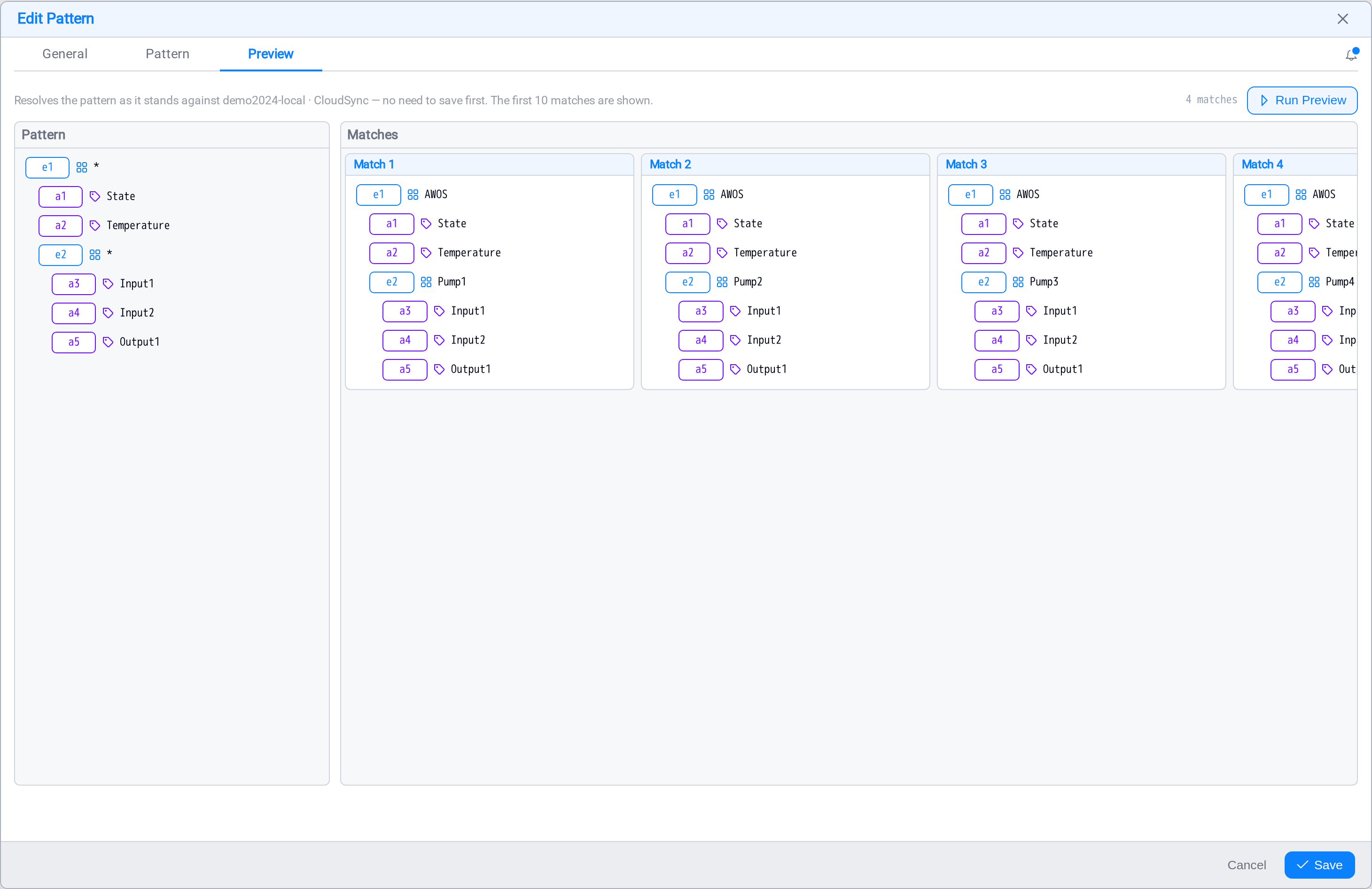
Your pattern stays on the left. Each match becomes a column on the right, and a
match is one combination: the same keys in the same order, with the placeholder
names replaced by the assets that combination resolved to.
This is where the pairing becomes visible. In the screenshot, e1 resolves toAWOS in every column while e2 resolves to Pump1, then Pump2, then Pump3,
then Pump4: one weather station, four pumps, four matches.
The screenshots in this guide come from a small demo site. A real field with a
thousand pumps produces a thousand matches from exactly the same pattern, and
everything you build on top of it is unchanged.
The fixed column is the parent; the varying column is what it is paired with.
Reading across the match headers tells you what the task will actually iterate over.
The match count sits beside the Run Preview button. Scroll the pane sideways to
see the rest.
You do not need to save first, so you can try a filter, preview it, adjust, and
preview again.
The first ten matches are shown, which is enough to check the shape without waiting
for a large hierarchy to enumerate: the count tells you the real total.
Always run this before saving. A pattern that matches nothing is the most common
configuration mistake in Stream, and it is silent: the task you build on it will
run, succeed, and write nothing at all.
Read the result for three things:
- The count. For a pairing pattern this is the number of combinations, not the
number of assets: one weather station over a thousand pumps is a thousand matches,
and that is also how many times the task will run. A count of one when you expected
hundreds usually means the child element is not actually beneath the parent in the
hierarchy, so nothing paired. - The names. Are these the assets you meant? A name mask that is too loose will
happily pull in test assets and decommissioned units, and on a pairing pattern
that multiplies, because every stray child pairs with the parent too. - Gaps in a column. A row that resolved to nothing on one match but not others is
an asset missing that attribute. The pattern still matches, and the task will still
run: it will just have nothing to read there. Decide now whether that asset
belongs in the pattern, or whether the mapping column should be
nullable.
If the preview comes back empty and you believe the pattern is right, check the
account on the endpoint. A pattern can only match assets the
connection's account is allowed to see, and a permissions gap looks exactly like a
pattern that does not match.
Select Save when the preview looks right.
Editing a pattern that tasks already use
Editing a pattern changes what every task built on it reads. Widening a filter
means those tasks start covering more assets on their next run, which is usually
what you want. Narrowing one means they quietly stop covering assets they used to,
which usually is not.
Check the Preview tab after any edit, and if the pattern has a
cache, rebuild it, until you do, tasks keep using the matches
stored from the previous version.
What's Next
A pattern that matches many assets is worth caching so tasks do not re-search the
hierarchy on every run. Continue to Pattern Cache →.