
Schedule
Schedule
A task does nothing until something runs it. The Schedule tab: the last one in
the dialog: lets you give the task its schedule at the moment you create it, instead
of going to Task Scheduler afterwards.
It is the same form as the one in Task Scheduler, offered a tab earlier.
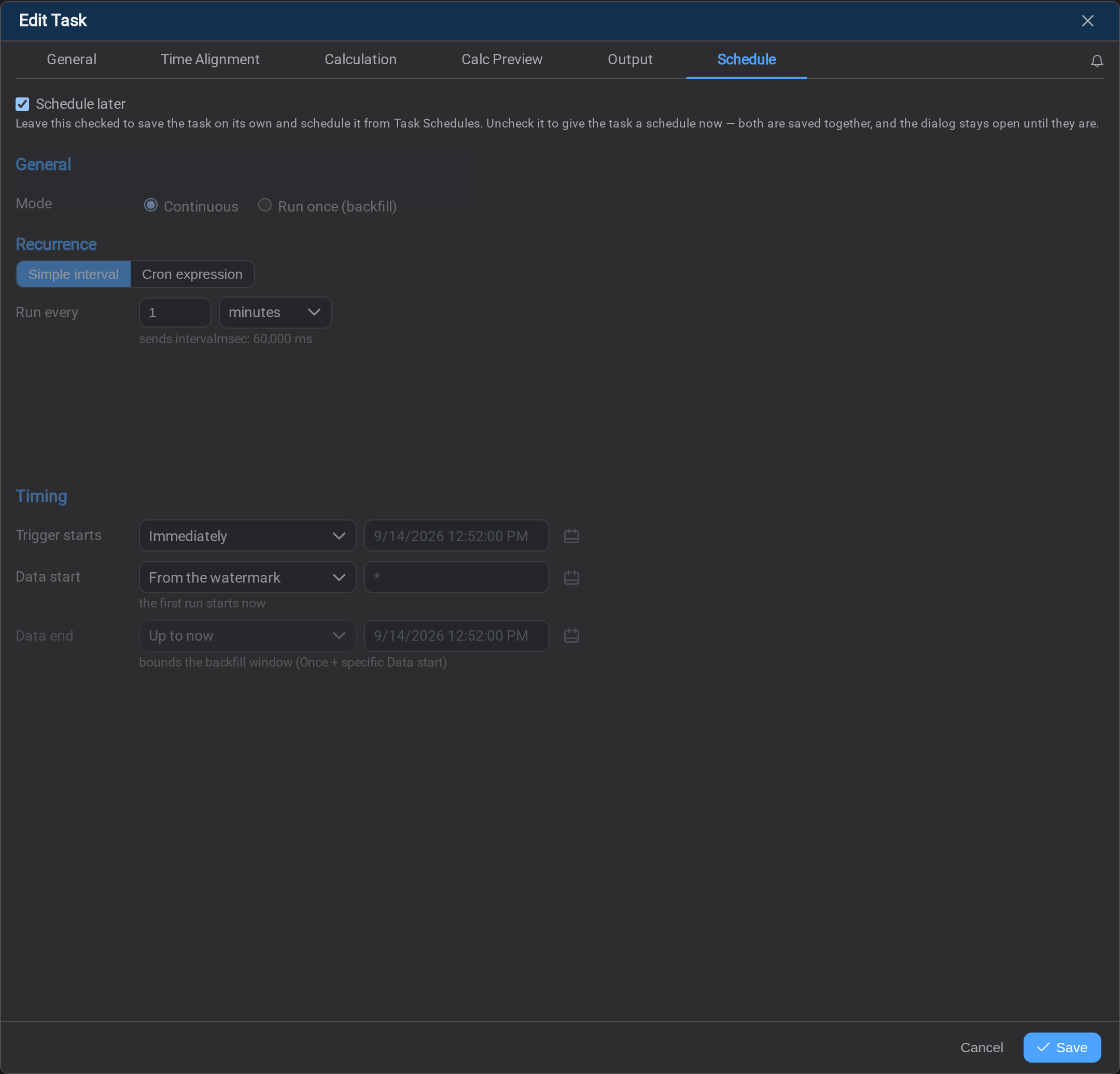
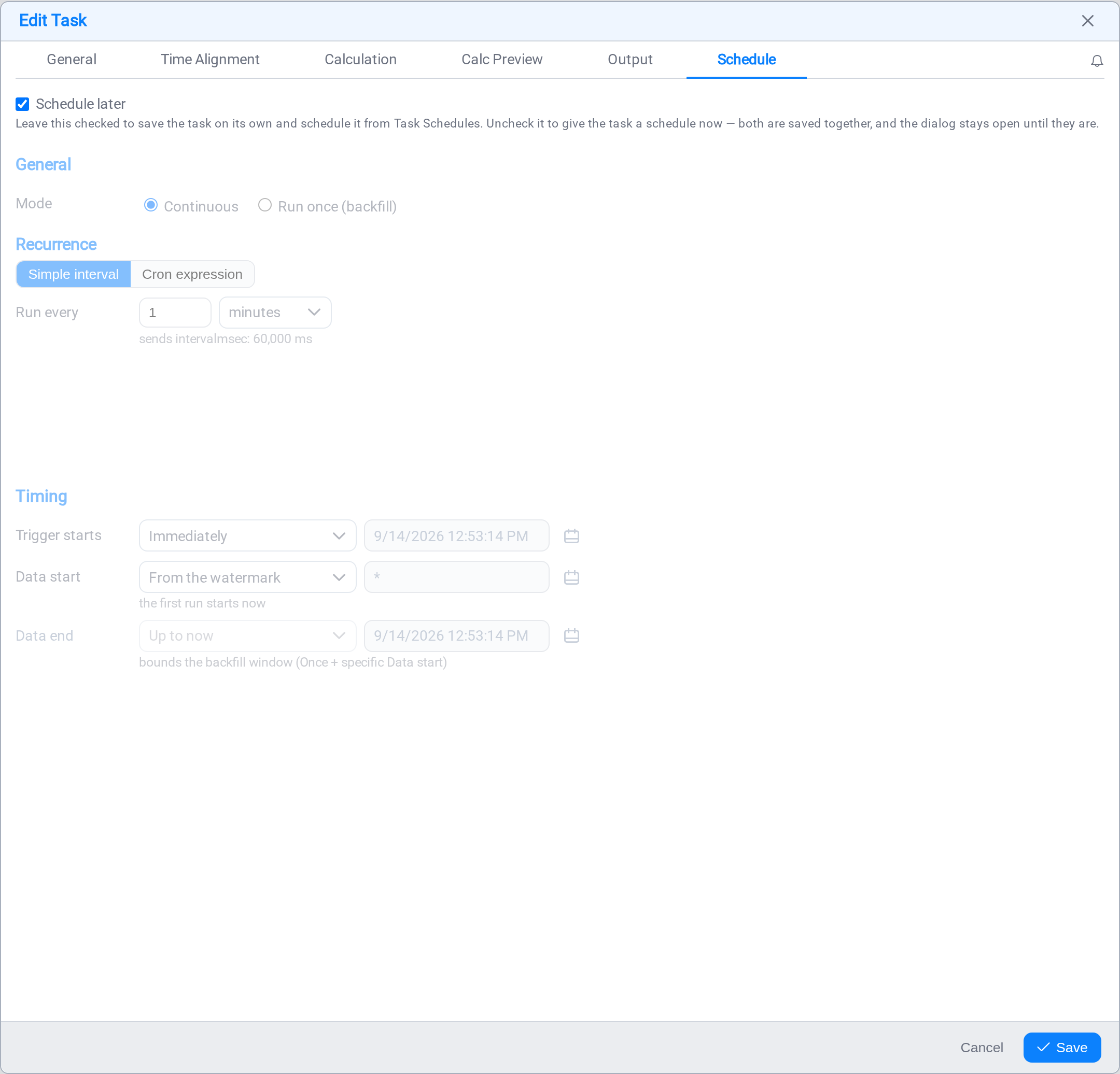
Schedule later
The tab opens with Schedule later checked, and the form beneath it inert. That is
the default: a new task is saved on its own, with no schedule, and nothing runs until
you give it one.
| Schedule later | What Save does |
|---|---|
| Checked (default) | Saves the task alone. Schedule it afterwards from Task Scheduler. |
| Unchecked | Saves the task and its schedule together, and the task starts running on it. |
Uncheck it and the form below comes to life. Both halves are saved as one action, and
the dialog stays open until both have been written, so you never end up with a saved
task whose schedule silently failed.
Which one to use
Leave it checked while you are still working the task out. A schedule attached to a
task you are about to change means runs firing between your edits.
Uncheck it when the task is finished and previewed, and you want it live the moment
you press Save.
One schedule, one place to edit it
A task holds at most one schedule. Once it has one, this tab stops offering the
form and says so:
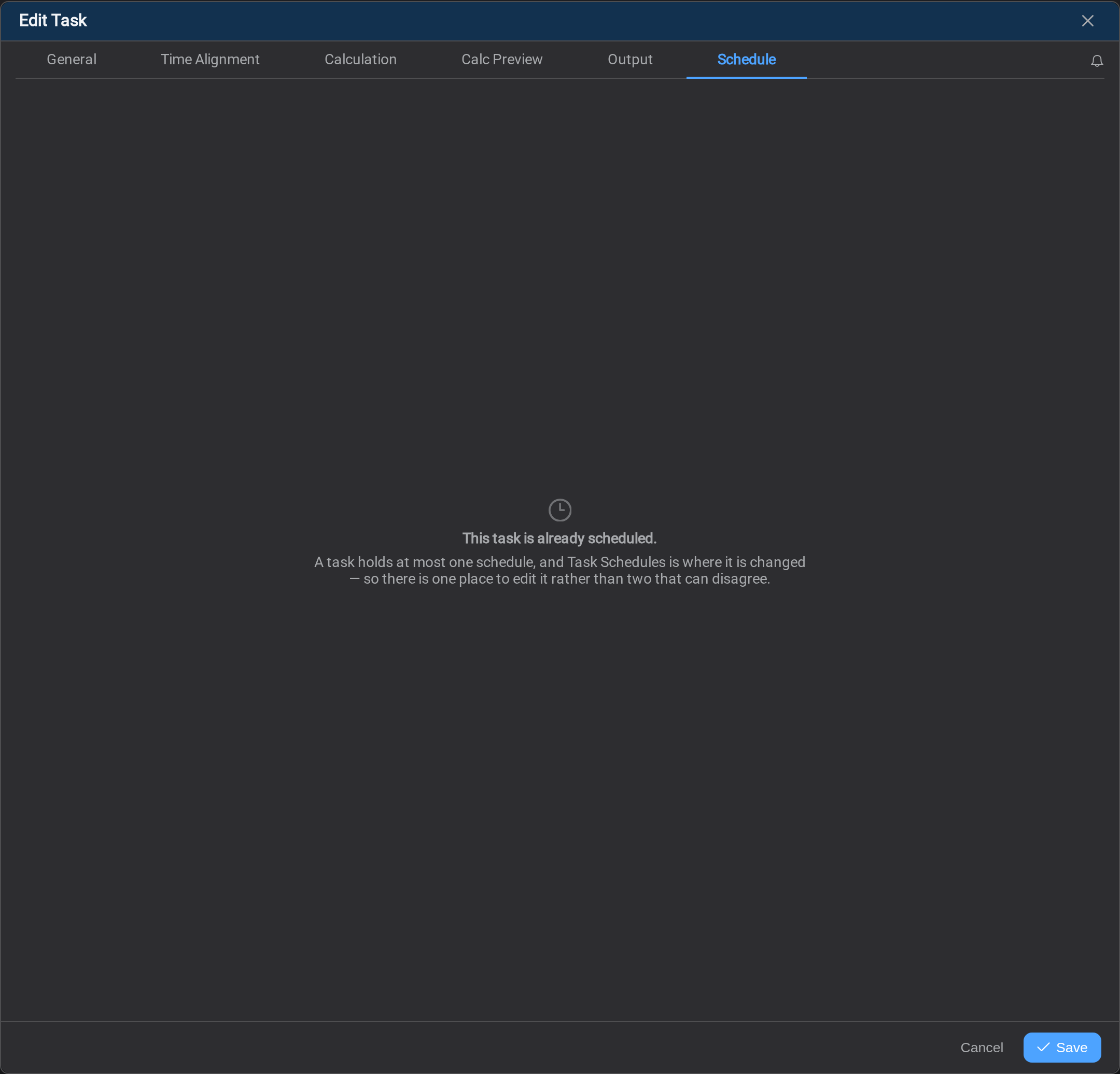
From then on the schedule is changed in Task Scheduler and nowhere
else. Two places to edit one schedule would be two places that can disagree about
it.
It also means this tab is for creating a schedule, not for maintaining one. If you
came here to change a cadence, you want Task Scheduler.
How to configure it
Everything in the form (the mode, the cadence, and where a run starts reading), works
exactly as it does in the scheduler, and is documented there:
- Mode: run continuously, or once to backfill
- Cadence: a simple interval, or a cron expression
- Timing: when the trigger starts and what window each run reads
- Where a run starts reading: the watermark, and what happens after a pause
- On a tag sync task: a position per destination tag, and where each one starts
Changing a live schedule means pausing it
A running schedule cannot be edited in place: selecting Edit on one offers to
pause it and open the editor in a single step. See
Changing a schedule.
What's Next
Once the task is scheduled, watch what it actually does. Continue to
Task Scheduler →.
Related
- Task Scheduler: the full form, the states, and changing a schedule
- Tasks: the tabs as a whole
- Calculation Preview: check the task before you schedule it
- Logs: what happened on the last run