
Integrating with External Applications
Integrating with External Applications
IOTA Vue connects with external applications in two directions: embed external content inside IOTA displays using the iFrame component, and open IOTA displays from external systems with a pre-configured context using URL parameters.
Embedding External Content
You can bring external content into a display in two ways: the iFrame component for live web pages and applications, and the PDF component for static documents. Both live in the Complex group of the Components toolbox.
The iFrame Component
The iFrame component renders any web page or application inside an IOTA display canvas: live Power BI reports, Seeq Workbench sessions, internal portals, documentation, or other dashboards, without leaving the IOTA interface.
Because the page is embedded live, viewers can interact with it right on the display: pan, zoom, click, and scroll the embedded app just as they would in the original tool. In the example below, the embedded Seeq Workbench trend stays fully interactive.
Find it in the Complex group of the Components toolbox.
For a full video walkthrough, see the iFrame deep-dive tutorial.
The GIF shows the whole flow: placing an IFrame, pointing it at a URL (here, a Seeq Workbench trend), and locking the display so the external page renders inline beside the schematic:
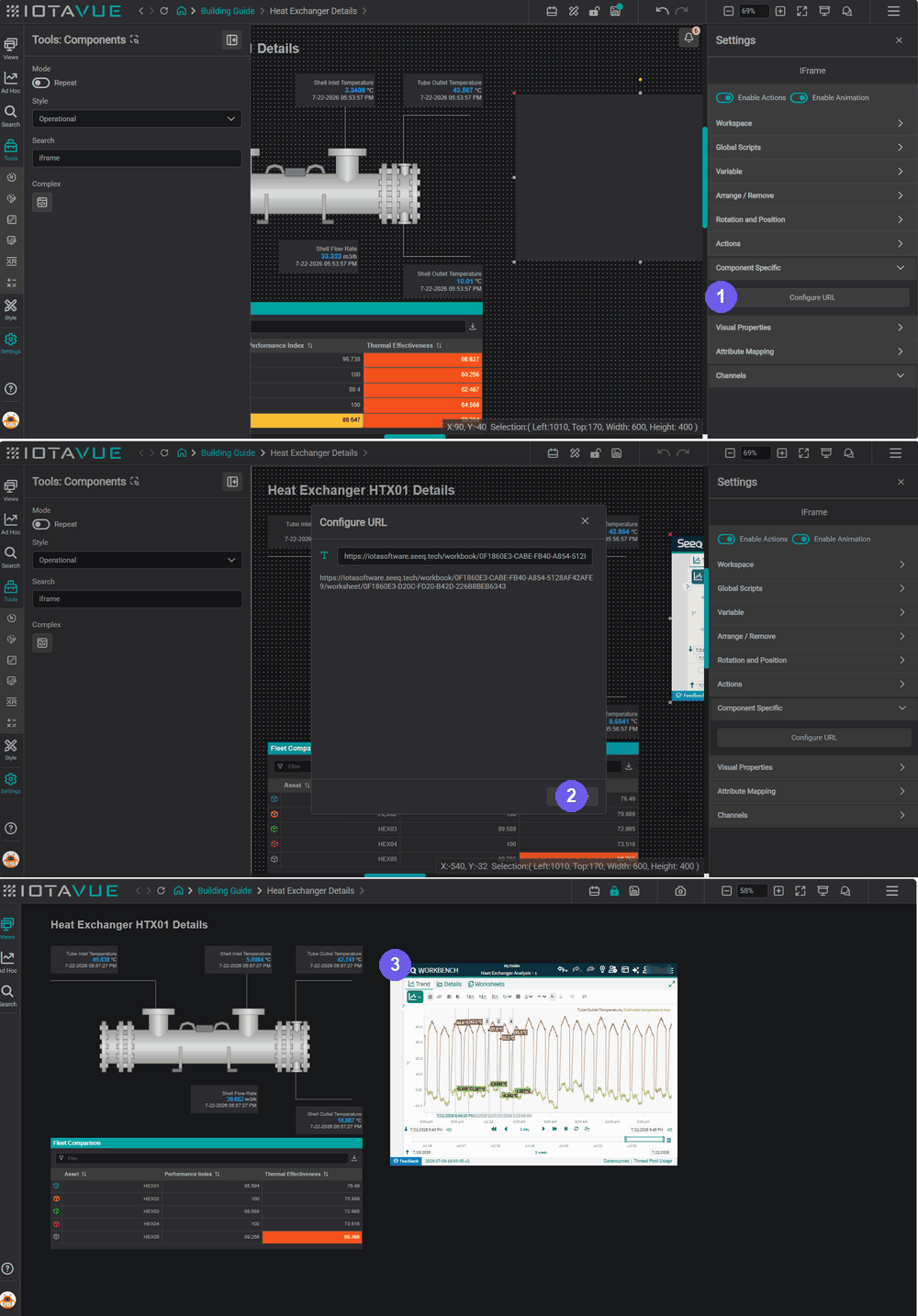
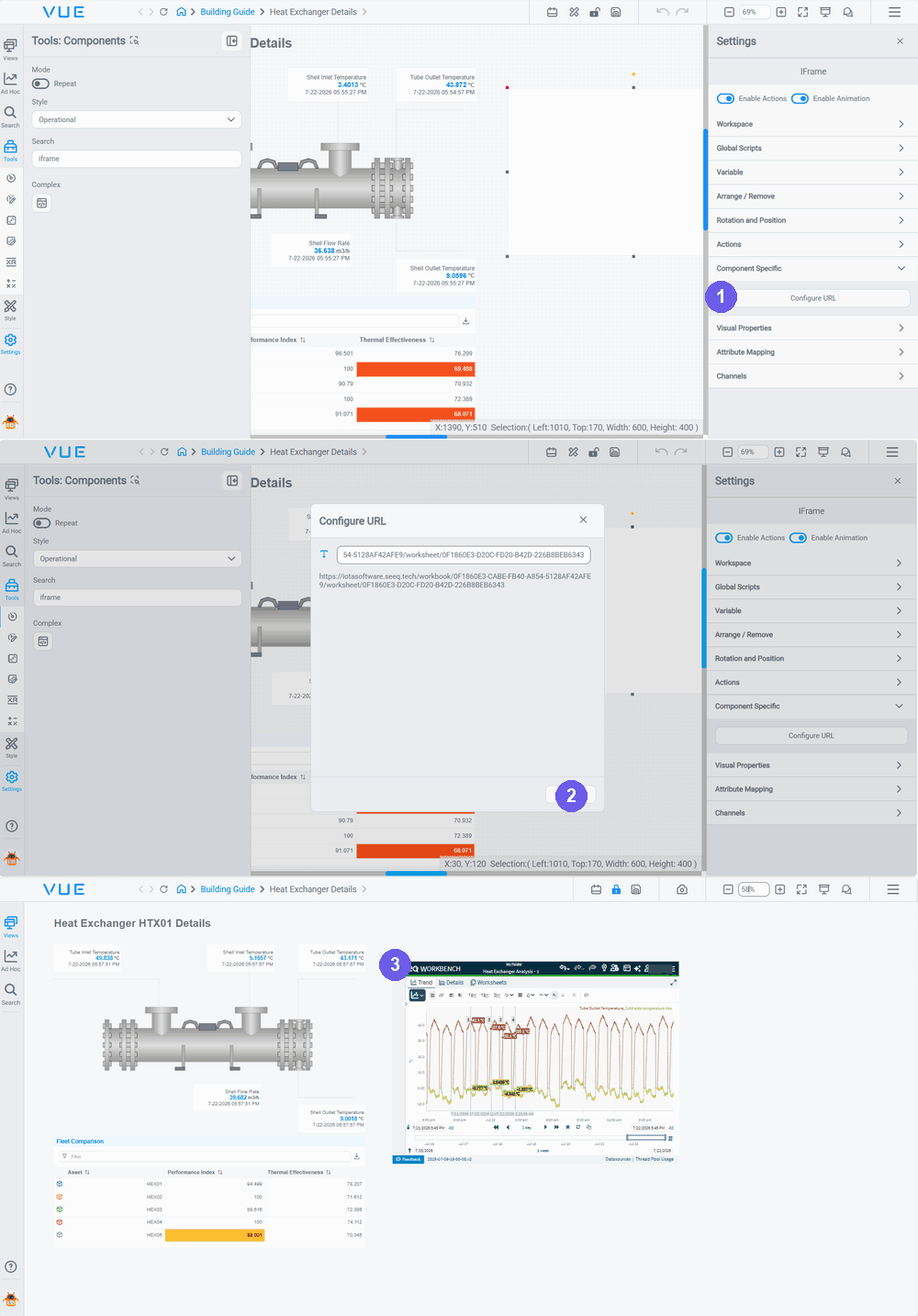
- Add the IFrame: drag an IFrame component (Components → Complex) onto the canvas, select it, then in Settings → Component Specific click Configure URL.
- Enter the address: paste the web address (here, a Seeq Workbench worksheet URL) into the field and click Apply.
- Lock the display: the external page renders inline alongside your components.
Embedding a Power BI Report
Paste the Power BI embed URL directly into the iFrame component's URL field. Power BI provides embed URLs from the Embed dialog in the Power BI service.
To control what the embedded report displays (hide panels, open a specific page, or pre-filter the data), append URL parameters to the embed URL.
Controlling layout and navigation
| Parameter | Effect |
|---|---|
navContentPaneEnabled=false | Hides the page navigation panel |
filterPaneEnabled=false | Hides the filter pane |
pageName=ReportSection2 | Opens a specific page by section name |
action=bookmark&bookmarkGuid=<id> | Loads a specific saved bookmark |
Tips
navContentPaneEnabled=false is the most common parameter when embedding single-page reports: the page navigation panel adds no value on a single-page embed and takes up canvas space.
Pre-filtering report data
You can filter the report's data on load using URL filters. This lets a single Power BI report load already scoped to the right region, asset, or context:
&filter=Table/Field eq 'Value'Example: show only the West region from the Sales table:
https://app.powerbi.com/reportEmbed?reportId=abc123&groupId=xyz456&filter=Sales/Region eq 'West'Warning
Filter field names must match the model field names, not the display names shown in the report. Filters follow OData syntax and are case-sensitive.
Combining parameters
Chain multiple parameters with &:
https://app.powerbi.com/reportEmbed?reportId=abc123&groupId=xyz456&navContentPaneEnabled=false&filterPaneEnabled=false&pageName=ReportSection2For the full parameter list and detailed filter syntax (including in, and, or), see the Microsoft Power BI URL filter documentation.
The PDF Component
To show a static document inside a display (a datasheet, standard operating procedure, safety bulletin, or reference drawing), use the dedicated PDF component.
Unlike the iFrame, the PDF component takes an uploaded file, not a URL. The GIF shows the flow; add the component, upload the file, set the viewer options, and lock the display so the document renders inline:
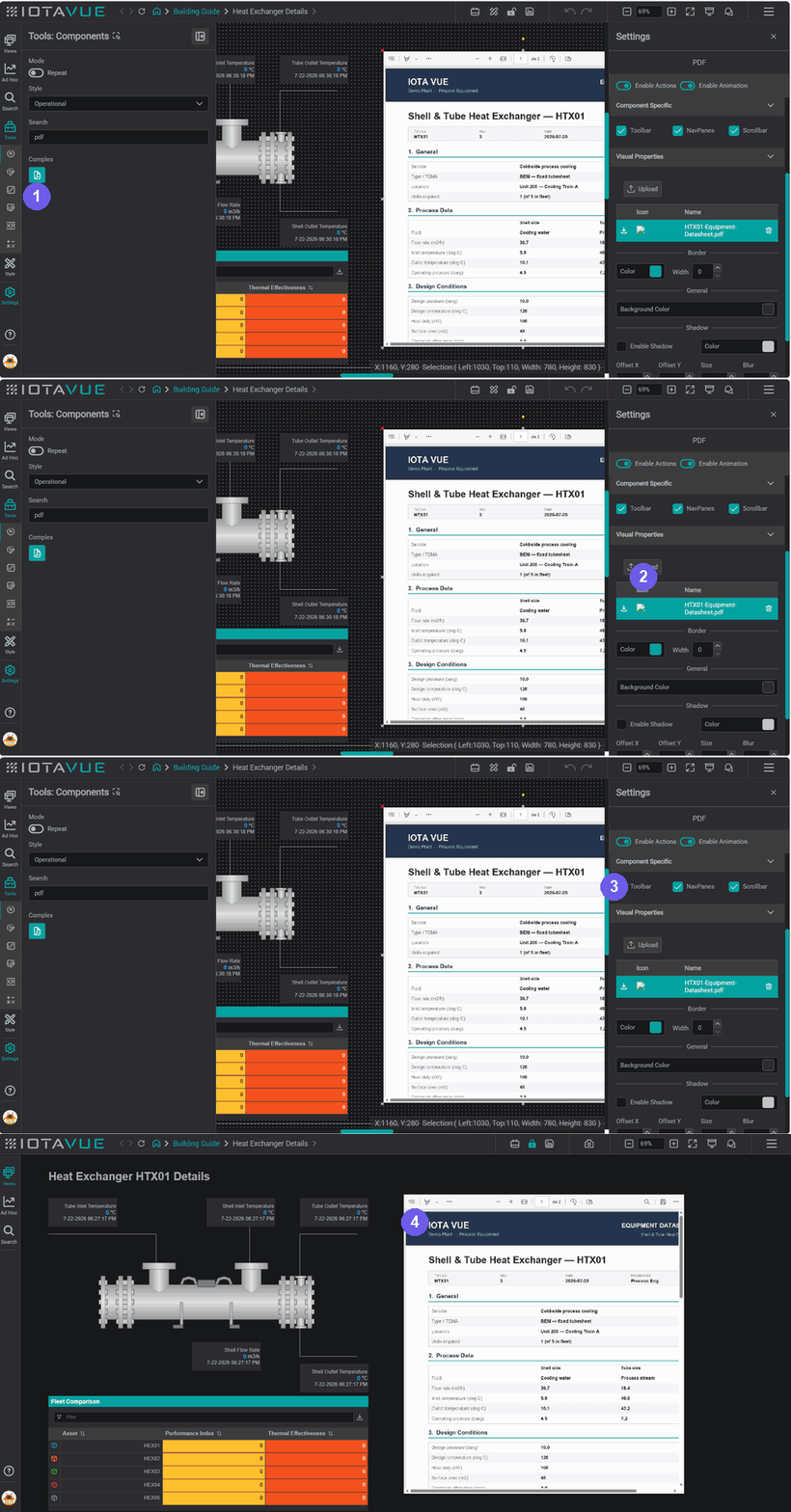
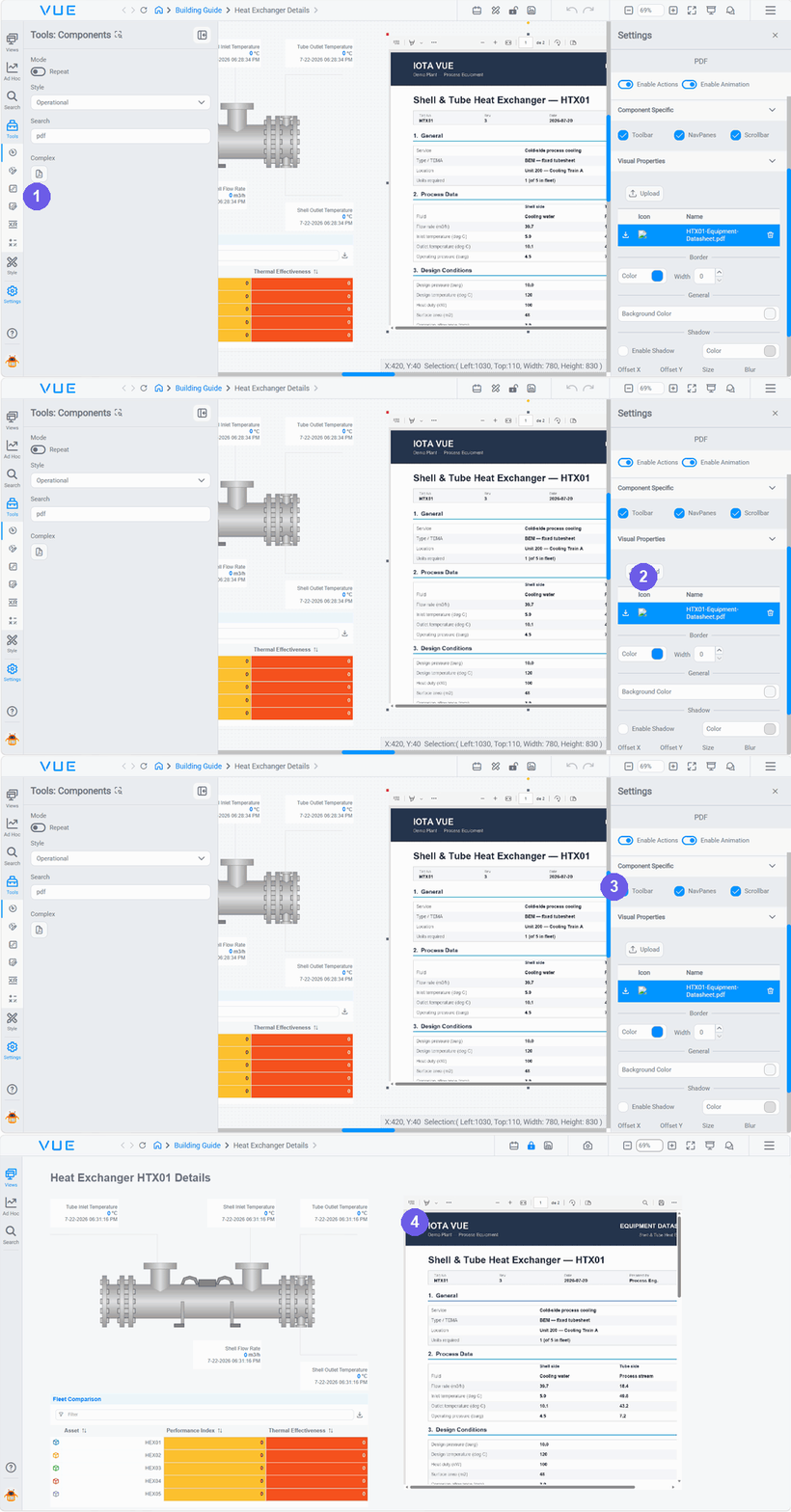
- Find the component: search pdf in the Components toolbox and add the PDF component from the Complex group.
- Upload the file, in Settings → Visual Properties, click Upload and choose a
.pdffrom your computer; it appears in the file list below the button. - Set the viewer options: under Settings → Component Specific, toggle Toolbar, NavPanes, and Scrollbar (defined below).
- Lock the display: the document renders inline using the browser's built-in PDF viewer.
Because the file is uploaded and stored with the display, it travels with the view: no external hosting, link, or network access is required for viewers to see it.
PDF Viewer Options
Under Settings → Component Specific, three toggles control the embedded viewer's chrome:
| Option | Effect |
|---|---|
| Toolbar | Show the PDF viewer's toolbar: page controls, zoom, print, and download |
| NavPanes | Show the navigation / page-thumbnail side panel |
| Scrollbar | Show the scrollbar for paging through a multi-page document |
All three are off by default, giving a clean, chrome-free embed. Turn on Toolbar if viewers need to zoom, print, or download the document, and Scrollbar or NavPanes for longer multi-page files. The component also supports Border, Background Color, and Shadow styling under Visual Properties, like other Complex components.
PDF component vs. iFrame
Use the PDF component for a document you upload and want bundled with the display. If the document instead lives at a URL you maintain, for example a SharePoint or web-hosted PDF, point an iFrame at that URL; most browsers render a PDF link inline in the frame.
Opening IOTA Displays from External Applications
IOTA displays accept URL parameters, letting external tools (Power BI reports, web apps, portals), link directly to an IOTA display that is already scoped to a specific asset or context. The viewer clicks a link and lands on the correct display with no manual selection needed.
URL Format
Append parameters to the IOTA display URL using standard query string syntax:
https://your-iota-instance.com/iota/PROJECT/FOLDER/DisplayName?parameterName=valueExample; open a pump display pre-scoped to asset N12004:
https://iota-dev.com/iota/PRODUCT/IOTA%20Demo%20Home/Asset-Display?assetName=N12004Any parameter name works: assetName is a convention, not a reserved keyword. Use whatever name makes sense for your use case and matches what your script or dropdown setting expects.
Warning
The parameter value (e.g. N12004) must exactly match the asset name as defined in the IOTA data source or asset model, including case. A mismatch means the display cannot resolve the asset and the selection will not apply.
Option 1: No-Code: Dropdown URL Query Param
If your display uses a Dropdown component for asset context switching, you can configure URL parameter reading directly on the component with no scripting required.
- Select the Dropdown component on the canvas.
- Open the Settings panel and go to Component Specific.
- Set URL Query Param to the parameter name used in the incoming link (e.g.
assetName).
When the display opens with ?assetName=N12004 in the URL, the Dropdown automatically reads the value, matches it to an available option, and selects it on load: triggering any configured Interactions to update the rest of the display.
When to use: you have a standard Dropdown for asset switching, options come from a data source, and no custom matching logic is needed.
Option 2: Scripted: Read the Parameter Programmatically
For more control (multiple components, custom matching logic, or multiple parameters), read URL parameters in a script and apply them yourself.
Place this script on the Dropdown component's onData trigger:
const assetName = this.$route.query.assetName;
const selectedOption = this.settings.options?.find(
  option => option.name === assetName
);

if (!selectedOption) return;

this.settings.value = selectedOption;
this.onValueChange();

// Add your URL-generated interactions here to set channels
// on other components in the display.
How it works:
- Reads the URL parameter from
this.$route.query - Finds the matching option in the dropdown's available options
- Sets it as the selected value
- Calls
this.onValueChange()to fire any configured Interactions and update connected components
When to use: multiple components need updating, the parameter value requires transformation or mapping, or you need to handle more than one URL parameter.
Two triggers are doing different jobs here, so they don't conflict: the reader script sits on onData (it fires once the dropdown's options have loaded), and the SetChannels Interactions that push the selected asset out to the rest of the display sit on the dropdown's onClick trigger: this.onValueChange() fires them after the value is set.
Tips
You can pass any number of parameters in one URL (asset name, time range, mode, filter values) and read each one the same way using this.$route.query.parameterName.
Troubleshooting
Asset is not being selected
- The value in the URL must exactly match the asset name in the data source, including case.
- Confirm the asset exists in the dropdown options. Add
console.log(this.settings.options)to verify at runtime.
Dropdown loads but selection does not apply
- The script must run after the dropdown options are populated. The
onDatatrigger ensures this; avoid usingonCreatefor this pattern. - Verify
this.settings.optionsis not empty when the script runs.
Parameter appears missing or not recognized
- Check the URL format:
?parameterName=valuewith no spaces, using%20for spaces in values. - Confirm the parameter name in the URL exactly matches the name in your script or the URL Query Param setting (both are case-sensitive).
Display updates inconsistently
- Verify
this.onValueChange()is called after setting the value. - Check that Interaction actions (SetChannels) are configured on the dropdown's
onClicktrigger and fire after the value is applied.
Video walkthrough
Watch a walkthrough of embedding external web content with the iFrame component.
Note
This walkthrough was recorded on an earlier version of IOTA: some steps or UI may differ from the current app.
What's Next
Your displays can now pull in external web apps and dashboards. The next section moves into scripting: starting with interaction functions that let components drive each other programmatically. Continue to Interaction Functions.
Related
- iFrame: Video: embed Seeq, Power BI, and other web applications in a display
- Organizing Complex Displays: use tabs and subviews to structure content within a display
- Actions & Interactions: wire components so a dropdown drives live data updates across the display
- Navigation Functions: scripting reference for programmatic navigation with context
- Passing Context: full reference for URL parameters and context variables passed between displays